How Can I Check My Wi Fi Signal Strength Right Now
Checking your Wi-Fi signal strength is quick, free, and easy. You can use your phone, laptop, or router settings to measure signal power and find dead zones. This guide shows you exactly how to test Wi-Fi signal strength on any device right now.
Key Takeaways
- Built-in tools on your phone and laptop let you check Wi-Fi signal strength in seconds without downloading anything.
- dBm readings give you precise numbers to understand how strong or weak your wireless signal really is.
- A Wi-Fi analyzer app helps you spot channel congestion and interference causing slow speeds.
- Router settings and signal bars are a great starting point but not always accurate for real performance.
- Simple fixes like repositioning your router can boost signal strength across your home immediately.
📑 Table of Contents
- How Can I Check My Wi Fi Signal Strength Right Now
- How to Check Wi-Fi Signal Strength on Your Phone
- How to Check Wi-Fi Signal Strength on Your Laptop
- Understanding dBm Signal Strength Readings
- Using a Wi-Fi Analyzer App for Detailed Testing
- Quick Tips to Improve Your Wi-Fi Signal Strength
- Common Mistakes People Make When Checking Signal Strength
- Final Thoughts on Checking Your Wi-Fi Signal Strength
How Can I Check My Wi Fi Signal Strength Right Now
There is nothing more frustrating than a slow internet connection. You are trying to stream a movie, join a video call, or finish some work, and everything buffers or lags. The problem might be your Wi-Fi signal strength. Knowing how strong your wireless signal is can save you a lot of headache. It helps you figure out if the issue is your internet plan, your router, or just your distance from the router. In this guide, we walk you through every easy way to check your Wi-Fi signal strength right now. You do not need to be a tech expert. These methods work on phones, laptops, and tablets. Let us get started.
Your Wi-Fi signal strength tells you how much power your wireless network has at any given spot. The stronger the signal, the faster and more stable your internet connection will be. Weak signals mean slow downloads, dropped calls, and endless buffering. Many people ignore signal strength until things get really bad. But checking it regularly is a smart habit. It helps you troubleshoot problems before they ruin your day. Whether you are working from home or just browsing, a strong wireless signal makes all the difference. Below, we cover the simplest and most effective ways to measure your signal. You will learn what the numbers mean and how to improve them.
Why Wi-Fi Signal Strength Matters
Think of your Wi-Fi signal like the volume on a speaker. When you are close to the speaker, the sound is clear and loud. Move far away, and it gets quiet and fuzzy. The same thing happens with your wireless network. Your router sends out a signal that spreads through your home. Walls, floors, and furniture can weaken that signal. The further you move from the router, the weaker it gets. A strong signal gives you fast speeds and reliable connections. A weak signal causes lag, buffering, and dropped connections. This is why checking your Wi-Fi signal strength matters so much. It helps you understand where your network works well and where it does not.
Many people blame their internet provider when things slow down. But the real issue is often signal strength, not internet speed. If your router is in the wrong spot or your walls are too thick, your signal suffers. This is especially common in larger homes or buildings with lots of rooms. Checking your signal helps you pinpoint the problem. You might find that your living room has great coverage but your bedroom does not. Once you know that, you can fix it. You can move your router, add a signal booster, or adjust your settings. The first step is always measuring your current signal strength. Without that, you are just guessing.
How to Check Wi-Fi Signal Strength on Your Phone
Your phone is the easiest tool to check Wi-Fi signal strength. You probably carry it everywhere. Both Android and iPhone let you see signal strength with just a few taps. Here is how to do it on each type of phone.
On iPhone
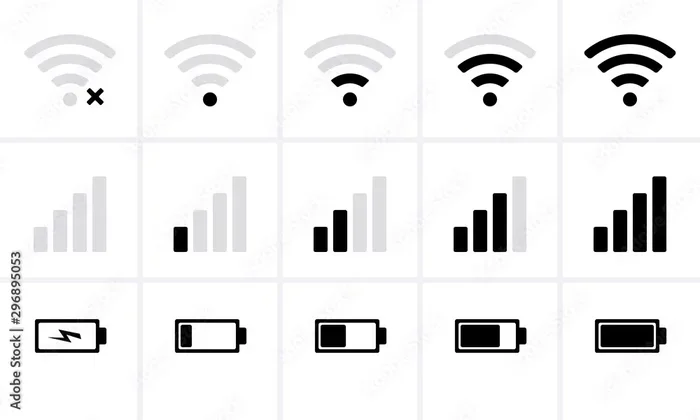
Apple does not show exact signal numbers by default. But you can still get a good idea of your Wi-Fi signal strength. Open your Settings app and tap on Wi-Fi. Look at the list of available networks. Next to your connected network, you will see signal bars. More bars mean a stronger signal. Fewer bars mean a weaker connection. This gives you a quick visual check. It is not super precise, but it works well for everyday use.
If you want exact numbers, you can use a Wi-Fi analyzer app from the App Store. Apps like Wi-Fi SweetSpots or Network Analyzer show you detailed signal information. They display your signal strength in dBm (decibel-milliwatts). This number tells you exactly how strong your wireless signal is. We will talk more about dBm readings in a moment. For now, just know that these apps turn your phone into a powerful network troubleshooting tool.
On Android
Android phones give you more detail right out of the box. You can see your Wi-Fi signal strength in the quick settings panel. Swipe down from the top of your screen and look for the Wi-Fi icon. The number of bars shows your signal strength. More bars equal a stronger connection.
For exact numbers, go to Settings and tap on Network or Connections. Then select Wi-Fi and tap on the network you are connected to. You will see a signal strength reading. Some Android phones also show this in the Wi-Fi details section. Look for a field called “Signal strength” or “RSSI.” This number is your dBm reading. It is the most accurate way to measure your wireless signal power. Android makes it easy to track your signal in real time.
How to Check Wi-Fi Signal Strength on Your Laptop
Laptops are another great device for checking Wi-Fi signal strength. Whether you use Windows or Mac, there are built-in tools you can use. You do not need to install anything extra unless you want more detail.
On Windows
Windows has a built-in Wi-Fi signal checker that works well. Click on the Wi-Fi icon in your taskbar (bottom right corner). A panel will pop up showing your connected network. Look at the signal bars next to your network name. Five bars mean excellent signal. One bar means very weak signal.
For more precise numbers, you can use the built-in Command Prompt tool. Open Command Prompt and type netsh wlan show interfaces. Press Enter. You will see a line that says “Signal” with a percentage. This percentage tells you exactly how strong your Wi-Fi signal strength is. A higher percentage means a stronger connection. This method is free and works on every Windows computer. It is one of the best ways to check your signal without downloading anything.
On Mac
Mac users have a simple built-in option. Hold down the Option key and click on the Wi-Fi icon in your menu bar. A drop-down menu will appear with detailed information. Look for “Signal Strength” listed there. It shows a number in dBm. This is your exact wireless signal measurement. The closer the number is to zero, the stronger your signal. Numbers like -30 dBm are excellent. Numbers like -80 dBm are very weak. This trick gives Mac users a quick and accurate way to check their Wi-Fi signal strength anytime.
Understanding dBm Signal Strength Readings
dBm stands for decibel-milliwatts. It is the standard unit used to measure Wi-Fi signal strength. Understanding dBm numbers helps you know exactly how your wireless network is performing. Here is a simple breakdown of what different dBm readings mean.
- -30 dBm: Excellent signal strength. You are very close to the router. This is the best possible connection.
- -50 dBm: Very strong signal. You should experience fast speeds and no interruptions.
- -60 dBm: Good signal. Your internet connection will be reliable for streaming and video calls.
- -70 dBm: Fair signal. You can browse and check email, but heavier tasks may lag.
- -80 dBm: Weak signal. Your connection will be slow and may drop frequently.
- -90 dBm or worse: Very weak signal. You are likely in a Wi-Fi dead zone with little to no usable connection.
The key thing to remember is that dBm numbers are negative. A number closer to zero is always better. So -30 is much stronger than -80. When you check your Wi-Fi signal strength, aim to stay above -67 dBm for a reliable connection. Anything below -70 dBm will likely cause problems. These numbers help you understand exactly where your signal is strong and where it is weak.
Using a Wi-Fi Analyzer App for Detailed Testing
While built-in tools are great, a Wi-Fi analyzer app gives you much more detail. These apps scan your wireless environment and show you everything happening on your network. They are especially helpful if you have slow speeds or frequent disconnections.
What a Wi-Fi Analyzer Shows You
A Wi-Fi analyzer app does several important things. It shows you the signal strength of every network in range. It displays which channels your neighbors are using. It highlights channel congestion that might be slowing down your connection. This information is gold when you are trying to fix a weak signal.
Some popular Wi-Fi analyzer apps include WiFi Analyzer for Android and NetSpot for both Mac and Windows. These apps are easy to use and give you clear visual maps of your wireless signal coverage. You can walk around your home and see exactly where your signal gets weak. This helps you find the best spot for your router. It also helps you decide if you need a signal booster or a mesh network.
Why Channel Congestion Matters
Think of Wi-Fi channels like lanes on a highway. If too many cars are in one lane, traffic slows down. The same thing happens with Wi-Fi channels. If your neighbors are all on the same channel as you, your signal gets crowded. This is called channel congestion. A Wi-Fi analyzer shows you which channels are busy and which are empty. You can then change your router’s channel to a less crowded one. This simple change can make a huge difference in your Wi-Fi signal strength.
Many modern routers use automatic channel selection. But this does not always work perfectly. A Wi-Fi analyzer app gives you the power to take control. You can manually pick the best channel for your network. This is one of the easiest and most effective ways to boost your wireless signal without buying new equipment.
Quick Tips to Improve Your Wi-Fi Signal Strength
Once you know your Wi-Fi signal strength, you can take action to improve it. Here are some simple and effective tips that work for most homes.
- Move your router to a central location. Walls and furniture block signals. Placing your router in the middle of your home gives better network coverage everywhere.
- Keep your router off the floor. Signals spread outward and downward. Placing your router on a shelf or table helps the signal reach further.
- Avoid placing your router near microwaves and cordless phones. These devices cause signal interference that weakens your wireless signal.
- Update your router’s firmware. Manufacturers release updates that improve performance and fix bugs. Check your router settings regularly.
- Consider adding an external antenna. If your router has detachable antennas, a stronger antenna can boost your signal significantly. Check out whether you can add an external antenna to your router for better range.
- Use a Wi-Fi extender or mesh system. If your home is large, a single router may not cover everything. A mesh network or extender fills in the gaps and eliminates Wi-Fi dead zones.
These tips are simple but powerful. Even small changes can make a big difference in your Wi-Fi signal strength. Start with repositioning your router. That costs nothing and often solves the problem. If you still have weak spots, consider an extender or mesh system. These devices are affordable and easy to set up. They extend your wireless network to every corner of your home.
When to Call a Professional
Most signal problems can be fixed with the tips above. But sometimes, the issue is more complex. If you have tried everything and your Wi-Fi signal strength is still poor, it might be time to call an expert. A professional can check your wiring, your modem, and your overall setup. They can also help you choose the right equipment for your home. Sometimes, the problem is with your internet provider, not your router. A professional can help you figure that out too.
Common Mistakes People Make When Checking Signal Strength
Many people make mistakes when testing their Wi-Fi signal strength. Avoiding these common errors helps you get accurate results and find the right fix.
- Relying only on signal bars. Signal bars on your phone or laptop are rough estimates. They do not give you exact numbers. Use dBm readings for accurate measurements.
- Testing only one spot in your home. Your signal changes from room to room. Test in multiple locations to get a full picture of your network coverage.
- Ignoring the time of day. Your signal can change depending on how many people are online. Test at different times to see if congestion affects your wireless signal.
- Not checking for interference. Other electronics can weaken your signal. Keep your router away from microwaves, baby monitors, and Bluetooth devices.
- Assuming a new router will fix everything. Sometimes the problem is your internet plan, not your router. Check your internet speed before buying new equipment.
Avoiding these mistakes saves you time and money. You get better results when you test properly. And you make smarter decisions about how to improve your connection. A little care in testing goes a long way toward a better online experience.
Final Thoughts on Checking Your Wi-Fi Signal Strength
Checking your Wi-Fi signal strength is one of the simplest things you can do for better internet. It takes just a few minutes and costs nothing. Whether you use your phone, your laptop, or a Wi-Fi analyzer app, you can get clear answers about your signal. Understanding dBm readings helps you know exactly where you stand. And once you know your signal strength, you can take smart steps to improve it.
Start by checking your signal in the rooms you use most. Look for weak spots and dead zones. Then try the tips we shared to boost your wireless signal. Small changes like moving your router or changing your channel can make a big difference. If those do not work, consider a signal booster or mesh system. A strong Wi-Fi signal makes everything better. Your streaming is smoother. Your video calls are clearer. Your downloads are faster. Take a few minutes today to check your signal. Your future self will thank you.
Remember, your Wi-Fi signal strength is not set in stone. It changes based on your router placement, your home layout, and even the time of day. Keep checking it regularly. Make adjustments as needed. With the right knowledge and a few simple tools, you can enjoy a fast, reliable wireless connection everywhere in your home.
Frequently Asked Questions
What is a good Wi-Fi signal strength in dBm?
A good Wi-Fi signal strength is between -30 dBm and -67 dBm. Numbers in this range mean you have a strong and reliable connection. Anything above -70 dBm may cause slow speeds or dropped connections.
Can I check my Wi-Fi signal strength without an app?
Yes, you can. Both Android and iPhone show signal bars in their settings. Windows and Mac also have built-in tools that display signal strength. You do not need to download anything to get a basic reading of your wireless signal.
Why is my Wi-Fi signal weak in certain rooms?
Walls, floors, and furniture block Wi-Fi signals. The further you are from your router, the weaker the signal gets. Other electronics can also cause signal interference. Moving your router to a central spot often fixes this problem.
Does a Wi-Fi analyzer app really help?
Yes, a Wi-Fi analyzer app is very helpful. It shows you which channels are crowded and where your signal is weakest. This information helps you optimize your router settings and improve your network coverage significantly.
How often should I check my Wi-Fi signal strength?
It is a good idea to check your Wi-Fi signal strength every few months. You should also check it if you notice slow speeds or connection problems. Changes in your home layout or new electronics can affect your signal over time.
Will a mesh Wi-Fi system improve my signal strength?
Yes, a mesh network is one of the best ways to improve Wi-Fi signal strength in a large home. Mesh systems use multiple units to spread the signal evenly. They eliminate dead zones and provide strong coverage in every room.