How To Master Configuration Settings For A Vizio Tv
Mastering your Vizio TV starts with understanding the configuration settings for a Vizio TV. This guide walks you through every menu, from picture and sound calibration to network setup and parental controls. You will learn how to optimize your display, fix common issues, and get the most out of your smart TV.
Setting up a new Vizio TV can feel overwhelming. There are so many menus, options, and settings to explore. But once you understand the configuration settings for a Vizio TV, everything clicks into place. You will be able to tweak your picture quality, dial in your sound, and access every smart feature your TV offers. This guide breaks it all down in simple, easy-to-follow steps.
Whether you just bought a new Vizio or have had one for years, there is always something new to discover. The configuration settings for a Vizio TV control everything from basic display adjustments to advanced network features. Many people leave their TVs on default settings and miss out on a much better experience. By the end of this article, you will know exactly how to get your TV working at its best.
Key Takeaways
- Picture Settings Matter: Adjusting brightness, contrast, and color can dramatically improve your viewing experience.
- Sound Configuration Is Key: Getting your audio output right makes movies and shows feel immersive.
- Network Setup Enables Smart Features: Proper Wi-Fi configuration unlocks streaming apps and screen mirroring.
- Hidden Settings Boost Performance: Energy saving, motion smoothing, and input lag adjustments make a big difference.
- Factory Reset Is a Last Resort: Knowing when and how to reset your TV saves time and frustration.
📑 Table of Contents
- Understanding the Vizio TV Menu System
- Picture Settings: Getting the Best Display
- Sound Settings: Optimizing Your Audio
- Network and Wi-Fi Configuration
- System Settings and Advanced Configuration
- Input and Connectivity Settings
- Common Mistakes and How to Avoid Them
- Expert Tips for Maximizing Your Vizio TV Experience
- Final Thoughts
Understanding the Vizio TV Menu System
The Vizio TV menu system might look complicated at first glance. But it is actually organized in a logical way once you know where to look. The main button on your remote opens the home screen. From there, you can access all your configuration settings for a Vizio TV. Let us break down the key areas you will visit most often.
The Home Screen and Quick Menu
When you press the Home button, you see the Vizio SmartCast interface. This is your starting point for almost everything. The quick menu lets you jump to frequently used settings without digging through layers of menus. You can access picture mode, sound mode, and input selection right from here. Getting familiar with this layout saves you a lot of time.
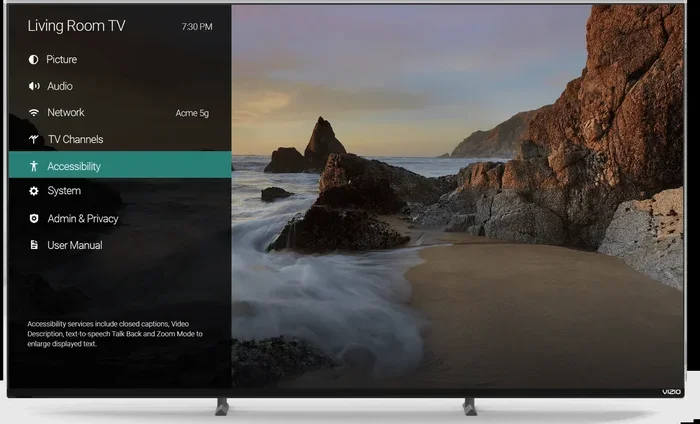
The menu button on your remote opens the full settings panel. Here you will find categories like Picture, Sound, Network, and System. Each category contains submenus with detailed options. Think of it as a tree with branches. The main categories are the trunk, and the submenus are the branches. Once you understand this structure, navigating becomes second nature.
Using the Remote Effectively
Your Vizio remote has more buttons than you might use. The arrow pad helps you scroll through options. The OK button confirms your selection. The Menu button goes back one level. Some Vizio remotes also have a microphone button for voice commands. Learning these basics makes adjusting your settings much faster and smoother.
Picture Settings: Getting the Best Display
The picture settings are where most people start when exploring configuration settings for a Vizio TV. These controls determine how your screen looks during movies, shows, and games. Getting them right makes a huge difference in your daily viewing experience. Let us walk through each important adjustment.
Brightness and Contrast
Brightness controls how dark the black levels appear on your screen. Contrast controls how bright the white levels get. Setting brightness too high makes dark scenes look washed out. Setting contrast too high can make bright scenes look blurry. A good starting point is to set brightness around 50 and contrast around 65. Then adjust based on your room lighting.
Here are some quick tips for dialing in brightness and contrast:
- Watch a scene with both dark and bright elements.
- Adjust brightness until you can see details in dark areas.
- Adjust contrast until whites look crisp but not glowing.
- Make small changes of 5 to 10 points at a time.
Color and Tint
Color controls the overall saturation of the image. Too much color makes everything look fake and oversaturated. Too little color makes the picture look flat and dull. Tint affects the green-red balance of the image. Most people leave tint at 50 unless they notice a color shift. For color, a setting between 50 and 65 works well for most rooms.
Sharpness and Motion Settings
Sharpness adds edge enhancement to the image. Setting it too high creates artificial-looking halos around objects. A sharpness level of 30 to 40 is usually enough. Motion smoothing, sometimes called the soap opera effect, interpolates frames to make motion look smoother. Some people love it, others hate it. You can find this setting under the Motion or Picture menu.
Picture Modes Explained
Vizio TVs come with several preset picture modes. The Vivid mode boosts brightness and color for a punchy look. The Standard mode offers a balanced picture. The Cinema mode provides more accurate colors for movies. The Game mode reduces input lag for gaming. Choosing the right mode gives you a great starting point before fine-tuning individual settings.
| Picture Mode | Best For | Brightness | Color |
|---|---|---|---|
| Vivid | Bright rooms | High | High |
| Standard | Everyday viewing | Medium | Medium |
| Cinema | Movies | Low-Medium | Natural |
| Game | Gaming | Medium | Standard |
Sound Settings: Optimizing Your Audio
Sound is just as important as picture quality. Many people overlook the audio configuration settings for a Vizio TV. The right sound setup can make your favorite shows and movies feel completely different. Let us explore how to get the best audio from your Vizio.
Built-In Speaker Adjustments
Vizio TVs have built-in speakers that work well for casual viewing. The equalizer settings let you adjust bass, midrange, and treble. Boosting bass adds fullness to dialogue and music. Increasing treble makes high-pitched sounds clearer. For most people, a balanced setting with slight bass boost works great. You can find these options under the Sound menu.
Connecting External Speakers
If you want better sound, connecting external speakers is the way to go. You can use an HDMI ARC connection for the best quality. Optical cables also work well for soundbars. Some Vizio models support Bluetooth audio output. This lets you connect wireless speakers or headphones easily. If you are looking to stream music through a USB connection, you can also play music through a USB-C if your TV supports it.
Audio Output Settings
The audio output settings control where your TV sends sound. You can choose between internal speakers, HDMI ARC, optical out, or Bluetooth. If you connect a soundbar, make sure to select HDMI ARC as the output. This allows your TV remote to control the soundbar volume. It also enables features like Dolby Atmos if your soundbar supports it.
Network and Wi-Fi Configuration
A smart TV is only as good as its internet connection. Proper network configuration is essential for streaming, app updates, and screen mirroring. Let us walk through setting up your Vizio TV on your home network.
Connecting to Wi-Fi
To connect your Vizio TV to Wi-Fi, go to the Network menu in settings. Select your wireless network from the list. Enter your password using the on-screen keyboard. The TV will test the connection and confirm when it is successful. If your signal is weak, consider moving your router closer to the TV or using a Wi-Fi extender.
Sometimes you might need help with general Wi-Fi questions. For example, if you are traveling and wondering about Wi-Fi options, you might wonder if you can buy Wi-Fi for a day on Delta flights. While that is a different topic, it shows how Wi-Fi access comes up in many areas of daily life.
Troubleshooting Network Issues
If your Vizio TV has trouble connecting to Wi-Fi, try these steps. First, restart your router and the TV. Unplug both devices for 30 seconds, then plug them back in. Check that your Wi-Fi password is correct. Make sure your router is on the 2.4 GHz band for better range. If problems persist, try moving the router closer to the TV.
Screen Mirroring and Casting
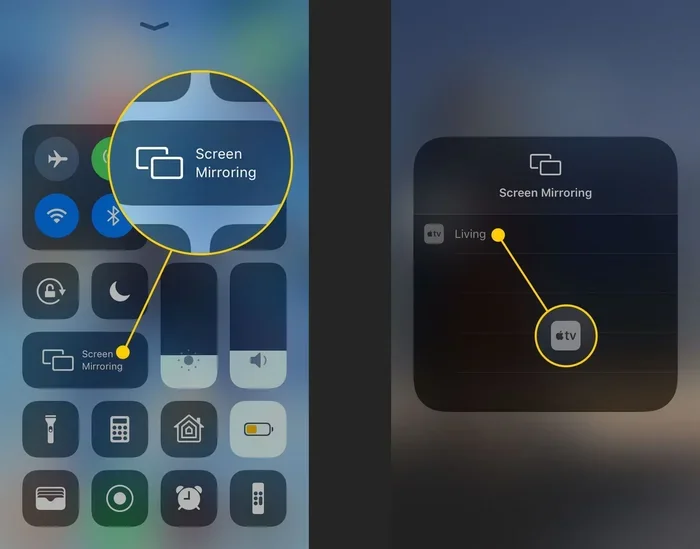
One of the best features of a Vizio smart TV is screen mirroring. You can cast content from your phone or laptop directly to the TV. Make sure both devices are on the same Wi-Fi network. On your phone, look for the cast icon in your media app. Your Vizio TV should appear as a available device. Tapping it starts the mirror connection instantly.
If you want to mirror your iPhone to your Vizio TV, you can mirror your iPhone to TV with HDMI using an adapter for a wired connection. This is a great backup option when Wi-Fi casting is not working smoothly.
System Settings and Advanced Configuration
Beyond picture and sound, your Vizio TV has several system-level configuration settings for a Vizio TV that control how the device works overall. These settings affect performance, privacy, and usability.
Energy Saving Mode
The energy saving mode reduces power consumption by dimming the screen and turning off unused features. You can choose from several levels: Off, Low, Medium, and High. Setting it to Low gives you good brightness while saving energy. If you watch TV for many hours a day, energy savings can add up over time. You can find this option under the System menu.
Factory Reset: When and How
A factory reset wipes all your settings and returns the TV to its original state. You might need this if your TV is running slowly or acting strangely. To factory reset, go to System, then Reset & Admin, and select Factory Reset. The TV will restart and guide you through the initial setup again. Always try restarting first before doing a full factory reset.
If your TV is acting up, sometimes a simple reboot is all you need. You can reboot your smart TV easily through the menu or by unplugging it for a minute. This clears temporary glitches without erasing your settings.
Parental Controls and Privacy
Vizio TVs include parental controls that let you block certain content. You can set a PIN code to restrict access to mature programming. The privacy settings let you control what data your TV collects. You can turn off viewing data sharing and disable voice recognition if you prefer. These settings are found under the System menu in the Privacy section.
Closed Captions and Accessibility
Closed captions help viewers who are deaf or hard of hearing. You can customize caption size, color, and background in the accessibility settings. Vizio TVs also offer high contrast modes and audio descriptions for certain content. These features make your TV more inclusive and usable for everyone in the household.
Input and Connectivity Settings
Getting your inputs configured correctly is a crucial part of configuration settings for a Vizio TV. Whether you are connecting a gaming console, a streaming device, or a sound system, the right input setup makes everything work smoothly.
HDMI Input Configuration
Each HDMI port on your Vizio TV can be customized individually. You can rename ports to match the device connected to them. For example, you might name one port “Blu-ray” and another “Gaming.” You can also enable or disable CEC (Consumer Electronics Control). CEC lets you control connected devices with your Vizio remote. This feature is sometimes called Bravia Sync or SimpLink on other brands.
If you are using multiple devices and need to split signals, you might wonder if you can just use an HDMI splitter for dual monitors. While that is a different use case, understanding HDMI connections helps you get the most from your Vizio setup.
USB and Peripheral Connections
Your Vizio TV likely has USB ports for more than just flash drives. You can connect streaming sticks, game controllers, and even external hard drives. Make sure your USB ports are enabled in the input settings. Some ports may only support certain speeds or device types. Check your TV manual for specific USB compatibility details.
Resolution and Display Output
Vizio TVs support various resolutions including 720p, 1080p, and 4K. You can adjust the output resolution in the display settings. Matching the resolution to your content source gives the sharpest picture. For 4K content, make sure your TV is set to 4K resolution. For older devices, 1080p or 720p may be more appropriate. The TV will usually auto-detect the best resolution, but manual adjustment can help in some cases.
Common Mistakes and How to Avoid Them
Even experienced TV users make mistakes when configuring their Vizio. Here are some common pitfalls and how to avoid them.
- Leaving Vivid Mode On All the Time: Vivid mode looks impressive in stores but can be tiring at home. Switch to Standard or Cinema for daily viewing.
- Ignoring Firmware Updates: Vizio releases updates that fix bugs and add features. Check for updates regularly in the System menu.
- Overlooking Sound Settings: Many people focus only on picture and forget about audio. Spend a few minutes adjusting your sound profile.
- Using Default Network Settings: If your Wi-Fi is weak, the default settings will not fix it. Move your router or use a mesh system for better coverage.
- Not Backing Up Your Settings: After you perfect your configuration, write down your key settings. This saves time if you ever need to reset the TV.
Expert Tips for Maximizing Your Vizio TV Experience
Here are some expert-level tips that take your Vizio TV to the next level. These small tweaks can make a surprisingly big difference.
- Calibrate Your Picture Monthly: Room lighting changes with the seasons. Recheck your brightness and contrast settings every few weeks.
- Use the Game Mode for All Fast-Paced Content: Game mode reduces input lag. This benefits not just gamers but also sports fans and action movie viewers.
- Enable Dolby Audio If Available: If your Vizio supports Dolby Audio, turn it on for richer, more immersive sound.
- Keep Your TV Software Updated: Updates improve performance and add new features. Set your TV to auto-update if the option is available.
- Organize Your Inputs: Rename and reorder your HDMI inputs so the most-used devices are easy to find.
Taking the time to explore and adjust your configuration settings for a Vizio TV pays off every single day. You will notice better colors, clearer dialogue, and smoother performance. The effort you invest in setup pays dividends in enjoyment for years to come.
Final Thoughts
Configuring your Vizio TV does not have to be daunting. Start with the picture settings and work your way through sound, network, and system options. Take your time and make small adjustments. You will quickly find the perfect balance for your viewing environment. The configuration settings for a Vizio TV give you full control over your entertainment experience. Use this guide as your reference anytime you want to fine-tune your TV.
Remember, the best TV setup is one that works for you and your household. Do not be afraid to experiment with different settings. If something does not look or sound right, go back and adjust. Your Vizio TV is a powerful device with plenty of customization options. Now that you know how to use them, you are ready to get the most out of every viewing session.
Frequently Asked Questions
How do I access the settings menu on my Vizio TV?
Press the Menu button on your Vizio remote to open the full settings panel. From there you can navigate to Picture, Sound, Network, and System categories. The Home button also gives you quick access to the SmartCast interface where you can adjust common settings.
What is the best picture mode for a Vizio TV?
The Standard or Cinema modes are usually best for everyday viewing. Vivid mode looks bright in stores but can be harsh in home environments. Cinema mode provides more accurate colors and better black levels for movies. Choose based on your room lighting and personal preference.
How do I connect my Vizio TV to Wi-Fi?
Go to the Network menu in your TV settings. Select your Wi-Fi network from the list and enter your password. The TV will test the connection and confirm when it is successful. Make sure your router is nearby for the strongest signal.
Can I reset my Vizio TV to factory settings?
Yes, you can factory reset your Vizio TV by going to System, then Reset Admin, and selecting Factory Reset. This wipes all your settings and returns the TV to its original state. Always try a simple restart first before doing a full reset.
Why is my Vizio TV sound not working?
First check that the volume is not muted and that the correct audio output is selected. Go to the Sound menu and make sure the output is set to your speakers or soundbar. If you are using external audio, ensure the HDMI ARC or optical cable is properly connected.
How often should I update my Vizio TV software?
You should check for updates at least once a month. Vizio releases firmware updates that fix bugs and improve performance. You can enable auto-updates in the System menu if you prefer not to check manually. Keeping your TV updated ensures the best experience.
=== CONCLUSION ===
Mastering the configuration settings for a Vizio TV is easier than you think. With the right adjustments to picture, sound, network, and system settings, you can transform your viewing experience. Start with the basics and gradually explore the advanced options. Your Vizio TV has powerful features waiting to be unlocked. Use this guide whenever you need a refresher, and enjoy your TV to the fullest.