Can You Use A Roku Stick On Any Tv With These Simple Tips
Yes, you can use a Roku Stick on most TVs with an HDMI port and Wi-Fi connection. This guide covers everything you need to know about Roku Stick compatibility, setup, and tips for getting the best streaming experience on any television. Whether you have an older HDTV or a modern 4K display, these simple tips will help you get started quickly.
Have you ever wondered if you can use a Roku Stick on any TV? The short answer is yes. Most TVs made in the last fifteen years will work just fine with a Roku Stick. But there are a few things you should know before you plug it in and start streaming. In this guide, we will walk you through everything you need to know. You will learn about compatibility, setup, and tips to get the best experience from your device.
A Roku Stick is one of the most popular streaming devices on the market. It is small, affordable, and easy to use. You can turn almost any TV into a smart TV with just one simple plug. But not every TV is the same. Some older models may need a few extra steps. And some newer TVs already have smart features built in. Either way, a Roku Stick can still add value to your setup.
In this article, we will cover the basics of Roku Stick compatibility. We will talk about HDMI ports, Wi-Fi requirements, and different TV models. We will also share simple tips to improve your streaming experience. By the end, you will know exactly what you need to get started. Let us dive right in.
Key Takeaways
- Wide Compatibility: Roku Sticks work with almost any TV that has an HDMI port and Wi-Fi access.
- Easy Setup: Connecting a Roku Stick takes just a few minutes with no technical expertise needed.
- Remote Options: You can use the included remote, your phone as a remote, or even voice commands through Alexa.
- Resolution Matters: Different Roku Stick models support different resolutions, so check your TV capabilities first.
- Channel Access: You get access to thousands of streaming channels right after setup.
- Power Requirements: Some TVs may need a separate power source for the Roku Stick to work properly.
📑 Table of Contents
- What Is a Roku Stick and How Does It Work?
- Can You Use a Roku Stick on Any TV?
- How to Set Up a Roku Stick on Any TV
- Tips to Get the Best Experience with Your Roku Stick
- Common Problems and How to Fix Them
- Roku Stick vs. Other Streaming Devices
- Can You Use a Roku Stick with Any Display Device?
- Final Thoughts
What Is a Roku Stick and How Does It Work?
A Roku Stick is a small streaming device that plugs directly into your TV’s HDMI port. It connects to your Wi-Fi network and lets you access hundreds of streaming channels. Think of it as a tiny computer that lives inside your TV. You can watch Netflix, Hulu, Disney+, and many more services. The device comes with a remote control, but you can also use your smartphone as a remote.
The Roku Stick is made by Roku Inc., a company that has been in the streaming game for over a decade. They offer several models, from the basic Roku Express to the more advanced Roku Ultra. Each model has different features and capabilities. The standard Roku Stick is the most popular choice for most households. It is affordable and does everything most people need.
The device works by receiving a signal from your Wi-Fi router. It then streams video and audio directly to your TV. You do not need a cable box or any other extra equipment. Just plug it in, connect to Wi-Fi, and start watching. The simplicity of the Roku Stick is what makes it so popular among users of all ages.
Different Roku Stick Models
Roku offers several versions of their streaming stick. Here is a quick look at the main options:
- Roku Streaming Stick: The basic model. It supports 1080p HD streaming and works with most TVs.
- Roku Streaming Stick+: This model supports 4K Ultra HD and HDR. It also has a longer wireless range for better connectivity.
- Roku Ultra: The top-of-the-line model. It supports 4K HDR and comes with extra features like a voice remote and ethernet port.
Each model works with any TV that has an HDMI port. The main difference is the resolution and additional features. If your TV is older and only supports 1080p, the basic Roku Stick is all you need. If you have a newer 4K TV, consider the Streaming Stick+ or Roku Ultra for the best picture quality.
Can You Use a Roku Stick on Any TV?
The big question is whether you can use a Roku Stick on any TV. The answer is mostly yes, but with a few exceptions. Let us break down what you need for a Roku Stick to work properly.
HDMI Port Requirement
The most important requirement is an HDMI port on your TV. Almost every TV made since 2005 has at least one HDMI port. The Roku Stick plugs directly into this port. If your TV does not have an HDMI port, you will need an HDMI converter. These converters are affordable and easy to find online. They take the HDMI signal and convert it to older connection types like composite or component cables.
Here is a quick checklist for HDMI compatibility:
- Check the back or side of your TV for an HDMI port.
- Make sure the port is not already being used by another device.
- If you have an older TV without HDMI, buy an HDMI converter.
- Some very old TVs from the early 2000s may not have any digital ports at all.
Wi-Fi Connection
A Roku Stick needs a Wi-Fi connection to stream content. Without Wi-Fi, it is just a blank screen. Most homes have Wi-Fi routers, so this should not be a problem. But if you live in an area with weak Wi-Fi signals, you might run into buffering issues. The Roku Stick+ has a stronger wireless antenna that helps with this problem. It can pick up signals from farther away than the basic model.
Here are some tips to make sure your Wi-Fi works well with your Roku Stick:
- Place your Wi-Fi router close to your TV.
- Avoid thick walls and large appliances between the router and TV.
- Use a 5GHz network if your router supports it. It is faster and less crowded.
- If your Wi-Fi is weak, consider a Wi-Fi extender to boost the signal.
TV Resolution Compatibility
Your TV’s resolution determines how clear and sharp your picture will look. Most Roku Sticks support 1080p Full HD. The Streaming Stick+ and Roku Ultra support 4K Ultra HD. If you have a 4K TV but use a basic Roku Stick, you will only get 1080p quality. That is still perfectly fine for most viewing. But if you want the best picture, make sure your Roku Stick matches your TV’s capabilities.
Here is a simple comparison of Roku Stick models and TV resolution support:
- Roku Streaming Stick (basic): 1080p HD. Works with most standard HDTVs.
- Roku Streaming Stick+: 4K Ultra HD and HDR. Best for modern 4K TVs.
- Roku Ultra: 4K Ultra HD and HDR. Also includes wired ethernet for a stable connection.
If you are unsure about your TV’s resolution, check your TV manual or look up the model number online. It will tell you whether your TV is HD, Full HD, or 4K.
How to Set Up a Roku Stick on Any TV
Setting up a Roku Stick is incredibly easy. You do not need any technical skills. Most people can have it running in under ten minutes. Here is a step-by-step guide to get you started.
Step 1: Plug in the Roku Stick
Find an HDMI port on your TV. Plug the Roku Stick directly into the port. Make sure it clicks in snugly. If the Roku Stick does not fit flush with the TV, you can use the included HDMI extender cable. This gives you more flexibility with placement and helps with the wireless signal.
Step 2: Connect to Power
The Roku Stick needs power to work. You have two options. First, you can plug it into the USB port on your TV. Most modern TVs have at least one USB port. Second, you can use the included power adapter and plug it into a wall outlet. Some older TVs have weak USB ports that may not provide enough power. In that case, always use the wall adapter.
Step 3: Connect to Wi-Fi
Turn on your TV and switch to the HDMI input where you plugged in the Roku Stick. The Roku setup screen will appear on your TV. Follow the on-screen instructions to connect to your Wi-Fi network. Enter your Wi-Fi password when prompted. Once connected, the Roku Stick will check for updates and restart if needed.
Step 4: Link Your Roku Account
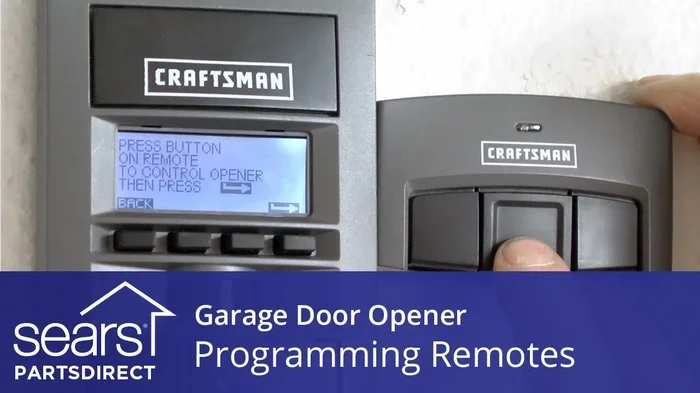
You will need to create or sign into a Roku account. Go to Roku.com/link on your phone or computer. Enter the code shown on your TV screen. This links your Roku Stick to your account. You can now start downloading channels and streaming content right away.
Step 5: Start Streaming
Once setup is complete, you can browse the Roku Channel Store. There are thousands of free and paid channels available. Search for your favorite streaming services and install them. You are now ready to watch movies, TV shows, sports, and more on any TV in your home.
Tips to Get the Best Experience with Your Roku Stick
Now that you know how to set up your Roku Stick, here are some simple tips to improve your experience. These tips apply to any TV and any Roku Stick model.
Use the Roku Mobile App
The Roku mobile app turns your phone into a powerful remote control. You can type search queries with your phone keyboard instead of using the remote. This is much faster and easier. You can also use your phone to cast content from apps like Netflix directly to your TV. The app is free and available for both iPhone and Android devices.
Keep Your Roku Stick Updated
Roku regularly releases software updates that improve performance and add new features. Your Roku Stick will check for updates automatically. But it is a good idea to manually check once in a while. Go to Settings > System > System Update on your Roku home screen. Keeping your device updated ensures the best performance and security.
Organize Your Channels
After you install several channels, your home screen can get cluttered. You can reorganize your channels by moving them around. Press the star button on your Roku remote while highlighting a channel. Then select “Move Channel” and choose where you want it to go. This makes it much easier to find your favorite content quickly.
Use Voice Search
If you have a Roku Stick+ or Roku Ultra, you get a voice remote. You can press the voice button and speak your search terms. This is much faster than typing with a remote. You can also use voice commands to launch channels and control playback. Just press the microphone button and speak clearly.
Optimize Your Wi-Fi for Streaming
A strong Wi-Fi connection makes all the difference when streaming. If you experience buffering or low quality, try these tips. Move your router closer to your TV. Reduce the number of devices using your network at the same time. Or consider upgrading to a mesh Wi-Fi system for better coverage throughout your home.
Consider Using Alexa for Voice Control
If you already have an Alexa-enabled smart speaker, you can use it to control your Roku Stick. You can ask Alexa to play specific shows, adjust volume, or launch channels. This works great as a hands-free option. It is especially useful if you have mobility challenges or just prefer voice commands. For more details on using Alexa with your TV, check out this guide on using Alexa as a Bluetooth speaker for your TV.
Common Problems and How to Fix Them
Even though a Roku Stick is easy to use, you might run into occasional issues. Here are the most common problems and their solutions.
No Picture or Black Screen
If you see a black screen after plugging in the Roku Stick, try these fixes. First, make sure the TV is on the correct HDMI input. Use your TV remote to cycle through the inputs. Second, check that the Roku Stick is properly seated in the HDMI port. Unplug it and plug it back in firmly. Third, try using the HDMI extender cable that comes in the box. It can help with signal issues.
Buffering or Slow Streaming
Buffering happens when your internet connection is too slow for the video quality you have selected. Try lowering the streaming quality in the Roku settings. Go to Settings > Display & Sound > Audio > Streaming Quality. Choose “Auto” or “Normal” instead of “Best.” Also, make sure no one else in your household is downloading large files while you are streaming.
Remote Not Working
If your Roku remote stops responding, the first step is to check the batteries. Replace them with fresh batteries. If that does not work, try resetting the remote. Unplug the Roku Stick from power, wait thirty seconds, and plug it back in. The remote should reconnect automatically. You can also use the Roku mobile app as a backup remote.
Wi-Fi Connection Keeps Dropping
A weak Wi-Fi signal is the most common cause of connection drops. Move your router closer to the TV or use a Wi-Fi extender. You can also switch to a less crowded Wi-Fi channel in your router settings. If none of these work, consider using the wired ethernet option on the Roku Ultra for a stable connection.
Roku Stick vs. Other Streaming Devices
The Roku Stick is not the only streaming device available. Here is how it compares to a few popular alternatives.
- Roku Stick vs. Amazon Fire TV Stick: Both are affordable and easy to use. Roku has a simpler interface and more channel options. Fire TV works better if you already use Amazon services like Alexa.
- Roku Stick vs. Google Chromecast: Chromecast relies heavily on your phone for control. Roku works independently with its own remote. Roku also has a wider selection of channels.
- Roku Stick vs. Apple TV: Apple TV is more expensive but offers a premium experience. Roku is much more affordable and works better for most households.
Each device has its strengths. But the Roku Stick remains one of the best choices for most users. It is affordable, reliable, and easy to navigate. Whether you are a casual viewer or a heavy streamer, a Roku Stick delivers excellent value.
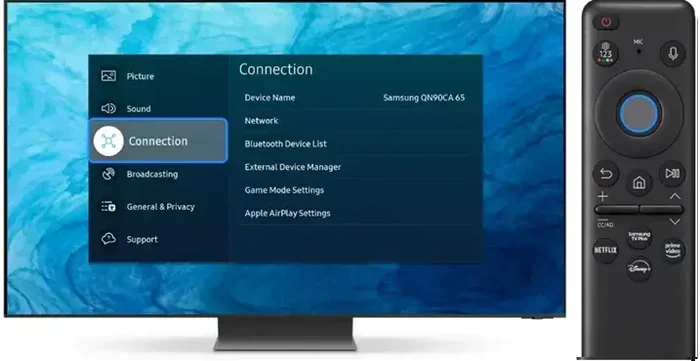
One thing to keep in mind is that some TVs come with their own built-in smart features. Brands like TCL and Hisense have Roku built right into their TVs. If you already have a Roku TV, you may not need a separate Roku Stick. But if your TV is not a smart TV, the Roku Stick is a perfect addition. If you ever need to replace the remote for a TCL Roku TV, you can find replacement options easily online.
Can You Use a Roku Stick with Any Display Device?
While a Roku Stick works great with most TVs, you might wonder if it works with other display devices. The answer depends on the device. A Roku Stick works with any screen that has an HDMI input. This includes monitors, projectors, and even some portable screens. However, not all of these setups will give you the best experience.
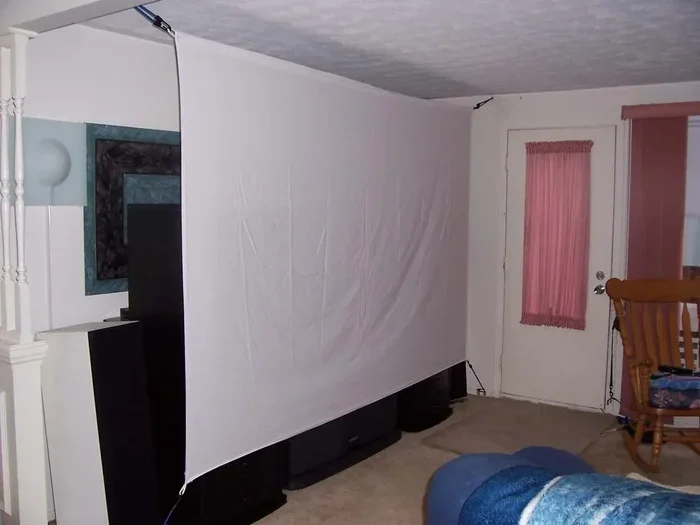
For example, if you want to project your Roku Stick onto a wall, you can use a portable projector. Some people use projectors as an alternative to a TV for a bigger viewing experience. However, not every projector works well with a Roku Stick. If you are considering this setup, make sure your projector has an HDMI input and supports the resolution of your Roku Stick. For more information on using projectors with different setups, check out this guide on using any projector for window displays.
You can also use a Roku Stick with a monitor for a desktop-style streaming setup. This works well for watching content at a desk or in a small office. Just make sure your monitor has speakers or connect external speakers for audio. Some users even connect their Roku Stick to Bluetooth speakers for better sound quality. This is a great option if your monitor does not have built-in speakers.
Final Thoughts
Using a Roku Stick on any TV is easier than most people think. As long as your TV has an HDMI port and Wi-Fi access, you are good to go. The setup takes just a few minutes, and you will be streaming in no time. Whether you have an old HDTV or a brand-new 4K display, a Roku Stick can bring your favorite content to life.
Remember to choose the right Roku Stick model for your TV. Check your TV’s resolution and pick a model that matches. Follow the setup steps carefully, and do not hesitate to use the Roku mobile app for extra convenience. With these simple tips, you will get the most out of your Roku Stick and enjoy a seamless streaming experience.
The Roku Stick is one of the best values in the streaming world. It costs less than most other devices but delivers excellent performance. Thousands of channels are at your fingertips. You can watch movies, live TV, sports, and much more. So go ahead, grab a Roku Stick, and turn any TV into a smart entertainment hub. Happy streaming!
Frequently Asked Questions
Will a Roku Stick work on a TV without Wi-Fi?
A Roku Stick needs Wi-Fi to stream content. Without an internet connection, you will not be able to access any channels or watch any content. However, you can still use some offline features like screen mirroring if your phone and TV are on the same local network without internet access.
Can I use a Roku Stick on a computer monitor?
Yes, you can use a Roku Stick on any monitor with an HDMI input. Just plug it in and follow the same setup process. The experience will be similar to using it on a TV. Make sure your monitor has speakers or connect external audio for sound.
Do I need a smart TV to use a Roku Stick?
No, you do not need a smart TV at all. A Roku Stick turns any TV with an HDMI port into a smart TV. This is one of the biggest advantages of using a Roku Stick. Even very old TVs can become smart TVs with this simple device.
Can I use my phone as a Roku remote?
Yes, the Roku mobile app lets you use your phone as a remote. Download the free app from the App Store or Google Play Store. Connect your phone to the same Wi-Fi network as your Roku Stick. You can then control playback, search for content, and type using your phone keyboard.
What is the difference between Roku Stick and Roku Express?
The Roku Stick plugs directly into the HDMI port on the back of your TV. The Roku Express uses an HDMI cable that connects to the port with a small box. Both offer similar streaming capabilities. The Roku Stick is more compact and portable, while the Express may fit better in tight spaces behind your TV.
Can I connect external speakers to my Roku Stick setup?
Yes, you can connect external speakers to your Roku Stick setup. If your TV has optical audio output, you can connect speakers that way. You can also use Bluetooth speakers if your TV supports Bluetooth. For a simple wireless option, some users connect their Roku Stick to Bluetooth headphones or speakers for private listening.