Can Anyone See My Airplay Heres What You Need to Know
Many people worry about whether others can see their Airplay screen during streaming. The truth is, Airplay visibility depends on your network settings, device type, and security configurations. This guide breaks down exactly who can access your Airplay, how to lock it down, and common mistakes that leave your screen exposed.
Have you ever streamed something on your iPhone or iPad and suddenly wondered, “Can anyone see my Airplay?” It is a fair question. We live in a world where screen sharing has become second nature. We mirror our phones to TVs, share photos with friends, and cast videos without thinking twice. But beneath the convenience lies a real concern about Airplay privacy.
The good news is that Airplay security is not as complicated as it might seem. Most people do not realize how much control they already have over who can see their screen. A few simple adjustments can make sure your personal streaming stays private. In this article, we will walk through everything you need to know about Airplay visibility, who can access your screen, and how to keep prying eyes away.
Whether you use Apple TV, an Airplay-enabled smart TV, or a third-party Airplay receiver, the principles remain the same. Let us dive in and make sure your Airplay streaming experience is safe, private, and worry-free.
Key Takeaways
- Airplay is not public by default: Your screen only appears to devices on the same Wi-Fi network unless you change settings.
- You control who sees your Airplay: Password protection and network choices put you in charge of your privacy.
- Guest mode can expose your screen: Leaving Airplay discoverable in public spaces is a common privacy risk.
- Apple TV and iOS devices handle Airplay differently: Understanding these differences helps you secure each device properly.
- Simple settings changes make a big difference: A few tweaks to your Airplay and Wi-Fi settings can block unwanted viewers.
- Regularly check your Airplay settings: Privacy settings can reset after software updates, so periodic checks are important.
📑 Table of Contents
What Is Airplay and How Does It Work
Airplay is Apple’s wireless streaming technology. It lets you send audio, video, and screen mirrors from your iPhone, iPad, or Mac to another device. Think of it as a digital bridge between your devices. You tap the Airplay icon, pick a target device, and your content appears on the bigger screen.
The technology works over a local Wi-Fi network. Both the sending device and the receiving device need to be connected to the same network. This is the first key detail that affects who can see your Airplay. Your screen does not float out into the internet for anyone to find. It stays within your local network by default.
Here is a simple breakdown of how Airplay mirroring works:
- Your device searches for nearby Airplay-compatible receivers.
- It sends a streaming signal over your local Wi-Fi network.
- The receiving device displays your content in real time.
- The connection stays within your home or office network.
Understanding this basic flow helps you see why network security matters so much. If your Wi-Fi network is open or shared with guests, more people can potentially access your Airplay connection. This is where privacy concerns start to creep in.
Airplay and Device Compatibility
Not all devices support Airplay the same way. Apple TV offers the most full-featured Airplay experience. It allows screen mirroring, audio streaming, and even Airplay gaming. Smart TVs from Samsung, LG, and Vizio also support Airplay, but their implementation varies. Third-party Airplay receivers like Roku or certain streaming sticks can also accept Airplay signals.
Each device type has its own set of privacy settings. Some require a Airplay password to connect. Others allow open connections within the network. Knowing which type of device you are using helps you understand your level of exposure.
Who Can See Your Airplay Screen
This is the question most people really want answered. The short answer is: it depends on your setup. By default, only devices on the same Wi-Fi network can see your Airplay broadcast. But “same network” can mean different things depending on where you are.
At home, your Wi-Fi network is usually private. Only family members or people you have given the password to can connect. In this scenario, your Airplay visibility is limited to trusted individuals. But what about public spaces? What if you are at a hotel, a coffee shop, or a friend’s house?
Home Network Airplay Privacy
On a home network, Airplay privacy is generally strong. Your router assigns local IP addresses to each device. These addresses are not visible outside your home. Nobody on the internet can see your Airplay screen mirroring unless you have specifically opened ports or set up remote access.
However, there is a catch. If you have a guest Wi-Fi network enabled, guests on that network may be able to see your Airplay. Some routers allow devices on different subnets to communicate. This means a guest on the guest network could potentially discover and connect to your Airplay receiver.
Public and Shared Network Risks
Public Wi-Fi networks are a different story entirely. When you connect to airport Wi-Fi, a hotel network, or a shared office connection, your device becomes visible to others on that same network. In these environments, someone else could potentially detect your Airplay device and attempt to connect.
This is why Apple introduced Airplay password protection. When enabled, it requires a passcode for anyone to connect to your Airplay receiver. This simple feature blocks unwanted connections on shared networks. It is one of the most effective ways to maintain Airplay privacy in public spaces.
How to Secure Your Airplay Connection
Securing your Airplay connection is easier than most people think. Apple has built several privacy features into its ecosystem. You just need to know where to find them and how to use them. Let us walk through the steps.
Enable Airplay Password Protection
This is the single most important step you can take. Setting an Airplay password ensures that only people who know the code can connect to your device. Here is how to do it on different devices:
On Apple TV:
- Go to Settings.
- Select Airplay.
- Choose Require Password.
- Set a custom passcode or let Apple TV generate one.
On iPhone or iPad:
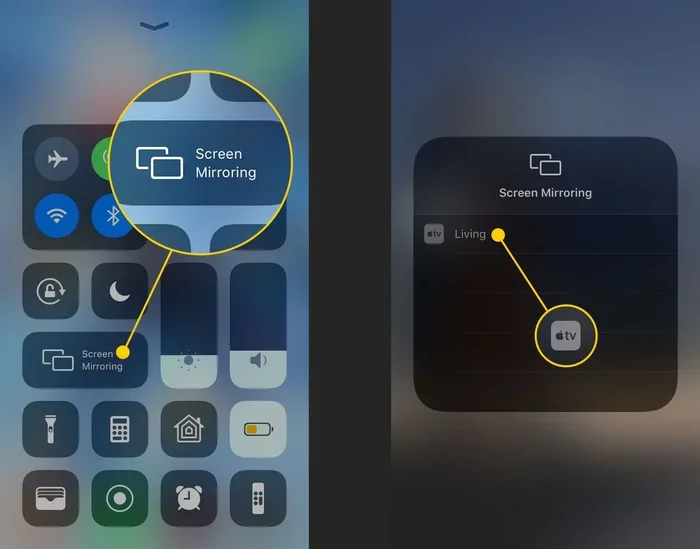
- Open the Control Center.
- Tap Screen Mirroring.
- Look for the Airplay settings option on your receiving device.
- Enable password protection through the Settings app under Airplay.
Once you set a password, no one can mirror to your device without entering the code. This is especially important if you often use Airplay in public or have visitors over.
Use a Private Wi-Fi Network
Your Wi-Fi network is the foundation of Airplay security. If your network is open or uses a weak password, anyone nearby can connect. Always use WPA3 or WPA2 encryption on your router. Create a strong, unique password for your home network.
Consider setting up a separate guest network for visitors. This keeps your main devices isolated while still giving guests internet access. On a guest network, you can disable Airplay discovery so guests cannot see your streaming devices.
Disable Airplay When Not in Use
It sounds simple, but many people leave Airplay discoverable all the time. When your device is actively broadcasting, it sends out a signal that other devices can detect. Turning off Airplay when you are done streaming removes this signal entirely.
You can disable Airplay quickly from your Control Center or through your device settings. Making this a habit adds an extra layer of personal screen sharing protection.
Keep Your Devices Updated
Apple regularly releases software updates that patch Airplay vulnerabilities. These updates fix security flaws that could allow unauthorized access to your screen. Always install the latest iOS, iPadOS, tvOS, and macOS updates as soon as they become available.
Updates also improve Airplay stability and performance. Keeping your devices current is a win-win for both security and functionality.
Common Airplay Privacy Mistakes
Even with the best intentions, people make mistakes that leave their Airplay connection exposed. Here are the most common ones and how to avoid them.
Leaving Airplay Discoverable in Public
This is the number one mistake. When you are at a hotel or a coffee shop and you leave Airplay turned on, your device becomes visible to everyone on that network. A curious person nearby could try to connect and view your screen. Always turn off Airplay mirroring when you are in a public space.
Using Default Passwords
Some devices ship with a default Airplay password like “1234” or “0000.” These are easy to guess. Change your password to something unique. Avoid using birthdays, addresses, or simple number sequences. A strong Airplay passcode is your first line of defense.
Ignoring Network Segmentation
If you have a smart home setup with many devices on the same network, your Airplay receiver could be visible to smart cameras, smart speakers, and other IoT devices. Using network segmentation or a separate VLAN isolates your streaming devices from the rest of your network. This is an advanced but highly effective privacy measure.
Not Checking Airplay Settings After Updates
Software updates sometimes reset your Airplay privacy settings. After updating your Apple TV or iPhone, double-check that password protection is still enabled. Make it a quick habit to verify your settings after each update.
Airplay Settings You Should Check Right Now
Take a few minutes right now to review your Airplay settings. Here is a quick checklist of the most important settings to verify on your devices.
- Airplay password: Is it enabled? Is the password strong and unique?
- Network type: Are you on a private or public Wi-Fi network?
- Guest access: Does your guest network allow Airplay discovery?
- Device visibility: Is your Airplay receiver set to “Everyone” or “Contacts Only”?
- Software version: Are your devices running the latest firmware?
- Screen mirroring toggle: Is it turned off when not actively in use?
Going through this list takes less than five minutes. It can save you from potential Airplay privacy breaches down the road.
Airplay Settings Comparison Across Devices
| Device | Password Protection | Guest Mode | Network Requirement |
|---|---|---|---|
| Apple TV | Built-in, easy to enable | Yes, with restrictions | Same Wi-Fi network |
| iPhone / iPad | Via Settings app | No built-in guest mode | Same Wi-Fi network |
| Mac | System Preferences settings | No built-in guest mode | Same Wi-Fi network |
| Third-party Receiver | Varies by manufacturer | Varies by model | Same Wi-Fi network |
Troubleshooting Airplay Visibility Issues
Sometimes you may notice that your Airplay device is visible to more people than expected. Or perhaps you cannot connect at all. Here are some common issues and their solutions.
Your Airplay Device Shows Up for Everyone
If your Airplay receiver is appearing to all devices on the network, check your visibility settings. On Apple TV, go to Settings > Airplay and Set Access. Change it from “Everyone” to “Only Guests” or “Password Required.” This limits who can see and connect to your device.
Airplay Keeps Disconnecting
Intermittent Airplay connections are often caused by network congestion. If too many devices are streaming at once, your Airplay signal may drop. Try reducing the number of active streams or moving your router closer to the receiving device. A 5 GHz Wi-Fi band provides a more stable connection for Airplay than the 2.4 GHz band.
You Cannot Find Your Airplay Device
If your receiving device is not showing up, make sure both devices are on the same network. Check that Airplay is turned on. Restart both devices if needed. Sometimes a simple reboot fixes Airplay discovery problems instantly.
Someone Unauthorized Connected to Your Airplay
If you suspect someone has connected to your Airplay without permission, change your password immediately. Also check your router logs to see if any unknown devices are on your network. This is a sign that your Wi-Fi security needs strengthening. Update your router password and enable WPA3 encryption if your router supports it.
Expert Tips for Better Airplay Privacy
Privacy experts recommend treating your Airplay connection with the same care you give your home Wi-Fi network. Here are some pro tips that go beyond the basics.
- Use a VPN on public networks: A VPN encrypts your internet traffic and adds a layer of protection when you stream on the go.
- Disable Airplay on devices you rarely use: If you have an older Apple TV or a spare device, turn off Airplay on it when you are not using it.
- Rename your devices: Generic device names like “Living Room TV” can make it easier for strangers to target your setup. Use a less obvious name.
- Monitor connected devices regularly: Most modern routers let you see which devices are connected. Check this list periodically for anything unfamiliar.
- Teach your family about Airplay privacy: Make sure everyone in your household understands the importance of secure screen sharing and knows how to use the settings properly.
Final Thoughts on Airplay Privacy
The question “Can anyone see my Airplay” does not have a simple yes or no answer. It depends on your network, your device settings, and your environment. But the good news is that you have more control than you might think. With a few basic precautions, you can enjoy all the benefits of Airplay streaming without worrying about unwanted viewers.
Airplay privacy comes down to three things: your network security, your device settings, and your habits. Secure your Wi-Fi, enable password protection, and stay mindful of where you stream. These small actions add up to a big difference in keeping your personal screen sharing private.
Take a few minutes today to review your Airplay settings. Make the changes outlined in this article. Once you do, you can stream with confidence knowing that your content stays exactly where it belongs: on your screen and only the screens you choose.
Stay safe, stay private, and keep enjoying the convenience of wireless streaming. Your Airplay connection is in your hands.
Frequently Asked Questions
Can someone on the same Wi-Fi see my Airplay screen?
Yes, anyone connected to the same Wi-Fi network can potentially see your Airplay device if it is set to discoverable. This is why enabling Airplay password protection is so important. It ensures that only authorized users can connect and view your screen.
How do I stop people from seeing my Airplay?
You can stop unwanted viewers by enabling a password on your Airplay receiver, switching to a private Wi-Fi network, and turning off Airplay discovery when not in use. These steps take just a few minutes and greatly improve your Airplay privacy.
Is Airplay secure for use in public places?
Airplay can be used in public places, but only if you take precautions. Always enable Airplay password protection, avoid displaying sensitive content, and turn off mirroring when you are finished. Public networks increase your exposure, so extra care is necessary.
Does Apple TV require a password for Airplay connections?
Not by default. Apple TV allows open Airplay connections unless you manually enable password protection. Go to Settings > Airplay on your Apple TV to set a passcode and restrict access to your device.
Can someone access my Airplay from outside my home network?
Under normal circumstances, no. Airplay operates within your local Wi-Fi network and does not broadcast to the internet. However, if you have enabled remote access features or port forwarding on your router, there could be exposure. Keep these features disabled unless absolutely necessary.
What should I do if an unknown device connects to my Airplay?
If an unknown device connects, change your Airplay password immediately. Also update your Wi-Fi network password and check your router for unauthorized devices. Enabling WPA3 encryption on your router adds a strong layer of protection against future intrusions.
=== CONCLUSION ===
Can anyone see my Airplay is a question worth asking in today’s connected world. The answer is: it depends on your settings, but you have the power to control it. By understanding how Airplay visibility works and taking a few simple security steps, you can protect your privacy and stream with full confidence. Secure your network, set a strong password, and stay mindful of where and when you share your screen. Your Airplay experience should be enjoyable, private, and stress-free.