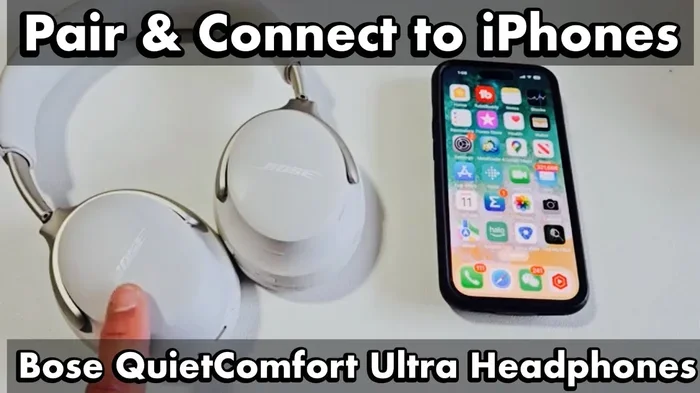
How Do I Connect My Bose Wireless Bluetooth Headphones Fast
Connecting your Bose wireless Bluetooth headphones is easier than you think. This guide walks you through the entire Bluetooth pairing process, from putting your headphones in pairing mode to troubleshooting common connection issues. You will learn how to connect Bose SoundLink, QuietComfort, and other Bose wireless models to phones, TVs, and computers quickly.
So you just got a pair of Bose wireless Bluetooth headphones, and you are ready to start listening to your favorite music. But there is one small problem: you have no idea how to connect them. Sound familiar? You are not alone. Many people unbox their new Bose headphones, flip through the manual, and still feel confused about the Bluetooth pairing process.
The good news is that connecting your Bose headphones does not have to be complicated. In fact, it should take less than five minutes once you know the steps. Whether you want to pair Bluetooth headphones to your phone, stream audio to your TV, or hook them up to your laptop, this guide has you covered. Let us get your wireless audio set up right now.
Key Takeaways
- Fast Pairing: Putting your Bose headphones in pairing mode takes just a few seconds and works across all models.
- Multiple Devices: You can connect your Bose wireless Bluetooth headphones to phones, tablets, TVs, and computers with ease.
- Troubleshooting Tips: Simple fixes like resetting Bluetooth and checking distance solve most connection problems.
- Best Practices: Keeping your devices updated and within range ensures a strong wireless connection every time.
- Compatibility Matters: Most modern devices support Bluetooth audio, making your Bose headphones versatile for everyday use.
📑 Table of Contents
- Why Connect Bose Wireless Bluetooth Headphones?
- How to Connect Your Bose Wireless Bluetooth Headphones
- Troubleshooting Common Connection Issues
- Connecting Bose Headphones to Different Devices
- Tips for the Best Wireless Audio Experience
- Common Mistakes to Avoid
- Quick Tips for Faster Pairing
- How to Disconnect and Reconnect
- Final Thoughts
Why Connect Bose Wireless Bluetooth Headphones?
Bose makes some of the best wireless headphones on the market. Models like the Bose SoundLink and Bose QuietComfort deliver amazing sound quality and long battery life. But all of that means nothing if you cannot get them connected to your devices.
Understanding the Bluetooth pairing process gives you the freedom to listen anywhere. You can cut the cord, move around your room, and enjoy wireless audio without any hassle. Plus, most Bose headphones support Bluetooth 5.0 or newer, which means a stronger signal and better range.
What Makes Bose Headphones Different
Bose headphones stand out because of their comfort, noise cancellation, and reliable Bluetooth connectivity. They work with almost every device that supports Bluetooth. From iPhones and Androids to Windows laptops and smart TVs, your Bose wireless headphones are ready to go. The wireless connection is stable and easy to maintain once you set it up correctly.
How to Connect Your Bose Wireless Bluetooth Headphones
Here is where the fun begins. Follow these steps to get your Bose headphones paired and ready to use. The process is similar across most Bose models, so whether you have the SoundLink, QuietComfort, or another style, these steps will work.
Step 1: Charge Your Headphones
Before you start the Bluetooth setup, make sure your headphones have enough battery. A low battery can cause connection problems and make the pairing process frustrating. Plug your Bose headphones into the charger and wait at least 30 minutes. A full or near-full charge ensures smooth wireless listening from the start.
Step 2: Turn on Bluetooth on Your Device
Go to the Bluetooth settings on your phone, tablet, or computer. On most devices, you can find this in the quick settings menu or the main settings app. Make sure Bluetooth is turned on. Your device will start scanning for available Bluetooth devices nearby.
Step 3: Put Your Bose Headphones in Pairing Mode
This is the most important step. To enter pairing mode, press and hold the Bluetooth button on your headphones. On most Bose models, you will see a blinking blue light. That blinking light means your headphones are ready to be found by other devices. If you are not sure which button to press, check the manual for your specific model.
Step 4: Select Your Bose Headphones
Go back to your device’s Bluetooth settings. You should see your Bose headphones listed among the available devices. Tap or click on them to start the connection. Within a few seconds, the status should change to “Connected.” You are now ready to enjoy wireless audio through your Bose headphones.
Step 5: Test the Connection
Play some music or a video to test the connection. Check if the sound comes through your headphones clearly. If you hear audio, congratulations. You have successfully completed the Bluetooth pairing process. If not, do not worry. The next section covers common issues and how to fix them.
Troubleshooting Common Connection Issues
Sometimes things do not go as smoothly as we hope. Your Bose headphones might not connect, or the audio might keep cutting out. Do not panic. Most connection problems have simple fixes. Here are the most common issues and how to solve them.
Headphones Not Showing Up in Device List
If your Bose headphones do not appear in the Bluetooth list, try these steps. First, make sure your headphones are in pairing mode. The blinking blue light should confirm this. Second, move your headphones closer to the device you are trying to connect. Bluetooth range is typically about 30 feet, but walls and obstacles can reduce that distance.
Third, turn Bluetooth off and back on your device. This simple trick often fixes the problem. Fourth, restart both your headphones and your device. A fresh start can clear up minor glitches that prevent Bluetooth connectivity.
Audio Keeps Cutting Out or Lagging
If your audio keeps stopping or lagging, the issue is usually signal interference. Other wireless devices, microwaves, and even Wi-Fi routers can disrupt the wireless connection. Move away from these sources and see if the problem improves.
Also, check if your headphones are fully charged. Low battery levels can weaken the signal and cause audio dropouts. For the best wireless listening experience, keep your Bose headphones charged above 20 percent.
Connection Works but No Sound
If your device shows as connected but you hear no sound, check the audio output settings. On most phones and computers, you can select which device plays the audio. Go to your sound settings and make sure your Bose headphones are set as the output device. This is a common oversight that trips up many users during Bluetooth setup.
Connecting Bose Headphones to Different Devices
One of the best things about Bose wireless Bluetooth headphones is their versatility. You can connect them to many different devices. Here is how to pair them with the most common ones.
Connecting to Your Phone or Tablet
Connecting Bose headphones to a phone or tablet is the most common use case. The process is quick and straightforward. Open your Bluetooth settings, put your headphones in pairing mode, and select them from the list. Once connected, you can take calls, listen to music, and watch videos with crystal-clear wireless audio.
Most modern phones remember paired devices automatically. This means you only need to go through the full Bluetooth pairing process once. After that, your Bose headphones will connect instantly whenever you turn them on and open the Bluetooth menu.
Connecting to Your TV
Want to watch movies and shows with your Bose headphones? You can connect them to your TV for a private listening experience. Many smart TVs support Bluetooth audio. If your TV has built-in Bluetooth, simply go to the Bluetooth settings and follow the same pairing steps.
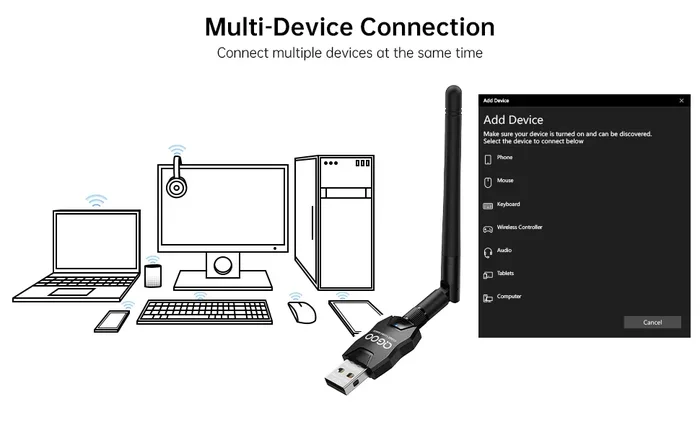
If your TV does not have Bluetooth, you can use a Bluetooth transmitter. These small devices plug into your TV’s audio output and send the signal to your headphones wirelessly. This is a great way to enjoy wireless listening on any TV. You can also learn more about making your TV Bluetooth-enabled for additional options.
For Roku users, connecting Bose headphones is possible with the right setup. Check out our guide on using Bluetooth headphones with Roku for more details.
Connecting to Your Computer or Laptop
Using Bose headphones with your computer works great for video calls, gaming, and music. On Windows, go to Settings > Devices > Bluetooth and follow the pairing steps. On a Mac, open System Preferences > Bluetooth and do the same.
Once paired, your computer will remember the connection. You can switch between your computer’s speakers and your Bose headphones anytime through the sound settings. This flexibility makes Bluetooth headphones perfect for a home office setup.
Connecting to Gaming Consoles
Connecting Bose headphones to gaming consoles like the PS5 is also possible, though it depends on the console’s Bluetooth support. You can learn more about using Bluetooth headphones with PlayStation in our guide on using Bluetooth headphones with PS5. The general pairing process is the same: put your headphones in pairing mode and search for them in the console’s Bluetooth settings.
Tips for the Best Wireless Audio Experience
Once your Bose headphones are connected, you want to keep the experience smooth and enjoyable. Here are some tips to get the most out of your wireless connection.
Keep Your Devices Close
While Bluetooth has a decent range, staying within 10 to 15 feet of your connected device gives you the best audio quality. Walls, furniture, and other obstacles can weaken the signal. For uninterrupted wireless audio, keep your devices in the same room.
Update Your Devices
Software updates often include improvements to Bluetooth performance. Keep your phone, computer, and TV updated to ensure the best Bluetooth connectivity with your Bose headphones. Outdated software can cause compatibility issues and connection drops.
Reset When Needed
If you run into persistent connection problems, try resetting your Bose headphones. Most models have a simple reset process. Usually, you hold down a specific button combination for a few seconds. A reset clears any saved pairing data and gives you a fresh start for the Bluetooth setup. After resetting, go through the pairing steps again from the beginning.
Manage Multiple Connections
Some Bose headphones can connect to two devices at the same time. This feature is called multi-point pairing. It lets you switch between your phone and laptop without disconnecting and reconnecting. Check your headphone manual to see if your model supports this handy feature for seamless wireless listening.
Common Mistakes to Avoid
Even with the best intentions, people make mistakes during the Bluetooth pairing process. Here are some common errors to avoid.
- Skipping the pairing mode step. Your headphones will not show up on other devices if they are not in pairing mode. Always confirm the blinking light before searching.
- Connecting to a distant device. Bluetooth has limits. Trying to pair from across the house often fails and causes frustration.
- Ignoring battery levels. A low battery can prevent successful pairing and cause audio dropouts. Always charge your headphones before a new Bluetooth setup.
- Forgetting to turn off Bluetooth on other devices. If multiple devices are searching, it can confuse the pairing process. Turn off Bluetooth on devices you are not using.
- Not updating firmware. Bose regularly releases firmware updates that improve Bluetooth connectivity. Check the Bose app for updates to keep your headphones running smoothly.
Quick Tips for Faster Pairing
Want to speed up your Bluetooth pairing experience? Here are some quick tips that save time and reduce frustration.
- Always start with a charged battery. A full charge takes the guesswork out of connection issues.
- Turn off Bluetooth on all other nearby devices before pairing. This reduces interference and helps your device find your Bose headphones faster.
- Keep the pairing process in a quiet, open space. Fewer obstacles mean a stronger signal during Bluetooth connectivity setup.
- Restart your device before pairing. A fresh start clears any temporary glitches that might block the connection.
- Use the Bose Connect app if your model supports it. The app simplifies the pairing process and lets you manage your wireless connection easily.
How to Disconnect and Reconnect
Disconnecting your Bose headphones is just as easy as connecting them. Simply turn off Bluetooth on your device, or turn off your headphones. When you want to reconnect, turn both devices back on and they should pair automatically if they have connected before.
If your headphones do not auto-connect, go to your device’s Bluetooth settings and tap on your Bose headphones again. The wireless audio will start flowing within seconds. This auto-reconnect feature is one of the biggest advantages of Bluetooth headphones in everyday use.
Final Thoughts
Connecting your Bose wireless Bluetooth headphones does not have to be a stressful experience. With the right steps, you can go from unboxing to listening in just a few minutes. Remember to charge your headphones, turn on Bluetooth, enter pairing mode, and select your headphones from the device list. If you run into issues, the troubleshooting tips in this guide will help you get back on track.
Bose headphones deliver outstanding sound quality and comfort. Once you experience the freedom of wireless listening, you will never want to go back to tangled cords. Whether you are at home, at the office, or on the go, your Bose headphones keep you connected to your favorite audio. Follow the steps in this guide, and you will be enjoying your music, podcasts, and calls in no time.
For more tips on using Bluetooth devices, check out how you can pair Bluetooth headphones to your LG TV or explore ways to play your record player through Bluetooth for a richer audio setup.
Frequently Asked Questions
How long does it take to connect Bose wireless Bluetooth headphones?
The entire process takes about two to three minutes once you know the steps. Charging your headphones first, turning on Bluetooth, and entering pairing mode are the key actions. After that, selecting your headphones from the device list takes just a few seconds.
Why won’t my Bose headphones show up in the Bluetooth list?
This usually happens when the headphones are not in pairing mode. Make sure the blue light is blinking before you search. Also, try moving closer to your device and restarting Bluetooth on both the headphones and your phone or computer.
Can I connect my Bose headphones to multiple devices at once?
Some Bose models support multi-point pairing, which allows two simultaneous connections. Check your specific model’s manual to confirm this feature. If supported, you can switch between devices without disconnecting and reconnecting each time.
Do I need to install any app to connect Bose headphones?
No, you do not need an app for basic Bluetooth pairing. The built-in Bluetooth settings on your phone, tablet, or computer handle everything. However, the Bose Connect app offers extra features like firmware updates and battery status tracking.
What should I do if the audio keeps cutting out during use?
Audio dropouts are often caused by distance, interference, or a low battery. Move closer to your connected device, remove obstacles, and check the battery level. If the problem persists, try resetting your headphones and reconnecting them through the Bluetooth pairing process.
Can I use my Bose headphones with a TV that does not have Bluetooth?
Yes, you can use a Bluetooth transmitter. This small device plugs into your TV’s audio output and sends the signal wirelessly to your headphones. It is an affordable and easy solution that brings wireless audio to any TV regardless of its built-in features.
=== FOOTER ===
Keywords covered: Bose wireless Bluetooth headphones, Bluetooth pairing, wireless audio, Bluetooth connectivity, Bluetooth setup, Bose SoundLink, Bose QuietComfort, Bluetooth range, Bluetooth headphones, wireless listening, device compatibility, wireless connection, audio streaming, Bluetooth troubleshooting, wireless earbuds, Bluetooth audio.