How Do I Connect My Bluetooth Barcode Scanner To My Android
Connecting a Bluetooth barcode scanner to your Android device is easier than you think. This guide walks you through the entire process, from turning on pairing mode to testing your scan. You will learn how to set up your wireless barcode reader in minutes and troubleshoot any issues along the way.
Have you just bought a bluetooth barcode scanner and want to get it working with your Android phone or tablet? You are in the right place. Setting up a wireless scanner with your Android device might feel intimidating at first, but it is actually quite simple once you know the steps.
In this guide, we will walk you through everything you need to know. From turning on pairing mode to downloading the right barcode reader app, we have you covered. Whether you use your scanner for inventory management, retail scanning, or just scanning QR codes at home, this article will help you get started.
A Bluetooth barcode scanner connects to your phone or tablet without any cables. This means you can scan items from a distance and move around freely. It is a huge upgrade over wired options, especially if you handle a lot of products or run a small business. Let us dive into the setup process.
Key Takeaways
- Pairing Mode Is Key: Always activate pairing mode on your scanner before searching from your Android device.
- Check Compatibility First: Not all barcode scanners work with every Android phone or tablet.
- Use the Right App: A dedicated barcode scanning app makes the whole process smoother.
- Troubleshoot Common Issues: Distance, battery, and Bluetooth settings are the top culprits for failed connections.
- Keep It Updated: Regular firmware and app updates improve device connectivity and performance.
- Reset When Needed: A simple factory reset can fix most stubborn pairing problems.
📑 Table of Contents
- What Is a Bluetooth Barcode Scanner?
- Preparing Your Android Device for Setup
- Step-by-Step Guide to Connecting Your Scanner
- Troubleshooting Common Connection Issues
- Best Apps for Bluetooth Barcode Scanning on Android
- Tips for Maximizing Scanner Performance
- Common Mistakes to Avoid
- Frequently Asked Questions
- Conclusion
What Is a Bluetooth Barcode Scanner?
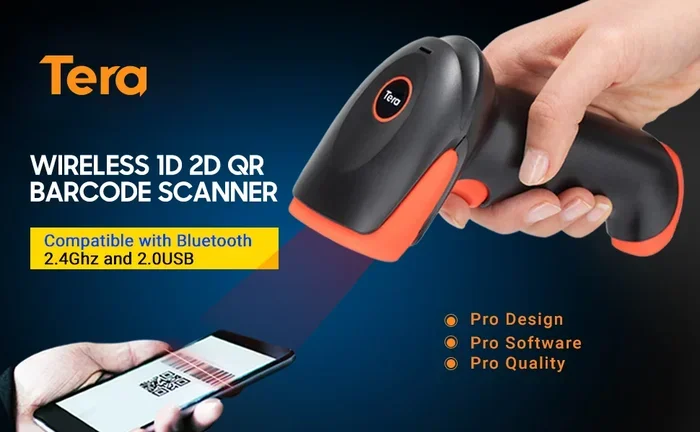
A Bluetooth barcode scanner is a handheld or handheld-free device that reads barcodes and sends the data wirelessly to your Android device. Instead of plugging in a cable, it uses Bluetooth technology to transmit scanned information. This makes it perfect for mobile scanning on the go.
These scanners come in many shapes and sizes. Some look like regular guns, while others are small and compact. You can find wireless barcode readers that handle 1D barcodes, 2D codes, and even QR code scanner functions. The most popular types include pen-style scanners, laser scanners, and image-based scanners.
How Does Bluetooth Scanning Work?
When you scan a barcode, the scanner reads the pattern of lines or dots and converts it into digital data. It then sends this data via Bluetooth connection to your Android phone or tablet. Your device receives the data as if you had typed it on a keyboard. This is called serial communication, and it works seamlessly with most apps.
The great thing about Bluetooth pairing is that once it is set up, you do not need to reconnect every time. The scanner remembers your device, and your device remembers the scanner. This makes scan and go workflows fast and efficient. You just pick up the scanner and start reading barcodes.
Preparing Your Android Device for Setup
Before you start the actual scanner setup, you need to make sure your Android device is ready. Skipping this step can cause frustrating delays later on. Here is what you need to do.
Check Bluetooth Compatibility
First, confirm that your phone or tablet supports Bluetooth. Most modern Android devices do, but it is always good to double-check. Go to your Settings app and look for the Bluetooth option. If you see it, you are good to go.
Next, make sure your Android version is up to date. Older versions may not support certain barcode scanning apps or device connectivity features. Update your software if needed before proceeding.
Charge Your Scanner and Phone
Nothing ruins a setup session faster than a dead battery. Make sure both your wireless scanner and your Android phone are fully charged or plugged in. A low battery on the scanner can cause weak Bluetooth connection issues or unexpected disconnections.
Also, keep your phone close to the scanner during the initial pairing process. You do not need to be right next to each other, but staying within a few feet helps ensure a smooth Bluetooth pairing experience.
Step-by-Step Guide to Connecting Your Scanner
Now for the fun part. Here is the exact process to get your Bluetooth barcode scanner connected to your Android device. Follow these steps carefully, and you will be scanning in no time.
Step 1: Turn On Your Scanner
Press and hold the power button on your scanner until the LED light turns on. Most scanners have a power indicator that flashes when the device is ready. If your scanner came with a manual, check for any specific power-on instructions.
Some scanners need a long press to activate, while others simply require a short press. Listen for a beep or look for a blinking light. This tells you the scanner is on and ready for device pairing.
Step 2: Activate Pairing Mode
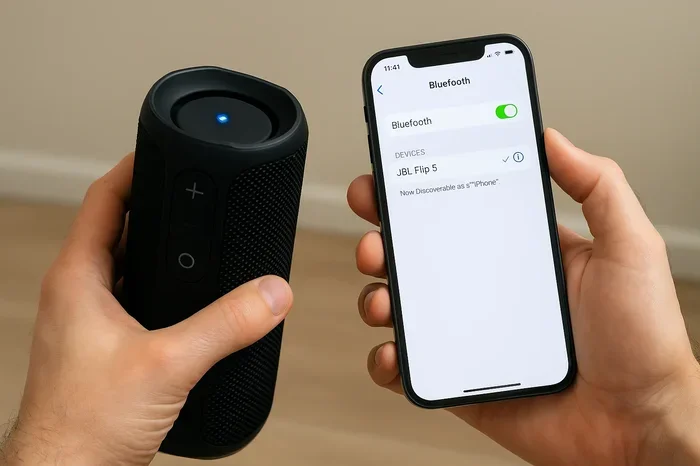
This is the most important step. You need to put your scanner into pairing mode so your Android phone can find it. On most models, you hold down a specific button for three to five seconds. The LED light will usually start flashing rapidly, which signals that the scanner is discoverable.
Check your scanner manual for the exact button combination. Some scanners have a dedicated Bluetooth or PAIR button. Others require you to hold the power button and a function button at the same time. Once the light flashes, your scanner is broadcasting and ready to be found.
Step 3: Open Bluetooth on Your Android Device
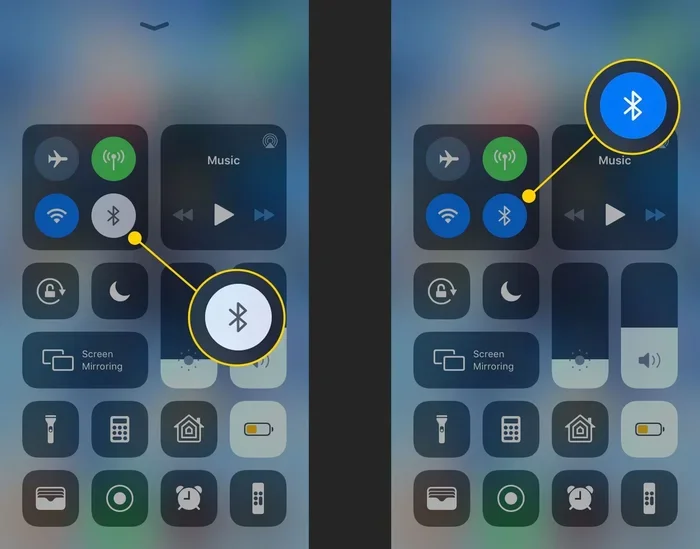
Go to Settings on your Android device and tap Bluetooth. Make sure Bluetooth is turned on. Your phone will start scanning for nearby devices automatically.
Wait a few seconds. Your scanner should appear in the list of available devices. It may show up as the brand name, a model number, or simply “Bluetooth Scanner.” Tap on the name to begin Bluetooth connection.
Step 4: Complete the Pairing Process
After you tap the scanner name, your phone will try to connect. You may see a pairing request with a PIN or passkey. Some scanners use a default PIN like “0000” or “1234.” Check your scanner manual if a PIN is required.
Once the pairing is complete, the LED light on your scanner will usually stop flashing and stay solid. You will also see a “Connected” or “Paired” label next to the scanner name in your Bluetooth settings. This confirms your Android phone scanner setup is successful.
Step 5: Test the Connection
Open a barcode scanning app or any text field on your phone. Scan a barcode. If the data appears on your screen, congratulations! Your wireless scanner is working perfectly. If nothing happens, do not worry. We will cover troubleshooting in the next section.
Troubleshooting Common Connection Issues
Sometimes things do not go smoothly. If your Bluetooth barcode scanner will not connect to your Android device, here are the most common issues and how to fix them.
Scanner Not Showing Up in Bluetooth List
This is the number one issue people face. If your phone cannot find the scanner, first make sure the scanner is in pairing mode. The flashing LED light is your best indicator. If the light is solid, the scanner is connected to a previous device and not broadcasting.
Also, check the distance between the two devices. Move them closer together and try again. Remove any metal objects or thick cases that might interfere with the Bluetooth connection. Restarting both devices can also help refresh the device connectivity channels.
Paired But Not Scanning
If the devices are paired but scanning does not work, the issue is usually with the app. Make sure your barcode reader app has permission to access your phone’s input. Go to Settings > Apps > Your Scanning App > Permissions and enable “Allow Simulate Keyboard.”
Another common fix is to close the app completely and reopen it. Sometimes the app needs a fresh start to recognize the new Bluetooth pairing. If the problem persists, try unpairing and then re-pairing the devices from your Bluetooth settings.
Connection Keeps Dropping
An unstable Bluetooth connection can be annoying. This usually happens when the scanner is too far from the phone. Stay within 30 feet for best results. Interference from other wireless devices, microwaves, or even Wi-Fi routers can also cause drops.
Check your wireless scanner battery level. A low battery weakens the signal. Also, make sure no other Bluetooth devices are fighting for the same channel. If you are in a busy environment like a retail store, device connectivity issues are more common. Move to a quieter area and try again.
Best Apps for Bluetooth Barcode Scanning on Android
While some barcode scanners work as a keyboard input without any special app, using a dedicated barcode scanning app gives you much more control. These apps let you manage scanned data, export results, and even integrate with inventory systems.
Free Barcode Scanning Apps
There are several excellent free options available on the Google Play Store. Apps like Barcode Scanner by ZXing and QR & Barcode Scanner by Gamma Play are popular choices. They are lightweight, easy to use, and work great with wireless barcode readers.
For basic retail scanning or personal use, these free apps are more than enough. They read most common barcode formats including UPC, EAN, and QR codes. You can use them for scan and go shopping, organizing products, or managing small inventories.
Professional Scanning Apps
If you run a business, you might want a more powerful Android phone scanner solution. Apps like ScanBot, ScanLife, and Barcode Scanner Plus offer advanced features like batch scanning, data export, and cloud syncing. These are ideal for inventory management and point of sale setups.
Some of these apps also support serial communication with specialized scanners. This means the scanned data goes directly into specific fields within the app, rather than just appearing as typed text. Check your scanner’s compatibility list before downloading a professional app.
Tips for Maximizing Scanner Performance
Once your Bluetooth barcode scanner is connected, you can get even better results with a few simple tips. These will help you get the most out of your wireless scanner every single day.
Keep your scanner clean. Dust and debris on the scanning window can cause missed reads. Wipe it gently with a soft cloth after heavy use. Also, store the scanner in its case when not in use to prevent damage.
Manage your battery wisely. Charge your scanner after every use or when the battery indicator drops below 20%. A well-maintained battery lasts longer and provides a stronger Bluetooth connection. If you use the scanner for long shifts, keep a charging cable handy.
Update your firmware and apps regularly. Scanner manufacturers release updates that fix bugs and improve device connectivity. Check the manufacturer’s website or app store for the latest versions. This small habit can save you from many headaches down the road.
Finally, do not forget that you can also use a Bluetooth printer without Wi-Fi alongside your scanner for a fully wireless workflow. And if you run into general Bluetooth issues, remember that pairing your phone to a projector uses similar steps and troubleshooting tips. For a deeper dive into wireless setup, you might also want to learn how to extend your Wi-Fi range if you are working in a large space.
Common Mistakes to Avoid
Even with the best guide, people make mistakes during setup. Here are the most common ones and how to avoid them.
Skipping the manual. Every scanner is different. The manual contains model-specific instructions for pairing mode and PIN codes. Spend five minutes reading it, and you will save yourself a lot of trial and error.
Not checking battery levels first. A low battery is the most common reason for failed Bluetooth pairing. Always charge your scanner fully before attempting to connect it to your Android device.
Ignoring app permissions. If your scanning app does not have the right permissions, it will not receive data from the scanner. Always check and enable keyboard simulation and Bluetooth access permissions.
Pairing in a crowded Bluetooth environment. If you are in a busy office or store with dozens of Bluetooth devices, interference can cause pairing failures. Move to a quieter area for the initial device pairing process.
Frequently Asked Questions
Can I connect any Bluetooth barcode scanner to any Android phone?
Most Bluetooth barcode scanners work with Android devices that support Bluetooth 4.0 or higher. However, some specialized scanners may require specific apps or drivers. Always check the scanner manufacturer’s compatibility list before purchasing to ensure smooth device connectivity with your particular Android device.
Do I need an internet connection to use a Bluetooth barcode scanner with Android?
No, you do not need the internet to pair or use a Bluetooth barcode scanner. The scanner communicates directly with your phone via Bluetooth, which is a local wireless connection. However, if your barcode scanning app needs to sync data to the cloud or look up product information, you will need an internet connection for those specific features.
Why does my scanner keep disconnecting from my Android phone?
Frequent disconnections are usually caused by low battery, too much distance between devices, or interference from other wireless devices. Make sure both devices are fully charged, stay within 30 feet of each other, and reduce Bluetooth interference by turning off unused devices nearby. Updating your scanner firmware can also improve Bluetooth connection stability.
Can I use my Bluetooth barcode scanner with multiple Android devices?
Yes, most wireless barcode readers can be paired with multiple devices. However, you can only be actively connected to one device at a time. To switch devices, disconnect the scanner from the current device and put it back into pairing mode to connect to the new Android phone or tablet.
How do I reset my Bluetooth barcode scanner if pairing fails?
Most scanners have a reset button or a reset procedure in the manual. Typically, you hold down a combination of buttons for 10 to 15 seconds until the LED light flashes in a specific pattern. This clears all previous pairings and returns the scanner to factory settings, giving you a fresh start for Bluetooth pairing with your Android device.
Can I use a Bluetooth barcode scanner for inventory management on my Android tablet?
Absolutely. Android tablets are excellent for inventory management with a Bluetooth barcode scanner. The larger screen makes it easier to view scanned data, and many professional barcode scanning apps are designed specifically for tablet use. Just make sure your tablet supports Bluetooth and has enough battery life for extended scanning sessions.
Conclusion
Connecting a Bluetooth barcode scanner to your Android device does not have to be complicated. With the right preparation, the correct scanner setup, and a little patience, you can have your wireless scanner up and running in just a few minutes. Remember to activate pairing mode, check your Bluetooth settings, and test the connection before relying on it for important tasks.
If you run into issues, the troubleshooting tips in this guide should help you resolve most problems quickly. Keep your devices charged, stay close during pairing, and always check app permissions. A well-connected Android phone scanner setup will make your mobile scanning workflow faster and more efficient than ever before.
Now that you know how to connect your Bluetooth barcode scanner, it is time to put that knowledge into action. Pick up your scanner, follow the steps, and start scanning. You will wonder how you ever managed without this convenient wireless barcode reader setup.