Does Dp Carry Audio Everything You Need To Know Today
Yes, DisplayPort carries audio alongside video signals, making it a versatile digital connection for monitors, GPUs, and home theater setups. DP supports multi-channel audio, lossless sound, and high-resolution formats across all modern versions. Understanding how DP audio works helps you troubleshoot issues and get the best sound from your setup.
You plug in a DisplayPort cable, and your screen lights up. But what about sound? Does DP carry audio, or do you need a separate connection for sound? This is a question many people ask when setting up a new monitor, building a gaming PC, or connecting a laptop to an external display.
The short answer is yes. DisplayPort carries audio along with video signals through the same cable. This makes it one of the most convenient digital connections available today. Whether you are using a gaming monitor, a home theater setup, or a professional workstation, DP handles both audio and video seamlessly.
In this guide, we will cover everything you need to know about DisplayPort audio support. We will look at how DP transmits sound, which versions support audio, how it compares to HDMI, and how to fix common audio problems. By the end, you will have a clear understanding of how to get the best audio experience through your DisplayPort connection.
Key Takeaways
- DisplayPort carries both audio and video over a single cable, eliminating the need for separate connections.
- All modern DP versions (1.2, 1.4, and 2.1) support audio transmission alongside video signals.
- DP supports multi-channel audio including 7.1 surround sound and high-resolution formats.
- Audio and video travel together through the same DisplayPort connector and cable.
- Common audio issues can usually be fixed through driver updates, cable checks, and correct display settings.
- DP audio works with most devices including PCs, laptops, gaming monitors, and home theater systems.
📑 Table of Contents
- What Is DisplayPort and Why Does Audio Matter?
- Does DP Carry Audio? The Short Answer
- How DisplayPort Transmits Audio Signals
- DisplayPort Versions and Audio Support
- DP Audio vs HDMI Audio
- Common DisplayPort Audio Problems and How to Fix Them
- Getting the Best Audio Experience with DisplayPort
- Conclusion
What Is DisplayPort and Why Does Audio Matter?
DisplayPort is a digital display interface developed by VESA. It is used to connect video sources like computers and laptops to displays such as monitors, projectors, and TVs. The connection has become very popular, especially among gamers and professionals who need high-resolution output.
When you think about display connections, you probably think about picture quality first. But audio matters just as much. Imagine watching a movie on your monitor with no sound or hearing static through your speakers. That is why knowing whether your cable supports audio is so important.
DisplayPort was designed from the start to carry both audio and video. This is different from some older connections that only handled one signal type. The digital audio output through DP is clean, uncompressed, and supports a wide range of formats. This makes it a great choice for anyone who wants both great picture and great sound from one cable.
How DisplayPort Connects to Your Devices
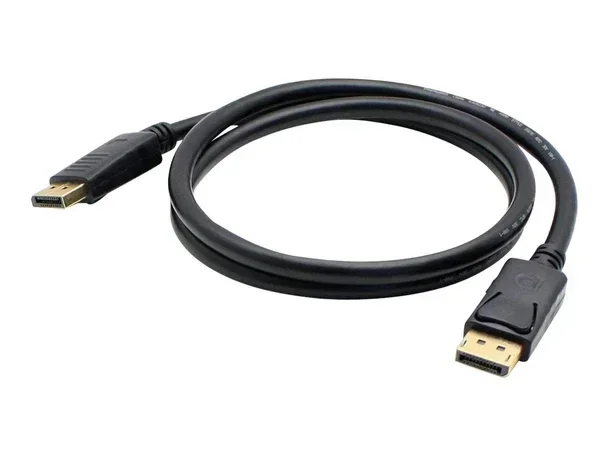
The standard DisplayPort connector looks like a rectangular plug with a slight notch on one side. There are two main types: the full-size DisplayPort and the smaller Mini DisplayPort. Both carry audio and video signals without any difference in performance.
You will find DisplayPort outputs on most modern graphics cards, motherboards, and laptops. Many gaming monitors also include DP inputs. The connection is designed to be plug-and-play, meaning you should get both audio and video just by plugging it in.
Does DP Carry Audio? The Short Answer
Yes, DP carries audio. Every version of DisplayPort supports audio transmission. This has been the case since the very first version of the standard. Unlike some connections where you need to choose between audio and video, DisplayPort handles both at the same time.
When you connect your computer to a monitor using a DisplayPort cable, the audio signal travels right alongside the video signal. Your monitor receives both and can either display the image and play the sound directly, or pass the audio to external speakers through its own audio output.
What Devices Support DP Audio?
Most modern devices work with DisplayPort audio. Here is a quick list of devices that support audio through DP:
- Desktop computers with dedicated or integrated graphics cards
- Laptops with DisplayPort outputs or USB-C with DP Alt Mode
- Gaming monitors with built-in speakers or audio out
- Home theater receivers and soundbars with DP inputs
- Professional displays used in video editing and design work
- Consoles and streaming devices that use DP outputs
As long as both your source device and your display support DisplayPort, you should get audio without any extra setup. The audio and video transmission happens automatically through the same cable.
How DisplayPort Transmits Audio Signals
Understanding how DP audio works under the hood helps you troubleshoot issues and get the best results. DisplayPort uses packet-based transmission to send both audio and video data. This means audio and video are broken into small data packets and sent together through the same link.
The display or receiver then reassembles these packets. Video packets go to the screen, and audio packets go to the speakers or audio output. This all happens very quickly, so you get synchronized sound and picture with no noticeable delay.
Audio Formats Supported by DisplayPort
DisplayPort audio support covers a wide range of formats. Here are some of the key formats you can expect:
- Uncompressed PCM audio up to 24-bit depth
- Multi-channel surround sound including 7.1 channels
- Dolby Digital and DTS compressed formats
- High-resolution audio formats for professional use
- Lossless audio for audiophile-grade listening
The ability to carry lossless audio through DisplayPort is a big advantage. You get studio-quality sound without any compression artifacts. This is especially important for music producers, video editors, and serious gamers who want the best audio experience.
How Many Audio Channels Can DP Handle?
DisplayPort supports up to 8 audio channels at once. This means you can get true 7.1 surround sound through a single DP cable. The number of channels depends on your audio setup and the capabilities of your sound card or GPU.
For most users, stereo or 5.1 surround is more than enough. But if you have a home theater setup or a surround sound system, DP can deliver that full experience. Just make sure your DisplayPort cable and both devices support the audio format you want to use.
DisplayPort Versions and Audio Support
DisplayPort versions have evolved over the years, and each new version brings better bandwidth and features. But when it comes to audio, all modern versions carry sound just fine. Here is a look at how audio support works across different DP versions.
| DisplayPort Version | Audio Support | Max Audio Channels | Release Year |
|---|---|---|---|
| DisplayPort 1.0 | Yes | Up to 8 channels | 2006 |
| DisplayPort 1.2 | Yes | Up to 8 channels | 2009 |
| DisplayPort 1.4 | Yes | Up to 8 channels | 2016 |
| DisplayPort 2.0/2.1 | Yes | Up to 8 channels | 2019/2022 |
As you can see, every DisplayPort version supports audio. The audio capabilities have remained consistent across all versions. What changes between versions is the video bandwidth, resolution support, and refresh rate capabilities.
DisplayPort 1.2 Audio Features
DisplayPort 1.2 is one of the most common versions you will find today. It supports audio alongside video with up to 8 channels of uncompressed PCM audio. Most monitors and graphics cards from the last decade use DP 1.2 or later.
If you are using a DisplayPort 1.2 cable, you will get full audio support without any issues. This version handles stereo, 5.1 surround, and 7.1 surround sound with ease.
DisplayPort 1.4 and Audio Enhancements
DisplayPort 1.4 brought some improvements to audio support, particularly with DSC (Display Stream Compression). While DSC mainly affects video, the overall bandwidth improvements mean better audio quality is possible in high-resolution setups.
DP 1.4 also supports high-resolution audio formats more efficiently. If you have a 4K monitor or a high-refresh-rate display, DP 1.4 ensures your audio stays in sync with the video output.
DisplayPort 2.0 and Future Audio Support
DisplayPort 2.1 is the latest version and offers massive bandwidth improvements. While audio support remains similar, the higher bandwidth allows for more simultaneous data streams. This means better audio-video synchronization and support for more advanced audio codecs in the future.
DP Audio vs HDMI Audio
When it comes to choosing between DP audio and HDMI audio, many people wonder which is better. Both connections carry audio and video, but they have some differences worth knowing about.
DisplayPort was designed primarily for PC and professional use. HDMI was designed more for consumer electronics like TVs and Blu-ray players. Both support multi-channel audio, but there are some nuances in how they handle sound.
Audio Quality Comparison
In terms of raw audio quality, both DP and HDMI can deliver excellent sound. Both support uncompressed PCM audio and multi-channel surround. However, there are some differences in codec support and compatibility with certain devices.
- DisplayPort uses a packet-based audio transport that is very efficient
- HDMI supports Consumer Electronics Control (CEC) for device control
- DP audio tends to have fewer compatibility issues with PC audio hardware
- HDMI is more universally supported on TVs and home theater equipment
For most PC users, DisplayPort audio works perfectly. If you are connecting a PC to a gaming monitor, DP is usually the best choice. If you are connecting a PC to a TV, HDMI might be more convenient because of CEC support and wider TV compatibility.
When to Choose DP for Audio
You should choose DisplayPort for audio when you are using a PC or laptop with a DP-capable monitor. It is also the better choice for high-refresh-rate gaming monitors where you need the full bandwidth for video. And if your setup involves multiple monitors daisy-chained together, DP makes this easy while still carrying audio.
For those who are wondering about conversions, if you ever need to switch from DP to another audio output, checking resources like Can I Convert HDMI To RCA For Audio can help you understand your options for analog audio connections.
Common DisplayPort Audio Problems and How to Fix Them
Even though DP carries audio by default, you might run into issues sometimes. Audio problems with DisplayPort are usually easy to fix. Here are the most common issues and their solutions.
No Sound Through DisplayPort
If you have no sound after connecting via DP, the first thing to check is your default audio output device. On Windows, right-click the speaker icon in your taskbar and select your DisplayPort output. On macOS, go to System Settings and choose the DP-connected display as your output.
Sometimes the audio device is not detected automatically. This can happen if your graphics drivers are outdated. Updating your GPU drivers often fixes this issue quickly. You can also try unplugging the DP cable and plugging it back in to reset the connection.
Audio and Video Are Out of Sync
If your sound and picture do not match, you might have an audio delay. This is common when using DP with certain monitors or when the audio processing settings are not configured correctly.
Try adjusting the audio sync settings in your operating system or your monitor’s on-screen menu. Reducing the audio buffer size in your sound settings can also help reduce delay. If you are using a soundbar or external speakers connected through your monitor, make sure the monitor’s audio output is set correctly.
Distorted or Crackling Audio
Distorted sound through DisplayPort is usually caused by a faulty cable or a bad connection. Try using a different DisplayPort cable to see if the problem goes away. Also, make sure the cable is fully seated in both the source device and the display.
Interference from other cables or power sources can also cause audio distortion. Keep your DP cable away from power cables and magnetic sources. If the problem persists, try a different port on your GPU or motherboard.
Audio Quality Drops on Certain Apps
Sometimes you get good audio in most apps but poor audio in specific ones. This is usually an app-level audio setting issue. Check the audio output settings within the application and make sure it is set to use the default system audio device.
For example, if you are using communication apps or media players, they often have their own audio device selection. Make sure these apps are set to use your DP audio output rather than a different device like Bluetooth headphones or a built-in microphone.
Quick Tips for DP Audio Troubleshooting
- Always check your default audio output device first
- Update your graphics and audio drivers regularly
- Try a different DisplayPort cable if you have audio issues
- Restart your devices after making audio setting changes
- Check your monitor’s built-in speaker settings if applicable
- Make sure your GPU drivers are up to date for the best audio compatibility
Getting the Best Audio Experience with DisplayPort
Now that you know DP carries audio and how to fix common issues, let us look at how to get the best audio experience from your DisplayPort setup.
First, invest in a good quality DisplayPort cable. A certified cable with proper shielding ensures clean audio and video signals. Cheap or damaged cables can cause audio dropouts or quality issues.
Second, check your sound settings regularly. Make sure your operating system is set to output audio through the DisplayPort connection. On Windows, you can set this in the Sound Settings under Output devices. On macOS, check the Sound preferences under Output.
Third, consider using an external DAC (Digital-to-Analog Converter) if you want even better audio quality. A DAC connected through DisplayPort can convert the digital audio signal to an analog signal with higher fidelity. This is especially useful for audiophiles who want premium sound from their setup.
Finally, keep your drivers and firmware updated. Both GPU manufacturers and monitor makers release updates that improve audio compatibility and performance. Checking for updates every few months keeps everything running smoothly.
If you are building a smart home setup and want to integrate audio across devices, you might also want to explore how different smart home devices handle audio. For instance, checking out Does Homewerks Work With Google Home can give you insight into how smart audio devices interact with your home ecosystem.
For mobile users, audio input and output can work differently across devices. If you are curious about how mobile devices handle audio modes, you can read about Does iPhone Have Mic Mode to understand more about mobile audio capabilities.
Conclusion
Does DP carry audio? Yes, absolutely. DisplayPort carries both audio and video signals through a single cable, making it one of the most convenient and capable connections available. Whether you are gaming, working, or watching movies, DP delivers high-quality sound alongside stunning visuals.
Every version of DisplayPort supports audio, from the earliest versions to the latest DP 2.1. The connection handles multiple audio channels, lossless formats, and surround sound without any extra setup. And when issues do come up, they are usually easy to fix with driver updates, cable swaps, or setting adjustments.
DisplayPort audio is reliable, high-quality, and built into the standard from the ground up. So the next time you plug in a DP cable, you can trust that both your picture and your sound will come through perfectly. Get the right cable, check your settings, and enjoy the full experience that DisplayPort has to offer.
Frequently Asked Questions
Does DisplayPort 1.2 carry audio?
Yes, DisplayPort 1.2 fully supports audio alongside video. It can handle up to 8 audio channels, including stereo, 5.1, and 7.1 surround sound. Most monitors and graphics cards from the last decade use DP 1.2 or later, so audio compatibility is excellent across the board.
Can I get sound through DisplayPort without built-in monitor speakers?
Yes, you can. Even if your monitor does not have built-in speakers, the DisplayPort audio signal is still transmitted through the cable. You can connect external speakers or headphones directly to your PC’s audio output, or use a monitor with an audio-out port to route sound to external devices.
Is DisplayPort audio better than HDMI audio?
Both DP audio and HDMI audio support high-quality sound and multi-channel formats. DisplayPort tends to have fewer compatibility issues with PC hardware, while HDMI is more universally supported on TVs. For most PC users, the audio quality difference between the two is negligible.
Why is there no sound when I plug in DisplayPort?
The most common reason is that your system has not set DisplayPort as the default audio output device. Check your sound settings and make sure the DP-connected display is selected as the output. Updating your GPU drivers and checking the physical cable connection also helps resolve this issue.
Does DisplayPort 1.4 support lossless audio?
Yes, DisplayPort 1.4 supports lossless audio formats. All versions of DisplayPort can carry uncompressed PCM audio without any loss in quality. This makes DP a great choice for audiophiles and professionals who need the highest audio fidelity from their digital connection.
Can I use a DisplayPort to HDMI adapter and still get audio?
Yes, most DisplayPort to HDMI adapters pass audio through along with the video signal. Make sure the adapter you buy specifically supports audio transmission. Cheap or passive adapters may only carry video, so always check the product specifications before purchasing.