How Do I Connect My Audio Technica Bluetooth Headphones
Connecting your Audio Technica Bluetooth headphones to your iPhone is simple once you know the right steps. This guide walks you through pairing, troubleshooting, and optimizing your wireless audio experience. You will learn everything from initial setup to advanced features that make your listening better.
So you just got a pair of Audio Technica Bluetooth headphones, and you want to start listening to music on your iPhone. Maybe you are tired of tangled wires or just want the freedom to move around your room without being tethered to your phone. Either way, you are in the right place.
This guide covers everything you need to know about connecting Audio Technica wireless headphones to an iPhone. We will walk through the pairing process step by step. We will also cover common problems, tips for better sound, and answers to questions you might have along the way.
Audio Technica makes some of the best wireless headphones on the market. Their Bluetooth headphones deliver clean sound, comfortable fit, and solid battery life. But before you can enjoy your favorite tracks, you need to get them paired with your phone. Do not worry, it is easier than you think.
Key Takeaways
- Quick Pairing: Putting your Audio Technica headphones in pairing mode takes only a few seconds.
- iPhone Compatibility: Most Audio Technica Bluetooth headphones work seamlessly with iPhones running modern iOS versions.
- Troubleshooting Helps: Simple resets and software updates fix most connection problems fast.
- Sound Quality Matters: Using the right Bluetooth codec and settings improves your audio experience significantly.
- Multiple Devices: You can pair your headphones with other devices too, like a TV or speaker system.
📑 Table of Contents
- What You Need Before You Start
- Step-by-Step Guide to Pairing Your Headphones
- Troubleshooting Common Connection Problems
- Tips for Better Sound Quality
- Using Your Headphones with Other Devices
- Maintaining Your Bluetooth Connection
- Common Mistakes to Avoid
- Expert Insights on Bluetooth Headphone Connectivity
- Final Thoughts
What You Need Before You Start
Before you begin the pairing process, make sure you have everything ready. This small prep step saves time and prevents frustration later on.
Check Your iPhone Settings
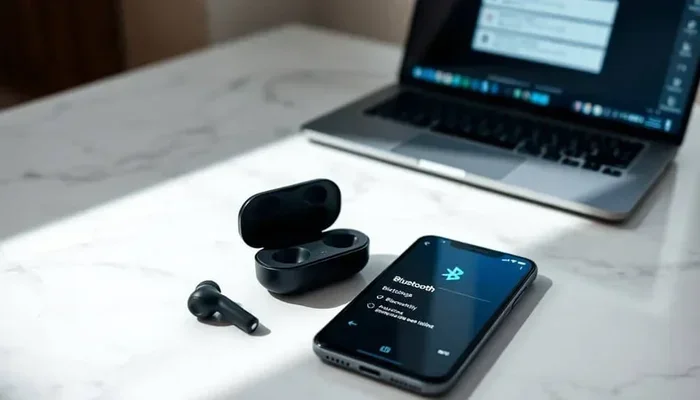
First, confirm that your iPhone has Bluetooth turned on. Go to Settings > Bluetooth and make sure the toggle is switched on. If Bluetooth is already enabled, you are good to go. If not, simply tap the switch to turn it on.
Charge Your Headphones
Make sure your Audio Technica headphones have enough battery charge. A low battery can cause pairing problems or unexpected disconnections. Most models need at least 30 minutes of charge to power on and enter pairing mode properly.
Know Your Headphone Model
Different Audio Technica models have slightly different pairing methods. Check your user manual or look up your specific model online. Common models include the ATH-M50xBT, ATH-SR50BT, and ATH-CKR5BT. Each one has its own button layout for entering pairing mode.
Step-by-Step Guide to Pairing Your Headphones
Now that you are prepared, let us get your headphones connected to your iPhone. Follow these steps carefully for a smooth pairing experience.
Step 1: Put Your Headphones in Pairing Mode
Turn on your Audio Technica headphones by pressing and holding the power button. Most models require you to hold a specific button for about five seconds until a flashing LED light appears. This flashing light means your headphones are ready to be discovered.
If you are unsure which button to press, check the manual for your model. Some headphones use a dedicated Bluetooth button, while others use the volume controls. The flashing blue or red light is your signal that Bluetooth pairing mode is active.
Step 2: Find Your Headphones on Your iPhone
On your iPhone, go to Settings > Bluetooth. Your iPhone will automatically scan for nearby Bluetooth devices. Within a few seconds, your Audio Technica headphones should appear in the list of available devices.
Tap on the name of your headphones when you see them. The name usually starts with “ATH” followed by the model number. Once you tap, your iPhone will begin the pairing process.
Step 3: Complete the Pairing
Your iPhone may ask you to confirm the pairing. A code might appear on your screen, or it might connect automatically. If a code shows up, make sure it matches on both your iPhone and your headphones.
Once paired, the LED light on your headphones will stop flashing and stay solid. You will also see a “Connected” label next to your headphones in the Bluetooth settings. That means your wireless headphones are now ready to use.
Step 4: Test the Connection
Play some music or a video on your iPhone to test the audio. You should hear sound coming through your headphones right away. If the sound is clear and there is no delay, you have successfully paired your devices.
If you want to pair Bluetooth headphones to a TV or other devices later, the process is very similar. Just put the headphones back in pairing mode and select them from the device’s Bluetooth menu.
Troubleshooting Common Connection Problems
Sometimes things do not go as smoothly as we hope. If your Audio Technica headphones will not connect to your iPhone, do not panic. Most issues have simple fixes.
Headphones Not Showing Up on iPhone
If your headphones do not appear in the Bluetooth list, try these steps:
- Turn Bluetooth off and back on from your iPhone settings.
- Make sure your headphones are in pairing mode (flashing light).
- Move closer to your iPhone. Bluetooth range is typically about 30 feet.
- Restart your iPhone and try again.
Sometimes other Bluetooth devices can interfere with the connection. Turn off nearby Bluetooth devices temporarily and try again. This often resolves the issue quickly.
Audio Cuts Out or Sounds Scratchy
If your audio keeps cutting out or sounds fuzzy, the problem is usually related to distance or interference. Stay within range of your iPhone. Walls and other electronic devices can weaken the Bluetooth signal.
You might also want to check if your Bluetooth headphones need a firmware update. Some Audio Technica models use a companion app that lets you update the headphone software. Updated firmware often fixes connection issues.
Headphones Connected But No Sound
This is a common issue and usually easy to fix. First, check your iPhone volume. Make sure it is not muted or turned all the way down. Next, check that your headphones are selected as the audio output device.
Go to Settings > Bluetooth and tap the “i” icon next to your headphones. Make sure the audio output is set to your headphones and not to your phone speakers.
Resetting Your Headphones
If nothing else works, try resetting your Audio Technica headphones. Most models require you to hold down a specific button combination for about 10 seconds. This clears old pairing data and lets you start fresh.
After resetting, put the headphones back in pairing mode and try connecting again. This solves the majority of stubborn connection problems.
Tips for Better Sound Quality
Once your headphones are connected, you can improve your listening experience with a few simple adjustments.
Understand Bluetooth Codecs
iPhones use a Bluetooth codec called AAC, which works well with most Audio Technica wireless headphones. Codecs are like languages that your phone and headphones use to share audio. When both devices support the same codec, you get better sound quality and less delay.
You do not need to change codec settings manually on an iPhone. Apple handles this automatically. But knowing that AAC is the default codec helps you understand why your audio sounds the way it does.
Keep Your iPhone Updated
Software updates often include improvements to Bluetooth performance. Keep your iPhone updated to the latest iOS version. This ensures the best compatibility with your headphones.
Minimize Interference
Wi-Fi routers, microwaves, and other electronic devices can interfere with your Bluetooth signal. If you notice audio problems, move away from these devices. A clear line of sight between your iPhone and headphones also helps maintain a strong connection.
You can also check your Wi-Fi signal strength if you suspect interference. A crowded wireless environment can affect Bluetooth performance. Switching to a less crowded Wi-Fi channel can sometimes help.
Using Your Headphones with Other Devices
One of the best things about Bluetooth headphones is their versatility. Your Audio Technica headphones are not limited to just your iPhone.
Paired with Multiple Devices
Many Audio Technica models can remember multiple paired devices. This means you can switch between your iPhone, iPad, and laptop without re-pairing every time. Just make sure Bluetooth is on on all devices you want to use.
Some users also ask about using Bluetooth headphones with Roku or other streaming devices. The process is similar to iPhone pairing. Put the headphones in pairing mode and select them from the device’s Bluetooth settings.
Can You Talk Through Bluetooth Headphones?
If you want to use your headphones for phone calls or voice chat, most Audio Technica models have a built-in microphone. You can talk through Bluetooth headphones just like you would with wired earbuds. The microphone picks up your voice and sends it to the connected device.
For the best call quality, make sure you are in a quiet environment. Background noise can sometimes interfere with voice pickup on wireless headphones.
Making Non-Bluetooth Devices Wireless
If you have a TV or speaker system that does not support Bluetooth, you can add Bluetooth capability. Some users ask how to make their TV have Bluetooth. The answer is a simple Bluetooth transmitter that plugs into the audio output of your TV.
This opens up a lot of possibilities. You can use your Audio Technica headphones with any device that has a 3.5mm headphone jack or RCA output. It is a great way to get wireless audio from older devices.
Maintaining Your Bluetooth Connection
Taking care of your headphones and connection helps them last longer and perform better over time.
Keep Firmware Updated
Check the Audio Technica app or website for firmware updates regularly. Updates often improve Bluetooth stability, battery life, and sound quality. Most updates are free and take just a few minutes to install.
Manage Battery Life
Bluetooth headphones use battery power even when not actively playing audio. Turn off your headphones when you are not using them. This preserves battery life and prevents accidental connections to nearby devices.
Store Them Properly
When you are not using your headphones, store them in a cool, dry place. Extreme heat or cold can damage the battery and Bluetooth components. A carrying case helps protect them from dust and physical damage.
Common Mistakes to Avoid
Here are some mistakes that can cause problems with your Bluetooth headphone connection:
- Skipping the pairing mode: If you do not put your headphones in pairing mode, your iPhone cannot find them.
- Ignoring updates: Outdated software on your iPhone or headphones can cause compatibility issues.
- Pairing too many devices at once: This can confuse your headphones and lead to connection drops.
- Standing too far away: Bluetooth has a limited range. Stay within 30 feet for the best connection.
- Not resetting when problems persist: A simple reset often fixes issues that seem complicated.
Expert Insights on Bluetooth Headphone Connectivity
Bluetooth technology has come a long way over the years. Modern Bluetooth versions offer faster connections, better range, and lower power consumption. Most Audio Technica headphones use Bluetooth 5.0 or newer, which provides a much more reliable wireless experience.
One thing to keep in mind is that Bluetooth audio latency can vary depending on the content you are listening to. Music typically has very low latency, but watching videos or playing games might show a slight delay. This is normal and happens with all wireless audio devices.
If you experience noticeable latency, try moving closer to your iPhone or reducing the number of Bluetooth devices in your environment. These small changes can make a big difference in your wireless listening experience.
Another useful tip is to learn how to check your Wi-Fi signal strength if you suspect wireless interference. A strong Wi-Fi signal in the same frequency band can sometimes conflict with Bluetooth. Understanding your wireless environment helps you troubleshoot faster.
Final Thoughts
Connecting your Audio Technica Bluetooth headphones to your iPhone is a straightforward process that anyone can do. With just a few simple steps, you can be enjoying wireless audio in minutes. The key is to follow the pairing instructions carefully and keep your devices updated.
Remember that troubleshooting is normal. Even the best wireless headphones occasionally need a reset or a software update. The tips in this guide should help you handle most issues on your own.
Once your headphones are paired, you can explore all the features Audio Technica has to offer. From noise cancellation to multi-device pairing, these headphones are designed to make your listening experience better. Enjoy the freedom of wireless audio and the quality sound that Audio Technica is known for.
Whether you are commuting, working out, or relaxing at home, your paired headphones deliver the convenience and sound quality you want. Now that you know how to connect them, you are ready to start enjoying your favorite music, podcasts, and calls without any wires holding you back.
Frequently Asked Questions
How long does it take to pair Audio Technica headphones with an iPhone?
The pairing process usually takes less than two minutes. You need to put your headphones in pairing mode and then select them from your iPhone’s Bluetooth settings. Once you tap to connect, the process is almost instant.
Can I connect my Audio Technica headphones to an iPhone and another device at the same time?
Some Audio Technica models support multi-device pairing, which allows you to connect to two devices simultaneously. Check your specific model’s specifications to confirm this feature. If your model does not support it, you will need to disconnect from one device before connecting to another.
Why do my Audio Technica Bluetooth headphones keep disconnecting from my iPhone?
Frequent disconnections are usually caused by distance, interference, or low battery. Make sure you stay within Bluetooth range and that both devices have enough charge. Restarting both devices and resetting the headphones can also resolve this issue.
Do I need any special app to connect Audio Technica headphones to my iPhone?
No, you do not need a special app for basic pairing. Your iPhone’s built-in Bluetooth settings handle the connection. However, Audio Technica offers a companion app for firmware updates and some advanced settings. The app is optional but recommended for the best experience.
Can I use my Audio Technica Bluetooth headphones with my iPhone for phone calls?
Yes, most Audio Technica Bluetooth headphones have a built-in microphone that works with iPhone phone calls. You can answer calls directly from your headphones and speak through the built-in mic. The call quality depends on your environment and the specific headphone model.
What should I do if my iPhone does not recognize my Audio Technica headphones?
First, make sure your headphones are in pairing mode with a flashing LED light. Then toggle Bluetooth off and on in your iPhone settings. If that does not work, restart your iPhone and try again. As a last resort, reset your headphones and attempt pairing from scratch.
=== CONCLUSION ===
Now you know exactly how to connect your Audio Technica Bluetooth headphones to your iPhone. The process is quick, simple, and works the same way for most models. Whether you are a first-time user or reconnecting after a long break, the steps in this guide will get you listening in no time.
Remember to keep your devices updated, stay within range, and reset when needed. These small habits go a long way in keeping your wireless connection strong and reliable. If you run into any issues, the troubleshooting tips above should help you resolve them quickly.
Enjoy your wireless audio experience with your Audio Technica headphones. Happy listening!