How Do I Connect A Bluetooth Device Quickly And Easily
Connecting a Bluetooth device is simpler than you think. This guide walks you through the entire Bluetooth pairing process, from enabling Bluetooth on your device to fixing common connection issues. You will learn how to connect Bluetooth speakers, headphones, printers, and more in just a few easy steps.
Have you ever unboxed a new Bluetooth gadget and felt completely lost? You are not alone. Connecting a Bluetooth device can feel confusing if you have never done it before. But here is the good news. The process is actually very simple once you know the steps.
In this guide, we will show you exactly how to connect a Bluetooth device quickly and easily. Whether you want to pair wireless headphones, a Bluetooth speaker, a printer, or any other accessory, we have you covered. We will walk you through every step from start to finish.
By the end of this article, you will feel confident pairing any wireless device in seconds. No technical skills are needed. Just follow along and you will be streaming, printing, or listening in no time.
Key Takeaways
- Bluetooth pairing is quick: Most devices can be connected in under two minutes once Bluetooth is enabled.
- Put your device in discovery mode: This is the key step that lets other devices find and connect to your Bluetooth accessory.
- Troubleshooting is simple: Restarting devices, checking range, and updating software fixes most Bluetooth problems.
- Multiple devices can pair: You can connect several Bluetooth devices to one host device at the same time.
- Security matters: Always use trusted devices and keep your Bluetooth off when not in use to stay safe.
📑 Table of Contents
- What Is Bluetooth and How Does It Work?
- How to Connect a Bluetooth Device Step by Step
- Common Bluetooth Devices and How to Connect Them
- Troubleshooting Bluetooth Connection Problems
- How to Manage Multiple Bluetooth Devices
- Tips for Better Bluetooth Performance
- Is Bluetooth Safe and Secure?
- Final Thoughts
What Is Bluetooth and How Does It Work?
Bluetooth is a wireless technology that lets devices talk to each other over short distances. It uses radio waves to send data between gadgets. You do not need cables, Wi-Fi, or internet access. That is what makes it so convenient.
The technology has been around since the late 1990s. But it has gotten much better over the years. Modern Bluetooth versions offer faster speeds, longer range, and lower power use. Most Bluetooth enabled devices today use version 5.0 or higher.
How Bluetooth Pairing Works
When you pair two Bluetooth devices, they create a secure link. This link lets them share data wirelessly. Here is a simple way to think about it:
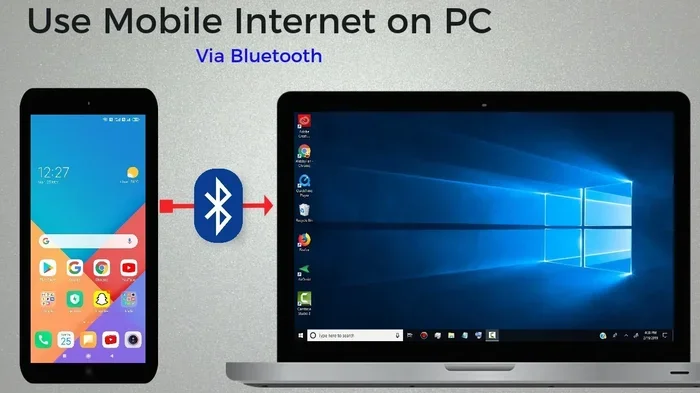
- One device acts as the host (like your phone or laptop).
- The other device is the accessory (like your headphones or speaker).
- The host searches for nearby devices in discovery mode.
- You confirm the connection using a PIN or by tapping “Pair.”
Once paired, the devices remember each other. You do not need to repeat the process every time. This is what makes Bluetooth connectivity so seamless in everyday use.
How to Connect a Bluetooth Device Step by Step
Now let us get into the actual process. Follow these steps to connect a Bluetooth device without any hassle.
Step 1: Turn on Bluetooth on Your Host Device
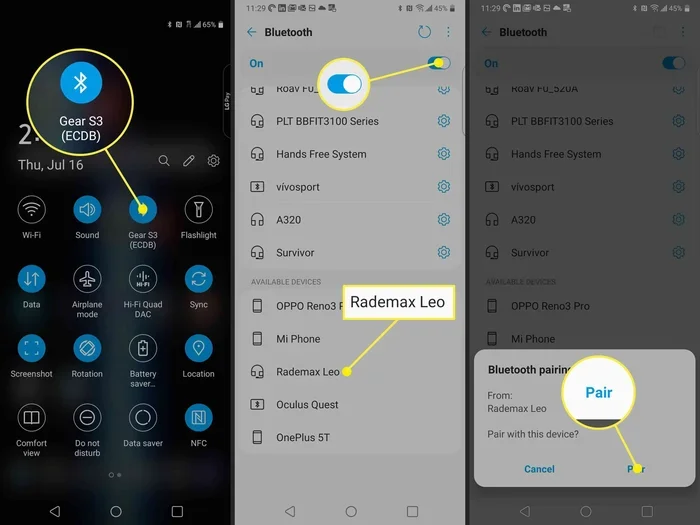
First, you need to enable Bluetooth on the device you want to connect from. On most phones, you can swipe down from the top of the screen and tap the Bluetooth icon. On a computer, go to your Bluetooth settings in the control panel or system preferences.
Make sure Bluetooth is switched on. You should see a message that says Bluetooth is active. Some devices also show a Bluetooth symbol in the status bar when it is turned on.
Step 2: Put Your Bluetooth Device in Discovery Mode
This is the most important step. Your accessory needs to be discoverable so your host device can find it. The way you do this depends on the device:
- Bluetooth headphones: Hold down the power button for a few seconds until the LED light flashes.
- Bluetooth speakers: Press and hold the Bluetooth button until you see a blinking light.
- Bluetooth printers: Go to the printer settings menu and select “Bluetooth Setup” or “Pairing Mode.”
Each device is a little different. Check the user manual if you are unsure. The flashing light or sound tells you the device is ready to be found.
Step 3: Search for Devices on Your Host
Now go back to your host device. In the Bluetooth settings menu, tap “Search” or “Scan for Devices.” Your host will look for any wireless devices nearby that are in discovery mode.
After a few seconds, your accessory should appear on the list. Tap on its name to begin the pairing process.
Step 4: Confirm the Pairing
Some devices will ask you to confirm a PIN. The PIN is usually shown on both screens at the same time. Simply tap “Pair” or “Confirm” on both devices.
For many modern accessories, pairing is automatic. You just tap the device name and it connects right away. You will hear a sound or see a confirmation message when the Bluetooth pairing is successful.
Step 5: Test Your Connection
Once paired, test the connection. Play some music through your Bluetooth speaker or start a video on your wireless headphones. If the audio comes through clearly, you are all set!
If something does not work, do not worry. We will cover troubleshooting in a later section.
Common Bluetooth Devices and How to Connect Them
Different devices have slightly different pairing methods. Here are some of the most common Bluetooth devices and how to connect them.
Bluetooth Headphones and Earbuds
Wireless headphones are probably the most popular Bluetooth accessory out there. To connect them:
- Turn on your headphones.
- Put them in pairing mode (usually by holding the Bluetooth button).
- Go to your phone or computer Bluetooth settings.
- Select your headphones from the list.
Once connected, you can use them for music, calls, and even gaming. If you own a Roku device, you might want to check our guide on using Bluetooth headphones with Roku for specific streaming tips.
Bluetooth Speakers
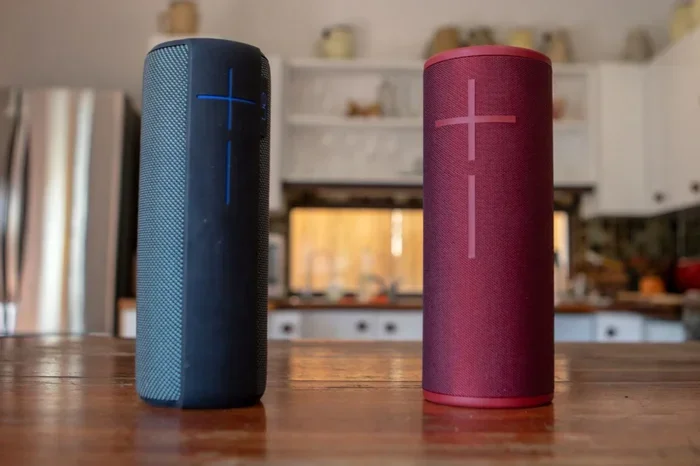
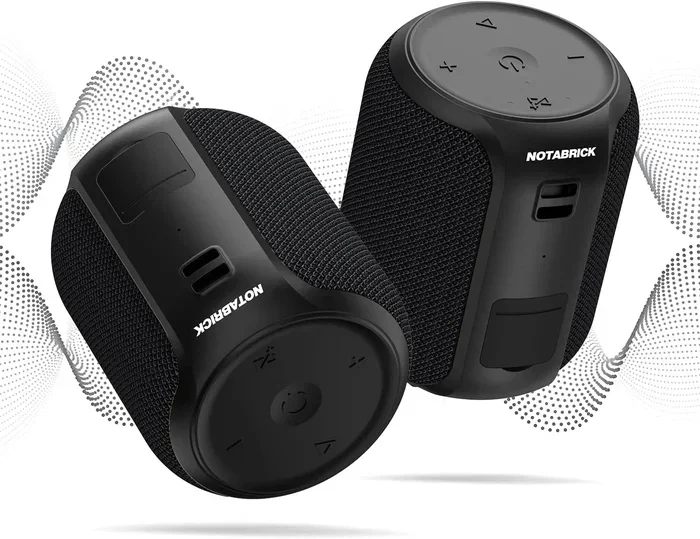
Bluetooth speakers are great for outdoor trips and parties. The pairing process is very similar to headphones. Just put the speaker in discovery mode and search from your phone.
One thing to keep in mind is Bluetooth range. Most speakers work well within 30 feet of your phone. If you go too far away, the connection may drop.
Bluetooth Printers
You can connect a Bluetooth printer to your phone or computer without needing Wi-Fi. This is perfect for printing on the go. Go to your device Bluetooth settings, find the printer, and pair them. You can also check out our article on using a Bluetooth printer without Wi-Fi for more details.
Bluetooth Hearing Aids
Modern hearing aids now support Bluetooth connectivity. This lets users stream phone calls and audio directly to their ears. The pairing process is similar to other accessories. Just put the hearing aids in pairing mode and search from your phone or compatible device. For a deeper look, read our guide on using Bluetooth on hearing aids.
Troubleshooting Bluetooth Connection Problems
Sometimes things do not go as planned. Your device might not show up, or the connection might drop. Here are the most common Bluetooth problems and how to fix them.
Device Not Showing Up in the List
This is the most common issue. Try these fixes:
- Make sure your accessory is in discovery mode.
- Check that Bluetooth is turned on on your host device.
- Move the devices closer together. Bluetooth range is usually about 30 feet.
- Restart both devices and try again.
If the device still does not appear, it may already be paired to another device. Turn off Bluetooth on other nearby devices and try again.
Connection Keeps Dropping
A flickering Bluetooth connection can be frustrating. Here is what to do:
- Move closer to the device you are connecting to.
- Remove physical obstacles like walls between the devices.
- Check for interference from other wireless devices like microwaves or baby monitors.
- Update the firmware or software on both devices.
Audio Quality Is Poor
If your sound is scratchy or delayed, try these steps:
- Check that your Bluetooth enabled devices are fully charged.
- Move to a location with fewer wireless signals.
- Check if your audio source is limited by a Bluetooth codec mismatch.
- Restart the Bluetooth connection and pair the devices again.
Pairing Keeps Failing
If pairing fails repeatedly, try this:
- Delete the old pairing from both devices.
- Reset the Bluetooth accessory to factory settings.
- Restart your host device.
- Try pairing again from scratch.
Most Bluetooth troubleshooting issues are resolved with a simple restart. It is the first thing you should always try.
How to Manage Multiple Bluetooth Devices
Once you start using wireless accessories, you will likely have more than one. Managing multiple Bluetooth devices is easy with a little organization.
Switching Between Paired Devices
Most smartphones and computers let you stay connected to several Bluetooth devices at once. You can switch between them in your Bluetooth settings menu. Just tap the device you want to use.
For example, you might have your wireless headphones paired to your phone and your laptop. You can quickly switch which one is active when you want to listen to something.
Removing Old Pairings
It is a good idea to clean up old device pairings from time to time. Devices you no longer use can clutter your Bluetooth list. To remove a device:
- Go to your Bluetooth settings.
- Find the device you want to remove.
- Tap “Forget” or “Unpair.”
- The device will no longer auto-connect.
This frees up space and keeps your Bluetooth connectivity running smoothly.
Tips for Better Bluetooth Performance
Want your wireless connection to work at its best? Follow these simple tips.
- Keep your devices updated. Software updates often improve Bluetooth compatibility and fix bugs.
- Keep devices charged. Low battery can weaken your Bluetooth signal and cause drops.
- Stay within range. Most Bluetooth devices work best within 30 feet of each other.
- Avoid interference. Keep wireless devices away from microwaves, baby monitors, and other radio signals.
- Turn off Bluetooth when not in use. This saves battery and keeps your connection secure.
These small habits make a big difference. Your wireless pairing experience will be much smoother and more reliable.
Is Bluetooth Safe and Secure?
Many people worry about Bluetooth security. The good news is that modern Bluetooth technology is very safe. Each pairing uses encryption to protect your data. This means others cannot easily intercept your connection.
Here are a few tips to stay safe:
- Only pair with devices you trust.
- Turn off Bluetooth in public places when you are not using it.
- Keep your device software up to date.
- Do not accept pairing requests from unknown devices.
As long as you follow these basic rules, your Bluetooth connection will remain safe and private.
Final Thoughts
Connecting a Bluetooth device does not have to be complicated. With the steps in this guide, you can pair any wireless accessory in just a few minutes. Remember to put your device in discovery mode, search from your host, and confirm the pairing.
If you run into issues, the troubleshooting tips we shared will help you fix them fast. And with good habits like keeping your devices updated and within range, your Bluetooth connectivity will stay strong every time.
Now go ahead and connect your favorite Bluetooth devices. You will wonder how you ever lived without the convenience of wireless connection.
Frequently Asked Questions
How long does it take to connect a Bluetooth device?
Most Bluetooth devices connect in under two minutes. The process is fast once both devices are in pairing mode. You just need to enable Bluetooth, search, and confirm the connection.
Why is my Bluetooth device not showing up on my phone?
This usually happens when the accessory is not in discovery mode. Make sure your Bluetooth device is set to pairing mode and is within range. Restarting both devices often fixes the issue too.
Can I connect multiple Bluetooth devices at the same time?
Yes, most modern phones and computers can stay connected to several Bluetooth devices simultaneously. You can switch between them in your Bluetooth settings menu whenever you need to.
What is the range of a Bluetooth connection?
Most Bluetooth devices work within about 30 feet of each other. Some newer devices with Bluetooth 5.0 can reach farther. Walls and other wireless signals can reduce the effective range.
Do I need Wi-Fi to use Bluetooth devices?
No, Bluetooth works independently of Wi-Fi. You do not need an internet connection to pair or use Bluetooth devices. The connection happens directly between the two devices using radio waves.
How do I remove a Bluetooth device from my phone?
Go to your Bluetooth settings, find the device, and tap “Forget” or “Unpair.” This removes the saved pairing. You can pair the device again anytime if you need it later.