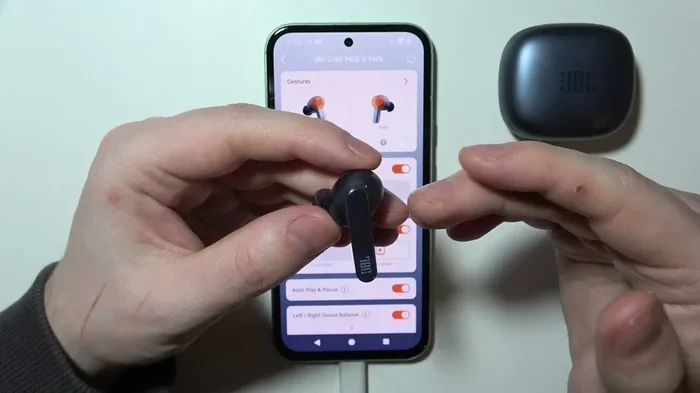
How Do I Change The Settings On My Jbl Earbuds Now
Changing the settings on your JBL earbuds is easier than you think. This guide walks you through adjusting sound profiles, Bluetooth connections, touch controls, and firmware updates. Whether you own JBL Live, JBL Tune, or JBL Charge earbuds, you will find clear steps to customize your listening experience.
So you just got a pair of JBL earbuds and you want to squeeze every bit of performance out of them. Maybe the default sound feels flat, or the touch controls are doing things you did not ask them to do. Whatever the reason, changing the settings on your JBL earbuds can completely transform your listening experience.
Most people never dig into their earbud settings. They just pair the earbuds and start listening. But here is the thing, JBL earbuds come packed with features that you can only access through the settings menu. From equalizer adjustments to touch control customization, there is a lot you can do to make your earbuds feel like they were made just for you.
In this guide, we will walk you through every step of changing your JBL earbuds settings. We will cover the JBL Portable app, Bluetooth configuration, sound adjustments, touch controls, firmware updates, and troubleshooting. By the end, you will know exactly how to change the settings on your JBL earbuds like a pro. Let us get started.
Key Takeaways
- Access JBL earbuds settings through the JBL Portable app or built-in touch controls for quick adjustments.
- Customize sound profiles using the equalizer to match your personal listening preferences.
- Update firmware regularly to unlock new features and fix common bugs.
- Reset your earbuds if settings become unresponsive or glitchy after changes.
- Adjust touch controls to set up gestures that match how you naturally use your earbuds.
- Manage Bluetooth settings to improve connection stability and range.
- Use the JBL Portable app as your central hub for all earbud customization options.
📑 Table of Contents
- Understanding Your JBL Earbuds Settings
- Using The JBL Portable App To Change Settings
- Adjusting Sound Settings On Your JBL Earbuds
- Customizing Touch Controls And Buttons
- Managing Bluetooth And Connection Settings
- Updating Firmware On Your JBL Earbuds
- Resetting Your JBL Earbuds When Settings Go Wrong
- Expert Tips For Getting The Most Out Of Your JBL Earbuds
- Conclusion
Understanding Your JBL Earbuds Settings
Before you start tweaking things, it helps to understand what settings are actually available on your JBL earbuds. Different models have different features, but most modern JBL earbuds share a common set of customizable options. These include sound profiles, touch controls, Bluetooth pairing, and firmware settings.
The main way to access these settings is through the JBL Portable app, which is available for both Android and iOS. Some basic adjustments can also be made directly on the earbuds themselves through touch gestures. But for full control, the app is your best friend.
Think of your earbuds like a smartphone. Out of the box, they work fine with default settings. But once you start customizing, they become so much better. The same idea applies here. You are just a few taps away from a way better listening experience.
What You Can Customize
Here are the main settings you can adjust on most JBL earbuds:
- Equalizer (EQ) settings to shape the sound to your taste
- Touch controls for play, pause, skip, and volume
- Bluetooth connection settings for pairing and stability
- Firmware updates for performance improvements
- Noise cancellation levels if your model supports it
- Ambient sound mode for hearing your surroundings
- Ear tip fit test for optimal sound quality
Using The JBL Portable App To Change Settings
The JBL Portable app is the easiest way to change your earbuds settings. It gives you a clean, simple interface where you can adjust everything from one place. If you have not downloaded it yet, head to the Google Play Store or Apple App Store and search for JBL Portable.
Once installed, make sure your JBL earbuds are paired with your phone. Open the app and your earbuds should appear on the home screen. Tap on them to access the full settings menu.
Step By Step Guide To Using The App
- Download and install the JBL Portable app on your smartphone.
- Turn on your JBL earbuds and make sure they are in pairing mode.
- Pair the earbuds with your phone through Bluetooth settings.
- Open the JBL Portable app and tap on your connected earbuds.
- Navigate the settings menu to find the options you want to change.
- Save your changes and test them out right away.
The app also lets you manage multiple JBL devices at once. So if you have a JBL speaker and a pair of earbuds, you can switch between them easily. This is especially handy if you also use a JBL speaker with your laptop for different audio setups throughout the day.
Adjusting Sound Settings On Your JBL Earbuds
Sound settings are where the real magic happens. JBL earbuds come with a built-in equalizer that lets you boost bass, sharpen mids, or brighten highs. If the default sound does not feel right to you, adjusting these settings can make a huge difference.
Most JBL earbuds use what is called a flat or balanced sound profile out of the box. This means the sound is designed to be neutral. But your ears are different from mine. You might prefer more bass, or you might want the vocals to stand out more. The equalizer lets you fine-tune all of this.
How To Access The Equalizer
To access the equalizer on your JBL earbuds, follow these steps:
- Open the JBL Portable app
- Select your connected earbuds
- Look for the Equalizer or EQ option in the menu
- Choose from preset sound profiles or create a custom one
- Adjust the sliders for bass, midrange, and treble
- Save your custom profile and enjoy
Pro tip, try different EQ settings with different genres of music. A bass-heavy setting works great for hip hop and electronic music. But for podcasts and acoustic tracks, you might want to boost the mids and highs for clarity. Experiment until you find what sounds best to you.
Customizing Touch Controls And Buttons
Touch controls are one of the most useful features on JBL earbuds. They let you play music, answer calls, and skip tracks without touching your phone. But sometimes the default controls do not match how you like to use your earbuds. The good news is, you can change them.
Most JBL earbuds let you assign different actions to taps and swipes. For example, you can set a single tap to play or pause, a double tap to skip forward, and a long press to activate your voice assistant. The options vary by model, but the customization is usually straightforward.
Common Touch Control Options
| Gesture | Default Action | Customizable Options |
|---|---|---|
| Single Tap | Play/Pause | Play/Pause, Answer Call, Skip Track |
| Double Tap | Skip Forward | Skip Forward, Skip Back, Volume Up |
| Triple Tap | Volume Up | Volume Down, Activate EQ, Noise Control |
| Long Press | Voice Assistant | Noise Cancellation, Ambient Mode, Power Off |
| Swipe Up | Volume Up | Volume Down, Skip Track, Next EQ Preset |
| Swipe Down | Volume Down | Volume Up, Previous Track, Activate EQ |
Keep in mind that not all models support every gesture. Check your specific JBL earbud manual or the JBL Portable app for the full list of supported controls. Also, if your earbuds are not responding to touch properly, you might need to recalibrate the controls or reset the earbuds. This is similar to how you might need to adjust settings when troubleshooting Bluetooth connectivity on hearing aids, where device settings need fine-tuning for optimal performance.
Managing Bluetooth And Connection Settings
Bluetooth settings play a big role in how your JBL earbuds perform. A strong, stable connection means better sound quality and fewer interruptions. If your earbuds keep disconnecting or sound choppy, adjusting your Bluetooth settings can often fix the problem.
Start by making sure your phone’s Bluetooth is up to date. Older Bluetooth versions may not support the latest features on newer JBL earbuds. Most modern phones use Bluetooth 5.0 or higher, which provides a stronger and more reliable connection.
Tips For Better Bluetooth Performance
- Keep your earbuds close to your phone for the best signal
- Avoid walls and obstacles between your earbuds and phone
- Turn off other Bluetooth devices that might cause interference
- Update your phone’s software for the latest Bluetooth improvements
- Forget and re-pair your earbuds if connection issues persist
- Use the JBL Portable app to check connection status and signal strength
If you are using your earbuds with a computer and need help with the connection, check out our guide on connecting your computer to the internet without cable for additional Bluetooth troubleshooting tips that apply across devices.
Updating Firmware On Your JBL Earbuds
Firmware updates are one of the most important things you can do for your JBL earbuds. These updates fix bugs, improve performance, and sometimes add new features. Think of firmware like the software that runs your earbuds. Just like your phone needs updates, so do your earbuds.
The JBL Portable app will notify you when a firmware update is available. Make sure you are connected to Wi-Fi and that your earbuds have enough battery before starting an update. Never disconnect your earbuds during a firmware update, as this can cause problems.
How To Check For Firmware Updates
- Open the JBL Portable app
- Go to your earbuds settings page
- Look for a Firmware Update or Software Update option
- Tap Check for Updates
- If an update is available, tap Update and wait for it to complete
- Restart your earbuds after the update finishes
After updating, you might notice new settings or options that were not available before. Firmware updates are free and usually only take a few minutes. They are well worth doing regularly to keep your earbuds running smoothly.
Resetting Your JBL Earbuds When Settings Go Wrong
Sometimes changing settings can cause unexpected problems. Maybe your earbuds will not connect, or the touch controls are acting weird. In these cases, a reset can usually fix things. Resetting your JBL earbuds restores all settings to their factory defaults.
Do not worry, a reset does not delete your custom profiles forever. You can always set them up again once the reset is complete. Think of it as a fresh start, like reorganizing a messy room.
How To Reset JBL Earbuds
The reset process varies slightly by model, but here is the general method that works for most JBL earbuds:
- Place both earbuds in the charging case
- Close the lid and wait for 10 seconds
- Open the lid and press and hold the button on the case for 10 to 15 seconds
- Wait for the LED indicator to flash, which means the reset is complete
- Re-pair your earbuds with your phone through Bluetooth
- Open the JBL Portable app and reconfigure your settings
If your earbuds still have issues after a reset, it might be a hardware problem rather than a settings issue. In that case, contacting JBL customer support is the best next step.
Expert Tips For Getting The Most Out Of Your JBL Earbuds
Here are some extra tips that will help you get the best experience from your JBL earbuds after changing the settings:
- Use the right ear tips. The ear tips that come with your earbuds might not be the best fit for your ears. Try different sizes to find the one that seals properly. A good seal means better bass and less sound leakage.
- Clean your earbuds regularly. Dirt and earwax can build up on the speaker mesh and affect sound quality. A soft cloth and a little patience go a long way.
- Store them in the case. When you are not using your earbuds, keep them in the charging case. This protects them and keeps the battery charged.
- Update firmware monthly. Make it a habit to check for updates once a month. You will be surprised how often JBL releases improvements.
- Experiment with EQ settings. Do not be afraid to try different equalizer presets. You might discover a sound profile you love that you never knew existed.
For more tips on getting the most out of your Bluetooth devices, you might also enjoy our article on using a Bose speaker in the shower, which covers waterproof Bluetooth speaker tips that apply to earbuds too.
Conclusion
Changing the settings on your JBL earbuds does not have to be complicated. With the JBL Portable app, you have everything you need right at your fingertips. From adjusting the equalizer to customizing touch controls, updating firmware, and managing Bluetooth connections, you now know how to make your earbuds work exactly the way you want them to.
Remember, changing your JBL earbuds settings is all about personal preference. There is no right or wrong way to set them up. What matters most is that you enjoy the sound and the experience. So go ahead, open that app, and start experimenting. Your ears will thank you.
Take a few minutes today to explore your settings. You might be surprised by how much better your JBL earbuds can sound with just a few simple adjustments. Happy listening.
Frequently Asked Questions
How do I access the settings on my JBL earbuds?
You can access the settings by downloading the JBL Portable app on your smartphone. Make sure your earbuds are paired with Bluetooth, then open the app and tap on your connected earbuds to see all available settings and customization options.
Can I change the equalizer settings on my JBL earbuds?
Yes, you can. The JBL Portable app includes a built-in equalizer that lets you adjust bass, midrange, and treble levels. You can choose from preset sound profiles or create your own custom EQ settings for a personalized listening experience.
Why are my JBL earbuds not connecting after I changed the settings?
This can happen if a settings change disrupted the Bluetooth pairing. Try resetting your earbuds by placing them in the charging case, holding the button for 10 to 15 seconds, and then re-pairing them with your phone through Bluetooth settings.
How often should I update the firmware on my JBL earbuds?
You should check for firmware updates at least once a month. The JBL Portable app will notify you when an update is available. Keeping your firmware up to date ensures the best performance and access to the latest features.
Can I customize the touch controls on my JBL earbuds?
Yes, most JBL earbuds let you customize touch controls through the JBL Portable app. You can assign different actions to taps, swipes, and long presses, such as play/pause, skip tracks, adjust volume, or activate noise cancellation.
What should I do if resetting my JBL earbuds does not fix the problem?
If a reset does not solve the issue, try updating your phone’s Bluetooth software and forgetting the earbuds from your Bluetooth list before re-pairing. If problems persist, contact JBL customer support for further assistance with your specific earbud model.
=== INTERNAL LINKS USED ===
Internal Links Used (4):