How Can I Connect My Computer To The Internet Without Cable
You can connect your computer to the internet without cable using several proven methods. From mobile hotspots and USB wireless adapters to fixed wireless and satellite options, going cable-free is easier than ever. This guide walks you through every method with clear, actionable steps.
There is nothing worse than needing to get online and realizing your cable is missing, broken, or simply not an option. Whether you are working from a new spot in your house, staying at a cabin in the woods, or just tired of tangled wires, connecting your computer to the internet without cable is completely possible today.
The good news is you have more options than ever before. Wireless internet methods have improved dramatically, and you do not need to be a tech expert to use them. This guide covers every practical way to get your computer online without a physical cable connection.
We will walk through each method step by step, compare the options, and help you choose the best fit for your situation. By the end, you will know exactly how to set up a wireless internet connection for your computer and avoid the pitfalls that trip most people up.
Key Takeaways
- Mobile hotspot tethering lets you use your phone’s data plan to get your computer online without any cables.
- A USB wireless adapter or Wi-Fi card is the simplest way to add wireless capability to a desktop or older laptop.
- Fixed wireless internet and satellite services offer cable-free broadband for homes and rural areas.
- Portable Wi-Fi devices like hotspot routers give you dedicated wireless internet without relying on your phone.
- Setting up properly and avoiding common mistakes ensures a fast, stable wireless connection every time.
📑 Table of Contents
- Why You Might Need to Connect Without a Cable
- Methods to Connect Your Computer to the Internet Without Cable
- How to Set Up a Mobile Hotspot for Your Computer
- Choosing the Right Wireless Internet Option for Your Computer
- Common Mistakes to Avoid When Going Wireless
- Expert Tips for a Strong and Stable Wireless Connection
- Can You Be Your Own Internet Provider for Wireless Access?
- Conclusion
Why You Might Need to Connect Without a Cable
Most computers come with an Ethernet port for a wired connection. But there are plenty of reasons you might want or need to go wireless instead. Understanding these reasons helps you pick the right solution.
Maybe your wall jack is too far away. Perhaps you rent and cannot run cables through the walls. Or maybe you simply want the freedom to move your laptop around the house without being tethered to a single spot. Whatever your reason is, the solutions below cover all of them.
Another common reason is a lack of infrastructure. In rural areas, cable or fiber lines may not reach your home. In these cases, wireless broadband becomes not just a convenience but a necessity. Let us explore the options available to you.
Methods to Connect Your Computer to the Internet Without Cable
There are several distinct ways to get wireless internet on your computer. Each method has its own strengths, costs, and setup requirements. Here is a full breakdown of every option you can use right now.
Mobile Hotspot Tethering
The most popular and accessible method is using your smartphone as a mobile hotspot. This turns your cell phone into a wireless router. Your computer connects to the internet through your phone’s cellular data connection.
Both iPhone and Android phones support this feature natively. You simply go to your phone settings, turn on the personal hotspot, and your computer detects the Wi-Fi network just like any other router.
Here is how to set it up on most phones:
- Open your phone’s Settings app.
- Look for Personal Hotspot or Tethering.
- Turn the feature on and set a password.
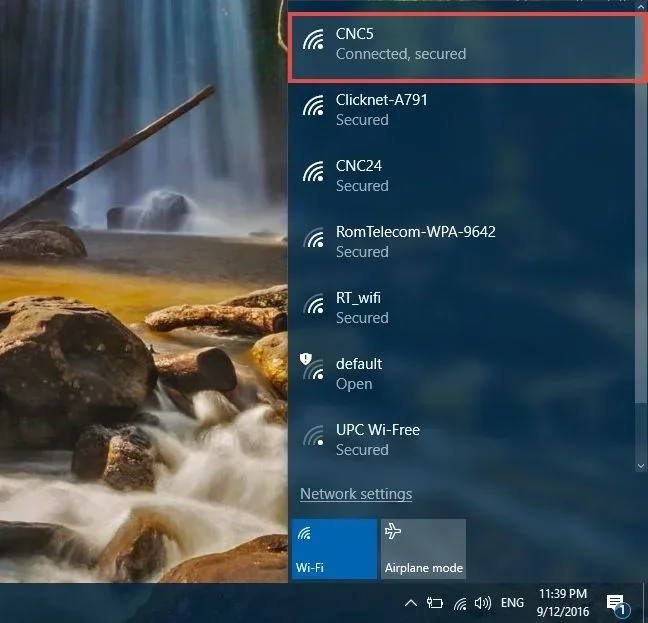
- On your computer, find the Wi-Fi network and connect.
The main advantage is convenience. You already carry your phone everywhere, so this option costs nothing extra if you already have a data plan. The downside is that it drains your phone battery quickly and uses up your cellular data fast if you do a lot of streaming or downloading.
If you are looking for a dedicated solution instead, you might want to explore portable Wi-Fi devices that work independently of your phone. These give you the same wireless internet without putting stress on your mobile device.
USB Wireless Adapter or Wi-Fi Card
If your computer does not have built-in Wi-Fi, a USB wireless adapter is the easiest fix. These small devices plug directly into a USB port and give your computer the ability to detect and connect to wireless networks.
This is especially useful for older desktop computers that were built before Wi-Fi became standard. You can also use this approach if your built-in wireless card is damaged or outdated.
Here is what to look for when buying one:
- Make sure it supports Wi-Fi 5 or Wi-Fi 6 for the best speeds.
- Check that it is compatible with your operating system (Windows, Mac, or Linux).
- Choose one with a good range if your router is far away.
- Look for models with a USB extension cable for better placement.
You can also install a Wi-Fi card inside your computer if you have a desktop with an available PCIe slot. This gives you a more permanent and often faster connection than a USB adapter. If you are wondering about compatibility, you can find more details about getting a Wi-Fi card for your computer in our related guide.
Fixed Wireless Internet Service
Fixed wireless internet is a broadband option that delivers internet to your home using radio signals instead of cables. A small antenna or receiver is installed on your roof or near a window, and it connects to a nearby tower.
This is a fantastic option for rural areas where cable and fiber are not available. Companies like T-Mobile Home Internet, Verizon 5G Home, and various local providers offer fixed wireless plans. The speeds are competitive with cable in many cases, and there is no physical cable running to your house.
Here are the key benefits:
- No need for a phone line or coaxial cable.
- Fast installation with no drilling or wiring.
- Good speeds for streaming, browsing, and video calls.
- Works well in areas where traditional broadband is unavailable.
The main limitation is that you need a clear line of sight to the service provider’s tower. Trees, hills, and buildings can interfere with the signal. If you want to learn more about getting internet without traditional infrastructure, check out our article on getting internet without a phone line.
Satellite Internet
Satellite internet beams a signal from space directly to a dish on your property. This makes it one of the most widely available options in the world, reaching almost any location with a clear view of the sky.
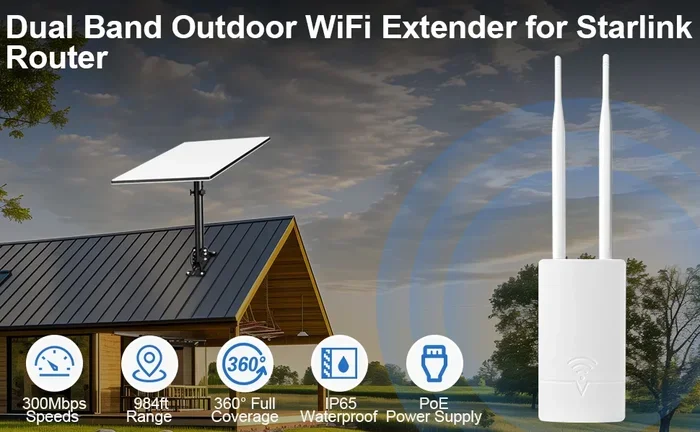
Providers like Starlink, HughesNet, and Viasat offer satellite internet plans. Starlink in particular has gained popularity because of its relatively fast speeds and low latency compared to older satellite services.
Consider these points when thinking about satellite internet:
- It works almost anywhere, including remote and rural locations.
- You will need to set up a satellite dish on your property.
- Weather can occasionally affect the signal quality.
- Data caps may apply depending on your plan.
Satellite is an excellent choice if you live far from any cable or fiber infrastructure. It gives you a reliable wireless internet connection for your computer without any cables at all.
Portable Wi-Fi Hotspot Devices
Beyond using your phone, you can buy a dedicated portable hotspot device. These small gadgets use cellular data networks to create a Wi-Fi signal that your computer can connect to. They are sometimes called MiFi devices or mobile routers.
Popular options include the Netgear Nighthawk Mobile Hotspot, the GlocalMe G4 Pro, and the Huawei E5577. These devices have their own batteries, SIM cards, and Wi-Fi antennas, making them completely independent of your phone.
Benefits of a dedicated hotspot device include:
- No battery drain on your phone.
- Better range and more stable connections.
- Multiple device support so you can connect your computer, tablet, and more.
- Easy to carry in a bag or pocket.
If you travel frequently or need reliable internet on the go, a portable hotspot is a smart investment. You can find more information about wireless connectivity options in our piece on getting portable Wi-Fi.
How to Set Up a Mobile Hotspot for Your Computer
Since mobile hotspot tethering is the most common wireless method, let us walk through the setup process in detail. This applies to both iPhone and Android devices.
For iPhone users, open Settings and tap Personal Hotspot. Toggle it on and set a Wi-Fi password. Your computer should see the iPhone’s name appear in the Wi-Fi list within seconds.
For Android users, the path varies slightly by manufacturer. Generally, you go to Settings, then Network and Internet, then Hotspot and Tethering. Turn on the Wi-Fi hotspot, create a password, and your computer finds it in the available networks list.
Once connected, your computer uses your phone’s data plan as if it were a regular internet connection. You can browse, stream, and work just like you would with a cable or home Wi-Fi.
Keep in mind that USB tethering is another option. Instead of using Wi-Fi, you connect your phone to your computer with a USB cable. This gives you a more stable connection and charges your phone at the same time. However, this does use a cable, so it only partially solves the wireless problem.
If you want a fully wireless experience, stick with the Wi-Fi hotspot method. It keeps everything cable-free and gives you the mobility you are looking for.
Choosing the Right Wireless Internet Option for Your Computer
With so many options available, picking the right one can feel overwhelming. The best choice depends on your location, budget, usage habits, and how often you need wireless internet.
Here is a simple comparison to help you decide:
- Mobile Hotspot: Best for occasional use and travel. Low cost if you already have a data plan. Not ideal for heavy daily use due to data limits.
- USB Wi-Fi Adapter: Best for connecting to existing Wi-Fi networks at home or work. Affordable and easy to set up.
- Fixed Wireless: Best for rural homes that need a permanent broadband replacement. Requires line of sight to a tower.
- Satellite Internet: Best for remote locations with no other options. Higher cost and some latency but works almost everywhere.
- Portable Hotspot Device: Best for frequent travelers and users who need a dedicated connection separate from their phone.
Think about what you need most. If you just want to get your desktop computer online in a room without an Ethernet jack, a USB Wi-Fi adapter is probably your best bet. If you live in a rural area with no cable or fiber, look into fixed wireless or satellite options.
You might also consider whether you can buy your own router for internet to create a stronger home wireless network. A good router paired with a wireless adapter gives you the best of both worlds.
Common Mistakes to Avoid When Going Wireless
Setting up a wireless internet connection is straightforward, but people often make avoidable mistakes that cause frustration. Here are the most common ones and how to steer clear of them.
Mistake 1: Ignoring data caps. Many mobile hotspot plans and some satellite plans have strict data limits. If you stream a lot of video or download large files, you can burn through your data quickly and face slow speeds or extra charges.
Mistake 2: Placing the router or hotspot in a bad location. Walls, furniture, and appliances can weaken your wireless signal. Keep your router or hotspot in a central, elevated location for the best coverage.
Mistake 3: Using outdated hardware. An old Wi-Fi adapter or router that only supports Wi-Fi 4 will give you much slower speeds than modern equipment. Upgrading to a Wi-Fi 5 or Wi-Fi 6 adapter can make a huge difference.
Mistake 4: Forgetting to secure your connection. Always set a strong password on your hotspot or router. An open connection is not only a security risk but can also slow down your speeds if neighbors connect to it.
Mistake 5: Not checking for interference. Other electronic devices, microwave ovens, and even baby monitors can interfere with your wireless signal. If your connection feels slow, try moving away from other electronics and see if the speed improves.
Expert Tips for a Strong and Stable Wireless Connection
Getting your computer online without cable is only half the battle. Making sure that connection is fast and reliable is just as important. Here are some expert-backed tips to improve your wireless experience.
First, update your Wi-Fi adapter drivers regularly. Outdated drivers can cause slow speeds, disconnections, and compatibility issues. Most adapters will notify you when an update is available.
Second, change your Wi-Fi channel if you live in a densely populated area. Many routers default to the same channel, which causes congestion. Switching to a less crowded channel can significantly improve your speeds.
Third, consider using a Wi-Fi extender or mesh system if your signal is weak in certain parts of your home. These devices boost and repeat your wireless signal to cover more area. If you have a garage or shed that needs coverage, you might want to extend your Wi-Fi to your shed with the right equipment.
Fourth, keep your computer and router firmware up to date. Manufacturers regularly release updates that improve performance and security.
Fifth, if you are using a mobile hotspot, turn off background apps on your phone. These apps use data and can slow down your connection. Closing them gives your computer priority access to the available bandwidth.
Finally, if you are serious about a strong home wireless setup, look into mesh Wi-Fi systems that replace your traditional router. These systems use multiple nodes to blanket your home in strong, consistent Wi-Fi. Some systems even work with existing routers, so you can connect a Deco mesh Wi-Fi to your existing router for seamless coverage.
Can You Be Your Own Internet Provider for Wireless Access?
Some tech-savvy users wonder if they can bypass traditional internet providers entirely. While it is technically possible to set up your own wireless internet service in very limited cases, it is not practical for most people.
For example, you could set up a point-to-point wireless link between two properties if you have the right equipment and line of sight. However, this requires significant technical knowledge and specialized gear. For the vast majority of users, the options described above are the most practical and cost-effective path to wireless internet.
If you are curious about the broader possibilities, you can read more about whether you can be your own internet provider in our detailed breakdown.
Conclusion
Connecting your computer to the internet without a cable is not only possible, it is often the better choice for convenience and flexibility. Whether you use a mobile hotspot, a USB wireless adapter, fixed wireless service, satellite internet, or a portable hotspot device, you have real and practical options that work today.
The key is to match your method to your specific needs. Consider your location, your data usage, your budget, and how often you need wireless access. With the right setup, you can enjoy a fast, reliable wireless internet connection without ever plugging in a single cable.
Start with the method that makes the most sense for your situation. Test it out, adjust your setup as needed, and enjoy the freedom of going wireless. Once you experience the convenience of a cable-free connection, you will wonder how you ever lived without it.
Frequently Asked Questions
Can I connect my computer to Wi-Fi without a wireless adapter?
No, your computer needs some form of wireless capability to connect to Wi-Fi without a cable. Most modern laptops have built-in Wi-Fi, but older desktops may need a USB wireless adapter or an internal Wi-Fi card installed.
Is mobile hotspot tethering free to use?
Using your phone as a hotspot is not free. It draws from your existing cellular data plan, so you will use data from your monthly allowance. Some carriers charge an extra fee to enable hotspot functionality, so check with your provider before relying on this method.
What is the fastest way to get wireless internet on a computer?
The fastest method depends on what is available in your area. Fixed wireless and fiber-to-the-home Wi-Fi setups typically offer the best speeds. A quality Wi-Fi 6 adapter connected to a strong router also delivers excellent performance for most users.
Can I use satellite internet for everyday computer tasks?
Yes, satellite internet works well for browsing, emailing, video calls, and streaming. Newer services like Starlink offer much lower latency than older satellite options, making them suitable for most daily tasks. However, they may not be ideal for competitive online gaming due to higher latency.
How do I know which wireless internet option is best for my home?
Consider your location first. If you have cable or fiber available, a Wi-Fi router is the simplest solution. If you are in a rural area, fixed wireless or satellite may be your best options. For temporary or travel needs, a mobile hotspot or portable Wi-Fi device works great.
Do I need a special plan for wireless internet on my computer?
It depends on the method. Mobile hotspots use your phone’s data plan. Fixed wireless and satellite require a separate broadband subscription from a provider. USB Wi-Fi adapters simply connect to existing Wi-Fi networks, so no special plan is needed beyond your regular internet service.