Can You Use Alexa As An External Speaker For Better Sound
Yes, you can use Alexa as an external speaker for better sound. Whether you want to connect your phone, laptop, or TV to an Echo device, Alexa works as a versatile Bluetooth and wired speaker. This guide covers setup methods, compatibility, and pro tips to get the best audio from your smart speaker.
Have you ever wondered if your Amazon Echo can do more than just answer questions and set timers? The truth is, Alexa can work as an external speaker and transform how you listen to music, podcasts, and movies at home. Many people already own an Echo device but have no idea it can replace their old Bluetooth speaker entirely.
Using Alexa as an external speaker is simpler than you think. You just need to know the right steps. Whether you want to connect your phone for a backyard party or pair your laptop for a movie night, this guide has you covered. Let us dive into everything you need to know about getting better sound through your Alexa device.
Key Takeaways
- Alexa works as an external speaker: You can pair it via Bluetooth or a 3.5mm cable for improved audio output.
- Multiple connection methods exist: Bluetooth pairing, auxiliary cable, and Wi-Fi streaming all work with Echo devices.
- Sound quality varies by device: Higher-end Echo models deliver richer bass and clearer highs than basic Echo Dot units.
- Setup is simple and fast: Most connections take under two minutes with no technical skills needed.
- Common issues have easy fixes: Bluetooth delays, audio lag, and connection drops can be solved with basic troubleshooting.
- Alexa doubles as a smart home hub: Using it as a speaker also gives you voice control over other smart devices.
📑 Table of Contents
- What Does It Mean to Use Alexa as an External Speaker?
- How to Connect Your Phone to Alexa as a Speaker
- Can You Use Alexa as an External Speaker for Your TV?
- Using Alexa as a Speaker for Your Laptop or Computer
- Does Alexa Need Wi-Fi to Work as an External Speaker?
- Troubleshooting Common Alexa Speaker Connection Issues
- Expert Tips to Get the Best Sound from Alexa as an External Speaker
- How Alexa Compares to Dedicated External Speakers
- Can You Use Alexa as an External Speaker for Outdoor Events?
- Final Thoughts on Using Alexa as an External Speaker
What Does It Mean to Use Alexa as an External Speaker?
When we talk about using Alexa as an external speaker, we mean connecting another device to your Echo so the audio plays through the Echo instead of your phone or computer’s tiny built-in speakers. Think of your Echo as a standalone wireless speaker that happens to also have a voice assistant inside.
Most Echo devices support Bluetooth audio streaming. This means any device with Bluetooth can send audio directly to your Echo. Some models also accept a wired connection through a 3.5mm audio jack. This flexibility makes Alexa a surprisingly capable home audio solution for everyday listening.
The beauty of this setup is that you do not need expensive equipment. If you already own an Echo Dot, Echo Show, or Echo Studio, you have a perfectly good speaker sitting in your home. You just need to know how to unlock its full potential.
Which Alexa Devices Work as External Speakers?
Not all Echo devices are created equal when it comes to sound quality. Here is a quick look at what works:
- Echo Dot: Great for small rooms. Decent sound for casual listening but lacks deep bass.
- Echo (3rd/4th/5th Gen): A solid mid-range option with balanced audio and good volume.
- Echo Plus: Improved audio drivers make it a better choice for external speaker use.
- Echo Studio: The best sounding Echo device. It delivers rich, room-filling audio with deep bass and clear highs.
- Echo Show: Works as a speaker but the audio is more focused on video content.
Any of these devices can receive audio from a paired phone or laptop. The difference lies in how good the output sounds. If sound quality matters to you, an Echo Studio or Echo Plus will give you noticeably better results than a basic Echo Dot.
How to Connect Your Phone to Alexa as a Speaker
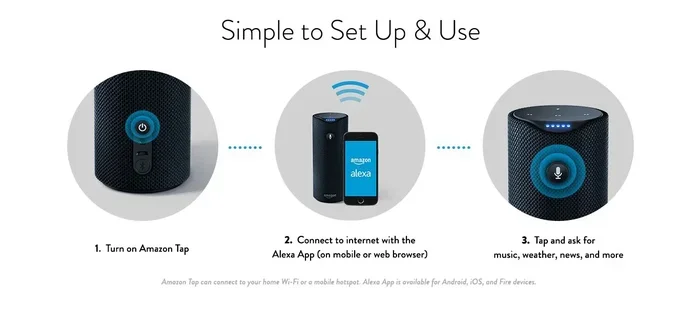
The most common way people use Alexa as an external speaker is by pairing their phone through Bluetooth. This method works with both iPhone and Android devices. The process is quick and does not require any cables.
Step-by-Step Bluetooth Pairing
Follow these simple steps to get your phone connected:
- Open the Alexa app on your phone.
- Tap the Devices icon at the bottom of the screen.
- Select Echo & Alexa from the list.
- Choose the specific Echo device you want to use.
- Scroll down and tap Bluetooth Devices.
- Tap Pair a New Device.
- Put your phone in Bluetooth pairing mode.
- Select your Echo device from the list of available devices.
Once paired, any audio on your phone will play through your Echo. This includes music apps like Spotify, Apple Music, YouTube, and even phone calls. The connection stays active until you manually unpair or connect to a different device.
Quick Tips for Better Bluetooth Connections
- Keep your phone within 30 feet of the Echo for the strongest signal.
- Remove obstacles like walls between your phone and the Echo.
- Restart both devices if you experience connection drops.
- Make sure your Echo firmware is up to date through the Alexa app.
- Turn off Bluetooth on other nearby devices to avoid interference.
One thing to keep in mind: Bluetooth audio may have slight delays compared to a wired connection. This is normal and usually not noticeable for music. However, if you are watching videos, you might notice a small lip-sync delay. More on fixing that later.
Can You Use Alexa as an External Speaker for Your TV?
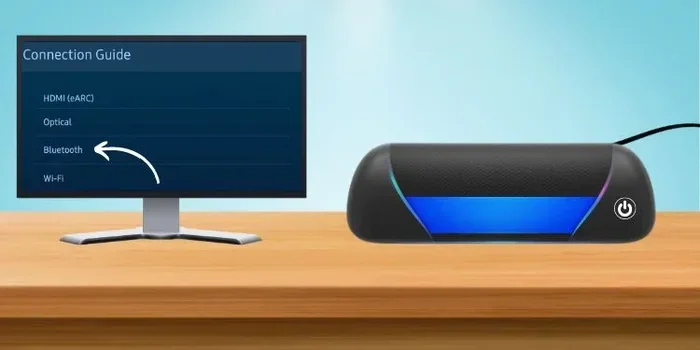
This is one of the most popular questions people ask. The short answer is yes, but the method depends on your TV’s capabilities. Many modern smart TVs support Bluetooth output, which makes connecting to an Echo straightforward.
If your TV has Bluetooth, you can pair it directly to your Echo just like you would pair a phone. Once connected, all TV audio routes through your Echo, giving you much louder and richer sound than your TV speakers typically provide.
For TVs without Bluetooth, you have another option. You can use a Bluetooth transmitter plugged into your TV’s audio output. These small devices cost around $10 to $20 and send a wireless signal to your Echo. This is a great workaround that opens up Alexa as a TV speaker for almost any television.
Some users also ask about using Alexa as a Bluetooth speaker for TV specifically. This is a common use case, and it works well for casual viewing, movie nights, and gaming. The Echo adds a whole new dimension to your home entertainment setup without needing expensive soundbars.
Wired Connection Options for TV
If you prefer a wired setup, some Echo models include a 3.5mm audio input jack. You can connect your TV directly using an RCA-to-3.5mm cable or a simple aux cable. This eliminates any Bluetooth delay entirely and gives you a clean, reliable audio connection.
Check your specific Echo model for an audio input jack. The Echo Studio and some older Echo models include this feature. The newer Echo Dot models may not have it, so Bluetooth remains your best wireless option for those units.
Using Alexa as a Speaker for Your Laptop or Computer
Working from home or enjoying media on a bigger screen? You can absolutely use Alexa as an external speaker for your laptop or desktop computer. This is especially handy if your laptop speakers sound tinny and weak.
The Bluetooth pairing process for a laptop is the same as for a phone. Most modern laptops have built-in Bluetooth, so no extra hardware is needed. Simply follow the pairing steps and your computer audio will stream through the Echo.
This setup works great for video calls, streaming shows, and listening to music while you work. The Echo’s larger speaker driver compared to a laptop’s tiny built-in speakers makes a noticeable difference in clarity and volume.
Audio Lag When Using Alexa with Video
One common issue with Bluetooth connections is audio lag. This is when the sound does not match the video perfectly. You might notice the audio comes a fraction of a second after the action on screen.
Here are some ways to reduce or eliminate audio lag:
- Use a wired connection whenever possible for zero latency.
- Move closer to the Echo to strengthen the Bluetooth signal.
- Check for firmware updates on both your laptop and Echo.
- Use apps that have built-in audio delay adjustment features.
- Restart your Bluetooth connection by unpairing and repairing the devices.
For most music listening, audio lag is not a problem at all. It only becomes noticeable during video playback. If you plan to use Alexa as a speaker for movies or shows, a wired connection or a Bluetooth transmitter with low-latency technology will give you the best experience.
Does Alexa Need Wi-Fi to Work as an External Speaker?
This is an important question because many people assume Alexa always needs an internet connection. The truth is more nuanced. When you use Alexa as a Bluetooth speaker, the Bluetooth connection itself does not require Wi-Fi.
However, the initial setup and some features do need internet access. For example, streaming music from Spotify or Amazon Music requires Wi-Fi or cellular data. But once a Bluetooth device is paired, the audio transmission happens directly between the source device and the Echo.
So if your Wi-Fi goes down but your phone still has music downloaded offline, you can still play that music through your Echo via Bluetooth. This makes Alexa a reliable backup speaker even during internet outages.
For those wondering about Wi-Fi connectivity and Alexa, the device needs Wi-Fi for most smart features but not for basic Bluetooth speaker functionality. Keep this in mind when setting up your home entertainment system.
Troubleshooting Common Alexa Speaker Connection Issues
Even though the setup is simple, you might run into occasional hiccups. Here are the most common problems and their solutions.
Alexa Won’t Pair with My Device
If your Echo does not show up in the Bluetooth device list, try these steps:
- Make sure your Echo is in pairing mode by saying “Alexa, pairing mode.”
- Restart your Echo by unplugging it for 30 seconds.
- Turn Bluetooth off and on again on your source device.
- Check that your Echo firmware is updated through the Alexa app.
- Reset your Echo to factory settings as a last resort.
Audio Sounds Crackly or Distorted
Distorted audio usually comes from a weak Bluetooth signal or interference. Move closer to the Echo and remove any nearby wireless devices that might cause interference. If the problem persists, try resetting the Bluetooth connection.
Sound Cuts Out Intermittently
Intermittent cutouts often happen when your phone moves too far from the Echo or when other Bluetooth devices compete for the same signal. Stay within range and reduce the number of active Bluetooth devices in the area.
Can I Connect Multiple Devices to One Echo?
Yes, your Echo can remember multiple paired devices. However, it can only play audio from one device at a time. To switch devices, say “Alexa, disconnect” or go to the Bluetooth settings in the Alexa app and choose a different device.
Expert Tips to Get the Best Sound from Alexa as an External Speaker
Want to squeeze every bit of audio quality out of your Echo? Here are some expert-backed tips that make a real difference.
Place your Echo in an open space. Walls and corners can muffle the sound. Positioning your Echo on a table in the center of a room gives the best audio spread. Avoid hiding it inside cabinets or behind furniture.
Use the Alexa app’s equalizer settings. The app lets you adjust bass, midrange, and treble levels. Boosting the bass slightly can make music sound much fuller, especially on smaller Echo devices like the Echo Dot.
Group your Echo devices for stereo sound. If you own two compatible Echo speakers, you can pair them together for left and right stereo channels. This dramatically improves the listening experience and makes Alexa sound like a proper external speaker system.
Keep your Echo away from other wireless devices. Microwaves, baby monitors, and even other Bluetooth speakers can interfere with the connection. Give your Echo some space from these devices for the clearest audio.
Update your Echo regularly. Amazon releases firmware updates that improve Bluetooth stability and audio quality. Check for updates in the Alexa app under Device Settings.
Consider the Echo’s placement height. Placing your Echo at ear level when you are sitting or standing gives the best sound projection. This is especially true for the Echo Dot, which has a smaller speaker driver.
How Alexa Compares to Dedicated External Speakers
It is fair to ask how Alexa stacks up against a dedicated Bluetooth speaker. The answer depends on what you value most.
| Feature | Alexa Echo | Dedicated Bluetooth Speaker |
|---|---|---|
| Sound Quality | Good to excellent (varies by model) | Good to excellent (varies by brand) |
| Smart Features | Yes, voice assistant built in | No |
| Portability | Moderate (needs power outlet) | High (most are battery-powered) |
| Price | $30 to $200 | $20 to $300 |
| Bluetooth Range | 30 feet typical | 20 to 50 feet depending on model |
| Multi-device Support | Yes | Yes |
| Smart Home Integration | Yes | No |
As you can see, Alexa offers unique advantages over a standard Bluetooth speaker. The smart assistant features, smart home control, and ability to answer questions make it much more than just a speaker. However, if portability is your top priority, a dedicated Bluetooth speaker might still win.
For most people, using an existing Echo as an external speaker is the most cost-effective choice. You already own the device, and it delivers surprisingly good audio for its size.
Can You Use Alexa as an External Speaker for Outdoor Events?
Absolutely. Many people use their Echo devices for backyard gatherings, pool parties, and camping trips. The Echo’s Bluetooth range of about 30 feet gives you plenty of freedom to move around.
Keep in mind that most Echo devices need a power outlet, so you will need access to outdoor electricity. Some users bring an extension cord to their patio or deck to make this work. For truly portable outdoor use, a battery-powered Bluetooth speaker might still be more practical.
That said, the Echo’s sound quality is impressive for outdoor use. It can fill a medium-sized backyard with clear music and handles casual gatherings with ease. If you already have an Echo, it is worth trying before buying a separate outdoor speaker.
Final Thoughts on Using Alexa as an External Speaker
Using Alexa as an external speaker is one of the most underrated features of Amazon Echo devices. Whether you want better sound for your TV, a speaker for your laptop, or a portable option for outdoor gatherings, Alexa delivers. The setup is fast, the connection is reliable, and the sound quality is surprisingly good across most Echo models.
Remember that the Echo does more than just play audio. It also serves as a smart home hub, voice assistant, and entertainment center all in one. So the next time you want to listen to music or watch a movie, consider pairing your device with Alexa before reaching for a separate speaker.
The key is understanding your Echo model’s capabilities, using the right connection method, and following the troubleshooting tips when needed. With these tools in hand, you can turn any Echo device into a powerful external speaker that enhances your daily listening experience.
Start experimenting today. Connect your phone, stream your favorite playlist, and enjoy the rich, full sound that your Alexa device can produce. You might be surprised at how much better your audio sounds with just a simple Bluetooth pairing.
Frequently Asked Questions
Can I use Alexa as an external speaker without Wi-Fi?
Yes, you can use Alexa as a Bluetooth speaker without Wi-Fi. The Bluetooth connection works independently of your internet connection. However, you will need Wi-Fi for initial setup and for streaming online music services.
Which Echo model has the best sound as an external speaker?
The Echo Studio delivers the best audio quality among all Echo devices. It features a three-inch woofer, dual tweeters, and a built-in subwoofer that produces rich, detailed sound perfect for use as an external speaker.
Can I connect my TV to Alexa using Bluetooth?
Yes, if your TV supports Bluetooth, you can pair it directly with your Echo. For TVs without Bluetooth, a Bluetooth transmitter plugged into the TV’s audio output works as a reliable alternative.
Is there audio lag when using Alexa as a Bluetooth speaker for video?
Some audio lag can occur with Bluetooth connections during video playback. Using a wired aux cable or a low-latency Bluetooth transmitter minimizes this delay significantly.
Can I use multiple Echo devices together as external speakers?
Yes, you can group two compatible Echo devices in the Alexa app to create a stereo pair. This doubles your audio output and creates a wider soundstage for a much better listening experience.
Does Alexa work as a speaker for gaming consoles?
Yes, any device with Bluetooth can connect to Alexa. You can pair gaming consoles like the PS5 or Xbox with your Echo for improved audio, though a wired connection may provide better results for gaming.