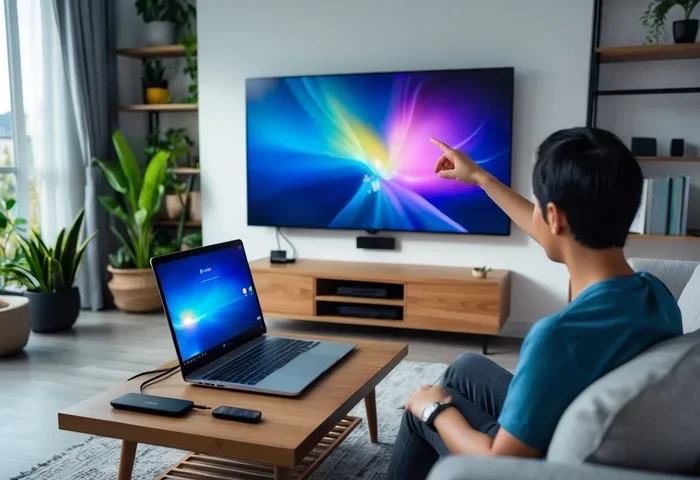
How Do I Cast From My Pc To My Lg Tv Without Hassle
Casting from your PC to your LG TV is easier than you think. Whether you want to stream movies, share photos, or game on a bigger screen, there are several simple methods to get it done. This guide walks you through every option step by step so you can start casting today.
Have you ever wanted to show something from your computer on your big LG TV screen? Maybe a family video, a presentation, or your favorite show from a browser. Casting from your PC to your LG TV opens up a whole world of possibilities. You do not need expensive equipment or technical skills to make it work.
The good news is that there are several ways to do this. Some methods are wireless and some use a simple cable. Each approach has its own benefits. In this guide, we will walk you through every option so you can pick the one that fits your needs best. You will learn how to cast from my PC to my LG TV in just a few minutes, no matter which method you choose.
Before we dive in, let us talk about what you need to get started. Most LG TVs made in the last few years have smart features built right in. This means they can receive a wireless signal from your computer. If your TV is older, do not worry. We will cover cable options too. Let us get into it.
Key Takeaways
- Wireless casting is the easiest method: Use built-in features like Miracast or LG Smart Share to cast without any cables.
- HDMI cables give you a reliable backup: A simple HDMI connection works every time with no lag or setup headaches.
- LG webOS has native casting built in: Most modern LG TVs support screen mirroring right out of the box.
- You need a strong WiFi connection: A stable network makes all the difference for smooth casting performance.
- Troubleshooting is simple: Most casting issues can be fixed with a quick restart or settings check.
📑 Table of Contents
- What Does It Mean to Cast From Your PC to an LG TV?
- Method 1: Cast Wirelessly Using LG Smart Share
- Method 2: Use an HDMI Cable for a Wired Connection
- Method 3: Use Chrome or a Streaming App
- Troubleshooting Common Casting Problems
- Can You Cast From a Mac to an LG TV?
- Advanced Tips for the Best Casting Experience
- Final Thoughts
What Does It Mean to Cast From Your PC to an LG TV?
Casting means sending what is on your computer screen to your TV wirelessly or through a cable. When you cast, your TV becomes an extension of your PC. You can watch videos, browse the web, or show slides on the big screen. It is like having a second monitor, but much bigger.
There are two main types of casting. The first is screen mirroring, which copies your entire PC screen to the TV. The second is media casting, which sends just a video or audio file to the TV while you keep using your PC. Both methods work great with LG TVs. The one you choose depends on what you want to do.
Why Cast Instead of Just Using Your PC?
Your laptop or desktop monitor is fine for everyday work. But when you want to share content with others, a big TV screen makes everything better. Movie nights, game sessions, and family photo slides all look amazing on a large display. Casting lets you enjoy your PC content on a bigger screen without moving your computer closer to the TV.
Method 1: Cast Wirelessly Using LG Smart Share
LG TVs come with a feature called Smart Share. This is LG’s built-in wireless casting tool. It uses a technology called Miracast to connect your PC to your TV without any cables. Most people find this the easiest method because it requires no extra equipment.
How to Set Up Smart Share on Your LG TV
Follow these steps to get started with Smart Share:
- Turn on your LG TV and press the Home button on your remote.
- Navigate to Settings and look for Network or Connection options.
- Make sure your TV is connected to the same WiFi network as your PC.
- On your TV, find the Screen Share or Smart Share option.
- Select it and wait for your TV to appear as a available device.
How to Connect Your PC to Smart Share
On your Windows PC, the process is simple:
- Click the Start menu and type “Connect” in the search bar.
- Open the Connect app that appears.
- Click on “Projecting to this PC” and make sure it is turned on.
- Your LG TV should now appear in the list of available devices.
- Click on your TV name and choose whether to mirror or extend your display.
Once connected, you should see your PC screen on the TV. Everything you do on your computer will show up on the big screen. This is perfect for screen mirroring during presentations or movie nights.
Quick Tips for Smart Share
- Keep your PC and TV close: Walls and distance can weaken the wireless signal.
- Use a 5GHz WiFi band: It is faster and more stable than the 2.4GHz band.
- Close unnecessary apps: This helps reduce lag during casting.
- Update your TV software: Keep your LG TV firmware current for the best performance.
Method 2: Use an HDMI Cable for a Wired Connection
If wireless casting gives you trouble, a cable is your best friend. Connecting your PC to your LG TV with an HDMI cable gives you a rock-solid connection with zero lag. This is the go-to method for gamers and anyone who needs a perfect picture.
What You Need
All you need is an HDMI cable. Most PCs have an HDMI output port. If your computer does not have one, you can grab an adapter. USB-C to HDMI adapters are cheap and work great with modern laptops.
Step-by-Step Setup
- Plug one end of the HDMI cable into your PC.
- Plug the other end into one of the HDMI ports on your LG TV.
- Turn on your TV and use the remote to select the correct HDMI input.
- On your PC, right-click the desktop and choose Display Settings.
- Select “Duplicate” or “Extend” depending on what you want.
That is it. Your PC screen is now on your TV. The picture quality will be excellent because HDMI carries both video and audio in one cable. You do not need any extra audio setup either.
HDMI vs. Wireless: Which Is Better?
Both methods have their place. Here is a quick comparison:
| Feature | HDMI Cable | Wireless (Smart Share) |
|---|---|---|
| Setup Ease | Very easy | Easy |
| Connection Stability | Excellent | Good |
| Latency | None | Slight delay |
| Cable Management | Needs a cable | No cables |
| Picture Quality | 4K capable | Usually 1080p |
| Best For | Gaming, presentations | Casual viewing, streaming |
For most people, wireless casting works perfectly fine. But if you need zero delay and top quality, go with HDMI. It is the reliable choice every time.
Method 3: Use Chrome or a Streaming App
Did you know you can cast specific content from your browser to your LG TV? Google Chrome has a built-in cast feature that works great with smart TVs. This method is perfect when you only want to show a video or a webpage, not your entire screen.
How to Cast From Chrome
- Open Google Chrome on your PC.
- Click the three dots menu in the top right corner.
- Select “Cast” from the dropdown menu.
- Choose your LG TV from the list of devices.
- Choose whether to cast a tab, your desktop, or a specific file.
This method is great for streaming from your laptop to the TV. You can watch YouTube, Netflix, or any browser-based content on the big screen. The best part is you can keep using your PC for other things while the video plays on the TV.
What If You Do Not Use Chrome?
Other browsers like Edge and Firefox also have cast features. Some LG TVs support DLNA, which lets you stream media files from your PC over your home network. You can also use apps like VLC to send video files directly to your TV. The options are plentiful.
Remember, for any of these methods to work, your PC and TV need to be on the same network. If you are having trouble connecting, check your WiFi connection and make sure both devices are on the same network.
Troubleshooting Common Casting Problems
Even with the simplest setup, you might run into issues now and then. Do not worry. Most casting problems have easy fixes. Here are the most common issues and how to solve them.
Your TV Does Not Show Up in the Device List
This is the most common problem. It usually means your PC and TV are not on the same network. Double-check your WiFi connection on both devices. Also make sure your TV’s screen sharing feature is turned on. Sometimes restarting both devices fixes this instantly.
There Is a Delay or Lag During Casting
Wireless casting can have a slight delay, especially with fast-moving video. To reduce lag, try these steps:
- Move your router closer to both devices.
- Switch to the 5GHz WiFi band if your router supports it.
- Close other apps and browser tabs on your PC.
- Lower the casting resolution in your settings.
There Is No Sound When Casting
If you can see the picture but hear no sound, check your PC audio settings. Right-click the speaker icon in your taskbar and make sure your LG TV is set as the audio output device. Also check that your TV volume is turned up and not muted.
The Picture Looks Blurry or Pixelated
This usually happens when the WiFi signal is weak. Try moving closer to your router. If you are using wireless casting, switching to an HDMI cable will give you the clearest picture possible. A wired connection never has quality issues.
Can You Cast From a Mac to an LG TV?
If you use a Mac instead of a Windows PC, you still have great options. Mac computers can mirror their screens to LG TVs using AirPlay-compatible apps. You can also use the Smart Share feature on your LG TV to connect with a Mac. Another option is to use an HDMI cable, which works perfectly with Macs that have an HDMI port or a USB-C to HDMI adapter.
For those who want to mirror your Mac to your TV without Apple TV, the Smart Share method on your LG TV works well. Just make sure both devices are on the same WiFi network and follow the on-screen prompts. It is a straightforward process that anyone can do.
Advanced Tips for the Best Casting Experience
Want to take your casting game to the next level? Here are some expert tips that make a big difference.
Use a WiFi Extender for Better Range
If your PC is far from your router, the wireless signal might be weak. A WiFi range extender can boost the signal and give you a stronger, more stable connection. This is especially helpful if your PC is in a different room from your TV.
Keep Your Devices Updated
Software updates often include fixes for connectivity issues. Make sure your LG TV firmware and your PC’s display drivers are up to date. This small step can solve many casting problems before they start.
Use a Dedicated Streaming Device
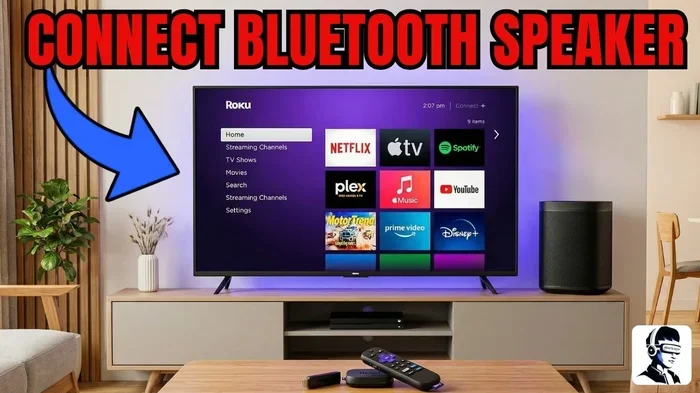
If your LG TV is older and does not support wireless casting well, consider a streaming stick like Chromecast or Roku. These devices plug into your TV’s HDMI port and give it modern casting abilities. They are affordable and work with any PC.
Optimize Your Network for Streaming
If you plan to cast high-quality video or play games, your network matters. Use a wired Ethernet connection for your PC if possible. This gives you the most stable and fastest connection. If you must use WiFi, make sure you are close to the router and on the 5GHz band.
Casting from your PC to your LG TV is one of the most useful features of a smart TV. Once you set it up, you will wonder how you ever lived without it. Whether you are watching movies, sharing photos, or giving a presentation, casting makes everything more enjoyable and social.
Final Thoughts
Learning how to cast from my PC to my LG TV opens up so many possibilities. You can watch your favorite shows on the big screen, share memories with family, or even use your TV as a second monitor for work. The methods we covered today work for almost everyone.
Start with wireless casting using Smart Share. It is the easiest and requires no extra equipment. If you need a perfect connection every time, use an HDMI cable. And for quick streaming of specific content, use the Chrome cast feature. You now have all the tools you need to cast with confidence.
Try each method and see which one fits your lifestyle best. You might find that you use a combination of methods depending on the situation. The most important thing is to just start. Once you see your PC screen on your big LG TV, you will love it. Happy casting.
Frequently Asked Questions
Can I cast from any PC to any LG TV?
Most modern PCs and LG TVs support wireless casting. Your PC needs Windows 10 or later for the best Miracast experience. Your LG TV needs to be a smart TV with Smart Share built in. If either device is too old, an HDMI cable will always work as a backup.
Do I need any special software to cast from my PC to my LG TV?
No special software is needed for most methods. Windows 10 and 11 have built-in casting features. LG TVs have Smart Share built into their webOS system. You only need extra software if you want advanced features like DLNA streaming or third-party cast apps.
Why is there a delay when I cast wirelessly?
A small delay is normal with wireless casting. It happens because the video signal has to travel through your WiFi network. A weak signal or busy network can increase the delay. Using a wired HDMI connection eliminates this delay completely.
Can I cast in 4K quality from my PC to my LG TV?
Yes, but only with an HDMI cable. Wireless casting typically maxes out at 1080p resolution. If you need 4K quality, connect your PC to your TV using an HDMI cable. Make sure both your PC and TV support 4K output and input.
Can I use my PC while casting to my LG TV?
Yes, when you use the “Extend” display mode. This lets you use your PC screen for other tasks while content plays on your TV. When you use “Duplicate” mode, the same content shows on both screens and you cannot use your PC freely while watching.
Is casting from PC to LG TV free?
Yes, all the built-in casting methods are completely free. You do not need to pay for any apps or subscriptions. The only cost might be an HDMI cable if you choose the wired method, and those cost just a few dollars.