How Do I Add Speakers To My Projector For Better Sound
Adding external speakers to your projector instantly improves sound quality for movies, gaming, and presentations. You can connect speakers using Bluetooth, a 3.5mm cable, or an HDMI audio extractor depending on your projector model. This guide walks you through every method step by step so you can pick the best option for your setup and enjoy theater-quality audio at home.
Nothing kills a movie night faster than tinny, weak projector sound. You set up the big screen, dim the lights, and hit play, only to hear flat audio that makes every explosion sound like a whisper. If you have ever experienced this, you are not alone. Most projectors come with tiny built-in speakers that simply cannot deliver the kind of immersive sound you want.
The good news is that adding speakers to your projector is easier than you might think. Whether you prefer the convenience of Bluetooth or the reliability of a wired connection, there is a solution for every budget and setup. This guide covers everything you need to know about connecting external speakers to your projector, from choosing the right equipment to troubleshooting common issues.
By the end of this article, you will know exactly how to connect speakers to your projector for better sound. You will also learn about the pros and cons of each method, so you can make an informed decision. Let us dive in and turn your movie nights into a true home theater experience.
Key Takeaways
- Multiple Connection Options: You can connect speakers to a projector via Bluetooth, 3.5mm aux cable, HDMI audio extractor, or RCA cables.
- Built-In Speakers Are Usually Weak: Most projectors have small built-in speakers that lack depth and volume for a true home theater experience.
- Bluetooth Is the Easiest Wireless Method: Pairing a Bluetooth speaker or soundbar takes minutes and keeps your setup clean.
- Wired Connections Offer Better Reliability: Aux cables and audio extractors provide a stable connection with no audio lag.
- Placement Matters: Position your speakers at ear level and near the viewing area for the best surround effect.
- Check Your Projector First: Not all projectors support Bluetooth or audio output, so verify your model before buying new speakers.
📑 Table of Contents
Why Projector Speakers Usually Fall Short
Most projectors are designed to be compact and portable. That means manufacturers often cut corners on audio hardware. The tiny speakers inside a projector are meant to provide basic sound, not rich, full audio. Here is why they usually disappoint.
Small Driver Size
The speaker drivers inside projectors are extremely small, often around one to two inches. These small drivers cannot produce deep bass or clear highs. The result is sound that feels thin and hollow, especially during action scenes or music-heavy content.
Built-In Amplifier Limitations
Projectors use very weak built-in amplifiers. These amplifiers do not have the power to drive speakers properly. Even if the projector has multiple speaker drivers, the amplifier cannot push enough volume or clarity to fill a room.
No Surround Sound Support
Projector speakers are mono or stereo at best. They cannot create the surround sound effect that makes movies feel real. When you are watching a thriller or playing a fast-paced game, directional audio matters a lot. Built-in projectors simply cannot deliver that experience.
Types of Speakers You Can Add to a Projector
Before you connect anything, it helps to understand the types of speakers available. Each option has its own strengths, and the right choice depends on your room size, budget, and how you use your projector.
Bluetooth Speakers
Bluetooth speakers are the most popular choice for projector setups. They are wireless, portable, and easy to pair. You simply turn on Bluetooth on both your projector and speaker, and they connect within seconds. Many modern projectors now include built-in Bluetooth support, which makes this the simplest option.
If your projector does not support Bluetooth, you can use a Bluetooth receiver. This small device plugs into your projector’s audio output and acts as a bridge to your wireless speaker. It is a cheap and effective workaround that opens up a world of options.
Portable Bluetooth Soundbars
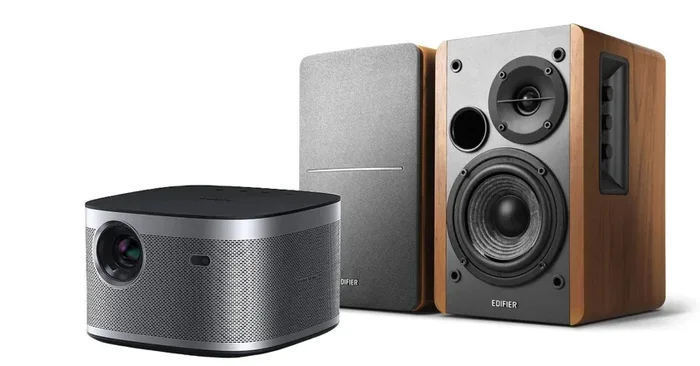
A soundbar is a step up from a standard Bluetooth speaker. It is longer and wider, which means it can produce richer sound with better bass. Soundbars are great for projector setups because they sit right below or above the screen. They create a more immersive listening experience without the clutter of multiple speakers.
Some soundbars even come with subwoofers for deep, punchy bass. This is ideal for action movies and gaming. If you want a simple upgrade that makes a big difference, a soundbar is worth considering.
Wireless Home Theater Speaker Systems
For the ultimate experience, a wireless home theater system is the way to go. These systems include multiple speakers and a subwoofer that work together to create true surround sound. You place speakers around your room, and they connect to a central receiver or soundbar.
The downside is cost and complexity. A full home theater system can be expensive, and setting it up takes more time. But if you are serious about projector audio, there is nothing better. You will feel like you are inside the movie.
Computer or Laptop Speakers
Do not overlook the speakers you already own. If you have a desktop or a set of powered computer speakers, you can connect them to your projector. Many people already have quality speakers sitting around that work perfectly with a projector setup. This is a budget-friendly option that delivers surprisingly good sound.
You can also plug speakers into my laptop and then connect the laptop to the projector. This gives you flexibility because you can adjust the volume and audio settings on the laptop before sending the signal to the projector.
How to Connect Speakers to Your Projector
Now that you know your options, let us talk about how to actually make the connection. The method you choose depends on the ports available on your projector and the type of speaker you want to use.
Method 1: Bluetooth Connection
Bluetooth is the easiest and most convenient way to connect speakers to a projector. Here is how to do it step by step.
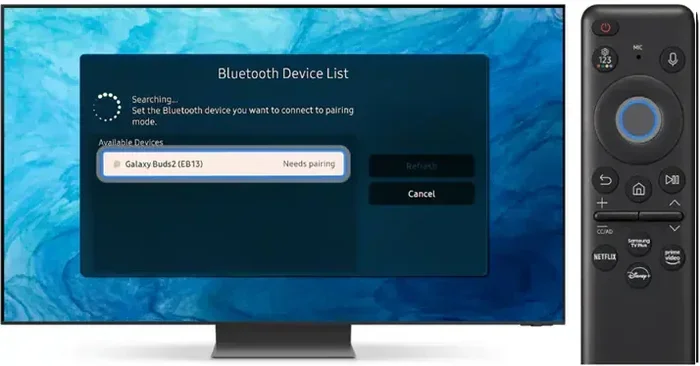
- Turn on your Bluetooth speaker and put it in pairing mode.
- Go to your projector’s settings menu and find the Bluetooth option.
- Select “Search for Devices” or “Pair New Device.”
- Choose your speaker from the list of available devices.
- Wait for the connection to complete. You may hear a confirmation tone.
- Play audio on your projector and adjust the volume on your speaker.
If your projector does not have Bluetooth, you can use a Bluetooth transmitter. Plug the transmitter into your projector’s audio output, pair it with your speaker, and you are good to go. This is a simple add-on that costs around twenty to thirty dollars.
One thing to keep in mind is audio lag. Bluetooth connections can sometimes introduce a slight delay between the video and audio. For movies, this is usually not noticeable. For gaming or live events, it might be more obvious. If you experience lag, consider using a wired connection instead.
Method 2: 3.5mm Aux Cable
A 3.5mm aux cable is the most straightforward wired connection. Most projectors have a standard 3.5mm headphone jack or audio output port. You simply plug one end of the cable into the projector and the other end into your speaker’s input.
Here is what you need to do:
- Find the audio output port on your projector. It is usually a 3.5mm jack labeled “Audio Out” or “Headphone.”
- Plug one end of the aux cable into the projector.
- Plug the other end into your external speaker’s aux input.
- Turn on both devices and set the projector volume to about 70 percent.
- Adjust the volume on your external speaker to your preference.
This method works great with portable Bluetooth speakers, computer speakers, and powered monitors. The only limitation is the cable length. If your speaker is far from the projector, you may need a longer cable or an extension. Keep the cable organized to avoid tripping hazards in your viewing area.
Method 3: HDMI Audio Extractor
An HDMI audio extractor is a small device that splits the HDMI signal into video and audio outputs. This is useful when your projector only has HDMI input and no audio output port. The extractor sends the video to the projector while sending the audio to your speakers through a 3.5mm or optical output.
Here is how to set it up:
- Connect your media source (laptop, streaming device, etc.) to the HDMI input of the audio extractor.
- Connect the extractor’s HDMI output to your projector.
- Connect the extractor’s audio output to your speakers using a 3.5mm cable or optical cable.
- Turn on all devices and select the correct input on your projector.
- Adjust the audio settings on your source device to output through the extractor.
An HDMI audio extractor is one of the best solutions for projectors that lack audio output options. It also improves sound quality because the audio is processed separately from the video signal. You can find reliable extractors for under fifty dollars online.
Method 4: RCA Cables
Older projectors and speakers may use RCA connections. RCA cables have red and white connectors for stereo audio. You connect the red plug to the right audio output and the white plug to the left.
If your projector has RCA audio outputs, this method is very simple. Just plug the cables into the matching ports on both the projector and the speaker system. Some speakers also come with RCA inputs, making this a plug-and-play option.
Method 5: Connect Through a Device (Phone or Laptop)
Another popular approach is to connect your audio source to speakers first, and then send the video to the projector. For example, you can pair my phone to a projector using a wireless connection or HDMI adapter, while your phone’s audio plays through connected speakers.
This method works well when you want to control the audio from your phone or laptop. You can also use it when your projector does not have any audio output options at all. The video goes to the projector, and the audio goes to your speakers through a separate connection.
Best Practices for Projector Speaker Placement
Connecting the speakers is only half the battle. Where you place them matters just as much for sound quality. Good placement can make a huge difference in how your audio fills the room.
Speaker Height and Positioning
Place your speakers at ear level when you are seated. This ensures the sound reaches you directly without bouncing off walls or furniture. If you are using a soundbar, position it directly below or above the projector screen for the best alignment.
Distance from the Screen
Keep your speakers a few feet away from the projector screen. Placing them right against the screen can cause vibrations and distortion. A small gap between the speaker and the screen helps produce cleaner, clearer sound.
Room Acoustics
The room you watch in affects how sound travels. Hard surfaces like walls and floors reflect sound, which can create echo. Soft surfaces like curtains and carpets absorb sound and reduce echo. If your room has hard floors, consider adding a rug. Hang curtains on windows to improve acoustics.
You can also use blackout curtains as a projector screen for a cleaner viewing surface, and the heavy fabric will also help absorb some sound reflections. This is a simple trick that improves both your visual and audio experience at the same time.
Avoid Obstructions
Make sure nothing is blocking the front of your speakers. Books, furniture, or decorations in front of the speakers can muffle the sound. Give your speakers a clear path to your listening position for the best results.
Troubleshooting Common Audio Issues
Even with the best setup, you might run into audio problems from time to time. Here are the most common issues and how to fix them.
No Sound at All
If you have no sound, first check that all cables are securely plugged in. Make sure the projector’s audio output is enabled in the settings. If you are using Bluetooth, confirm that the speaker is connected and not paired with another device. Sometimes simply restarting both devices resolves the issue.
Audio and Video Are Out of Sync
This is a common problem with Bluetooth connections. The audio delay happens because Bluetooth transmits data at a slower rate than a wired connection. To fix this, try reducing the distance between your projector and speaker. You can also adjust the audio delay settings on your speaker if it has that feature.
Distorted or Crackling Sound
Distorted sound usually means the volume is too high on either the projector or the speaker. Lower the volume on both devices and see if the problem improves. Check your cables for damage or loose connections. A faulty cable can cause crackling and static.
Low Volume Even on Maximum Settings
If your speakers are not loud enough, they may not be receiving a strong enough signal. Make sure you are using the correct audio output on the projector. Some projectors have multiple audio output options, and you need to select the right one. An amplifier or powered speaker can also boost the volume if needed.
Quick Tips for Better Projector Audio
- Use an audio extractor for the cleanest separation of video and audio signals.
- Keep your cables short to reduce signal loss and audio lag.
- Test different speaker positions before settling on a final setup.
- Use a subwoofer for deeper bass during action movies and games.
- Update your projector firmware to ensure the latest audio features and bug fixes.
- Consider a soundbar for a simple, all-in-one audio upgrade.
- Clean your audio ports regularly to prevent dust buildup that can cause connection issues.
Expert Insights on Projector Audio
Audio quality can make or break your projector experience. Many people invest in expensive projectors but skip the audio entirely. The truth is that sound is just as important as picture quality. A great image with poor audio will never feel truly immersive.
If you are building a home theater, consider pairing your projector with a dedicated audio system. A soundbar with a subwoofer is a great starting point. For a more advanced setup, a 5.1 surround sound system creates an incredibly realistic audio environment. The key is to match your audio setup to your viewing habits. If you mostly watch movies, prioritize surround sound. If you mostly give presentations, a simple Bluetooth speaker may be all you need.
Also, remember that your projector setup extends beyond just the device itself. Where you use a projector on my wall or on a screen, the room layout affects both picture and sound. Plan your entire viewing space with audio in mind from the start, and you will enjoy a much better experience every time.
Conclusion
Adding speakers to your projector is one of the simplest upgrades you can make for a better viewing experience. Whether you choose Bluetooth convenience, wired reliability, or a full home theater system, the difference in sound quality is immediately noticeable. You do not need to be an audio expert to get great results. With the right connection method and proper speaker placement, your projector can deliver rich, immersive audio that rivals a commercial theater.
Start by checking what audio outputs your projector supports. Then pick the speaker type and connection method that fits your needs and budget. Follow the setup steps in this guide, and you will be enjoying theater-quality sound in no time. Do not settle for weak projector audio any longer. Upgrade your speakers today and transform the way you watch movies, play games, and present at home.
Frequently Asked Questions
Can I connect any Bluetooth speaker to my projector?
Most modern projectors with Bluetooth support can connect to any standard Bluetooth speaker. If your projector does not have built-in Bluetooth, you can use a Bluetooth transmitter that plugs into the projector’s audio output. This device acts as a bridge and works with virtually any Bluetooth speaker on the market.
Do I need an HDMI audio extractor if my projector has built-in speakers?
You only need an audio extractor if you want to connect external speakers and your projector lacks an audio output port. If your projector has a 3.5mm headphone jack or USB audio output, you can connect speakers directly without an extractor. The extractor is most useful for projectors with HDMI-only connectivity.
Why is there a delay between the video and audio when using Bluetooth?
Bluetooth transmits audio data wirelessly, which introduces a slight delay compared to a wired connection. This delay, called audio lag, is usually only a few milliseconds. It is most noticeable during gaming or fast-moving video content. Using a wired connection or an audio extractor eliminates this problem entirely.
Can I use computer speakers with my projector?
Yes, you can. Most powered computer speakers connect via a 3.5mm aux cable, which works with any projector that has an audio output jack. Computer speakers are an affordable and effective option for improving projector sound. They are especially useful for casual viewing and presentations.
What is the best speaker type for a small room projector setup?
For small rooms, a compact Bluetooth speaker or a soundbar works best. They deliver good sound without taking up too much space. A full surround sound system may be overkill for a small room. Focus on clarity and balanced audio rather than raw power when choosing speakers for a small space.
How can I improve projector sound without buying new speakers?
You can improve sound without buying new equipment by adjusting your projector’s audio settings and repositioning the projector for better sound projection. Placing the projector on a stable surface at ear level helps. You can also play with the room layout, adding soft surfaces like rugs and curtains to reduce echo and improve clarity.
=== CONCLUSION ===
Adding speakers to your projector transforms your viewing experience from ordinary to extraordinary. You now know all the main connection methods, from Bluetooth and aux cables to HDMI audio extractors. You also understand how speaker placement and room setup affect your overall sound quality. The best part is that you do not need a big budget to get started. Even a simple Bluetooth speaker or a pair of computer speakers makes a massive difference compared to built-in projector speakers.
Take action today. Check your projector’s audio options, pick the method that works best for you, and start enjoying richer, clearer sound with every movie night or presentation. Your ears will thank you.