Can You Use Bluetooth Headphones With A Tv Without Issues
Yes, you can use Bluetooth headphones with a TV — but it depends on your TV’s built-in capabilities or an external Bluetooth transmitter. This guide covers pairing methods, common issues like audio delay, and simple fixes to help you enjoy wireless TV audio without headaches. Whether you have a smart TV or an older model, we’ll show you the easiest ways to get connected.
Watching your favorite show late at night? Or maybe you share a living space and don’t want to disturb anyone? Bluetooth headphones with a TV solve these problems instantly. They give you private, wireless audio without tangled cords or annoying cables across the room.
But can you actually use Bluetooth headphones with a TV without running into problems? The short answer is yes. The longer answer depends on your TV model, your headphones, and a few settings you might need to adjust. Let us walk you through everything you need to know.
In this guide, we will cover how to connect Bluetooth headphones to your TV, what to do when things go wrong, and the best gear to make it all work smoothly. Whether you are a casual viewer or a binge-watching enthusiast, this article has you covered.
Key Takeaways
- Most modern TVs support Bluetooth: Smart TVs from Samsung, LG, Sony, and TCL often have built-in Bluetooth for easy headphone pairing.
- Older TVs need a Bluetooth transmitter: You can add Bluetooth to any TV with a 3.5mm jack or optical output using a cheap adapter.
- Audio delay is the #1 issue: Latency can cause lip-sync problems, but low-latency codecs and firmware updates can fix this.
- Multiple headphones can connect: Many TVs allow pairing two or more headphones for shared listening.
- Check compatibility first: Not all Bluetooth headphones work perfectly with every TV — look for aptX Low Latency support.
- You can also use your phone as a bridge: Apps and Bluetooth transmitters offer flexible alternatives for wireless TV sound.
📑 Table of Contents
- Can You Use Bluetooth Headphones With a TV?
- How to Pair Bluetooth Headphones With Your TV
- Common Problems and How to Fix Them
- Best Bluetooth Headphones for TV Watching
- Can You Use Multiple Bluetooth Headphones With One TV?
- Alternative Ways to Get Wireless TV Audio
- Expert Tips for the Best Bluetooth TV Experience
- Frequently Asked Questions
- Conclusion
Can You Use Bluetooth Headphones With a TV?
The good news is that most modern TVs come with Bluetooth built right in. Brands like Samsung, LG, Sony, and TCL have included wireless audio support in their smart TV lineups for several years now. If you bought a TV in the last five years, there is a strong chance it supports Bluetooth headphones out of the box.
Older TVs, however, may not have this feature. But do not worry. You can still enjoy wireless listening by adding a Bluetooth transmitter. These small devices plug into your TV’s audio output and send sound to your headphones. They are affordable and easy to set up.
Before you start, it helps to understand what kind of TV you have. Check your TV manual or look up your model online. You want to confirm whether it has native Bluetooth support or needs an external adapter. This simple step saves a lot of frustration later.
Built-in Bluetooth vs. External Transmitters
Smart TVs with built-in Bluetooth let you pair headphones directly from the settings menu. You go to Settings, find the Bluetooth section, and your TV searches for nearby devices. This method is clean and simple. No extra wires, no extra gadgets.
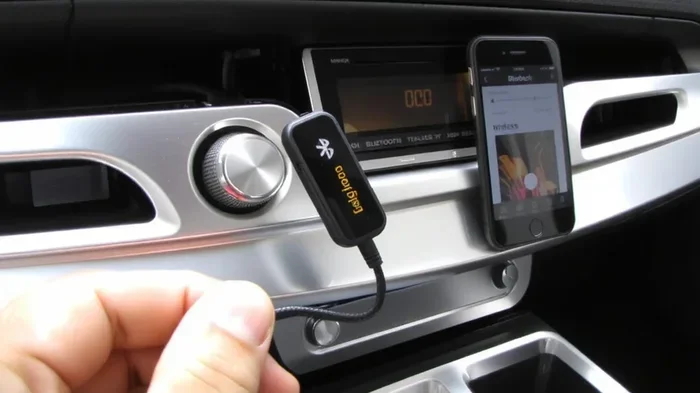
External Bluetooth transmitters work differently. They connect to your TV using an audio cable or optical cable. The transmitter then sends the audio signal wirelessly to your headphones. This approach works with almost any TV, even very old models. The trade-off is one extra device sitting on your entertainment center.
How to Pair Bluetooth Headphones With Your TV
Pairing Bluetooth headphones with your TV is straightforward once you know the steps. The process varies slightly depending on your TV brand, but the general idea is the same. Let us break it down.
Step-by-Step Pairing Guide
- Turn on your Bluetooth headphones and put them in pairing mode. Most headphones have a button or switch for this. Check your headphone manual if you are unsure.
- Go to your TV Settings. Look for Bluetooth, Sound, or Connections. On most smart TVs, this lives under the main Settings menu.
- Select “Add Device” or “Pair New Device.” Your TV will start scanning for nearby Bluetooth devices.
- Find your headphones in the list. Tap on them to connect.
- Test the audio. Play a video or music to make sure the sound comes through your headphones clearly.
That is really all there is to it. Once paired, your TV should remember the headphones and connect automatically next time you turn them on. This makes the process even easier over time.
Tips for a Smooth Pairing Experience
- Keep your headphones close to the TV during pairing.
- Make sure your headphones are fully charged before you start.
- Turn off other Bluetooth devices nearby to avoid interference.
- Restart your TV if the pairing process fails the first time.
- Check for TV software updates — these often improve Bluetooth performance.
One thing worth mentioning: if you own an LG TV, the process is slightly different. LG TVs have a dedicated Bluetooth settings menu that makes pairing headphones quick and easy. You can find detailed steps in our guide on pairing Bluetooth headphones to LG TVs.
Common Problems and How to Fix Them
Even though Bluetooth technology has improved a lot, you may still run into some issues. Here are the most common problems and how to solve them.
Audio Delay and Lip-Sync Issues
This is the number one complaint about Bluetooth headphones with a TV. You hear the sound, but the mouths do not match the words. This happens because Bluetooth adds a small delay to the audio signal. The sound reaches your ears a fraction of a second after the video shows the action.
Here is how to fix it:
- Look for headphones with aptX Low Latency support. This codec reduces the delay significantly.
- Adjust the audio delay in your TV settings. Many smart TVs let you manually sync audio and video.
- Update your TV firmware. Manufacturers often release updates that improve Bluetooth timing.
- Use a Bluetooth transmitter with built-in latency correction. These devices handle the sync automatically.
Some people wonder if they can use Alexa as a Bluetooth speaker for their TV to bypass these issues. While Alexa can stream audio, it adds its own delay and is not ideal for watching video. A dedicated Bluetooth transmitter works much better.
Connection Drops and Interference
Bluetooth signals can weaken if other wireless devices are nearby. Wi-Fi routers, microwaves, and even USB 3.0 ports can cause interference. If your headphones keep disconnecting, try these fixes:
- Move your router away from your TV.
- Keep USB devices at least a few feet from your Bluetooth transmitter.
- Switch your Wi-Fi to the 5GHz band to reduce 2.4GHz congestion.
- Re-pair your headphones if the connection becomes unstable.
Headphones Not Showing Up on the TV
If your TV does not detect your headphones, do not panic. Try these steps first:
- Make sure your headphones are in pairing mode.
- Restart both your TV and your headphones.
- Check if your TV has a Bluetooth limit on connected devices and remove old pairings.
- Verify that your TV supports the Bluetooth profile your headphones use (A2DP for audio streaming).
Also, keep in mind that some hearing aids with Bluetooth have specific TV streaming features. If you use hearing aids, check if they support direct TV audio streaming. Our guide on Bluetooth hearing aids covers this in more detail.
Best Bluetooth Headphones for TV Watching
Not all Bluetooth headphones are created equal when it comes to TV use. Some are designed specifically for low-latency audio, while others focus on music and calls. Here is what to look for.
Key Features to Consider
- Low latency codec support — aptX Low Latency or similar technology reduces audio delay.
- Long battery life — you do not want your headphones dying mid-movie.
- Comfortable fit — you might wear them for hours during a binge-watching session.
- Good range — Bluetooth typically works up to 30 feet, but walls and furniture can reduce this.
- Multi-device pairing — some headphones can connect to two devices at once, which is handy.
Over-Ear vs. On-Ear vs. In-Ear
Over-ear headphones generally provide the best sound quality and comfort for TV watching. They also tend to have better battery life. On-ear headphones are lighter but can feel less immersive. In-ear options are compact but may feel uncomfortable during long viewing sessions.
For the best experience, choose over-ear headphones with active noise cancellation. This lets you hear every detail without turning the volume up too high.
Can You Use Multiple Bluetooth Headphones With One TV?
Yes! Many modern smart TVs allow you to connect two or more Bluetooth headphones at the same time. This is great for couples or families who want to watch a show together without sharing a single pair of headphones.
Samsung TVs, for example, support a feature called “Multi-output Audio.” It lets you pair two Bluetooth headphones simultaneously. LG TVs have a similar capability through their Bluetooth settings. Sony TVs also offer this feature on many models.
To use this feature, pair each pair of headphones separately through your TV’s Bluetooth menu. Once connected, both pairs will receive the same audio. You can usually adjust the volume independently on each headphone set.
Keep in mind that older TVs or budget models may not support multiple connections. If your TV does not have this feature, you can use a Bluetooth transmitter that supports multi-point connections. These transmitters can pair with two headphones at once and send the same audio to both.
Alternative Ways to Get Wireless TV Audio
Bluetooth is not the only way to get wireless sound from your TV. Here are a few alternatives worth considering.
Wi-Fi Streaming
Some smart TVs and streaming devices support Wi-Fi audio streaming. This uses your home network instead of Bluetooth. Wi-Fi streaming often has better range and can deliver higher audio quality. However, it requires more setup and a stable internet connection.
Wireless TV Headphones
Dedicated wireless TV headphones come with their own base station that plugs directly into your TV. These are different from Bluetooth headphones. They use radio frequency (RF) or infrared (IR) signals instead of Bluetooth. The advantage is virtually zero latency and a longer range. Brands like Sennheiser and Sony make excellent wireless TV headphone systems.
Using a Phone or Tablet as a Bridge
If your TV does not support Bluetooth, you can use your phone as a middleman. Connect your phone to your TV via an HDMI cable or screen mirroring, then play the audio through Bluetooth headphones connected to your phone. This method works but adds a layer of complexity. It is better suited as a temporary solution.
Another option involves using a Bluetooth speaker connected to your TV. Some people use smart speakers like Amazon Echo as a Bluetooth output for their TV. This works well for music and casual viewing, though it does not give you the private listening experience of headphones.
Expert Tips for the Best Bluetooth TV Experience
Here are some pro tips that make a real difference in your wireless TV listening experience.
- Keep your headphones and TV close together. Bluetooth works best within 10 to 15 feet for the most reliable connection.
- Charge your headphones regularly. A low battery can cause audio dropouts and poor performance.
- Use a dedicated Bluetooth transmitter if your TV lacks built-in Bluetooth. These small devices plug into your TV’s audio output and make any TV Bluetooth-ready.
- Check for firmware updates. Both your TV and your headphones benefit from regular firmware updates that improve Bluetooth stability.
- Consider a low-latency Bluetooth codec. If your headphones and TV both support aptX Low Latency, enable it for the best sync between audio and video.
- Avoid walls and obstacles between your TV and headphones. Physical barriers weaken the Bluetooth signal and can cause disconnections.
One more thing worth noting: if you are someone who likes to talk through Bluetooth headphones while watching TV — maybe for a voice call or dictation — make sure your headphones have a built-in microphone. Not all Bluetooth headphones support this feature, and it can affect your overall experience.
Frequently Asked Questions
Can any Bluetooth headphones work with a TV?
Most Bluetooth headphones work with TVs that have built-in Bluetooth support. However, for the best experience, look for headphones that support the A2DP profile and, ideally, aptX Low Latency. Some older or budget headphones may have compatibility issues, so checking specifications before buying is always a good idea.
Why is there a delay when I use Bluetooth headphones with my TV?
Audio delay, also called latency, happens because Bluetooth takes a fraction of a second to encode and transmit audio data. This causes the sound to lag behind the video. You can reduce this delay by using headphones with aptX Low Latency support or by adjusting the audio sync settings on your TV.
Can I connect two pairs of Bluetooth headphones to my TV?
Many modern smart TVs support multiple Bluetooth connections. Samsung, LG, and Sony TVs often have a multi-output or dual-pairing feature. Check your TV’s Bluetooth settings to see if this option is available. If not, a multi-point Bluetooth transmitter can do the job.
Do I need a Bluetooth transmitter if my TV has built-in Bluetooth?
No, you do not need a transmitter if your TV already has Bluetooth. The transmitter is only necessary for older TVs or models without built-in wireless support. It plugs into your TV’s audio output and adds Bluetooth capability.
Can I use Bluetooth headphones with a non-smart TV?
Yes, you can. You will need a Bluetooth transmitter that connects to your TV’s audio output. These transmitters are affordable and work with almost any TV, regardless of whether it is a smart TV or a basic model.
What is the best Bluetooth codec for TV watching?
aptX Low Latency is the best codec for TV watching because it minimizes audio delay. If your TV and headphones both support it, enable it in the settings. Standard Bluetooth codecs like SBC work fine but may have more noticeable lag during video playback.
Conclusion
Using Bluetooth headphones with a TV is easier than most people think. Whether your TV has built-in Bluetooth or you need a transmitter, the setup process is simple and the results are fantastic. You get private, high-quality audio without any wires or cables cluttering your space.
The key is to know your TV’s capabilities, choose the right headphones, and troubleshoot any issues that come up. Audio delay is the most common problem, but it is solvable with the right equipment and settings. Take your time, follow the steps in this guide, and you will be enjoying wireless TV audio in no time.
Start with the basics — check if your TV supports Bluetooth, pair your headphones, and test the experience. From there, you can explore advanced features like multi-device pairing and low-latency codecs. Soon, Bluetooth headphones with a TV will feel like second nature.