Does Guest Wi Fi Use Same Ip Address on Your Network
Guest Wi-Fi networks typically use a separate IP address from your main network. This separation keeps your personal devices safe while still giving visitors internet access. Understanding how guest Wi-Fi IP addresses work helps you set up a smarter, more secure home network.
Have you ever wondered does guest Wi-Fi use same IP address as your main home network? It is a question many people ask but few take the time to answer. The short answer is no. Guest Wi-Fi networks almost always use a different IP address range than your primary network. But the full story is much more interesting, and it matters more than you might think.
When you set up a guest Wi-Fi network, you are creating a separate door to your digital home. Just like you would not give a guest the key to your bedroom, you should not give them access to every device on your network. IP address separation is the technical way this isolation happens. It keeps your personal computers, smart TVs, and security cameras safe while still letting visitors get online.
In this article, we will break down exactly how guest Wi-Fi IP addresses work. You will learn why routers keep them separate, how to check your own setup, and common mistakes people make when configuring guest networks. Whether you are a tech beginner or someone who just wants to understand your home network better, this guide has you covered.
Key Takeaways
- Separate IP Addresses: Guest Wi-Fi usually assigns a different IP address than your main network, keeping devices isolated.
- Enhanced Security: IP separation prevents guests from accessing your shared files, printers, and smart home devices.
- Easy to Set Up: Most modern routers have a built-in guest network feature that handles IP assignment automatically.
- Check Your Router: You can verify guest network IP settings through your router admin panel or mobile app.
- DHCP Plays a Key Role: The Dynamic Host Configuration Protocol assigns unique IP addresses to each connected device on your network.
- Network Isolation Is Standard: Guest networks are designed to block communication between guest and main network devices by default.
📑 Table of Contents
- What Is a Guest Wi-Fi Network and How Does It Work
- Does Guest Wi-Fi Use the Same IP Address as Your Main Network
- Why IP Address Separation Matters for Your Network
- How to Check if Your Guest Wi-Fi Uses a Different IP Address
- Common Guest Wi-Fi Setup Mistakes to Avoid
- Tips for Optimizing Your Guest Wi-Fi Network
- Frequently Asked Questions About Guest Wi-Fi and IP Addresses
- Conclusion
What Is a Guest Wi-Fi Network and How Does It Work
A guest Wi-Fi network is a separate wireless network that you can create on your wireless router. It lets visitors connect to the internet without giving them access to your personal files, shared folders, or smart home devices. Think of it as a VIP lounge at an airport. Everyone gets to enjoy the Wi-Fi, but they stay in their own space away from the private areas.
Most modern routers made by companies like Netgear, TP-Link, ASUS, and Linksys include a built-in guest network feature. You can usually turn it on through the router settings page or a companion mobile app. The setup process is simple, and you do not need to be a network engineer to do it.
How Guest Networks Are Set Up
Setting up a guest network typically takes just a few minutes. Here is what the process usually looks like:
- Log into your router admin panel by typing its IP address into a web browser.
- Look for a section labeled Guest Network or Guest Access.
- Turn the guest network on and set a network name (SSID).
- Create a password for the guest network.
- Save your settings and restart the router if needed.
Some routers let you set bandwidth limits for the guest network. This is helpful if you do not want visitors slowing down your main internet connection. You can also set a time limit for how long guests can stay connected. These features make managing your home network much easier.
How IP Addresses Are Assigned
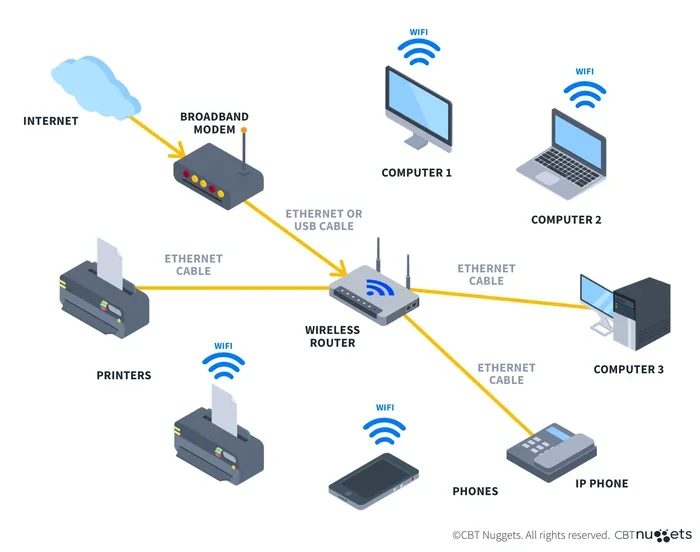
Every device that connects to a network needs a unique IP address. This is like a mailing address for your devices. Without it, data would not know where to go. The Dynamic Host Configuration Protocol, or DHCP, handles this automatically. When a device connects, the router assigns it an available IP address from a specific range.
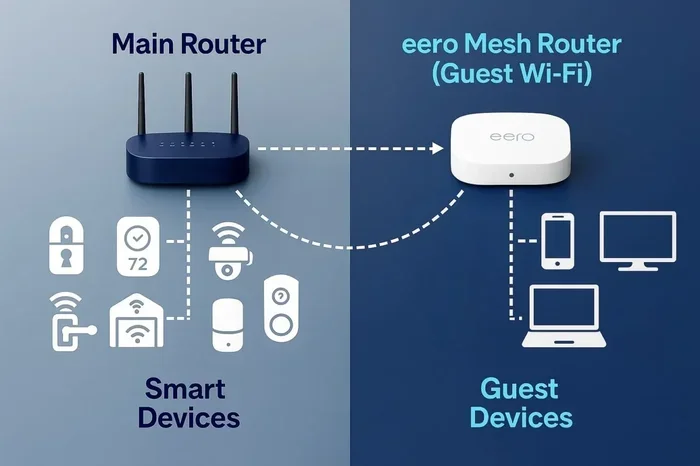
Your main network and guest network each have their own DHCP pool. This means they pull from different sets of IP addresses. For example, your main network might use addresses like 192.168.1.100 through 192.168.1.200, while the guest network might use 192.168.2.100 through 192.168.2.200. This separation is the core answer to does guest Wi-Fi use same IP address.
Does Guest Wi-Fi Use the Same IP Address as Your Main Network
The answer depends on how your router is configured, but in most cases, the answer is no. Guest networks are designed to operate on a different subnet than your main network. A subnet is a smaller network within your larger home network. By keeping the guest network on its own subnet, your router ensures that guest devices cannot see or communicate with your main devices.
However, some older or budget routers may not support true network isolation. In these cases, the guest network might share the same IP range as the main network. This is not ideal, but it is common in basic router setups. If you are unsure, checking your router settings will tell you exactly what is happening.
Understanding Your Main Network IP
Your main network IP address is assigned to your router itself. This is usually something like 192.168.1.1 or 10.0.0.1. Every device on your main network gets an IP address within the same range. Your laptop, phone, smart TV, and gaming console all live in this space.
When a guest connects to your guest Wi-Fi network, they get an IP address from a different range. This is what keeps them isolated. Even though they are using the same physical internet connection, they cannot see your other devices. It is like having two separate houses on the same street, but with walls between them.
How Guest Networks Handle IP Addresses Differently
Guest networks handle IP assignment in a few key ways that differ from your main network:
- Different Subnet: Guest networks usually sit on a separate subnet, meaning a different IP range entirely.
- Isolated DHCP: The guest network has its own DHCP server pool, so it does not overlap with your main network addresses.
- No Cross-Communication: Devices on the guest network cannot send requests to devices on the main network.
- Limited Access: Guests can only reach the internet. They cannot access shared drives, printers, or NAS devices on your main network.
This isolation is exactly why does guest Wi-Fi use same IP address is an important question. If they shared the same IP range, your network security would be compromised. The separate IP setup is your first line of defense.
Why IP Address Separation Matters for Your Network
You might be thinking, why does any of this matter? If your guests can get online, what is the big deal? The big deal is security. Every device connected to your network is a potential entry point. The more devices you have, the more risks you take on. Guest devices are especially risky because you do not control what they access or what software they run.
Network Security Benefits
Keeping guest devices on a separate IP range provides several security benefits:
- Protects Shared Files: Your personal documents and media stays hidden from guest devices.
- Secures Smart Home Devices: Smart cameras, doorbells, and thermostats remain inaccessible to visitors.
- Prevents Malware Spread: If a guest device is infected, it cannot spread to your main network devices.
- Blocks Network Scanners: Guests cannot scan your network to find vulnerable devices.
These benefits are why setting up a guest network should be a standard part of your home network configuration. It takes minutes to set up and provides peace of mind every single day.
Protecting Your Main Devices
Your main devices hold sensitive information. Your laptop has personal files. Your phone has banking apps. Your smart TV might store streaming service passwords. If a guest device on the same IP network could access these, it would be a serious problem. IP separation prevents this completely.
Even if you trust your guests, you cannot control what their devices have been exposed to. A phone that visited a malicious website or a laptop with outdated antivirus software can become a liability. The guest network keeps that risk contained.
If you are concerned about your overall network setup, consider changing your Wi-Fi router to a newer model that offers better guest network features and stronger security controls.
How to Check if Your Guest Wi-Fi Uses a Different IP Address
Now that you understand why IP separation matters, you might want to verify your own setup. Checking whether your guest network uses a different IP address is straightforward. You do not need any special software or technical expertise.
Checking Your Router Settings
The easiest way to check is by logging into your router admin panel. Here is how:
- Open a web browser on a device connected to your main network.
- Type your router IP address into the address bar. Common addresses are 192.168.1.1 or 192.168.0.1.
- Log in with your admin username and password.
- Navigate to the Guest Network or Wireless Settings section.
- Look for the IP range or subnet settings for the guest network.
If you see a different subnet listed for the guest network, then your guest devices are on a separate IP range. If both networks share the same subnet, you may want to adjust your settings or consider upgrading your router.
Using Network Tools to Verify IP Separation
You can also use network scanning tools to check IP addresses on your network. Apps like Fing or Advanced IP Scanner let you see all devices connected to your network along with their IP addresses. Connect to your guest network and scan. Then connect to your main network and scan again. Compare the IP ranges. If they are different, your separation is working correctly.
Another option is to simply try accessing a device on your main network from a guest-connected device. If you cannot reach it, that confirms the IP separation is active. This is a simple but effective test.
For more tips on managing your Wi-Fi network, check out our guide on boosting your Wi-Fi signal outside to ensure your entire property has strong coverage.
Common Guest Wi-Fi Setup Mistakes to Avoid
Setting up a guest network sounds simple, but people make mistakes all the time. Avoiding these common errors will help you get the most out of your guest Wi-Fi setup.
Mistakes to Avoid
- Leaving the Guest Network Open: Always set a password. An open guest network is an invitation for strangers to use your bandwidth and potentially access shared resources.
- Using the Same Password as Your Main Network: This defeats the purpose of having a separate guest network. Keep them different.
- Not Updating Guest Network Passwords: Change the guest password periodically, especially after large gatherings or events.
- Ignoring Bandwidth Limits: Without limits, a single guest could slow down your entire internet connection for your own devices.
- Forgetting to Enable Network Isolation: Make sure the isolation or AP isolation feature is turned on in your router settings.
These mistakes are easy to avoid with a little attention during setup. Taking the extra few minutes to configure your guest network properly saves you from potential security headaches down the road.
Tips for Optimizing Your Guest Wi-Fi Network
Once your guest network is set up, you can take steps to make it work even better. These optimization tips will improve performance and security for both you and your guests.
- Place Your Router Strategically: Central placement helps the guest signal reach visitors throughout your home. If your router is in a basement or far corner, consider moving it or looking into signal boosting solutions.
- Use a Separate Band: If your router supports dual-band, assign the guest network to the 5GHz band. This keeps it separate from your 2.4GHz main network and reduces interference.
- Set a Strong Password: Use a mix of letters, numbers, and symbols. You do not need to make it overly complex, but it should be hard to guess.
- Limit the Number of Connected Devices: Some routers let you cap the number of devices on the guest network. This prevents one guest from hogging all the bandwidth.
- Keep Your Router Firmware Updated: Regular updates patch security vulnerabilities and improve performance for both your main and guest networks.
You can also find your Wi-Fi password easily by checking your router settings or using your device’s saved network list. For more details, our guide on finding your Wi-Fi password in settings can help you manage access across all your networks.
Frequently Asked Questions About Guest Wi-Fi and IP Addresses
Here are some common questions people ask about guest networks and IP address behavior:
Can guests access my main network devices if they are on the same Wi-Fi?
If your guest network is properly configured with network isolation enabled, guests cannot access your main network devices. The separate IP address range and subnet act as a wall between the two networks. However, if isolation is turned off or your router does not support it, there is a risk of cross-network access.
Do I need a separate router for a guest network?
No, you do not need a separate router. Most modern routers handle guest networks natively. The router creates a virtual separate network with its own IP range. Only in very specific setups, such as large businesses, would you need a physical second router.
What happens if my guest network and main network share the same IP range?
If both networks share the same IP range, devices on the guest network may be able to see and communicate with devices on your main network. This creates a security risk. You should always configure your router to use a separate subnet for the guest network.
Can I assign static IP addresses to guest devices?
Most routers do not support static IP assignments for guest network devices. Guest devices are typically assigned dynamic IP addresses through DHCP. This is by design, as it keeps the guest network temporary and isolated.
Does turning off my guest network free up IP addresses on my main network?
No, the IP addresses used by your guest network are separate from those used by your main network. Turning off the guest network does not affect the IP pool of your main network. Each network manages its own DHCP assignments independently.
How do I know if my guest network is properly isolated?
The best way to test isolation is to connect a device to the guest network and try to access a device on the main network, such as a shared printer or file server. If you cannot reach it, your guest network is properly isolated. You can also check your router settings to confirm that AP isolation or guest isolation is enabled.
Conclusion
So, does guest Wi-Fi use same IP address as your main network? In the vast majority of cases, the answer is no. Guest networks are designed to operate on a separate IP range, which keeps your personal devices safe and your network secure. This separation is one of the most important features of any modern wireless router, and it is incredibly easy to take advantage of.
By setting up a guest network with proper IP isolation, you get the best of both worlds. Your visitors stay connected and happy, and your personal data and devices stay protected. It is one of those rare tech solutions that is both simple and effective.
Take a few minutes today to check your router settings. Make sure your guest network is enabled, properly isolated, and secured with a strong password. Your future self and your network will thank you. A little effort now saves a lot of headaches later, and it gives you confidence that your home network is set up the right way.