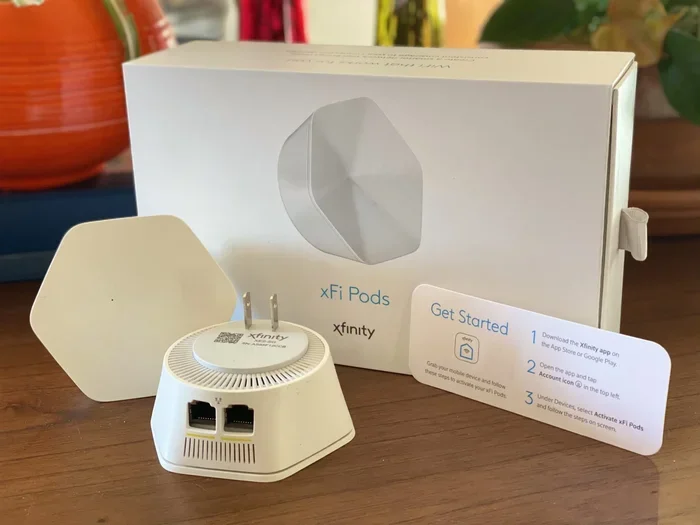
Do Xfinity Pods Work With Any Router And Boost Your WiFi
Do Xfinity Pods work with any router? The short answer is no — Xfinity Pods are designed to work best with the xFi Gateway or xFi Advanced Gateway. However, you can still use them with some third-party routers if you put your gateway into bridge mode. These small mesh devices help eliminate WiFi dead zones and boost your home network coverage without needing a full system replacement.
Have you ever walked into a room and suddenly lost your WiFi signal? It is one of the most frustrating things in modern life. You are streaming a show, on a video call, or just browsing, and — poof — the connection drops. This is where Xfinity Pods come into the picture.
Xfinity xFi Pods promise to extend your WiFi coverage and get rid of those annoying dead zones. But here is the big question most people ask: do Xfinity Pods work with any router? The answer is not as simple as a yes or no. There are compatibility rules, setup requirements, and a few tricks you need to know before you buy or set up your Pods. This guide covers everything you need to know in plain, easy-to-understand language.
Whether you live in a small apartment or a large house with thick walls, understanding how Xfinity Pods work with different routers can save you time, money, and a lot of headaches. Let us dive right in.
Key Takeaways
- Xfinity Pods are not universal: They work best with the xFi Gateway and may not function properly with all third-party routers.
- Bridge mode is your friend: You can use Pods with other routers by enabling bridge mode on your xFi Gateway.
- Placement matters a lot: Where you put your Pods directly affects how well your WiFi coverage improves.
- You don’t need a new router: In most cases, you can keep your existing setup and just add Pods for better coverage.
- Speed and compatibility go hand in hand: Older routers may limit the performance benefits of Xfinity Pods.
- Mesh WiFi systems offer alternatives: If Pods don’t work with your router, you can explore other mesh options like Deco mesh WiFi.
📑 Table of Contents
- What Are Xfinity Pods and How Do They Work?
- Do Xfinity Pods Work With Any Router?
- How to Set Up Xfinity Pods With Your Router
- Xfinity Pods vs. Other WiFi Boosters
- Common Problems and How to Fix Them
- Can You Use Xfinity Pods if You Change Your Internet Provider?
- Are Xfinity Pods Worth It?
- Final Thoughts on Xfinity Pod Compatibility
What Are Xfinity Pods and How Do They Work?
The Basics of Xfinity xFi Pods
Xfinity xFi Pods are small mesh devices made by Comcast. They plug directly into a wall outlet and extend your WiFi signal to areas of your home that get weak or no coverage at all. Think of them as tiny WiFi boosters that talk to your main router and spread the signal around.
These Pods are part of the xFi ecosystem. That means they work hand-in-hand with the xFi Gateway or xFi Advanced Gateway. The gateway acts as your main router and modem, and the Pods act as satellite nodes that bounce the signal to farther rooms.
Here is what makes them appealing:
- Easy setup: Most people can set up Pods in under 10 minutes using the xFi app.
- No extra cables: They run on power outlets, so no Ethernet cables needed.
- Seamless roaming: Your phone and other devices switch between the gateway and Pods automatically.
- Affordable: They cost less than many full mesh WiFi systems.
How Mesh Technology Powers the Pods
Xfinity Pods use a simple form of mesh networking. In a mesh system, multiple devices work together to create one big, unified WiFi network. Instead of having one router struggling to reach every corner of your home, the Pods help share the load.
Each Pod creates a new node in your network. Data travels from the gateway to a Pod, then from that Pod to another Pod if needed. This creates a web of coverage that fills in the gaps. The technology is similar to what you find in mesh WiFi systems from brands like Deco or Eero, but Xfinity Pods are designed specifically for the xFi ecosystem.
The key thing to remember is that mesh works best when all the nodes are from the same system or are compatible with each other. That is where the “work with any router” question gets tricky.
Do Xfinity Pods Work With Any Router?
The Short Answer: Not Really
Here is the truth. Xfinity Pods are designed to work with the xFi Gateway and xFi Advanced Gateway. They are not a universal accessory that works with every router on the market. If you try to pair Pods with a random router, they likely will not connect or function properly.
This is because Xfinity Pods rely on specific software and hardware integrations built into the xFi Gateway. The gateway and Pods communicate using proprietary protocols that third-party routers do not support. So if you are wondering whether you can just plug in a Pod and expect it to work with your old Netgear or TP-Link router, the honest answer is probably not.
Why Router Compatibility Matters
Router compatibility matters because Pods need to communicate with your main network. When the connection between the gateway and Pods is not seamless, you get dropped signals, slow speeds, and devices that refuse to switch between nodes. This defeats the whole purpose of having Pods in the first place.
Here are a few reasons why compatibility is so important:
- Firmware matching: Pods and the gateway need to run compatible firmware versions.
- Network protocols: Xfinity Pods use specific WiFi bands and channels that may not align with third-party routers.
- Management interface: The xFi app controls Pods through the gateway. A different router breaks that link.
- Security settings: Pods inherit security settings from the gateway, and third-party routers may handle these differently.
When Pods Work With Third-Party Routers
There is one scenario where Pods can work with a non-Xfinity router. You need to put your xFi Gateway into bridge mode. When the gateway is in bridge mode, it stops acting as a router and becomes just a modem. Then, you connect your own router to the gateway, and the Pods can still communicate with the gateway.
This is a popular workaround for people who want to use their own router but still enjoy the WiFi-boosting benefits of Xfinity Pods. If you are considering this route, you should also check whether your router supports WiFi 6 mesh capabilities, as this can affect overall performance.
How to Set Up Xfinity Pods With Your Router
Setting Up Pods With the xFi Gateway
Setting up Xfinity Pods with the xFi Gateway is straightforward. Here is what you need to do:
- Make sure your xFi Gateway is powered on and connected to the internet.
- Download the xFi app on your phone or tablet.
- Plug a Pod into a wall outlet in an area with weak WiFi signal.
- Open the xFi app and select “Add a Pod.”
- Follow the on-screen instructions to pair the Pod with your gateway.
- Wait for the LED light on the Pod to turn solid, which means it is connected.
- Repeat for additional Pods if needed.
The whole process usually takes less than 15 minutes. The app will also test the signal strength and suggest the best placement for each Pod.
Using Pods in Bridge Mode With a Third-Party Router
If you want to use your own router alongside Xfinity Pods, you will need to enable bridge mode first. Here is how:
- Log in to your xFi Gateway admin panel through a web browser.
- Navigate to the gateway settings.
- Find the “Bridge Mode” option and toggle it on.
- Connect your third-party router to the gateway using an Ethernet cable.
- Set up your router as you normally would.
- Add Pods through the xFi app as described above.
Important note: Putting your gateway in bridge mode disables its WiFi routing features. This means your third-party router becomes the main WiFi source. The Pods then extend that signal. If you are not sure whether your router is compatible, you might want to check if it supports mesh WiFi setup or if you can connect a Wi-Fi 6 mesh to a Wi-Fi 5 router for better results.
Best Placement Tips for Xfinity Pods
Where you place your Pods has a huge impact on performance. Here are some tips to get the most out of your setup:
- Halfway between the gateway and the dead zone: Place the Pod roughly in the middle of the area you want to cover.
- Avoid thick walls and metal objects: These block WiFi signals and reduce Pod effectiveness.
- Keep Pods away from microwaves and cordless phones: These devices operate on the same 2.4GHz frequency and can cause interference.
- Do not bury Pods behind furniture: They need clear airspace around them to broadcast signals properly.
- Use multiple Pods for large areas: One Pod covers a limited range. For larger homes, use two or three Pods in a chain.
A good rule of thumb is to place each Pod within 30 to 40 feet of the gateway or another Pod. If you place them too far apart, the signal weakens and your speed drops.
Xfinity Pods vs. Other WiFi Boosters
Pods vs. Traditional WiFi Extenders
Traditional WiFi extenders and Xfinity Pods serve a similar purpose, but they work very differently. A traditional extender connects to your router and rebroadcasts the signal. However, extenders often cut your bandwidth in half because they use the same radio to receive and send data.
Xfinity Pods, on the other hand, are designed as part of a mesh system. They communicate with the gateway on a dedicated backhaul channel, which means they do not slow down your internet speed as much. This makes Pods a better choice for most households.
Pods vs. Full Mesh WiFi Systems
Full mesh WiFi systems like Deco mesh WiFi or systems from Google Nest WiFi and Eero offer more features than Xfinity Pods. They give you more control over settings, parental controls, and band steering. However, they also cost more and require a more involved setup process.
Here is a quick comparison:
- Xfinity Pods: Affordable, easy setup, best for existing Xfinity users, limited third-party router support.
- Full Mesh Systems: More features, better performance, works with any router, higher price point.
- Traditional Extenders: Cheapest option, easy to set up, but often reduces speed significantly.
If you already pay for Xfinity internet and want a simple, no-fuss way to boost your WiFi, Pods are a solid choice. If you want more control and better long-term performance, a full mesh system may be worth the investment.
Common Problems and How to Fix Them
Pods Not Connecting to the Gateway
This is the most common issue people face. If your Pod will not connect, try these steps:
- Make sure the Pod is plugged into a working wall outlet.
- Check that your gateway is online and functioning properly.
- Restart both the Pod and the gateway by unplugging them for 30 seconds.
- Move the Pod closer to the gateway and try again.
- Reset the Pod by holding the button on the back for 10 seconds.
Slow Speeds After Adding Pods
If your internet speed drops after adding Pods, the placement is likely the culprit. Pods that are too far apart or placed behind obstacles will slow down your network. Try moving them closer together and away from interference sources. Also, make sure your gateway firmware is up to date, as updates often improve mesh performance.
Pods Keep Disconnecting
Frequent disconnections usually point to a weak connection between the gateway and the Pod. Check the LED indicator on the Pod — if it is blinking, it means the signal is weak. Relocate the Pod to a spot with a stronger connection to the gateway. You should also check if your neighbor’s WiFi is causing interference on the same channel.
Can You Use Xfinity Pods if You Change Your Internet Provider?
This is a question many people overlook. If you decide to switch from Xfinity to another internet service provider, your Xfinity Pods will likely become useless. Pods are tied to the xFi ecosystem and require an Xfinity gateway to function. If you switch ISPs, you will need to return the Pods or they will stop working.
On the other hand, if you are staying with Xfinity but want to change your WiFi router, you can still use Pods as long as you keep the xFi Gateway in the setup. The gateway acts as the bridge between your internet connection and the Pods, so replacing your router without removing the gateway will not break the Pods.
If you are considering buying your own equipment, you might wonder whether you can buy your own router for internet and still use Pods. The answer is yes, but only in bridge mode as described earlier. This setup lets you bring your own router while keeping the Pods in the network.
Are Xfinity Pods Worth It?
For Xfinity subscribers, Pods are a convenient and affordable way to improve WiFi coverage. They are especially useful for people who live in medium to large homes where the gateway alone cannot reach every room. The ease of setup and the seamless integration with the xFi app make them a great choice for non-tech-savvy users.
However, if you are not an Xfinity customer, Pods will not work for you. And even if you are an Xfinity user, Pods may not be the best solution if you have a very large home or need advanced features like parental controls, device prioritization, or advanced security settings. In those cases, a full mesh WiFi system is a better investment.
The bottom line is that Xfinity Pods work best when paired with the xFi Gateway. They are not a universal solution, but for the right user, they deliver exactly what they promise — better WiFi coverage, fewer dead zones, and a more reliable internet experience at home.
Final Thoughts on Xfinity Pod Compatibility
Do Xfinity Pods work with any router? Now you know the answer. They are designed for the xFi Gateway and work best in that environment. While there is a workaround using bridge mode, the experience is not as smooth as using them with the recommended gateway.
If you are happy with your Xfinity internet plan and just need better coverage, Pods are a simple and effective solution. Just make sure your setup is correct, your Pods are placed well, and your gateway firmware is up to date. With these steps, you can enjoy stronger WiFi signals in every room of your home.
Take some time today to check your WiFi coverage. Identify the dead zones, figure out where your Pods should go, and give your home network the upgrade it deserves. A little effort now can save you a lot of frustration later.
Frequently Asked Questions
Can I use Xfinity Pods with a router from another brand?
Xfinity Pods are designed to work with the xFi Gateway. They may work with third-party routers only if you enable bridge mode on the xFi Gateway. Without bridge mode, the Pods will likely not connect to a non-Xfinity router.
How many Xfinity Pods do I need for my home?
It depends on the size of your home. A single Pod can cover a small area or one weak room. For larger homes with multiple dead zones, you may need two or three Pods. The xFi app can help you determine the right number based on your floor plan.
Do Xfinity Pods slow down my internet speed?
Xfinity Pods are designed to maintain your existing speeds. However, if Pods are placed too far apart or behind thick walls, the signal may weaken and speeds could drop slightly. Proper placement is key to avoiding speed loss.
Can I use Xfinity Pods without the xFi Gateway?
No, Xfinity Pods require the xFi Gateway to function. They are not standalone devices and need the gateway to manage the mesh network and distribute internet signals.
What is the difference between Xfinity Pods and xFi Advanced Gateway?
The xFi Advanced Gateway is a router and modem combo that serves as the main hub for your network. Xfinity Pods are add-on devices that extend the WiFi coverage provided by the gateway. Pods do not replace the gateway — they work alongside it.
Can I add more Pods to my existing setup later?
Yes, you can add more Pods at any time through the xFi app. The app makes it easy to pair new Pods with your existing network. Just plug in the new Pod and follow the on-screen instructions to connect it.