Do Prebuilt Pcs Come With Bluetooth
Not all prebuilt PCs come with Bluetooth, but many modern ones do. Whether you need Bluetooth for wireless headphones, a keyboard, or a mouse, this guide shows you exactly how to find out if your PC has it and what to do if it does not. You will learn how to check for Bluetooth, add it with an adapter, and troubleshoot common problems.
Do prebuilt PCs come with Bluetooth? This is a question many buyers ask before they spend their hard-earned money. The short answer is: it depends. Some prebuilt computers ship with Bluetooth ready to go, while others leave you stuck looking for a way to connect wireless devices. Whether you want to use Bluetooth headphones, a wireless mouse, or a speaker, knowing what your PC can do matters a lot.
In this guide, we will walk you through everything you need to know about Bluetooth connectivity on prebuilt PCs. You will learn how to check if your PC has it, what to do if it does not, and how to get the best wireless connection from your desktop. We will also share tips on fixing common problems and choosing the right Bluetooth adapter if you need one. Let us dive in.
Key Takeaways
- Many modern prebuilt PCs include Bluetooth: Most desktops and towers sold in the last few years come with Bluetooth built right in.
- Older or budget PCs may lack Bluetooth: Basic or older models often skip Bluetooth to save costs, leaving you without wireless options.
- A USB Bluetooth adapter is the easiest fix: Adding Bluetooth to a PC without it is simple, affordable, and takes just minutes.
- You can check for Bluetooth in Device Manager: Windows makes it easy to see if your PC has a Bluetooth module already installed.
- Bluetooth version matters for performance: Newer versions like Bluetooth 5.0 offer better range and faster speeds than older ones.
- Troubleshooting is simple for most issues: Driver updates and restart tricks fix most Bluetooth problems on prebuilt PCs.
📑 Table of Contents
- Do Prebuilt PCs Come With Bluetooth?
- How to Check If Your Prebuilt PC Has Bluetooth
- How to Add Bluetooth to a PC That Does Not Have It
- Common Bluetooth Problems on Prebuilt PCs and How to Fix Them
- Bluetooth vs. Wired Connections: Which Is Better for Prebuilt PCs?
- Expert Tips for Getting the Most Out of Bluetooth on Your Prebuilt PC
- Do You Need Bluetooth If You Already Have Wi-Fi?
- Can You Add Bluetooth to Any Prebuilt PC?
- Final Thoughts on Do Prebuilt PCs Come With Bluetooth
Do Prebuilt PCs Come With Bluetooth?
The truth is, not every prebuilt PC includes Bluetooth. It all comes down to the manufacturer, the model, and the price point. High-end and mid-range machines usually have it. But budget builds or older models sometimes leave it out to cut costs. Here is a closer look at what to expect.
Modern Prebuilt Desktops
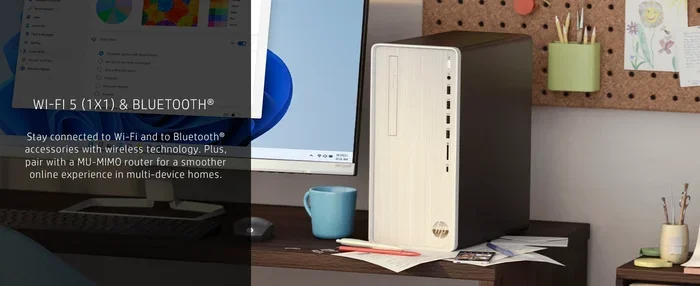
Most prebuilt desktops sold today come with built-in Bluetooth. Major brands like Dell, HP, Lenovo, and Asus typically include a Bluetooth module on the motherboard or as part of the Wi-Fi card. If your PC was made in the last three to five years, there is a good chance it has Bluetooth already.
You can usually find this information on the product box or in the spec sheet online. Look for terms like “Bluetooth 5.0” or “wireless connectivity.” These are strong signs your PC supports Bluetooth pairing right out of the box.
Older or Budget Models
Older prebuilt PCs or very budget-friendly models often do not include Bluetooth. Manufacturers sometimes drop it to keep the price low. If you bought a basic office PC or a used tower, you may find yourself without any wireless connection options for peripherals.
This is very common with machines built before 2018. At that time, many desktop PCs still relied on wired connections for keyboards, mice, and audio. If your PC falls into this category, do not worry. There is an easy fix, which we will cover below.
Gaming and Workstations
Gaming PCs and workstations almost always include Bluetooth. These machines are built with wireless peripherals in mind. Gamers love using Bluetooth headphones for immersive audio, and wireless keyboards and mice reduce desk clutter. If you bought a gaming tower from a brand like MSI, CyberPowerPC, or iBUYPOWER, Bluetooth is very likely included.
Some high-end workstations even support the latest Bluetooth version standards, offering faster data transfer and longer range. This is great if you use wireless audio devices or connect multiple peripherals at once.
How to Check If Your Prebuilt PC Has Bluetooth
Wondering if your PC already has Bluetooth? Checking is quick and easy. You do not need to be a tech expert. Windows makes it simple to find out if your machine supports Bluetooth connectivity.
Method 1: Check Device Manager
Open Device Manager by right-clicking the Start button and selecting it from the menu. Look for a section called “Bluetooth.” If you see it with a Bluetooth icon, your PC has a Bluetooth module installed. You may also see the name of your Bluetooth adapter listed there.
If there is no Bluetooth section, your PC might not have it. But do not panic just yet. Sometimes the driver is missing, which can hide the Bluetooth adapter. We will cover that in a moment.
Method 2: Check Settings
Go to Settings > Devices > Bluetooth & other devices. If you see a toggle switch for Bluetooth, your PC supports it. You can also check if any devices are already paired from this menu.
This is the fastest way to confirm Bluetooth pairing capability. If the Bluetooth toggle is grayed out or missing, your PC may not have a Bluetooth radio installed.
Method 3: Check the Specs Online
If you still have the box or the model number, look up the specs online. Search for your PC model number along with the word “specs.” The manufacturer’s website will list all the features, including whether Bluetooth is included.
This method works great for prebuilt PCs from brands like HP, Dell, and Lenovo. You can also check the original invoice or product page if you bought it online.
How to Add Bluetooth to a PC That Does Not Have It
If your prebuilt PC does not have Bluetooth, you are not stuck. Adding wireless capability is easy and affordable. There are a few ways to do it, and each has its own benefits.
Option 1: USB Bluetooth Adapter
A USB Bluetooth adapter is the simplest and most popular way to add Bluetooth connectivity to a PC. These small dongles plug right into a USB port and give your computer instant wireless ability. They work with Windows 10 and 11 out of the box in most cases.
You can find a solid adapter for under $20. Look for one that supports Bluetooth 5.0 or newer for the best range and speed. Brands like TP-Link, ASUS, and Netgear make reliable options. Once plugged in, Windows will install the driver automatically, and you can start Bluetooth pairing right away.
Quick Tip: If you use a USB hub, plug the adapter directly into the PC for the best signal strength. A weak connection can cause dropouts and lag.
Option 2: Upgrade the Wi-Fi Card
Some modern Wi-Fi cards include Bluetooth built in. If your PC has an empty PCIe slot, you can swap out your old Wi-Fi card for one that supports wireless connection and Bluetooth at the same time. This is a great option for desktop towers with plenty of internal space.
Cards like the Intel AX210 or similar models offer both Wi-Fi 6 and Bluetooth 5.2. This gives you faster internet and better wireless audio quality all in one upgrade. Just make sure your PC case has room for the card and that your motherboard has a compatible slot.
Option 3: Use a Bluetooth Dongle for Specific Devices
Some devices come with their own Bluetooth dongle. For example, certain wireless keyboards and mice include a small receiver that handles Bluetooth pairing. This is not a full PC solution, but it works well if you only need one or two devices connected wirelessly.
This option is less common but can be handy for basic setups. It works especially well with budget peripherals that do not need a full Bluetooth radio in the PC.
Common Bluetooth Problems on Prebuilt PCs and How to Fix Them
Even when your PC has Bluetooth, you might run into issues now and then. Most problems are easy to fix with simple steps. Here are the most common issues and what you can do about them.
Bluetooth Not Showing Up in Settings
If Bluetooth does not appear in your Settings menu, the driver might be the problem. Open Device Manager and look for any yellow warning signs. Right-click the Bluetooth entry and select “Update driver.” Windows will search for the latest software online.
You can also try restarting your PC. A simple reboot often fixes Bluetooth connectivity issues. If the problem persists, visit your PC manufacturer’s website and download the latest Bluetooth driver for your model.
Poor Range or Connection Drops
Bluetooth has a limited range, usually about 30 feet. Walls, furniture, and other electronics can weaken the signal. If your wireless connection keeps dropping, try moving closer to your PC or removing obstacles between the devices.
Interference from other wireless devices can also cause problems. Wi-Fi routers, microwaves, and baby monitors all operate on similar frequencies. Moving your router or Bluetooth device slightly can make a big difference.
Device Won’t Pair
If a device will not pair, make sure it is in pairing mode. Most Bluetooth headphones and speakers have a button or LED indicator that shows they are ready to connect. Try turning Bluetooth off and on again on both devices.
You can also remove old pairings from your PC and start fresh. Go to Settings > Devices > Bluetooth & other devices, select the device, and click “Remove device.” Then try pairing again from scratch.
Bluetooth vs. Wired Connections: Which Is Better for Prebuilt PCs?
Both Bluetooth and wired connections have their strengths. Let us compare them so you can decide what works best for your setup.
| Feature | Bluetooth | Wired |
|---|---|---|
| Convenience | No cables needed | Cable required |
| Sound Quality | Good, but can compress audio | Full, uncompressed audio |
| Latency | Slight delay possible | Instant response |
| Range | Up to 30 feet | Limited by cable length |
| Setup | Pairs wirelessly | Plug and play |
| Cost | Adapter or built-in cost | No extra cost |
For most everyday tasks like browsing, streaming music, and using a wireless mouse, Bluetooth works great. But if you are a serious gamer or audio professional, a wired connection might give you better quality and zero lag. Many people use a mix of both, keeping Bluetooth headphones for casual listening and wired gear for gaming or work.
If you want to use Bluetooth headphones with your TV as well, you might wonder if that works the same way. Check out our guide on using Bluetooth headphones with Roku for tips on wireless audio across different devices.
Expert Tips for Getting the Most Out of Bluetooth on Your Prebuilt PC
Want your wireless connection to work flawlessly? These expert tips will help you get the best performance from your PC’s Bluetooth.
- Keep your drivers updated: Outdated Bluetooth drivers cause most connection problems. Check for updates monthly.
- Place your PC centrally: Bluetooth works best when there are few walls and obstacles between devices.
- Turn off unused Bluetooth devices: Too many connected devices can slow down your wireless connection.
- Use Bluetooth 5.0 or newer: Newer versions offer better range, speed, and battery life for your peripherals.
- Restart your Bluetooth stack: If things act up, restarting the Bluetooth service in Windows often fixes the issue.
These small habits go a long way in keeping your Bluetooth pairing smooth and reliable. A little maintenance prevents most headaches down the road.
Do You Need Bluetooth If You Already Have Wi-Fi?
Some people wonder if Wi-Fi alone is enough. While Wi-Fi handles internet access, Bluetooth connects your peripherals directly to the PC. They are two different technologies that serve different purposes.
You can use a wired mouse and keyboard over Wi-Fi with cloud services, but that adds unnecessary complexity. Bluetooth gives you a direct, local connection that works even without internet. It is perfect for wireless audio, input devices, and file transfers between devices.
If you are curious about using Bluetooth with other devices in your home setup, you might want to read about using Alexa as a Bluetooth speaker for your TV to explore more wireless audio options.
Can You Add Bluetooth to Any Prebuilt PC?
The short answer is yes. Almost any prebuilt PC can get Bluetooth, no matter how old it is. The method you choose depends on your PC’s design and your budget. A USB adapter works for nearly every desktop, while a Wi-Fi card upgrade suits towers with open slots.
Even older machines from brands like HP, Dell, and Lenovo can gain Bluetooth connectivity with a simple adapter. This makes it a very affordable upgrade that breathes new life into an older setup. You do not need to buy a whole new PC just to go wireless.
If you have an older machine and are wondering what else you can do with it, check out our article on what you can do with an old laptop for more ideas on repurposing older tech.
Final Thoughts on Do Prebuilt PCs Come With Bluetooth
So, do prebuilt PCs come with Bluetooth? The answer is: many do, but not all. Modern desktops and gaming towers usually include built-in Bluetooth right out of the box. Older and budget models may not, but adding it is simple and inexpensive.
Whether you use Bluetooth headphones, a wireless mouse, or a speaker, knowing your PC’s capabilities helps you get the most out of your setup. Check your PC’s specs, use Device Manager to confirm, and grab an adapter if needed. With the right setup, your prebuilt PC can connect to all your favorite wireless devices without any hassle.
Take a few minutes today to check your PC for Bluetooth. If it is missing, a $15 adapter will solve the problem in under five minutes. Once you experience the convenience of wireless connection, you will wonder how you ever lived without it.
Frequently Asked Questions
Do all prebuilt gaming PCs come with Bluetooth?
Most modern prebuilt gaming PCs include Bluetooth as a standard feature. Gaming brands like MSI, ASUS, and CyberPowerPC typically equip their machines with Bluetooth 5.0 or newer. However, it is always smart to check the specific model’s specs before buying.
Can I add Bluetooth to an old prebuilt PC?
Yes, you can add Bluetooth to almost any old prebuilt PC. A USB Bluetooth adapter is the easiest and cheapest option. Just plug it into a USB port, and Windows will install the driver automatically in most cases.
What Bluetooth version should I look for in a prebuilt PC?
Look for Bluetooth 5.0 or newer for the best performance. Bluetooth 5.0 offers longer range, faster speeds, and better battery efficiency for your wireless peripherals. Most PCs made after 2019 support at least Bluetooth 5.0.
Why is my Bluetooth not working on my prebuilt PC?
Missing or outdated drivers are the most common cause. Open Device Manager and update your Bluetooth driver. Restarting your PC can also fix temporary issues. If the problem continues, try removing and re-pairing your devices.
Does a USB Bluetooth adapter affect PC performance?
No, a USB Bluetooth adapter has very little impact on performance. These adapters use minimal processing power and do not slow down your system. They are a lightweight and efficient way to add Bluetooth connectivity to any desktop.
Can I connect multiple Bluetooth devices to my prebuilt PC at once?
Yes, most prebuilt PCs can handle multiple Bluetooth devices at the same time. You can connect wireless headphones, a keyboard, a mouse, and a speaker all at once. Just keep in mind that too many devices may slightly reduce the range or increase latency.