Can You Use A Smart TV As A Wireless Monitor Device
Yes, you can use a smart TV as a wireless monitor device. It is simpler than most people think and works with phones, laptops, and tablets. You can cast, mirror, or stream your screen to a smart TV using built-in features or small adapters. This guide covers every method, tip, and mistake to avoid so you get the best experience.
Have you ever wondered if your smart TV can double as a wireless monitor? The answer is yes. A smart TV can work as a wireless monitor for your laptop, phone, or tablet. It opens up a whole new world of screen sharing without messy cables. Whether you want a bigger display for work, gaming, or streaming, using your smart TV wirelessly is a game changer.
Many people already use their smart TVs for watching shows and movies. But did you know you can also use them as a second screen or even a primary monitor? The process is straightforward. You just need the right method and a little patience. This guide walks you through every option step by step.
We will cover all the ways to connect your devices to a smart TV without wires. You will learn about built-in features, external adapters, and the best apps. We also share tips to avoid common mistakes and get the best performance. By the end, you will know exactly how to set up your smart TV as a wireless monitor.
The goal is simple. Help you turn your living room TV into a functional wireless display. No expensive equipment needed. No complicated setup. Just clear, practical advice you can use right away.
Key Takeaways
- Wireless display is possible: Most smart TVs support screen mirroring, casting, or wireless HDMI adapters to work as a monitor.
- Multiple methods exist: You can use Chromecast, Miracast, AirPlay, or a wireless HDMI adapter depending on your devices.
- Setup is easy: Most methods take under 10 minutes and require no technical skills.
- Watch for input lag: Gaming or video calls may feel delayed on a wireless connection compared to a wired setup.
- Resolution matters: Make sure your TV and source device support the same resolution for the best picture quality.
- Apps make it simple: Free apps like Google Home, AirPlay, and wireless display tools streamline the whole process.
📑 Table of Contents
- What Does It Mean to Use a Smart TV as a Wireless Monitor?
- How to Connect Your Device to a Smart TV Wirelessly
- Benefits of Using Your Smart TV as a Second Screen
- Things to Watch Out For
- Best Apps and Tools for Wireless Display
- Tips for the Best Wireless Monitor Experience
- Common Mistakes to Avoid
- Expert Insights on Wireless TV Monitors
What Does It Mean to Use a Smart TV as a Wireless Monitor?
Using a smart TV as a wireless monitor means sending your device screen to the TV without a cable. Instead of plugging in an HDMI cable, you use Wi-Fi or a wireless signal to share what is on your screen. The TV then displays that content as if it were a large monitor right in front of you.
This is different from just watching Netflix or YouTube on a smart TV. When you use a TV as a monitor, you are controlling the TV from another device. Your phone, laptop, or tablet becomes the source. The TV simply shows what the source device shows.
Think of it like a big wireless second screen. You can work on documents, browse the web, or play games on your laptop while the TV displays everything in real time. It is incredibly useful for presentations, multitasking, or just enjoying content on a larger display.
The technology behind this is called wireless display or screen mirroring. It uses protocols like Miracast, Chromecast, or AirPlay to send video and audio signals over your home Wi-Fi network. Most modern smart TVs support at least one of these methods built in.
How Wireless Display Works
Wireless display technology sends your screen content through your home Wi-Fi network. Your source device encodes the video and audio data. The smart TV receives that data and decodes it back into picture and sound. This happens in real time, so there is very little delay.
The quality of the wireless connection depends on your Wi-Fi speed and strength. A strong 5 GHz network gives the best results. Older 2.4 GHz networks can work but may have more lag or lower resolution. If your router is far from the TV, consider moving it closer or using a mesh network.
Most wireless display protocols also support audio streaming. So you get both video and sound without any extra cables. The TV speakers or a connected sound system will play the audio from your source device automatically.
How to Connect Your Device to a Smart TV Wirelessly
Connecting your device to a smart TV wirelessly is easier than you might think. There are several methods available, and most smart TVs come with at least one built-in option. Let us walk through each method so you can pick the one that works best for you.
Method 1: Built-In Screen Mirroring (Miracast)
Many Android phones and Windows laptops support Miracast. This is a wireless display standard built into many devices. To use it, both your source device and smart TV need to support Miracast.
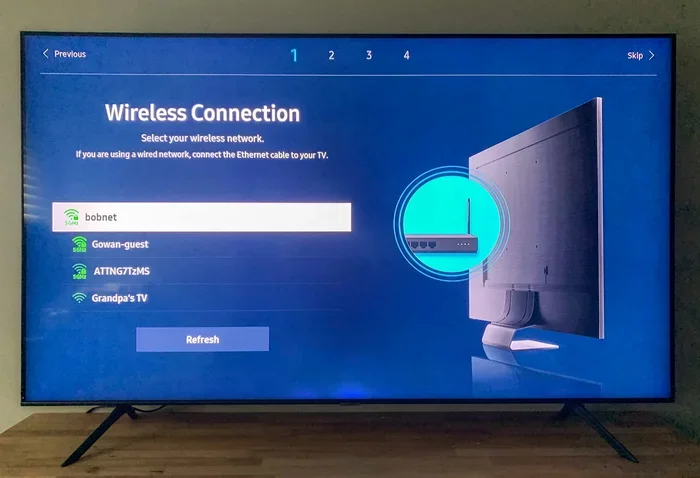
On your smart TV, go to the settings menu and look for Screen Mirroring, Miracast, or Wireless Display. Turn it on. On your phone or laptop, search for available devices and select your TV. The connection happens in seconds.
Miracast works well for general use. It is great for sharing presentations, photos, or browsing the web. However, it may not be ideal for fast-paced gaming because of slight input lag.
Method 2: Chromecast Built-In
Many smart TVs come with Chromecast built right in. This is Google’s wireless casting technology. It works great with Android phones, Chromebooks, and Chrome browsers on laptops.
To use Chromecast, make sure your phone and TV are on the same Wi-Fi network. Open a supported app or browser. Tap the cast icon (it looks like a small rectangle with Wi-Fi waves). Select your TV from the list. Your content will appear on the big screen.
Chromecast is very reliable for streaming content. It works well with Netflix, YouTube, Spotify, and many other apps. The connection is smooth and the picture quality is excellent on most setups.
Method 3: AirPlay for Apple Devices
If you use an iPhone, iPad, or MacBook, AirPlay is your best option. Apple’s AirPlay technology lets you wirelessly mirror your device screen to a compatible smart TV.
Make sure your Apple device and TV are on the same Wi-Fi network. Open the Control Center on your iPhone or iPad. Tap Screen Mirroring. Choose your TV from the list. Your screen will appear on the TV instantly.
AirPlay works beautifully for sharing photos, videos, and presentations. You can also use it to extend your laptop screen to the TV. If you want to learn more about mirroring devices to TVs, check out how to mirror iPhone to TV with HDMI for wired options too.
Method 4: Wireless HDMI Adapter
If your TV does not support built-in wireless display, you can use a wireless HDMI adapter. These small devices plug into your source device and connect to the TV wirelessly.
Popular options include brands like Wireless HDMI transmitters and receivers. You plug the transmitter into your laptop or phone. The receiver plugs into the TV’s HDMI port. They pair automatically and send a high-quality wireless signal.
Wireless HDMI adapters give you the best picture quality. They support 4K resolution and have very low input lag. This makes them ideal for gaming or professional presentations. They do cost more than built-in options but deliver superior performance.
Benefits of Using Your Smart TV as a Second Screen
Using a smart TV as a wireless monitor has many advantages. It is not just about having a bigger screen. There are real practical benefits that make this setup worth your time.
Bigger Screen for Better Productivity
A smart TV gives you a much larger display than a laptop or phone screen. This is great for working from home, editing spreadsheets, or reviewing documents. You can open multiple windows and see more content at once.
When you use a TV as a second screen, you can keep your main work on your laptop and use the TV for reference material. This multitasking setup boosts productivity significantly. You do not need to keep switching between tabs or windows.
No Cables Needed
One of the biggest advantages is the lack of cables. Traditional monitors need HDMI or DisplayPort cables. A wireless setup eliminates this clutter entirely. Your living room stays clean and organized.
You can place your source device anywhere in the room. As long as it has a strong Wi-Fi connection, it will work with the TV. This freedom of placement is a huge benefit over wired setups.
Cost Effective
Most smart TVs already have wireless display built in. So you do not need to buy any extra equipment. This makes it a very cost effective way to get a large monitor without spending extra money.
Even if your TV does not have built-in support, a wireless HDMI adapter is still cheaper than buying a dedicated wireless monitor. You get a large screen for a fraction of the cost.
Versatile Use Cases
A smart TV as a wireless monitor works for many situations. You can use it for video conferencing, gaming, streaming, presentations, or casual browsing. The versatility makes it a valuable addition to any home setup.
For example, if you need to give a presentation at work, you can cast your laptop screen to the TV in seconds. No need to carry extra cables or adapters. Just connect wirelessly and start presenting.
Things to Watch Out For
While using a smart TV as a wireless monitor is great, there are some things you should be aware of. These potential issues can affect your experience if you do not plan for them.
Input Lag and Latency
Input lag is the delay between your action and what appears on screen. Wireless connections always have slightly more lag than wired connections. For general use like browsing or watching videos, this is not noticeable.
However, if you plan to use the TV for gaming or fast-paced video editing, input lag can be a problem. Competitive gamers may find wireless setups frustrating. For these use cases, a wired HDMI connection is still the best choice.
Some wireless HDMI adapters have much lower lag than built-in screen mirroring. If latency matters to you, invest in a quality wireless HDMI transmitter and receiver pair.
Resolution and Picture Quality
Not all wireless connections support the same resolution. Some methods cap at 1080p while others can handle 4K. Make sure your setup supports the resolution you need.
If you have a 4K smart TV, check that your wireless method can deliver 4K content. Chromecast and AirPlay generally support high resolutions well. Basic Miracast connections may be limited to 1080p on some devices.
Wi-Fi Network Quality
Your wireless display quality depends heavily on your Wi-Fi network. A weak or congested network will cause buffering, lag, or poor picture quality.
Make sure your router is close to the TV. Use a 5 GHz band for the best performance. If your home has dead zones, consider a mesh Wi-Fi system to boost coverage. You can also look into how to boost your Wi-Fi at home for better results.
Audio Sync Issues
Sometimes audio and video can get out of sync with wireless connections. This is more common with older devices or weak Wi-Fi signals. Most modern setups handle audio sync well, but it is worth testing before an important presentation.
If you notice audio lag, try restarting both devices or moving closer to the router. Switching to a less congested Wi-Fi channel can also help resolve sync issues.
Best Apps and Tools for Wireless Display
Several apps and tools make it easy to use your smart TV as a wireless monitor. Here are the best options available right now.
Google Home (Chromecast)
The Google Home app is the go-to tool for Chromecast users. It lets you cast content from your phone or laptop to your smart TV. The app also helps you manage multiple Chromecast devices in your home.
Google Home is free and easy to use. It supports a wide range of apps and services. If your TV has Chromecast built in, this app is all you need to get started.
AirPlay (Apple Devices)
AirPlay is Apple’s built-in wireless display technology. It works seamlessly with iPhones, iPads, and MacBooks. Most modern smart TVs from Samsung, LG, and Sony support AirPlay.
To use AirPlay, simply select the AirPlay icon on your Apple device. Choose your TV and your screen will appear wirelessly. It is one of the smoothest wireless display experiences available today.
Miracast / Wireless Display App
For Android and Windows users, Miracast is the standard wireless display protocol. Many smart TVs have it built in under a name like “Screen Mirroring” or “Wireless Display.”
You can also download third-party Miracast apps if your TV does not support it natively. These apps turn your phone or laptop into a Miracast source and connect to compatible TVs easily.
Third-Party Wireless Display Apps
Several third-party apps enhance wireless display capabilities. Apps like ApowerMirror, LetsView, and Screen Mirroring offer extra features beyond built-in options. They support multiple devices and platforms.
These apps are especially useful if your TV does not have native support for your device’s wireless protocol. They act as a bridge between different systems and make the connection seamless.
Tips for the Best Wireless Monitor Experience
Getting the most out of your smart TV as a wireless monitor takes a little preparation. Here are expert tips to ensure the best experience every time.
Use a 5 GHz Wi-Fi Network
Always connect both your source device and smart TV to a 5 GHz Wi-Fi network. This band is faster and less congested than 2.4 GHz. It delivers smoother video and less lag during wireless display.
Keep Devices Close to the Router
Distance from your router affects wireless performance. Keep your source device and TV as close to the router as possible. If needed, use a Wi-Fi extender to boost the signal in the TV room.
Close Unnecessary Apps
When screen mirroring, close apps you are not using on your source device. This frees up processing power and bandwidth for a smoother wireless display experience.
Update Your TV Firmware
Keep your smart TV firmware up to date. Manufacturers regularly release updates that improve wireless display performance and fix bugs. Check for updates in your TV settings menu.
Use a Dedicated Display App When Possible
Some smart TVs have dedicated apps for wireless display. These apps often work better than the generic screen mirroring feature. Check your TV’s app store for display-related apps.
Consider a Wireless HDMI Adapter for Gaming
If you plan to game on your smart TV, skip built-in mirroring and use a wireless HDMI adapter instead. These adapters have much lower input lag and better picture quality. They are the best choice for a responsive gaming experience on a big screen.
Common Mistakes to Avoid
Many people run into problems when setting up a smart TV as a wireless monitor. Here are the most common mistakes and how to avoid them.
- Using a 2.4 GHz network for wireless display: This band is too slow and congested. Always use 5 GHz for the best results.
- Not checking TV compatibility: Not all smart TVs support all wireless display protocols. Check your TV manual before buying any adapter.
- Ignoring input lag: If you plan to game, wireless mirroring may not be fast enough. Invest in a wireless HDMI adapter instead.
- Overlooking Wi-Fi congestion: Too many devices on the same network can slow down wireless display. Disconnect unused devices during important sessions.
- Using outdated firmware: Old TV software can cause connection issues. Always keep your TV updated to the latest firmware.
By avoiding these mistakes, you will have a much smoother and more reliable wireless monitor experience. A little preparation goes a long way toward getting the best results from your smart TV setup.
Expert Insights on Wireless TV Monitors
Technology experts agree that using a smart TV as a wireless monitor is one of the most practical home tech setups today. The convenience and cost savings are hard to beat. With the right method, you get a large, high-quality display without buying a separate monitor.
Experts also recommend testing your setup before important presentations or gaming sessions. Run a few test connections to make sure everything works smoothly. This small step can save you from awkward technical issues at the worst possible moment.
Another expert tip is to use your smart TV’s game mode when using it as a monitor for gaming. Game mode reduces input lag and improves responsiveness. It is a simple setting change that makes a big difference in performance.
For those who want to explore other display options, you might be interested in whether you can use a projector on my wall as an alternative to a TV monitor. Projectors can also serve as large wireless displays when paired with the right adapter.
Finally, remember that wireless display technology is constantly improving. Newer TVs and devices support faster protocols with less lag. If you are shopping for a new smart TV, look for models with built-in wireless display support and 4K resolution for the best monitor experience.
For more ideas on creative display setups, consider how you can turn iPhone into a projector using simple accessories. This opens up even more possibilities for wireless big-screen experiences at home or on the go.
Using your smart TV as a wireless monitor is a smart move for anyone who wants more screen space without extra cost. Whether for work, gaming, or entertainment, the setup is simple and the results are impressive. Start experimenting with the methods in this guide today and enjoy your new wireless display.
Remember, the key to success is choosing the right method for your needs. Built-in screen mirroring works great for everyday use. Wireless HDMI adapters are best for gaming and professional work. Pick the option that fits your lifestyle and budget. With the right setup, your smart TV becomes one of the most versatile devices in your home.
Frequently Asked Questions
Can any smart TV be used as a wireless monitor?
Most modern smart TVs support some form of wireless display. Look for built-in screen mirroring, Chromecast, or AirPlay support. If your TV does not have these features, a wireless HDMI adapter can add the capability.
Is wireless display good for gaming?
Wireless display works for casual gaming but may have noticeable input lag. For competitive or fast-paced gaming, a wired HDMI connection is better. Wireless HDMI adapters offer a good middle ground with lower lag than built-in mirroring.
Do I need a special app to use my smart TV as a wireless monitor?
Many smart TVs have built-in wireless display features that do not require extra apps. However, third-party apps like Google Home or AirPlay can enhance the experience and add extra features for smoother connections.
Can I use a smart TV as a wireless monitor for my laptop?
Yes, you can use a smart TV as a wireless monitor for your laptop. Windows laptops support Miracast and Chromecast. MacBooks support AirPlay. Simply connect both devices to the same Wi-Fi network and start mirroring.
Does wireless display affect picture quality?
Wireless display can slightly compress video compared to wired connections. However, most modern setups deliver excellent picture quality. For the best results, use a 5 GHz Wi-Fi network and a wireless HDMI adapter for 4K support.
Can I use my smart TV as a wireless monitor for video calls?
Absolutely. You can mirror your laptop or phone screen to a smart TV for video calls. This gives you a larger display for meetings and presentations. Just make sure your Wi-Fi connection is stable for smooth, lag-free video.
=== CONCLUSION ===
Using a smart TV as a wireless monitor is one of the smartest things you can do with your existing setup. It saves money, reduces clutter, and gives you a large, versatile display for work and play. Whether you choose built-in screen mirroring, Chromecast, AirPlay, or a wireless HDMI adapter, the process is simple and rewarding.
The key is to pick the right method for your needs. Casual users will love built-in mirroring. Gamers should consider a wireless HDMI adapter. And anyone who wants a big second screen will find that a smart TV works perfectly as a wireless monitor.
Follow the tips in this guide, avoid the common mistakes, and you will have a seamless wireless display setup in no time. Your smart TV is more than just a entertainment center. It is a powerful wireless monitor waiting to be unlocked.