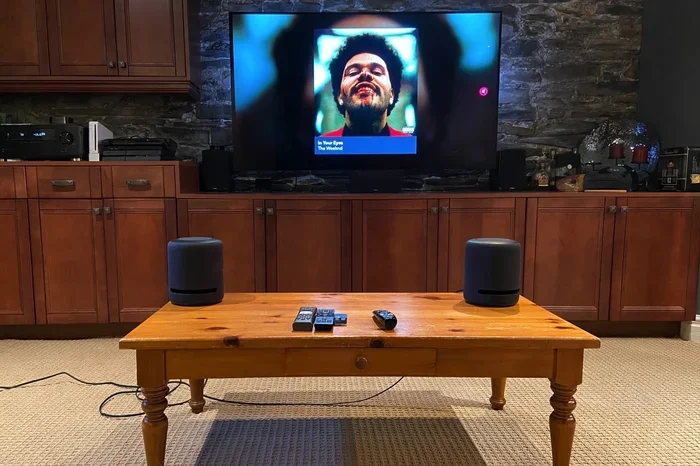
Can I Use Alexa As A Bluetooth Speaker For My TV Now
Yes, you can use Alexa as a Bluetooth speaker for your TV. This guide shows you exactly how to connect your Echo device to your television for improved sound. You will learn about pairing steps, common issues, and expert tips to get the best audio experience.
Can I use Alexa as a Bluetooth speaker for my TV? The short answer is yes. You can absolutely turn your Amazon Echo device into a wireless speaker for your television. It is one of the easiest and most affordable ways to upgrade your TV audio without buying a fancy soundbar.
Many people struggle with poor TV sound. Built-in TV speakers are often weak and flat. A Bluetooth connection to your Alexa device can change that. You get richer sound, louder volume, and the convenience of voice control. This guide walks you through everything you need to know.
Whether you have an Echo Dot, Echo, or Echo Show, the process is similar. You will learn how to pair your device, fix common problems, and get the best results. Let us dive in and make your TV sound amazing.
Key Takeaways
- Easy Setup: Connecting Alexa to your TV via Bluetooth is simple and takes just a few minutes.
- Better Audio: Using Alexa as a Bluetooth speaker can dramatically improve your TV sound quality.
- Smart Home Integration: Alexa lets you control your TV audio with voice commands.
- Latency Issues: Be aware of potential audio delay when using Bluetooth with your TV.
- Multiple Options: You can use Echo Dot, Echo, or Echo Show as your TV speaker.
- Workarounds Exist: If Bluetooth fails, there are alternative connection methods to try.
📑 Table of Contents
- Can I Use Alexa As A Bluetooth Speaker For My TV?
- How to Connect Alexa to Your TV via Bluetooth
- Troubleshooting Common Bluetooth Connection Issues
- Alexa Bluetooth Speaker TV: Pros and Cons
- Tips for Getting the Best Audio Quality
- Expert Tips and Common Mistakes to Avoid
- Frequently Asked Questions
- Final Thoughts
Can I Use Alexa As A Bluetooth Speaker For My TV?
The answer is a clear yes. Alexa devices support Bluetooth audio streaming. This means they can receive audio signals from your TV wirelessly. You just need to pair them the right way.
Most modern TVs have Bluetooth built in. If yours does not, you can use a Bluetooth transmitter. This small device plugs into your TV’s audio output and sends sound to your Alexa. It is an easy fix for older TVs.
Here are the main Alexa devices you can use as a Bluetooth speaker for your TV:
- Echo Dot: Compact and affordable. Great for small rooms.
- Echo (3rd, 4th, 5th Gen): Larger and louder. Fills a medium room with sound.
- Echo Studio: Premium audio quality. Best for serious movie watching.
- Echo Show: Has a screen too. Good for video calls and recipes while you watch.
- Echo Dot with Clock: Same great sound with a handy clock display.
Each of these devices can connect to your TV via Bluetooth. The setup process is straightforward. You will be up and running in minutes.
Why Use Alexa as Your TV Speaker?
There are several great reasons to use Alexa as your Bluetooth speaker for TV watching. First, it saves money. You do not need to buy an expensive soundbar. Your Echo device already does the job.
Second, it improves sound quality significantly. TV built-in speakers are tiny and weak. An Alexa device has a proper speaker driver. The sound is fuller, clearer, and louder.
Third, you get voice control. You can ask Alexa to adjust volume, pause playback, or even turn up the bass. It adds a whole new level of convenience to your home entertainment setup.
Fourth, it is wireless. No cables running across your floor. No messy wires. Just a clean, simple Bluetooth connection. This makes your living room look neater and feel more modern.
How to Connect Alexa to Your TV via Bluetooth
Setting up the Bluetooth connection is simple. Follow these steps carefully and you will be watching movies with great sound in no time.
Step 1: Put Your Alexa Device in Pairing Mode
Open the Alexa app on your phone. Go to Devices and select your Echo device. Tap the Bluetooth icon and choose “Pair a New Device.” Your Alexa is now searching for a connection.
You can also say, “Alexa, pair.” This voice command puts your Echo into pairing mode quickly. It is the fastest way to start.
Step 2: Enable Bluetooth on Your TV
Go to your TV settings. Look for Bluetooth or Connections. Turn on Bluetooth and let the TV search for available devices. Your Echo should appear in the list.
Select your Alexa device from the list. The TV will try to connect. You may hear a confirmation sound from your Echo. This means the pairing worked.
Step 3: Test the Connection
Play something on your TV. You should hear the audio coming from your Alexa device. Check the volume on both the TV and the Alexa. Make sure neither is muted or set too low.
If you hear sound, congratulations. Your setup is complete. If not, do not worry. The next section covers common issues and how to fix them.
Troubleshooting Common Bluetooth Connection Issues
Sometimes the Bluetooth connection does not work right away. This is normal. Here are the most common problems and their solutions.
Alexa Not Showing Up on TV
If your TV cannot find your Alexa device, try these fixes. First, make sure your Alexa is in pairing mode. You can check this in the Alexa app under Bluetooth settings.
Second, move your Echo closer to your TV. Bluetooth has a range of about 30 feet. Walls and furniture can weaken the signal. Reducing the distance often solves this problem.
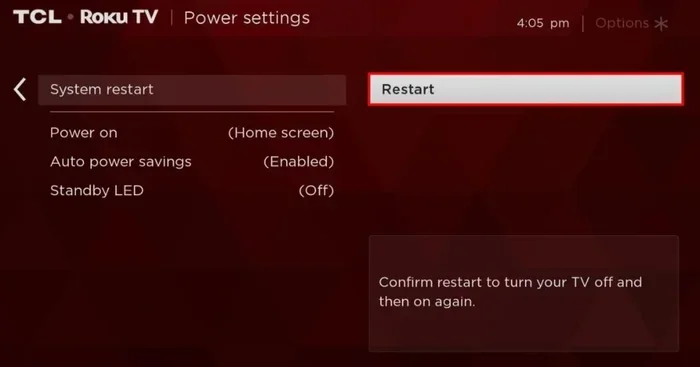
Third, restart both devices. Turn off your TV and your Echo. Wait 30 seconds. Turn them back on and try again. This simple step fixes many connection issues.
Audio Delay or Latency
Bluetooth has a slight delay compared to wired connections. This is called audio latency. You may notice the sound does not match the video perfectly.
This is most noticeable during fast action scenes or when people are talking. The lips may not match the words. It can be annoying but there are ways to reduce it.
Try using a Bluetooth transmitter with low-latency technology. These devices are affordable and plug right into your TV. They send audio to your Alexa with minimal delay. This is the best fix for sync issues.
Connection Keeps Dropping
If your Alexa disconnects frequently, check for interference. Other wireless devices like Wi-Fi routers or microwaves can cause problems. Move these devices away from your Echo and TV.
Also, make sure your Alexa firmware is up to date. Open the Alexa app and check for updates. Updated software often fixes Bluetooth stability issues.
Another tip is to reduce the number of connected Bluetooth devices. Too many devices can congest the signal. Disconnect devices you are not using.
Alexa Bluetooth Speaker TV: Pros and Cons
Like any setup, using Alexa as a Bluetooth speaker for your TV has advantages and disadvantages. Let us look at both sides honestly.
| Pros | Cons |
|---|---|
| Affordable alternative to soundbars | Bluetooth audio latency can cause sync issues |
| Wireless and clutter-free setup | Limited range of about 30 feet |
| Voice control for volume and playback | Not ideal for large rooms without multiple devices |
| Easy to set up in minutes | May not support all TV Bluetooth profiles |
| Good sound quality on Echo Studio and Echo models | Battery-dependent if using a portable Echo |
| Works with most smart TVs and Fire TV Stick | Some older TVs lack Bluetooth capability |
The pros generally outweigh the cons for most users. If you have a small to medium room, this setup works great. For larger rooms or serious audiophiles, a dedicated soundbar might still be better. But for everyday TV watching, Alexa delivers excellent value.
Best Alexa Devices for TV Audio
Not all Echo devices are created equal for TV use. Here is a quick comparison to help you choose the right one.
Echo Dot: Best budget option. Good for bedrooms or kitchens where you watch TV on a tablet. The sound is decent but not powerful.
Echo (4th Gen): The sweet spot for most homes. Rich sound, good bass, and reliable Bluetooth. It works well for living room TV setups.
Echo Studio: The best choice for serious audio quality. It supports Dolby Audio and has deep bass. If you want theater-like sound from Alexa, this is the one.
Echo Show 10: Great if you want a screen too. You can video call while watching TV. The audio quality is good but not as strong as the Echo Studio.
Tips for Getting the Best Audio Quality
You can improve your Alexa TV audio experience with a few simple tips. These small changes make a big difference.
Place your Echo at ear level. Put it on a shelf or table near your seating area. This gives you the best sound direction and volume.
Use the Alexa app to adjust settings. You can tweak bass, treble, and mid-range frequencies. Go to Device Settings and look for audio enhancements.
Keep your firmware updated. Amazon regularly releases updates that improve Bluetooth performance. Check for updates monthly.
Use a Bluetooth transmitter for older TVs. If your TV does not have Bluetooth, a transmitter solves this problem. Just plug it into the 3.5mm jack or optical output.
Reduce interference. Keep your Echo away from other wireless devices. Wi-Fi cameras, baby monitors, and microwaves can all disrupt Bluetooth signals.
Can You Use Multiple Alexa Devices for Surround Sound?
Yes, you can create a stereo pair or even a home theater group with multiple Echo devices. This is called Amazon’s Multi-Room Music feature.
To set this up, open the Alexa app and go to Devices. Select Add Device and choose Echo. Follow the prompts to pair two Echo devices as left and right speakers.
For TV audio, you can group Echo devices in different rooms. This creates a surround sound effect. The front channels come from your main Echo, and side channels come from other devices.
This setup is not perfect for true surround sound. But it is a fun and affordable way to add depth to your TV audio. It works best with action movies and music.
Expert Tips and Common Mistakes to Avoid
Here are some expert insights that will help you get the most out of your Alexa Bluetooth speaker TV setup.
Common Mistakes
- Not checking Bluetooth compatibility: Some older TVs only support specific Bluetooth profiles. Check that your TV supports the A2DP profile for audio streaming.
- Placing Echo too far away: Bluetooth range is about 30 feet with no obstacles. Going beyond this causes dropouts.
- Ignoring firmware updates: Outdated software causes many connection problems. Keep everything updated.
- Using low-quality Bluetooth transmitters: Cheap transmitters add more latency. Invest in a reputable brand for better results.
- Forgetting to disconnect other devices: Too many paired Bluetooth devices cause confusion. Disconnect devices you are not using.
Expert Tips
- Use the Alexa app as a remote: You can control TV volume directly from the app. This is handy when your TV remote is missing.
- Set up routines: Create a “Watch TV” routine that turns on your Echo, sets the volume, and dims the lights.
- Use Echo devices in multiple rooms: Place one near the TV and another in the kitchen. You can hear audio from both during movie night.
- Consider a Bluetooth receiver for non-Bluetooth TVs: A receiver plugs into your TV’s audio output and sends a clean Bluetooth signal to your Echo.
Frequently Asked Questions
Can I Use Any Echo Device as a Bluetooth Speaker for My TV?
Most Echo devices support Bluetooth audio output. This includes Echo Dot, Echo, Echo Studio, and Echo Show. Older models may also work but check the specs to be sure. The key requirement is that your TV must support Bluetooth input or you use a Bluetooth transmitter.
Is There Audio Lag When Using Alexa as a Bluetooth Speaker for TV?
Yes, there can be a slight delay with Bluetooth connections. This is called audio latency. It is usually barely noticeable for regular TV shows. Fast action movies and gaming may show more obvious sync issues. A low-latency Bluetooth transmitter can reduce this problem significantly.
Can I Connect Multiple Alexa Devices to One TV?
You can pair one Alexa device at a time to your TV. However, you can create a stereo pair or multi-room group using the Alexa app. This lets you distribute audio across multiple Echo devices for a wider sound experience.
Do I Need a Smart TV to Use Alexa as a Bluetooth Speaker?
No, you do not need a smart TV. Any TV with Bluetooth capability can connect to Alexa. For TVs without Bluetooth, a Bluetooth transmitter or receiver solves the problem. These small devices are affordable and easy to set up.
Will Using Alexa as a Bluetooth Speaker Drain Its Battery?
If you use a portable Echo device, Bluetooth streaming uses more battery than regular use. Plugging in your Echo while using it as a TV speaker prevents battery drain. For stationary devices like Echo Dot or Echo Studio, this is not a concern since they always stay plugged in.
Can I Use Alexa to Control My TV Volume Through Bluetooth?
You can control volume through the Alexa app. However, direct voice volume control through Bluetooth depends on your TV model. Some TVs allow Alexa to send volume commands over Bluetooth. Others require you to use the TV remote or the Alexa app. Check your TV settings for HDMI-CEC or Alexa compatibility options.
Final Thoughts
Using Alexa as a Bluetooth speaker for your TV is a smart and affordable upgrade. You get better sound, wireless convenience, and voice control. The setup is quick and straightforward for most users.
Yes, you can use Alexa as a Bluetooth speaker for your TV. The process works with Echo Dot, Echo, Echo Studio, and Echo Show devices. Just pair them through your TV Bluetooth settings and you are good to go.
Remember the tips we covered. Place your Echo near your seating area. Keep firmware updated. Use a Bluetooth transmitter if your TV needs one. Avoid common mistakes like placing devices too far apart.
This setup is perfect for casual TV watchers, movie lovers, and smart home enthusiasts alike. You do not need expensive equipment to enjoy better audio. Your Alexa device is already in your home. Put it to work.
Try it tonight. Connect your Alexa to your TV and experience the difference. Once you hear the improved sound, you will wonder why you did not do it sooner. Your TV audio will never sound the same again.