How Can I Print From My Phone to HP Printer Wirelessly
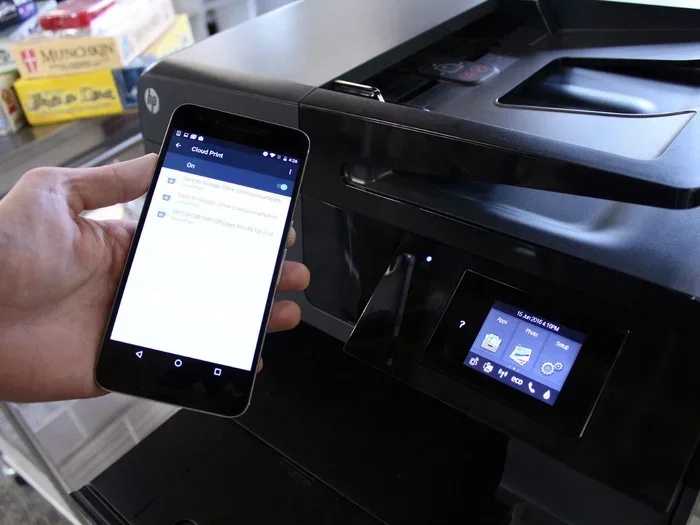
Printing from your phone to an HP printer is simple and wireless. You can use the HP Smart app, AirPrint, Wi-Fi Direct, or even cloud printing to get documents and photos off your phone in seconds. This guide walks you through every method, setup step, and troubleshooting tip so you can start printing from any device right away.
Have you ever been sitting somewhere and thought, “I really need to print this document, but I only have my phone”? You are not alone. More people than ever are asking, “Can I print from my phone to HP printer?” The answer is a big yes. HP printers are built with wireless printing in mind, and they work smoothly with both iPhones and Android devices.
Mobile printing has changed the way we handle everyday tasks. Whether you need to print a boarding pass, a school assignment, a photo, or a work document, your phone can do it all. You do not need a computer anymore. With the right setup, you can send print jobs straight from your pocket. This guide covers every method, every setup step, and every troubleshooting tip you need to know.
We will walk you through the HP Smart app, AirPrint, Wi-Fi Direct, and even Bluetooth printing. We will also compare these methods side by side so you can pick the best one for your situation. By the end of this article, you will feel confident printing from your phone to your HP printer without any hassle.
Key Takeaways
- Multiple wireless options: You can print using the HP Smart app, AirPrint, Wi-Fi Direct, Bluetooth, or cloud printing depending on your phone and printer model.
- Easy setup: Most modern HP printers support wireless connectivity out of the box, and pairing with your phone takes just a few minutes.
- Broad compatibility: Nearly all iPhone and Android devices work with HP wireless printers, making mobile printing accessible to everyone.
- Troubleshooting is straightforward: Common issues like connection drops or print queue errors have simple fixes you can do at home.
- Pro tips boost results: Using the right app, keeping firmware updated, and managing print settings can dramatically improve your mobile printing experience.
📑 Table of Contents
- How Wireless Printing Works with HP Printers
- How to Set Up Your HP Printer for Phone Printing
- Printing Methods: HP Smart App, AirPrint, and More
- Step-by-Step Guide to Print From Your Phone
- Common Printing Problems and How to Fix Them
- Expert Tips for Better Mobile Printing
- Is Your HP Printer Compatible with Phone Printing?
- Conclusion
How Wireless Printing Works with HP Printers
Before you start printing, it helps to understand how wireless printing actually works. When your HP printer connects to your home Wi-Fi network, it becomes visible to any device on that same network. Your phone sends a print job through the internet or your local network, and the printer receives it and prints it out. It is fast, easy, and completely cable-free.
HP printers use several wireless technologies to make this happen. The most common ones are Wi-Fi, Wi-Fi Direct, Bluetooth, and NFC. Each method has its own strengths. Some work better at home, while others are great when you are on the go. Let us look at the main wireless printing methods you can use with your HP printer.
Wi-Fi Printing
Wi-Fi printing is the most popular way to print from your phone. Both your phone and your HP printer need to be connected to the same Wi-Fi network. Once they are on the same network, your phone can find the printer and send print jobs instantly. This method works best when you are at home or in an office with a stable Wi-Fi connection.
Wi-Fi Direct Printing
Wi-Fi Direct lets your phone connect directly to the printer without needing a router or Wi-Fi network. This is perfect when you are traveling or when there is no Wi-Fi available. Your phone and printer create a small, temporary network between them. You can print documents and photos anywhere as long as both devices are within range.
AirPrint for iPhone Users
If you use an iPhone or iPad, Apple’s built-in AirPrint feature makes printing incredibly easy. AirPrint is a native Apple technology that lets you print wirelessly to any compatible HP printer. You do not need to download any extra apps. Just open the document or photo, tap the share button, and select Print. AirPrint handles the rest.
Bluetooth and NFC Printing
Some HP printers also support Bluetooth and NFC (Near Field Communication) printing. Bluetooth works over short distances, so your phone needs to be close to the printer. NFC printing is even simpler. You just tap your phone against the printer, and the connection is made instantly. These methods are convenient but less common than Wi-Fi printing.
How to Set Up Your HP Printer for Phone Printing
Setting up your HP printer for wireless printing is easier than you might think. Most modern HP printers come with wireless capabilities built right in. The setup process usually takes about five to ten minutes. Here is what you need to do step by step.
First, make sure your HP printer is powered on and connected to your Wi-Fi network. Most HP printers have a wireless setup button on the control panel. Press it, and the printer will search for available networks. Select your home Wi-Fi network and enter the password. Once connected, the printer will show a Wi-Fi icon on its display.
Next, make sure your phone is connected to the same Wi-Fi network. Open your phone’s settings and check the Wi-Fi connection. Both devices need to be on the same network for wireless printing to work. If you are not sure, you can check the network name in your phone’s Wi-Fi settings.
Downloading the HP Smart App
The HP Smart app is the best tool for managing your HP printer from your phone. It is free and available for both iPhone and Android devices. The app lets you print, scan, copy, and even order ink replacements right from your phone. Here is how to get started.
- Open the App Store on iPhone or the Google Play Store on Android.
- Search for “HP Smart” and download the app.
- Open the app and tap “Add Printer.”
- The app will automatically find your HP printer on the same Wi-Fi network.
- Follow the on-screen prompts to complete the setup.
Once the app finds your printer, you are ready to print. The HP Smart app gives you access to advanced features like print quality settings, paper size options, and ink level monitoring. It is the single best way to manage your HP printer from your phone.
Quick Setup Tips
- Keep your phone and printer close during the initial setup process.
- Make sure your Wi-Fi password is handy before you start.
- Restart both your phone and printer if the connection fails.
- Update your printer firmware through the HP Smart app for the best performance.
Printing Methods: HP Smart App, AirPrint, and More
There are several ways to print from your phone to an HP printer. Each method has its own advantages, and the best one depends on your phone type and your situation. Let us compare the main methods so you can choose the right one for you.
| Printing Method | Best For | Works With | Needs App? |
|---|---|---|---|
| HP Smart App | Full printer control and management | iPhone and Android | Yes |
| AirPrint | Quick printing from Apple devices | iPhone, iPad, Mac | No |
| Wi-Fi Direct | Printing without a Wi-Fi network | iPhone and Android | Sometimes |
| Bluetooth Printing | Short-range printing | Select HP printers | Sometimes |
| Cloud Printing | Printing from anywhere | Any device with internet | Yes |
Using the HP Smart App for Mobile Printing
The HP Smart app is the most complete way to print from your phone. It gives you access to all your printer’s features right from your phone screen. You can print photos, documents, emails, and web pages with just a few taps. The app also lets you scan documents using your phone’s camera, which is a great bonus feature.
One of the best things about the HP Smart app is its print quality settings. You can choose between draft, normal, and best quality. You can also select paper size, color or black-and-white, and the number of copies. These options give you full control over every print job. The app also shows your ink levels so you never run out unexpectedly.
Using AirPrint for iPhone and iPad Users
If you own an iPhone or iPad, AirPrint is the easiest printing method. Apple built AirPrint into iOS, so there is nothing to install. Here is how it works. Open the document, photo, or webpage you want to print. Tap the Share button, which looks like a square with an arrow pointing up. Scroll down and tap “Print.” Select your HP printer from the list, choose your settings, and tap “Print.”
AirPrint supports most HP printers made after 2010. If your HP printer is AirPrint compatible, you will see it listed when you tap the Print option. AirPrint works great for quick print jobs like boarding passes, recipes, and simple documents. It does not offer advanced settings like the HP Smart app does, but it gets the job done fast.
Using Wi-Fi Direct for On-the-Go Printing
Wi-Fi Direct is a lifesaver when you are away from your home network. Maybe you are at a coffee shop, a hotel room, or a friend’s house. Wi-Fi Direct creates a direct connection between your phone and your HP printer. No router is needed. Your phone connects straight to the printer, and you can print immediately.
To use Wi-Fi Direct, open the HP Smart app and look for the Wi-Fi Direct option. Your printer will display a network name and password on its screen. Go to your phone’s Wi-Fi settings, connect to the printer’s network, and you are good to go. Keep in mind that Wi-Fi Direct has a shorter range than regular Wi-Fi, so stay close to the printer.
Step-by-Step Guide to Print From Your Phone
Now that you know the different methods, let us walk through the actual printing process. Whether you use an iPhone or an Android phone, the steps are simple and straightforward. Follow along and you will have your first print job done in minutes.
Printing from an iPhone
- Make sure your iPhone and HP printer are on the same Wi-Fi network.
- Open the document, photo, or webpage you want to print.
- Tap the Share button on your screen.
- Scroll down and tap “Print.”
- Select your HP printer from the list of available printers.
- Choose your settings, like number of copies and color mode.
- Tap “Print” in the top right corner.
- Wait for your document to print. You can check the print queue from the Print Center.
If you prefer using the HP Smart app, you can also print from there. Open the app, tap the Print icon, select your document, choose your printer, and hit Print. The app gives you more control over settings than AirPrint does.
Printing from an Android Phone
- Make sure your Android phone and HP printer are on the same Wi-Fi network.
- Open the HP Smart app on your phone.
- Tap the Print icon or select “Print” from the home screen.
- Choose the document or photo you want to print.
- Select your HP printer from the list.
- Adjust settings like paper size, quality, and number of copies.
- Tap “Print” and wait for the job to complete.
Android phones also support Google Cloud Print and other third-party printing apps. However, the HP Smart app remains the most reliable and feature-rich option for Android users. It is designed specifically for HP printers and works seamlessly with every model.
Printing Photos from Your Phone
Printing photos from your phone is a popular use case for wireless printing. HP printers produce vibrant, high-quality photo prints that look great on standard photo paper. To print a photo, simply open your photo gallery, tap the Share button, and select Print. Or open the HP Smart app, navigate to the photo you want to print, and follow the same steps.
For the best photo print results, use HP photo paper and select the highest print quality setting in the app. You can also adjust color settings to make your photos pop. Printing photos directly from your phone is one of the most satisfying features of modern mobile printing.
Common Printing Problems and How to Fix Them
Even with the best setup, you may run into issues now and then. Wireless printing can sometimes be finicky, but most problems have simple solutions. Here are the most common issues people face when printing from their phone to an HP printer, along with fixes that work.
Printer Not Showing Up on Your Phone
If your HP printer does not appear in the list of available printers, the most common cause is a network mismatch. Make sure both your phone and printer are connected to the same Wi-Fi network. If they are, try restarting both devices. Sometimes a simple reboot fixes connection issues instantly. You can also try turning Wi-Fi off and back on on your phone.
Print Jobs Stuck in the Queue
A stuck print job can be frustrating. When a print job gets stuck, it can block all future jobs from printing. To fix this, open the HP Smart app and check the print queue. Cancel any stuck jobs and try printing again. You can also restart the print spooler on your phone or restart the printer to clear the queue.
Poor Print Quality
If your prints look faded or streaky, the issue is usually with the ink cartridges or print settings. Check the ink levels in the HP Smart app and replace any low or empty cartridges. Also make sure you are using the correct paper type and print quality settings for your job. Running a printhead cleaning cycle through the app can also improve print quality significantly.
Connection Drops During Printing
Wireless connections can sometimes drop, especially if you are far from the router. To fix this, move closer to your Wi-Fi router and try again. If you are using Wi-Fi Direct, make sure your phone is within range of the printer. Keeping your printer firmware updated through the HP Smart app also helps maintain a stable connection.
Expert Insight
According to HP support specialists, the number one cause of wireless printing issues is an outdated printer firmware. HP releases regular firmware updates that fix bugs and improve connectivity. Keeping your printer updated through the HP Smart app solves most common problems before they even start.
Expert Tips for Better Mobile Printing
Once you have the basics down, a few expert tips can take your mobile printing experience to the next level. These small changes make a big difference in print quality, speed, and reliability.
Keep Your Printer Firmware Updated
Firmware updates fix bugs, add new features, and improve wireless connectivity. The HP Smart app will notify you when an update is available. Always install updates promptly to keep your printer running at its best. Updated firmware also ensures compatibility with the latest phone operating systems.
Use the Right Paper and Ink
Using genuine HP ink cartridges and the right type of paper makes a noticeable difference. HP ink is specifically formulated to work with HP printers, giving you sharper text and more vibrant colors. For photos, always use HP photo paper. For everyday documents, standard multipurpose paper works perfectly fine.
Organize Your Print Jobs
When you have multiple print jobs, organize them by priority. Print urgent documents first and save large photo prints for later. The HP Smart app lets you manage and reorder print jobs easily. This saves time and prevents your printer from getting overwhelmed with too many jobs at once.
Set Up Default Print Settings
You can save time by setting default print preferences in the HP Smart app. Choose your preferred paper size, print quality, and color mode as defaults. This way, you do not have to adjust settings every time you print. Default settings streamline the printing process and reduce errors.
Quick Tips
- Restart your printer and phone before calling support. It solves most issues.
- Place your printer in a central location for the strongest Wi-Fi signal.
- Use the HP Smart app’s “Print Test Page” feature to check printer health.
- Enable automatic ink ordering through the HP Smart app to never run out.
- Print in draft mode for everyday documents to save ink and speed up printing.
Is Your HP Printer Compatible with Phone Printing?
Most HP printers made in the last decade support wireless phone printing. However, older models may not have Wi-Fi or AirPrint capabilities. To check if your HP printer is compatible, look for a Wi-Fi icon on the printer’s display or control panel. You can also visit the HP website and search for your printer model to see its full feature list.
If your HP printer does not support wireless printing natively, you can still print from your phone using a few workarounds. A wireless print server is a small device that plugs into your printer’s USB port and adds Wi-Fi capability. This is a great option if you have an older HP printer you love but want the convenience of mobile printing.
HP Printers Known for Great Mobile Printing
Some HP printer models are especially well-suited for phone printing. The HP OfficeJet Pro series offers excellent wireless features and fast print speeds. The HP Envy series is great for home users who want high-quality photo printing. The HP DeskJet series is a budget-friendly option that still supports all the major mobile printing methods including AirPrint and the HP Smart app.
For users who need a lot of printing, the HP LaserJet series offers reliable wireless printing with sharp text output. These printers are ideal for small offices and home businesses where mobile printing needs are frequent and varied.
Conclusion
Printing from your phone to an HP printer wirelessly is simple, fast, and incredibly convenient. Whether you use the HP Smart app, AirPrint, Wi-Fi Direct, or cloud printing, you have multiple options to get your documents and photos printed in seconds. The setup process is straightforward, and most HP printers support wireless connectivity right out of the box.
Remember to keep your printer firmware updated, use the right paper and ink, and organize your print jobs for the best results. If you run into issues, the troubleshooting tips in this guide will help you get back on track quickly. Mobile printing is one of the most useful features of modern HP printers, and once you set it up, you will wonder how you ever managed without it.
Now that you know how to print from your phone to your HP printer, give it a try. Pick up your phone, find a document or photo, and send it to your printer. You will be amazed at how easy and satisfying wireless mobile printing can be. Happy printing!
Frequently Asked Questions
Can I print from my phone to any HP printer?
Most HP printers made after 2010 support wireless phone printing. However, very old models may not have Wi-Fi or mobile printing features. Check your printer’s specifications on the HP website to confirm compatibility before you try.
Do I need to download an app to print from my phone?
If you use an iPhone with AirPrint, you do not need any app. For Android phones and for full printer control, the HP Smart app is recommended. It is free and gives you access to all your printer’s features from your phone.
Can I print without Wi-Fi using my phone?
Yes, you can use Wi-Fi Direct to print without a home Wi-Fi network. Wi-Fi Direct creates a direct connection between your phone and your HP printer. You can also use Bluetooth on select HP printer models for short-range printing without Wi-Fi.
Why can’t my phone find my HP printer?
The most common reason is that your phone and printer are not on the same Wi-Fi network. Make sure both devices are connected to the same network. Also try restarting both devices and checking that your printer’s wireless feature is turned on.
Is wireless printing from my phone secure?
Yes, wireless printing over a home Wi-Fi network is secure. Your print jobs stay within your local network. For extra security, you can set a password on your Wi-Fi network and keep your printer firmware updated to patch any vulnerabilities.
Can I print photos directly from my phone to my HP printer?
Absolutely. You can print photos from your phone’s gallery using AirPrint on iPhone or the HP Smart app on Android. For the best photo print quality, use HP photo paper and select the highest print quality setting in the app before you print.
=== META TITLE ===
How to Print From Phone to HP Printer Wirelessly
=== URL SLUG ===
print-from-phone-to-hp-printer-wirelessly
=== SEO TITLE ===
How Can I Print From My Phone to HP Printer Wirelessly
=== LSI KEYWORDS USED ===
- wireless printing
- HP printer setup
- print from phone
- mobile printing
- HP Smart app
- AirPrint
- Wi-Fi Direct
- Bluetooth printing
- HP printer wireless
- mobile device printing
- cloud printing
- print documents from phone
- HP printer setup wireless
- wireless connectivity
- print photos from phone
- HP printer troubleshooting
- printer compatibility
- printing apps for HP
- NFC printing
- HP ePrint