Does Ipad 9 Come With Pencil Everything You Need To Know
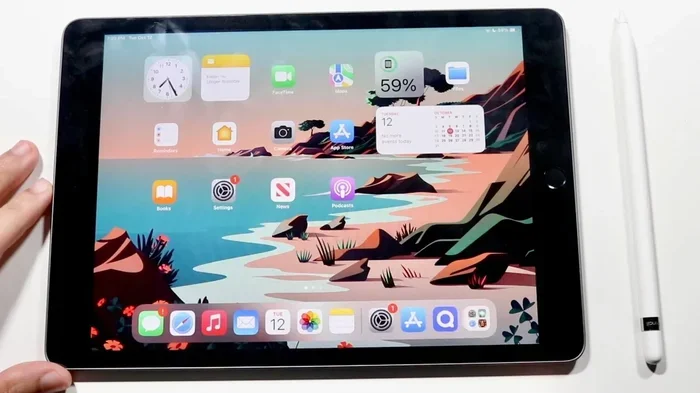
The iPad 9 does not come with a pencil included in the box. You need to buy the Apple Pencil separately, and the right model depends on your needs and budget. This guide covers everything about iPad 9 pencil compatibility, pairing, charging, and which Apple Pencil you should choose.
If you just bought or are thinking about buying the iPad 9, you might be wondering one thing: does iPad 9 come with pencil? The short answer is no. Apple does not include any pencil or stylus in the iPad 9 box. You need to buy one on your own.
This might feel disappointing if you expected everything to be ready to go right out of the package. But the good news is that the iPad 9 Apple Pencil situation is pretty straightforward. There are only a couple of pencil models that work with this tablet, and they are easy to set up and use.
In this guide, we will walk you through everything you need to know. From compatibility to pairing, charging, and which pencil to buy, we have got you covered. Whether you are a student, an artist, or someone who just wants to take notes, this article will help you make the right choice.
Let us dive in and answer the big question once and for all: does iPad 9 come with pencil, and if not, what should you do about it?
Key Takeaways
- No Pencil in the Box: The iPad 9 ships without any Apple Pencil or stylus. You must purchase one separately.
- Apple Pencil 1st Gen Works: The iPad 9 is compatible with the Apple Pencil (1st generation) and the Apple Pencil USB-C.
- Apple Pencil 2nd Gen Is NOT Compatible: The newer Apple Pencil 2 does not work with the iPad 9 due to different pairing and charging methods.
- Easy to Pair and Charge: Connecting your pencil to the iPad 9 is simple, and charging options include the Lightning port or USB-C.
- Third-Party Styluses Work Too: If you want a cheaper option, many compatible styluses work with the iPad 9.
- Know What You Need: Your use case, budget, and features will determine the best pencil for your iPad 9.
📑 Table of Contents
- What Comes in the iPad 9 Box?
- Apple Pencil Compatibility with iPad 9
- How to Connect and Charge Your Apple Pencil with iPad 9
- Which Apple Pencil Should You Buy for iPad 9?
- Third-Party Styluses for iPad 9
- Tips for Getting the Most Out of Your iPad 9 Pencil
- Common Problems and How to Fix Them
- Final Thoughts
What Comes in the iPad 9 Box?
When you open the box of the iPad 9th generation, here is exactly what you will find. Apple keeps the contents simple and minimal with this tablet.
- The iPad 9 tablet itself
- A USB-C charging cable
- A 20W USB-C power adapter
- A documentation booklet and SIM ejector tool (for cellular models)
Notice anything missing? That is right, there is no stylus or pencil anywhere. Apple has kept the same approach with the iPad 9 as with most of its iPads. The pencil is always a separate purchase.
Some people feel frustrated by this. After all, the iPad is a tablet, and many people use it with a pencil. But Apple has always treated the pencil as an accessory, not a bundled item. This is true for the iPad 9 and most other iPad models too.
Why Does Apple Not Include a Pencil?
Apple keeps the pencil separate for a few reasons. First, it helps keep the base price of the iPad lower. Not everyone needs a pencil, so forcing everyone to pay for one would raise the starting cost. Second, Apple offers two different pencils, and they want you to pick the one that fits your needs. Third, some users prefer to use their fingers or a keyboard instead of a pencil.
If you are buying the iPad 9 for a child or someone who does not need precise input, you might not need a pencil at all. But if you plan to draw, take notes, or annotate documents, you will definitely want one.
Apple Pencil Compatibility with iPad 9
This is the section most people care about. The big question is: which Apple Pencil models work with the iPad 9? Let us break it down clearly.
Apple Pencil 1st Generation
The Apple Pencil (1st generation) is fully compatible with the iPad 9. This is the older model that Apple released alongside the iPad Pro in 2015. It uses a Lightning connector to charge and pair.
Here are the key details about the Apple Pencil 1st Gen:
- It works seamlessly with the iPad 9
- It charges by plugging into the Lightning port on the iPad
- It offers low latency and pressure sensitivity
- It does not have wireless charging or magnetic attachment
- It is the most affordable official Apple pencil option
If you already own an Apple Pencil 1st Gen from an older iPad or iPhone, you can use it with the iPad 9. Just plug it in, and it will pair automatically in most cases.
Apple Pencil USB-C
Apple also released the Apple Pencil USB-C, which is a newer, more compact version. This pencil uses a USB-C connector instead of Lightning. It is compatible with the iPad 9 because the iPad 9 has a USB-C port.
Here is what you need to know about the Apple Pencil USB-C:
- It is smaller and lighter than the 1st generation
- It charges by plugging directly into the iPad 9’s USB-C port
- It does not need a separate adapter or cable
- It is a great option for iPad 9 users who want a more modern pencil
- It is slightly less expensive than the 1st generation in some regions
The Apple Pencil USB-C is a solid choice for iPad 9 owners. It is simple, easy to use, and charges without any extra accessories.
Apple Pencil 2nd Generation: NOT Compatible
Now for the bad news. The Apple Pencil 2nd generation does not work with the iPad 9. This pencil uses magnetic wireless pairing and charging, which the iPad 9 does not support.
The iPad 9 lacks the magnetic strip on the side that the Apple Pencil 2 needs to attach and charge. So if you were hoping to use the newest Apple Pencil with your iPad 9, unfortunately, that is not possible.
This is an important distinction because the Apple Pencil 2 is often marketed as the premium option. But it only works with higher-end iPads like the iPad Pro and certain iPad Air models.
| Apple Pencil Model | Compatible with iPad 9? | Charging Method |
|---|---|---|
| Apple Pencil 1st Gen | Yes | Lightning port on iPad |
| Apple Pencil USB-C | Yes | USB-C port on iPad |
| Apple Pencil 2nd Gen | No | Magnetic wireless (not supported) |
How to Connect and Charge Your Apple Pencil with iPad 9
Once you have your Apple Pencil for iPad 9, setting it up is quick and easy. Here is how to pair and charge it.
Pairing the Apple Pencil 1st Gen
To pair the Apple Pencil 1st Gen with your iPad 9, follow these steps:
- Remove the cap from the top of the pencil
- Plug the Lightning connector into the iPad 9’s USB-C port using a Lightning-to-USB-C adapter
- Wait for the pairing prompt to appear on screen
- Tap “Pair” and you are done
Once paired, the pencil will stay connected as long as it has battery. You can check the battery level by swiping down from the top right corner of the iPad screen to open the Control Center.
Pairing the Apple Pencil USB-C
The Apple Pencil USB-C is even simpler to set up:
- Plug the USB-C end of the pencil directly into the iPad 9
- Wait for the pairing notification
- Tap “Pair”
That is it. No adapter needed. The pencil charges while it is plugged in, which is a nice convenience.
Charging Tips
Here are some quick tips to keep your pencil charged and ready to go:
- Charge the pencil for at least 15 minutes before first use
- A full charge gives you several hours of use
- You can charge the Apple Pencil 1st Gen by plugging it into the iPad or using a Lightning cable and a wall adapter
- The Apple Pencil USB-C can charge directly from any USB-C charger or power bank
- Keep the pencil stored in a cool, dry place to preserve battery health
Which Apple Pencil Should You Buy for iPad 9?
Choosing the right pencil depends on your needs, budget, and what you plan to do with it. Let us look at the two options and help you decide.
Apple Pencil 1st Gen: The Budget-Friendly Choice
The Apple Pencil 1st Gen is the more affordable option. It costs less than the USB-C version in most markets. If you are on a tight budget or just need a pencil for basic note-taking and drawing, this is a great pick.
Pros of the Apple Pencil 1st Gen:
- Lower price point
- Proven track record and wide availability
- Works perfectly with the iPad 9
- Good pressure sensitivity and tilt support
Cons of the Apple Pencil 1st Gen:
- Requires a Lightning-to-USB-C adapter for the iPad 9
- No wireless charging
- Bulkier design compared to the USB-C version
Apple Pencil USB-C: The Modern and Simple Option
The Apple Pencil USB-C is the newer, more streamlined option. It is smaller, lighter, and charges directly through the iPad 9’s USB-C port. No extra adapters needed.
Pros of the Apple Pencil USB-C:
- Direct USB-C charging, no adapter required
- Compact and lightweight design
- Simple setup process
- Great for everyday note-taking and light drawing
Cons of the Apple Pencil USB-C:
- Slightly higher price than the 1st generation
- Newer product, so long-term durability is still being tested
- No double-tap gesture feature
Quick Comparison
Here is a quick side-by-side look at the two pencils that work with the iPad 9:
- Price: The 1st Gen is usually cheaper. The USB-C model costs a bit more.
- Charging: The 1st Gen needs an adapter. The USB-C plugs in directly.
- Size: The USB-C is smaller and lighter.
- Features: Both offer great precision, pressure sensitivity, and low latency.
- Best for: The 1st Gen suits budget buyers. The USB-C suits those who want simplicity.
My recommendation? If you already have a Lightning cable and adapter at home, go with the Apple Pencil 1st Gen. If you want the simplest setup possible, the Apple Pencil USB-C is the way to go.
Third-Party Styluses for iPad 9
Not everyone wants to spend $100 or more on an official Apple Pencil. The good news is that there are many compatible styluses that work well with the iPad 9.
Third-party styluses use different technologies than the Apple Pencil. Most rely on capacitive touch, which means they work through the screen without Bluetooth. Some higher-end options offer pressure sensitivity and tilt support.
Here are some popular third-party options:
- Adonit Mark: A budget-friendly stylus with a fine tip. Great for note-taking.
- Logitech Crayon: Designed for education. It offers palm rejection and good precision.
- Amazon Basics Stylus: An affordable option that works well for basic tasks.
- Wacom Bamboo Ink: Offers pressure sensitivity and works with Windows and iPad devices.
Keep in mind that third-party styluses do not offer the same level of performance as the Apple Pencil. They may have more latency, less pressure sensitivity, and fewer features. But for casual use, they are a solid choice.
Tips for Getting the Most Out of Your iPad 9 Pencil
Once you have your pencil set up, here are some tips to help you get the best experience with your iPad 9 and Apple Pencil.
Use the Right App
Not all apps are created equal when it comes to pencil support. Apps like GoodNotes, Notability, Procreate, and Adobe Fresco are optimized for pencil input. They offer pressure sensitivity, palm rejection, and smooth drawing experiences.
Enable Pencil Options in Settings
Go to Settings > Apple Pencil on your iPad 9. Here, you can adjust settings like double-tap gestures (for the Apple Pencil 1st Gen and USB-C) and pencil pressure sensitivity. Tweaking these settings can make a big difference in your workflow.
Keep Your Pencil Clean
Dust and debris can build up on the pencil tip over time. Use a soft cloth to clean the tip regularly. This helps maintain smooth writing and drawing performance.
Replace Tips When Needed
Apple Pencil tips are replaceable. Over time, the tip wears down and can affect precision. Replacement tips are inexpensive and easy to swap out. Keep a spare tip handy so you are never interrupted.
Protect Your Investment
Since the Apple Pencil is not cheap, consider getting a case or holder for it. There are many iPad 9 cases with built-in pencil holders. This keeps your pencil safe and always within reach.
Common Problems and How to Fix Them
Using an Apple Pencil with the iPad 9 is generally smooth, but sometimes you might run into issues. Here are common problems and quick fixes.
Pencil Not Pairing
If your pencil does not connect, try these steps:
- Make sure the pencil is charged
- Restart your iPad 9
- Go to Settings > Bluetooth and turn it off and back on
- Forget the pencil in Bluetooth settings and try pairing again
Pencil Not Charging
If the pencil is not charging, check the following:
- Make sure the connection is clean and secure
- Try a different Lightning-to-USB-C adapter if using the 1st Gen
- Use a different USB-C cable or charger
- Clean the charging port on both the pencil and the iPad
Pencil Input Lagging
If you notice lag or delay when using the pencil:
- Close background apps to free up memory
- Restart the iPad 9
- Make sure your iPad is running the latest iPadOS version
- Check that the app you are using supports Apple Pencil
Final Thoughts
So, does iPad 9 come with pencil? No, it does not. But that does not mean you cannot enjoy a great pencil experience with this tablet. The iPad 9 works with both the Apple Pencil 1st generation and the Apple Pencil USB-C, giving you two solid options to choose from.
Your choice between the two comes down to budget, convenience, and personal preference. If you want the most affordable option, go with the Apple Pencil 1st Gen. If you want the simplest setup without extra adapters, the Apple Pencil USB-C is the better pick.
Remember, you can also explore third-party styluses if you want to save money or do not need advanced features. Whatever you choose, the iPad 9 is a capable tablet that pairs well with a pencil for note-taking, drawing, and productivity.
Take your time, pick the right pencil for your needs, and enjoy everything the iPad 9 has to offer. You will be glad you made the investment.
Frequently Asked Questions
Does the iPad 9 come with an Apple Pencil in the box?
No, the iPad 9 does not include an Apple Pencil or any stylus in the box. You need to purchase one separately. Apple treats the pencil as an accessory and sells it individually.
Which Apple Pencil works with the iPad 9?
The iPad 9 is compatible with the Apple Pencil 1st generation and the Apple Pencil USB-C. The Apple Pencil 2nd generation does not work with the iPad 9 because it requires magnetic pairing, which the iPad 9 does not support.
Can I use a third-party stylus with the iPad 9?
Yes, many third-party styluses work with the iPad 9. Capacitive styluses are the most common and affordable option. Some higher-end third-party styluses offer pressure sensitivity and palm rejection for a better experience.
How do I charge my Apple Pencil with the iPad 9?
If you have the Apple Pencil 1st Gen, plug it into the iPad 9 using a Lightning-to-USB-C adapter. If you have the Apple Pencil USB-C, simply plug it directly into the iPad 9’s USB-C port. Both methods charge the pencil quickly and efficiently.
Is the Apple Pencil worth it for the iPad 9?
It depends on how you use your iPad. If you take notes, draw, annotate documents, or do any precision-based work, the Apple Pencil is definitely worth it. For casual browsing and media consumption, you may not need one at all.
How much does the Apple Pencil cost for the iPad 9?
The Apple Pencil 1st generation typically costs around $79 to $99, while the Apple Pencil USB-C is priced similarly or slightly higher depending on the region and retailer. Third-party styluses range from $10 to $50, offering more budget-friendly alternatives.
=== CONCLUSION ===
The iPad 9 is a fantastic tablet, but it does not come with a pencil. You will need to buy one separately, and the good news is that the Apple Pencil compatibility is clear and straightforward. You can choose between the Apple Pencil 1st generation or the Apple Pencil USB-C, both of which work great with the iPad 9.
Setting up your pencil is easy, and with the right app and a little practice, you will wonder how you ever used the iPad without one. Whether you are a student, a creative professional, or just someone who loves taking notes, the right pencil transforms the iPad 9 into a more powerful and versatile tool.
We hope this guide answered all your questions about does iPad 9 come with pencil. Now you know exactly what to buy, how to set it up, and how to get the most out of your experience. Happy writing and drawing!