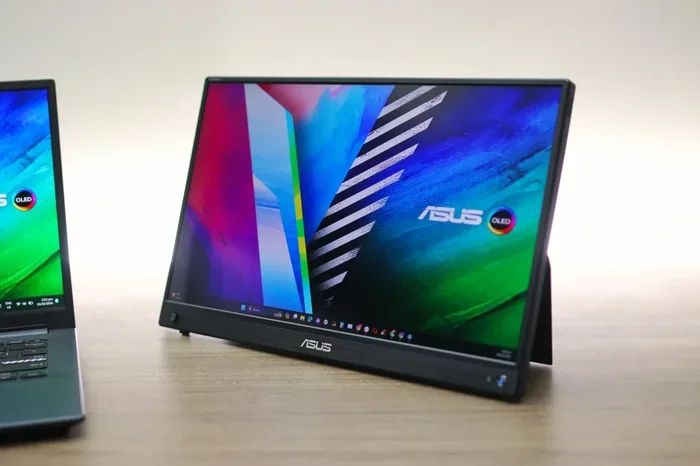
Can You Split HDMI Into Two Different Monitors Easily
Yes, you can split HDMI into two different monitors using an HDMI splitter or a compatible display adapter. This simple solution lets you duplicate your screen or extend your display across multiple monitors for work, gaming, or home entertainment. We cover every method, product type, and common mistake so you can set up your dual-monitor system confidently.
Have you ever wanted to show the same content on two screens at once? Maybe you are setting up a home office, a gaming rig, or a home theater. The good news is that you can split HDMI into two different monitors fairly easily. You just need the right tool and a little know-how.
HDMI splitting is the process of taking one video source and sending it to two or more displays. This can mean mirroring the same image on both screens or extending your desktop across them. Either way, the result is a more flexible and powerful setup. In this guide, we walk you through every option step by step.
Whether you are a student, a remote worker, or a casual user, understanding how to split HDMI opens up new possibilities. You do not need to be a tech expert. Most methods are plug-and-play and take just minutes to set up. Let us dive in and explore your options.
Key Takeaways
- HDMI splitters are the easiest way to duplicate your screen across two monitors without extra software.
- Extended display mode lets you use two monitors as separate workspaces for better productivity.
- Not all splitters support high resolution — always check the specs before buying.
- Wireless HDMI options exist for a cleaner desk setup without extra cables.
- Audio follows the video signal in most splitters, but you may need a separate audio solution.
- Common mistakes include buying the wrong splitter type and ignoring refresh rate limits.
📑 Table of Contents
- What Does It Mean to Split HDMI to Two Monitors?
- How to Split HDMI Into Two Different Monitors
- Types of HDMI Splitters You Can Buy
- Setting Up Dual Monitors for Different Uses
- Common Problems and How to Fix Them
- Quick Tips for the Best HDMI Splitting Experience
- Expert Insights on HDMI Splitting
- Key Takeaways
- Conclusion
What Does It Mean to Split HDMI to Two Monitors?
When we talk about splitting HDMI, we mean taking a single HDMI output from a device and sending that signal to two separate monitors. The source device could be a laptop, a desktop PC, a Blu-ray player, or even a gaming console. The signal gets duplicated so both screens show the same content, or in some cases, the content is extended across both displays.
HDMI splitting is different from simply using two monitors plugged into the same computer. A true splitter takes one physical HDMI port and creates two outputs. This is useful when your device has limited ports or when you want to share a single source with multiple viewers.
There are two main display modes you should know about:
- Mirrored Display: Both monitors show the exact same image. Great for presentations, sharing content with a group, or watching movies on a bigger setup.
- Extended Display: The two monitors act as one large workspace. You can drag windows from one screen to the other. Perfect for multitasking and productivity.
Mirrored vs. Extended: Which Do You Need?
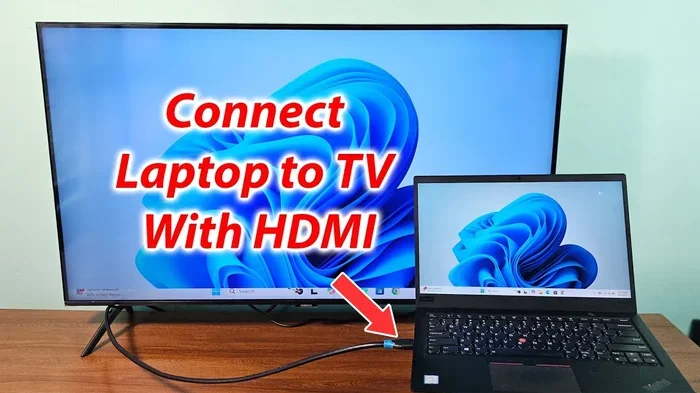
Mirroring is simple. Whatever appears on your laptop screen also appears on the second monitor. This is ideal for screen sharing during meetings or for casting content to a larger TV screen while keeping your laptop free for notes.
Extended mode is more powerful. It gives you double the workspace. You can have a spreadsheet open on one screen and a video call on the other. Many professionals swear by this setup because it boosts efficiency significantly.
How to Split HDMI Into Two Different Monitors
There are several ways to achieve a dual-monitor setup from a single HDMI source. Each method has its pros and cons. Let us look at the most popular options available today.
Method 1: Using an HDMI Splitter
An HDMI splitter is the most straightforward solution. It is a small box with one HDMI input and two or more HDMI outputs. You plug your source device into the input, and then connect two monitors to the outputs. The splitter duplicates the signal and sends it to both screens simultaneously.
Here is how to set it up in simple steps:
- Plug the HDMI cable from your source device into the splitter’s input port.
- Connect two HDMI cables from the splitter’s output ports to each monitor.
- Power on the splitter if it requires external power (some passive splitters do not need this).
- Set both monitors to the correct input source.
- Adjust display settings on your source device if needed.
Most HDMI splitters are affordable and widely available. You can find them online or at electronics stores for as little as $10 to $30. However, not all splitters are created equal. Some support only 1080p resolution, while others handle 4K. Always check the product specifications before purchasing.
Method 2: Using Display Settings on Your PC
If your computer has two video outputs (one HDMI and one other type), you can connect two monitors directly without a splitter. Windows and macOS both offer built-in display settings that let you configure dual monitors easily.
On Windows, go to Settings > System > Display. You will see options to Duplicate these displays or Extend them. On a Mac, open System Preferences > Displays and choose either Mirror Displays or Arrange your screens.
This method works great if your device supports multiple outputs. It does not require any extra hardware beyond cables and adapters. However, it does not help if your device has only one HDMI port.
Method 3: Wireless HDMI Solutions
Not a fan of cables? Wireless HDMI kits let you transmit audio and video from your source device to a receiver connected to your second monitor. These kits use radio frequency or Wi-Fi to send the signal wirelessly.
Some popular wireless options include devices from brands like IOGEAR and Nyrius. They typically come in a transmitter-receiver pair. You plug the transmitter into your source device and the receiver into the second monitor. Setup is usually simple and takes less than five minutes.
Keep in mind that wireless solutions may introduce slight latency. For most general uses like presentations or streaming, this is barely noticeable. For fast-paced gaming, a wired splitter is usually the better choice.
Types of HDMI Splitters You Can Buy
The market offers several types of HDMI splitters. Choosing the right one depends on your specific needs. Let us break down the most common types.
Passive HDMI Splitters
Passive splitters are simple and inexpensive. They do not require external power. The signal from your source device is simply divided between the two outputs. These work well for basic mirroring tasks and short cable runs.
However, passive splitters can suffer from signal loss, especially over longer cables. They also may not support high resolutions like 4K or 1080p at 60Hz. For simple setups, a passive splitter gets the job done.
Active HDMI Splitters
Active splitters are more powerful. They include built-in amplification to boost the signal. This means better image quality and longer cable runs without degradation. Most active splitters also support higher resolutions including 4K at 60Hz.
Active splitters usually require external power, either through a USB cable or a wall adapter. They cost more than passive options but deliver much better performance. If you want a reliable setup for work or entertainment, an active splitter is the way to go.
HDMI Switches vs. Splitters
People often confuse HDMI switches with HDMI splitters. An HDMI switch takes multiple inputs and sends them to one output. A splitter does the opposite — one input, multiple outputs. Make sure you buy the right device for your needs.
| Feature | HDMI Splitter | HDMI Switch |
|---|---|---|
| Inputs | 1 | 2 or more |
| Outputs | 2 or more | 1 |
| Purpose | Duplicate signal to multiple screens | Switch between multiple sources on one screen |
| Common Use | Dual monitor mirroring | Connecting multiple devices to one TV |
Setting Up Dual Monitors for Different Uses
The way you set up your monitors depends on what you plan to do. Different use cases call for different configurations. Here are the most common scenarios and how to optimize them.
Home Office and Productivity
For remote work, an extended display setup is unbeatable. Place your laptop on the left and the second monitor on the right. Use the left screen for your main tasks and the right for reference materials, email, or communication apps.
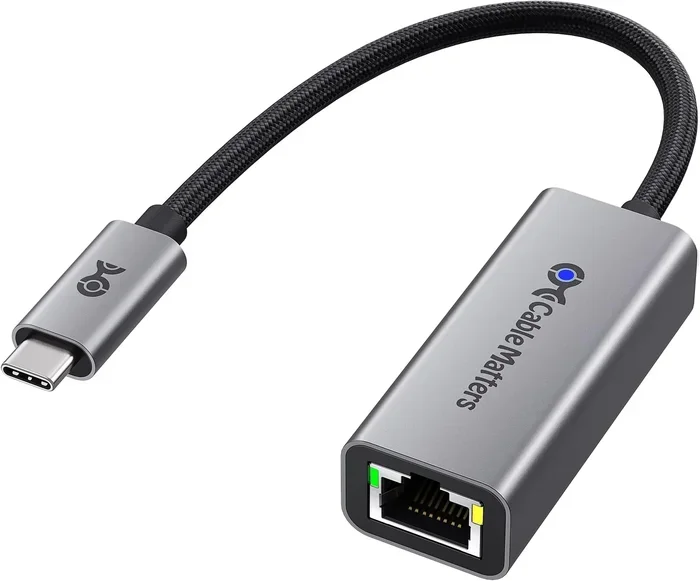
Most modern laptops support external displays through their HDMI or USB-C ports. If your laptop has only one HDMI port, an active HDMI splitter can help you add a second monitor. Alternatively, you can use a USB-C to HDMI adapter to free up your HDMI port for the primary monitor.
Pro tip: Adjust your display scaling in Windows or macOS so text and icons are easy to read on both screens. This small step makes a huge difference in daily comfort.
Gaming and Entertainment
Gamers love dual-monitor setups for immersive experiences. You can run your game on one screen and keep a walkthrough, chat, or browser open on the other. Some players even use three monitors for a panoramic view.
When splitting HDMI for gaming, pay close attention to refresh rate and resolution. A cheap splitter may downgrade your signal and cause lag. Look for splitters that support at least 1080p at 144Hz or 4K at 60Hz for the best gaming experience.
If you are streaming content from a device like a Roku or a streaming stick, you might also explore alternatives to Dish Network and DirectTV that offer more flexible viewing options across multiple screens in your home.
Presentations and Classroom Settings
Mirroring your screen to two projectors or monitors is a common need in classrooms and conference rooms. An HDMI splitter makes this easy. Simply connect the splitter to your laptop and run cables to each display.
For large rooms, use longer HDMI cables or active signal boosters to maintain quality. Test your setup before the presentation to avoid any last-minute surprises.
Common Problems and How to Fix Them
Even with the right equipment, you may run into issues when splitting HDMI to two monitors. Here are the most common problems and their solutions.
No Signal on One Monitor
If one monitor shows nothing, check the cable connections first. A loose HDMI cable is the most common culprit. Try unplugging and replugging both ends firmly. If that does not work, try a different HDMI cable to rule out a faulty cable.
Poor Image Quality
Blurry or pixelated images on one or both screens often mean the splitter cannot handle the resolution. Upgrade to an active splitter that supports your desired resolution. Also, make sure your HDMI cables are high-speed and rated for the resolution you are using.
Audio Not Working
Most HDMI splitters pass audio along with video. But sometimes audio gets routed to the wrong output. Check your sound settings on your source device and make sure the correct output is selected. Some splitters require a separate audio cable if the monitors do not have built-in speakers.
Refresh Rate Drops
If your monitor feels sluggish or the image feels choppy, the splitter may be limiting the refresh rate. Look for splitters rated for high refresh rates. Also, check your display settings and make sure both monitors are set to their native refresh rate.
Quick Tips for the Best HDMI Splitting Experience
Follow these quick tips to get the most out of your dual-monitor HDMI setup:
- Buy an active splitter for better signal quality and reliability.
- Use high-quality HDMI cables rated for your desired resolution.
- Check your source device’s capabilities before buying a splitter. Make sure it supports dual output.
- Update your display drivers regularly for the best compatibility.
- Test your setup before important events like presentations or gaming sessions.
- Keep cables short to minimize signal loss and interference.
- Consider wireless options if cable management is a concern in your setup.
Expert Insights on HDMI Splitting
Tech experts agree that HDMI splitting is one of the simplest and most cost-effective ways to expand your display setup. According to industry reviews, active splitters from reputable brands deliver consistent performance across a wide range of devices. Brands like UGREEN, Kinivo, and IOGEAR are frequently recommended for their reliability and feature sets.
One thing experts stress is compatibility. Not every splitter works with every device. Some older splitters struggle with newer devices that use HDCP 2.2 or higher for copy protection. Always check the splitter’s HDCP version compatibility before buying.
Another expert tip is to avoid daisy-chaining splitters. Connecting one splitter to another to create more outputs often leads to signal degradation and poor performance. If you need more than two outputs, invest in a higher-quality multi-output splitter designed for that purpose.
For those who want a cleaner setup without cables, wireless HDMI transmitters are gaining popularity. These devices are especially useful in living room setups where running cables across the floor is impractical. Just keep in mind that wireless solutions may not match the reliability of wired connections for critical tasks.
Key Takeaways
- HDMI splitters are the easiest way to duplicate your screen across two monitors without extra software.
- Extended display mode lets you use two monitors as separate workspaces for better productivity.
- Not all splitters support high resolution — always check the specs before buying.
- Wireless HDMI options exist for a cleaner desk setup without extra cables.
- Audio follows the video signal in most splitters, but you may need a separate audio solution.
- Common mistakes include buying the wrong splitter type and ignoring refresh rate limits.
Conclusion
Splitting HDMI into two different monitors is easier than most people think. With the right HDMI splitter or display configuration, you can duplicate or extend your screen in just a few minutes. Whether you need a dual setup for work, gaming, or sharing content, there is a solution that fits your budget and your needs.
Remember to choose an active splitter for the best results, check your resolution and refresh rate compatibility, and always test your setup before relying on it. A well-configured dual-monitor setup can transform the way you work, play, and share content. Start exploring your options today and enjoy the benefits of a multi-screen experience.
The technology behind HDMI splitting has come a long way. Modern splitters are compact, affordable, and support stunning resolutions. You no longer need expensive equipment or technical expertise to set up a dual-monitor configuration. All you need is the right splitter, a couple of cables, and a few minutes of your time.
So go ahead and give it a try. Once you experience the convenience of having two screens working together, you will wonder how you ever managed with just one. Happy setup!
Frequently Asked Questions
Do I need a special HDMI splitter to connect two monitors?
Yes, you need an HDMI splitter if your device has only one HDMI output. The splitter takes the single signal and duplicates it to two monitors. Make sure to choose an active splitter for better image quality and resolution support.
Can I use an HDMI splitter for gaming on two monitors?
You can, but you need a splitter that supports high refresh rates and resolutions. Cheap splitters may downgrade your signal and cause lag. Look for splitters rated for 1080p at 144Hz or higher for a smooth gaming experience.
Will splitting HDMI reduce the image quality?
A good quality active splitter will maintain excellent image quality. Passive splitters may cause some signal loss, especially over long cable runs. Always check the splitter’s specifications to ensure it supports your desired resolution.
Can I split HDMI and get audio on both monitors?
Most HDMI splitters pass audio along with the video signal to both outputs. However, if your monitors do not have built-in speakers, you may need a separate audio solution like external speakers or a headphone jack.
What is the difference between mirroring and extending displays?
Mirroring shows the same image on both screens, which is great for presentations. Extending creates one large workspace where you can drag windows between screens, perfect for multitasking and productivity.
Are wireless HDMI splitters as good as wired ones?
Wireless HDMI kits offer convenience and a cleaner setup, but they may introduce slight latency. For most everyday uses like streaming or presentations, the difference is barely noticeable. For competitive gaming or critical tasks, a wired splitter is the more reliable choice.
=== INTERNAL LINKS ===
For those exploring connectivity options around the home, you might also want to check if baby monitors can connect to Wi-Fi for a broader look at wireless device setups.
If you are looking to streamline your entertainment setup beyond just monitors, consider exploring alternatives to Dish Network and DirectTV for more flexible streaming and viewing solutions across multiple screens.