Can You See Device History Through Your Home Wifi Network
Yes, you can see device history through your home WiFi network, but the details depend on your router and settings. WiFi routers keep logs of connected devices, DNS requests, and network activity that reveal browsing patterns. This guide walks you through exactly what you can see, how to access those logs, and how to safeguard your privacy.
Key Takeaways
- WiFi routers do track device activity: They log connected devices, DNS queries, and data usage, even if they don’t store full URLs.
- You can access router logs through the admin panel: Every router has a built-in interface where you can view connected devices and traffic data.
- ISP-level logs go deeper than your router: Your internet service provider may retain more detailed browsing history than your WiFi router alone.
- DNS logs reveal the domains visited: Even without full URL tracking, DNS requests expose which websites devices on your network have accessed.
- Privacy risks are real on shared networks: Anyone with router admin access can potentially monitor network activity.
- VPNs and HTTPS help protect your data: Using a VPN and ensuring sites use HTTPS adds layers of privacy on shared WiFi networks.
- Router settings can limit tracking: Disabling logging and using private DNS are simple steps to reduce what others can see.
📑 Table of Contents
- What Is Device History Through WiFi?
- How WiFi Routers Track Device Activity
- Can You Actually See Browsing History Through WiFi?
- How to Check Device History on Your WiFi Network
- Privacy Concerns and Security Risks
- Tips to Protect Your Device History on WiFi
- Common Mistakes People Make With WiFi Monitoring
- Expert Insights on WiFi Device Tracking
- Conclusion
What Is Device History Through WiFi?
When we talk about device history through WiFi, we mean the trail of data your router collects when gadgets connect to your home network. Every phone, laptop, tablet, and smart TV that joins your WiFi leaves a digital footprint. Understanding what that footprint looks like is the first step toward managing your network wisely.
Most people assume their WiFi router simply delivers internet. In reality, it does much more. It records which devices connect, when they connect, how much data they use, and what domains they request. This information lives inside your router’s memory and logs.
The scope of WiFi network monitoring depends on several factors. Your router model, its firmware, and the settings you have configured all play a role. Some routers store detailed logs for weeks. Others only keep real-time data that disappears when the router restarts.
It is also important to understand the difference between what your router sees and what your internet service provider (ISP) sees. Your router tracks activity within your local network. Your ISP tracks activity on the wider internet. Both have different levels of visibility into your internet usage history.
Many homeowners have no idea their router admin panel contains this information. They set up the WiFi once and forget about it. But knowing what is available gives you more control over your home network and your family’s digital privacy.
How WiFi Routers Track Device Activity
Your WiFi router acts like a traffic cop for your home network. It directs data between your devices and the internet. In doing so, it naturally collects information about every connection. Let us break down exactly what gets tracked and how.
Connected Device Logs
Every device that joins your WiFi network gets recorded. The router assigns each device a local IP address and notes its MAC address, which is a unique hardware identifier. This means your router can tell the difference between your phone, your laptop, your smart speaker, and your child’s tablet.
These logs typically include:
- The device name and MAC address
- The local IP address assigned
- The time the device connected
- The duration of the connection
- The amount of data sent and received
You can usually view this information by logging into your router’s admin dashboard. Look for sections labeled “Connected Devices,” “DHCP Client List,” or “Attached Devices.” The exact name varies by router brand.
DNS Request Logs
When you type a website address into your browser, your device sends a DNS query to translate that name into a numerical IP address. Your router often handles this request or forwards it to a DNS server. This means your router can see which domain names your devices are requesting.
DNS logs do not show full URLs or specific pages. They show the main domain. For example, your router might log that a device visited “youtube.com” but not which specific video was watched. Still, this gives a clear picture of browsing habits.
Bandwidth and Traffic Data
Routers also track how much data flows through the network. This is useful for bandwidth usage monitoring. If your internet feels slow, checking traffic data can help you identify which device is using the most data. Some routers even break this down by device and by time period.
Advanced routers from brands like ASUS, Netgear, and TP-Link offer real-time traffic graphs. These tools make it easy to spot unusual activity or devices that are consuming excessive bandwidth.
Can You Actually See Browsing History Through WiFi?
This is the question most people really want answered. The short answer is: it depends on the setup and the level of detail you are looking for. Let us explore what is possible and what is not.
What Your Router Can Show
Your WiFi router can reveal the domains your devices visit through DNS logs. It can show which devices were online and when. It can display data usage per device. But it typically cannot show the full browsing history with specific pages and search queries.
However, there are exceptions. If your router has advanced logging features or you install custom firmware like DD-WRT or OpenWrt, the visibility increases significantly. These firmware options can capture deeper network traffic and provide more detailed logs.
The Role of HTTPS Encryption
Today, most websites use HTTPS encryption. This means the data exchanged between your device and the website is encrypted. Your router can see the domain name, but it cannot see the specific pages visited, the searches you made, or the content you viewed.
This is a significant privacy protection. Even someone with access to your router logs cannot easily read your encrypted browsing activity. However, they can still see which domains you visit, which is often enough to build a profile of your habits.
What Your Internet Service Provider Sees
Your ISP has a broader view than your router. Because your ISP handles the connection between your home network and the wider internet, it can see unencrypted HTTP traffic in full. For HTTPS sites, the ISP can still see the domain names you visit, even if it cannot see the specific pages.
Some ISPs retain internet activity logs for weeks or months, depending on local regulations. This is a separate layer of tracking that goes beyond your home WiFi. If you are concerned about privacy, understanding what your ISP collects is just as important as understanding what your router tracks.
How to Check Device History on Your WiFi Network
Wondering how to actually see this information yourself? The process is straightforward once you know where to look. Here is a step-by-step guide.
Step 1: Find Your Router’s IP Address
Open a web browser on any device connected to your WiFi. Type your router’s IP address into the address bar. The most common addresses are 192.168.1.1 or 192.168.0.1. You can also find it by opening a command prompt and typing “ipconfig” on Windows or “ifconfig” on Mac.
Step 2: Log Into the Admin Panel
You will need a username and password. These are often printed on a sticker on the back of your router. The default login is frequently “admin” for both the username and password. If you have changed these credentials and forgotten them, you can reset the router to factory settings.
Step 3: Navigate to the Logs or Connected Devices Section
Once logged in, look for tabs or menu items like “Status,” “Connected Devices,” “Logs,” or “Traffic Statistics.” Each router interface is different, but these sections contain the data you need. Some routers even have companion apps that make this process easier on your phone.
Step 4: Review the Data
You will see a list of connected devices with their MAC addresses, IP addresses, and connection times. If your router supports DNS logging, you can also view domain requests. This gives you a clear picture of what is happening on your network.
Quick Tip: Write down your router’s admin credentials and store them somewhere safe. You will need them for future logins. Also, change the default password to something unique for better network security.
Privacy Concerns and Security Risks
Knowing that your WiFi network tracks device activity raises important questions about privacy. Who else can see this data? What are the risks?
Who Has Access to Your Router Logs?
Anyone who has the admin username and password for your router can view the logs. In most households, this means the primary account holder. But in shared living situations, apartment buildings, or workplaces, multiple people might have access.
If you use a guest WiFi network, the guests typically cannot see your main network logs. But the person controlling the router can see everything guest devices do. This is an important distinction for anyone hosting visitors.
Risks of Unsecured WiFi Networks
An open or poorly secured WiFi network is a risk beyond just privacy. Hackers can exploit weak networks to intercept data, launch attacks, or use your bandwidth for illegal activities. Always use WPA3 or WPA2 encryption on your WiFi. Avoid using WEP, which is outdated and easily cracked.
Strong WiFi security practices include:
- Using a complex WiFi password with at least 12 characters
- Enabling WPA3 encryption if your router supports it
- Disabling WPS (Wi-Fi Protected Setup) which has known vulnerabilities
- Keeping your router firmware up to date
- Changing the default admin login credentials
Parental Monitoring vs. Privacy
Many parents use parental controls WiFi features to monitor their children’s internet activity. This is a valid and responsible use of network monitoring. Most modern routers include built-in parental controls that let you filter content, set time limits, and view activity reports.
The key is transparency. If you are monitoring a child’s device, it is best to have an open conversation about it. For adult household members, monitoring without consent can damage trust and raise ethical concerns.
Tips to Protect Your Device History on WiFi
If you are concerned about how much others can see through your WiFi network, there are practical steps you can take. These tips help you regain control over your network activity monitoring settings and your digital privacy.
Use a VPN on Your Devices
A virtual private network encrypts all the data leaving your device before it reaches your router. This means your router and ISP can only see that you are connected to a VPN server. They cannot see the domains you visit or the data you transmit. A VPN is one of the most effective tools for protecting your browsing privacy.
Enable HTTPS Everywhere
Most modern browsers support HTTPS by default. You can also install browser extensions that force HTTPS connections whenever possible. This ensures your browsing data stays encrypted and harder to intercept on shared networks.
Use Private DNS
By default, your router uses your ISP’s DNS servers. You can switch to a private DNS provider like Cloudflare (1.1.1.1) or Google (8.8.8.8). This encrypts your DNS queries and prevents your router from easily seeing which domains your devices are requesting.
Disable Router Logging
If you do not need to keep logs, you can disable logging in your router settings. This prevents the router from storing records of network activity. Keep in mind that some router features, like parental controls, rely on logging to function properly.
Create Separate Networks
Setting up a separate guest WiFi network keeps visitors isolated from your main network. This adds a layer of security and privacy. Your guest network can have its own password, bandwidth limits, and access restrictions.
Regularly Clear Your Router Logs
If you do maintain logs for troubleshooting or monitoring, make it a habit to clear them regularly. This limits the amount of historical data available if someone gains unauthorized access to your router settings.
Common Mistakes People Make With WiFi Monitoring
There are several misconceptions and mistakes that people make when it comes to viewing device history through WiFi. Avoiding these pitfalls will help you get accurate information and protect your privacy.
Assuming Your Router Shows Full Browsing History
Many people expect to see a complete list of every webpage visited, just like a browser history log. In reality, most routers only show domain names, not full URLs. This is a common misunderstanding that leads to frustration.
Ignoring HTTPS Limitations
Even with advanced monitoring tools, HTTPS encryption limits what can be seen. People sometimes believe they can read someone’s entire browsing activity through the router, which is not accurate for modern encrypted websites.
Forgetting About Mobile Data
WiFi monitoring only works for devices connected to your WiFi network. If someone switches to mobile data, their activity is no longer visible through your router. This is an important limitation to keep in mind.
Not Updating Router Firmware
Outdated router firmware can have security vulnerabilities that expose your logs to attackers. Regular updates patch these holes and improve overall network safety. Many people never update their router firmware after the initial setup.
Using Weak Router Passwords
A weak admin password makes it easy for anyone on your network to access router logs and settings. This is one of the most common security oversights. A strong, unique password is your first line of defense.
Expert Insights on WiFi Device Tracking
Network security professionals emphasize that home WiFi monitoring is a double-edged sword. On one hand, it helps parents protect children and homeowners detect unauthorized devices. On the other hand, it creates privacy risks if the data is not properly secured.
“Most consumers significantly overestimate what their router can see,” says cybersecurity expert Mark Richards. “They think they can read someone’s emails or see every website in detail. The reality is that HTTPS has dramatically limited what routers can capture. But domain-level tracking is still very real and very useful.”
Experts also recommend that anyone serious about privacy use a combination of tools: a VPN for encryption, a private DNS for query protection, and regular router maintenance for security. No single tool provides complete protection, but layered defenses create a strong privacy posture.
Another key insight from professionals is the importance of understanding your router’s capabilities. Not all routers are created equal. Budget routers may have limited logging features, while high-end models offer detailed traffic analysis and real-time monitoring. Investing in a quality router pays off for anyone who wants more control over their home network.
Conclusion
Can you see device history through WiFi? Yes, you can see a significant amount of activity on your home network. Your router logs connected devices, tracks DNS requests, and records data usage. However, the depth of visibility depends on your router model, its settings, and the encryption used by the websites you visit.
With the right knowledge and tools, you can access this information through your router’s admin panel. You can also take meaningful steps to protect your privacy using VPNs, private DNS, and strong security practices. Understanding your WiFi network monitoring capabilities empowers you to make informed decisions about your digital life.
Whether you are a parent checking on your child’s online activity, a homeowner concerned about network security, or simply curious about what your router sees, the information is available. The key is to use it responsibly and to take proactive steps to protect your internet usage history and your family’s privacy.
Take a few minutes today to log into your router and review what is being tracked. You might be surprised by what you find. And more importantly, you will know exactly what is happening on your home network.
Frequently Asked Questions
Can my WiFi owner see what websites I visit?
Yes, your WiFi owner can typically see the domain names of websites you visit through DNS logs. However, if the website uses HTTPS encryption, the owner cannot see the specific pages you visit or the content you view. Full browsing details are not visible through standard router logs.
Does clearing my browser history stop WiFi tracking?
No, clearing your browser history only removes data stored on your device. Your WiFi router still maintains its own logs of network activity, including DNS requests and connection times. Router-level tracking is independent of your browser’s local history.
Can I see what devices are connected to my WiFi right now?
Yes, you can see all currently connected devices by logging into your router’s admin panel. Look for sections labeled “Connected Devices” or “DHCP Client List.” This shows device names, MAC addresses, and IP addresses in real time.
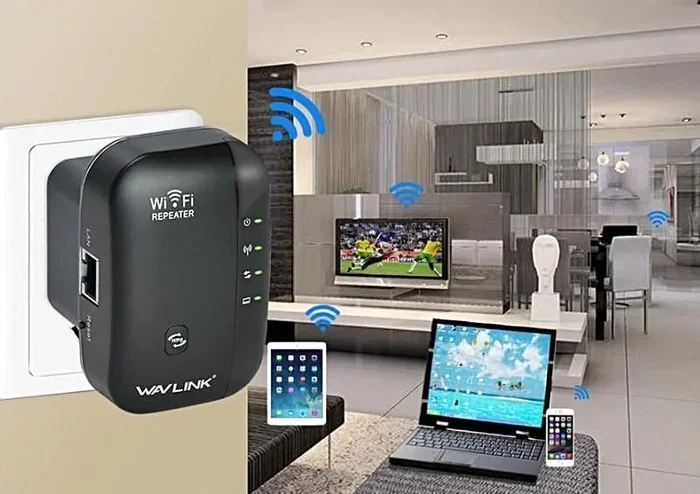
Do WiFi extenders or mesh systems track device history the same way?
Yes, WiFi extenders and mesh systems function as part of your network and typically share logging data with the main router. The primary router usually aggregates all the data, so device history tracking works the same way across mesh and traditional router setups.
Can someone on my WiFi see my search history?
Someone with admin access to your router can see which domains you visited through DNS logs. But they generally cannot see your specific search queries or individual pages, especially on HTTPS websites. Using a VPN adds a strong layer of protection against this type of monitoring.
How long do WiFi routers keep device history logs?
The duration varies by router model and settings. Some routers keep logs for a few days, while others store data for weeks or months. Many routers overwrite old logs when storage is full. You can check your router’s logging settings to see how long data is retained on your specific device.