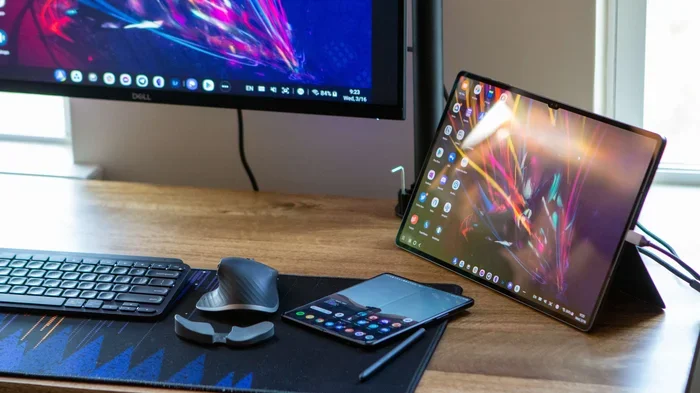
Can I Use Samsung Tablet As Laptop A Complete Guide
Yes, you can use a Samsung tablet as a laptop with the right setup and accessories. Samsung DeX mode transforms your tablet into a desktop-like experience, making it a powerful laptop alternative for work, study, and entertainment. This guide covers everything you need to know about turning your Samsung tablet into a full productivity machine.
Have you ever looked at your Samsung tablet and thought, “This could be a laptop”? You are not alone. Many people want to ditch their bulky laptop and carry something lighter. The good news is that can I use Samsung tablet as laptop has a very clear answer. Yes, you absolutely can. With the right tools and a little know-how, your Samsung tablet can do many of the things a laptop does. In this guide, we will walk you through everything you need to know.
We will cover Samsung DeX mode, the best accessories, what you can and cannot do, and whether a tablet setup truly replaces a laptop. Whether you are a student, a freelancer, or just someone who wants a simpler setup, this guide has you covered. Let us dive in.
Key Takeaways
- Samsung DeX Mode: Turns your tablet into a laptop-like desktop interface with a taskbar and windowed apps.
- Accessories Matter: A keyboard case, mouse, and external monitor make the biggest difference.
- Productivity Is Real: You can run Office apps, browse the web, and manage files like a laptop.
- Limitations Exist: Heavy software like video editing or coding may still need a real laptop.
- Samsung Galaxy Tab S Series: The best tablets for a laptop-like experience.
- Battery Life: Tablets often last longer than laptops on a single charge.
- Portability Wins: A Samsung tablet setup is lighter and more portable than most laptops.
📑 Table of Contents
- What Does It Mean to Use a Samsung Tablet as a Laptop?
- Samsung DeX: The Game Changer
- Best Accessories to Make It Work
- What Can You Do With a Samsung Tablet as a Laptop?
- Limitations: What a Samsung Tablet Cannot Do
- Which Samsung Tablet Is Best for Laptop Use?
- Tips to Get the Most Out of Your Samsung Tablet as a Laptop
- Common Mistakes People Make
- Expert Insights: Is a Samsung Tablet Really a Laptop Replacement?
- Final Thoughts
What Does It Mean to Use a Samsung Tablet as a Laptop?
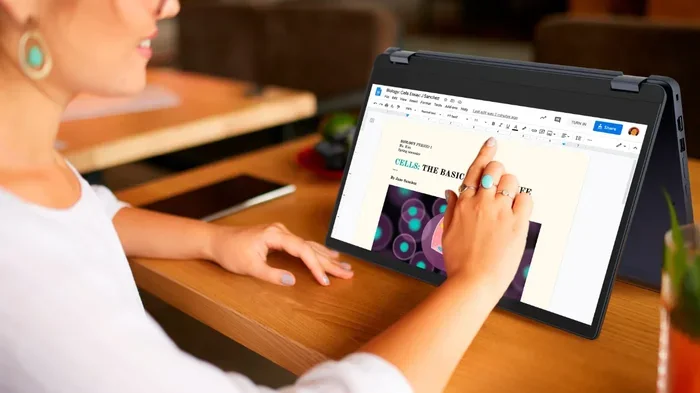
Using a Samsung tablet as a laptop means turning it into a device that feels and works like a laptop. You get a desktop-like screen, a taskbar, and the ability to open multiple apps at once. You can type documents, browse the web, and manage files. The experience is close to what you get on a traditional laptop.
But it is not exactly the same. A Samsung tablet runs on Android, while most laptops run on Windows or macOS. This means some software and workflows are different. However, Samsung has built-in features that bridge this gap really well.
Why People Want to Make the Switch
There are many reasons people want to use a tablet instead of a laptop:
- Weight: Tablets are much lighter than most laptops.
- Battery Life: Samsung tablets often last longer on a single charge.
- Portability: A tablet fits easily in a small bag.
- Touch Screen: You get the benefit of a touchscreen, which laptops lack.
- Versatility: You can use it as a tablet and a laptop when needed.
These benefits make a strong case for switching. And with Samsung tablets getting more powerful every year, the gap between tablets and laptops keeps shrinking.
Samsung DeX: The Game Changer
If you are asking yourself, can I use Samsung tablet as laptop, then Samsung DeX is the feature you need to know about. DeX stands for Desktop Experience. It is a built-in feature on Samsung tablets that transforms your home screen into a desktop-like interface.
When you turn on DeX mode, you get a taskbar at the bottom, a start menu, and the ability to open multiple windows. It looks and feels a lot like a Windows laptop. You can resize windows, switch between apps, and even use a mouse and keyboard.
How to Turn on Samsung DeX
Turning on DeX is simple. Here is how you do it:
- Swipe down from the top of your screen to open the quick settings panel.
- Look for the DeX icon. It looks like a desktop window.
- Tap it to enable DeX mode.
- Your screen will change to a desktop layout.
You can also connect your tablet to an external monitor for an even bigger screen. This makes your tablet feel even more like a real laptop.
What Can You Do in DeX Mode?
DeX mode opens up a lot of possibilities. Here are things you can do:
- Open and use Microsoft Office apps like Word, Excel, and PowerPoint.
- Browse the web with Samsung Internet or Google Chrome.
- Manage files using the built-in file manager.
- Run multiple apps side by side.
- Use a stylus like the S Pen for note-taking or drawing.
- Connect to Wi-Fi and Bluetooth devices easily.
DeX mode makes your Samsung tablet a real productivity tool. It is one of the main reasons people can successfully use a Samsung tablet as a laptop.
Best Accessories to Make It Work
A Samsung tablet alone is great. But to truly use it as a laptop, you need the right accessories. These add-ons make the experience much closer to a real laptop setup.
Keyboard Cases
A keyboard case is the most important accessory. It turns your tablet into something you can type on comfortably. Samsung sells its own keyboard covers, but there are many third-party options too.
When choosing a keyboard case, look for these features:
- A built-in trackpad or touchpad.
- Bluetooth connectivity for easy pairing.
- A sturdy build that protects your tablet.
- Good key travel and spacing for comfortable typing.
The Samsung Book Cover Keyboard is a popular choice. It snaps onto the tablet magnetically and folds into a stand. It feels very much like a laptop keyboard.
Wireless Mouse
A mouse makes navigating DeX mode much easier. You do not have to rely only on the touchscreen. A simple Bluetooth mouse works great with Samsung tablets.
Some popular options include:
- Samsung Optical Mouse
- Logitech M330 Silent Plus
- Anker Wireless Mouse
External Monitor
Connecting your Samsung tablet to an external monitor takes the laptop experience to the next level. You get a bigger screen, which is great for multitasking. Most Samsung tablets support DeX output to a monitor via USB-C or wireless casting.
This is perfect for people who work from home or need a bigger screen for presentations.
What Can You Do With a Samsung Tablet as a Laptop?
Now that you know about DeX mode and accessories, let us talk about what you can actually do. The short answer is a lot. But let us get specific.
Work and Office Tasks
You can handle most office tasks easily on a Samsung tablet. Here is what works well:
- Word Processing: Use Microsoft Word or Google Docs to write reports and essays.
- Spreadsheets: Excel and Google Sheets work great in DeX mode.
- Email: Use the Samsung Email app or Outlook for all your messages.
- Video Calls: Apps like Zoom, Google Meet, and Microsoft Teams run smoothly.
- File Management: Organize, move, and share files just like on a laptop.
For most office workers and students, these tasks cover the bulk of daily work. A Samsung tablet can handle them with ease.
Studying and Learning
Students can benefit a lot from using a Samsung tablet as a laptop. The touchscreen and S Pen make note-taking natural and intuitive. You can:
- Take handwritten notes with the S Pen.
- Read and annotate PDFs.
- Use learning apps like Khan Academy or Duolingo.
- Watch lectures and take notes at the same time.
- Submit assignments through learning management systems.
The portability of a tablet also means you can carry it to every class without breaking your back.
Creative Work
Samsung tablets are excellent for creative tasks. The S Pen and high-resolution screens make them great for:
- Digital drawing and illustration.
- Photo editing with apps like Snapseed or Lightroom.
- Video editing with apps like KineMaster.
- Music production with GarageBand or FL Studio Mobile.
While a desktop workstation is still better for heavy creative work, a Samsung tablet handles light to medium creative tasks very well.
Limitations: What a Samsung Tablet Cannot Do
It is important to be honest about the limitations. While a Samsung tablet can do a lot, it cannot replace a laptop in every situation.
Software Limitations
Samsung tablets run on Android. This means you cannot install full desktop software like Adobe Premiere Pro, AutoCAD, or Visual Studio. Some professional apps have Android versions, but they are often limited compared to their desktop counterparts.
If your work depends on specialized software, a Samsung tablet may not be enough. Always check if the apps you need have Android versions before making the switch.
Multitasking Limits
Even with DeX mode, multitasking on a Samsung tablet is not as smooth as on a high-end laptop. You can run multiple apps, but very heavy tasks may cause slowdowns. This is especially true on lower-end tablet models.
Storage and Expandability
Some Samsung tablets have fixed storage that you cannot expand. If you work with large files, this can be a problem. Always check the storage options before buying.
Gaming and Heavy Tasks
Samsung tablets can handle casual and mid-level gaming very well. But demanding 3D games or intensive tasks like 3D rendering are best left to a laptop with a dedicated GPU.
Which Samsung Tablet Is Best for Laptop Use?
Not all Samsung tablets are created equal. If you want to use your tablet as a laptop, you need a model with enough power and features. Here are the best options.
| Model | Screen Size | Best For | DeX Support |
|---|---|---|---|
| Galaxy Tab S9 | 11 inches | Power users and professionals | Yes |
| Galaxy Tab S9 FE | 10.9 inches | Budget-friendly laptop alternative | Yes |
| Galaxy Tab S8 | 11 inches | Everyday productivity | Yes |
| Galaxy Tab A9+ | 11 inches | Light tasks and browsing | Yes |
The Galaxy Tab S9 is the top pick for most people. It has a powerful processor, a great display, and excellent DeX support. But if you are on a budget, the Tab S9 FE offers a lot of value too.
When choosing, think about what you need. If you only browse the web and check email, a mid-range tablet works fine. If you need to run heavy apps, go for the flagship models.
Tips to Get the Most Out of Your Samsung Tablet as a Laptop
Want to make your tablet setup work even better? Here are some practical tips:
- Use a keyboard case with a trackpad. This gives you the most laptop-like experience.
- Enable DeX mode every time. It makes a huge difference in how you interact with your tablet.
- Connect to an external monitor. A bigger screen improves productivity significantly.
- Use cloud storage. Google Drive or Samsung Cloud keeps your files accessible from anywhere.
- Install a launcher optimized for DeX. Some third-party launchers improve the desktop experience.
- Keep your tablet updated. Samsung regularly adds new features and improvements to DeX mode.
- Use a stylus for note-taking. The S Pen makes writing and drawing much more natural.
Common Mistakes People Make
Here are some mistakes to avoid when using a Samsung tablet as a laptop:
- Skipping a keyboard case: Typing on the touchscreen is slow and frustrating. Always use a keyboard.
- Ignoring storage limits: A tablet with 32GB fills up fast if you work with large files.
- Expecting full desktop software: Android apps are not the same as desktop programs. Manage your expectations.
- Not using DeX mode: Many people never turn on DeX, which limits their productivity.
- Using a cheap keyboard case: A bad keyboard case can ruin the experience. Invest in a quality one.
Avoiding these mistakes will help you get a much better experience with your Samsung tablet setup.
Expert Insights: Is a Samsung Tablet Really a Laptop Replacement?
The answer depends on what you need. For many people, a Samsung tablet with DeX mode and a keyboard case is more than enough. It handles email, documents, browsing, and light creative work beautifully.
However, if your work involves heavy software, coding, or professional video editing, a traditional laptop is still the better choice. The key is understanding your needs and choosing the right tool for the job.
Many tech experts now agree that for the average user, a Samsung tablet can replace a laptop. The shift toward cloud-based tools and mobile apps has made this possible. As Samsung continues to improve DeX mode and tablet hardware, the line between tablets and laptops will keep blurring.
Final Thoughts
So, can I use Samsung tablet as laptop? The answer is a resounding yes. With Samsung DeX mode, the right accessories, and realistic expectations, your Samsung tablet can handle most of the tasks you would normally do on a laptop. It is lighter, more portable, and often has better battery life.
It is not a perfect replacement for everyone. But for students, remote workers, and casual users, it is an excellent option. The key is to set up your tablet properly with a keyboard case, a mouse, and DeX mode enabled.
If you have been on the fence about making the switch, now is a great time to try it. Samsung tablets are more capable than ever. Give it a chance, and you might just find that you do not need a laptop anymore.
Frequently Asked Questions
Can I run Windows on a Samsung tablet to make it work like a laptop?
No, Samsung tablets run on Android and cannot natively run Windows. However, Samsung DeX mode provides a desktop-like experience that works well for most tasks. Some users try third-party tools, but they are not officially supported and may cause issues.
Which Samsung tablet is best for using as a laptop?
The Galaxy Tab S9 is the best overall choice for a laptop-like experience. It has a powerful processor, a great display, and full DeX support. For budget options, the Galaxy Tab S9 FE or Galaxy Tab S8 also work well.
Do I need a keyboard case to use a Samsung tablet as a laptop?
Yes, a keyboard case is highly recommended. Typing on the touchscreen is slow and uncomfortable. A keyboard case with a trackpad makes the experience much closer to using a real laptop.
Can I connect a Samsung tablet to an external monitor?
Yes, you can connect a Samsung tablet to an external monitor using DeX mode. Most Samsung tablets support monitor output via USB-C or wireless casting. This is great for multitasking and presentations.
Is Samsung DeX mode free to use?
Yes, Samsung DeX mode is completely free and built into supported Samsung tablets. You do not need to download anything or pay any extra fees. Just enable it from your quick settings panel.
Can I use Microsoft Office apps on a Samsung tablet in DeX mode?
Yes, you can use Microsoft Word, Excel, and PowerPoint on a Samsung tablet in DeX mode. These apps work well in the desktop-like interface. You can also use Google Docs and Sheets as alternatives.
=== CONCLUSION ===
Can I use Samsung tablet as laptop? Absolutely. With Samsung DeX mode, the right accessories, and a bit of setup, your Samsung tablet can handle most of the tasks you would normally do on a laptop. It is portable, powerful, and versatile. Whether you are a student, a remote worker, or someone who wants a simpler digital life, a Samsung tablet setup is worth considering. Try it out and see how it fits your workflow.