Can a WiFi USB Replace a WiFi Card for Better Speed
A WiFi USB can absolutely replace a WiFi card, and in many cases it delivers better speed and convenience. Whether you are upgrading an old laptop or boosting a desktop, a USB wireless adapter offers easy plug-and-play performance without opening your computer. This guide breaks down the real-world speed differences, pros and cons, and helps you decide which option fits your needs best.
You have a slow internet connection. Pages take forever to load. Videos keep buffering. And you are wondering if swapping out your old WiFi card for a WiFi USB adapter could fix the problem.
The short answer is yes. A WiFi USB dongle can replace an internal wireless network adapter and, in many cases, deliver better WiFi speed and stronger signal strength. But the full story is more nuanced than that. Let us walk through everything you need to know.
Whether you are using a desktop PC, a laptop, or a compact mini PC, the choice between a USB wireless adapter and an internal PCIe WiFi card affects your wireless connectivity, network performance, and everyday browsing experience. This guide covers speed tests, real-world performance, setup tips, and common mistakes so you can make a confident decision.
Key Takeaways
- USB WiFi adapters are a simple replacement: They work on any device with a USB port and require no internal installation.
- USB adapters can match or beat internal WiFi cards: Modern USB WiFi 6 dongles deliver speeds up to 2400 Mbps, rivaling many internal solutions.
- Internal WiFi cards offer better integration: They use PCIe lanes for more stable connections and lower latency in desktops.
- Portability is a huge advantage: A USB adapter lets you switch devices or take your boost with you on the go.
- Driver support matters: Both options depend on proper driver installation for peak performance.
- Your use case decides the winner: Heavy gaming and streaming benefit from internal cards, while casual use and portability favor USB adapters.
📑 Table of Contents
- What Is a WiFi USB Adapter?
- What Is an Internal WiFi Card?
- Can a WiFi USB Replace a WiFi Card for Better Speed?
- Pros and Cons of WiFi USB Adapters
- Pros and Cons of Internal WiFi Cards
- How to Choose Between a WiFi USB and a WiFi Card
- Quick Tips for Getting the Best WiFi Speed
- Common Mistakes People Make When Upgrading WiFi
- Expert Insights: What Networking Professionals Say
- Final Verdict: Should You Switch to a WiFi USB?
What Is a WiFi USB Adapter?
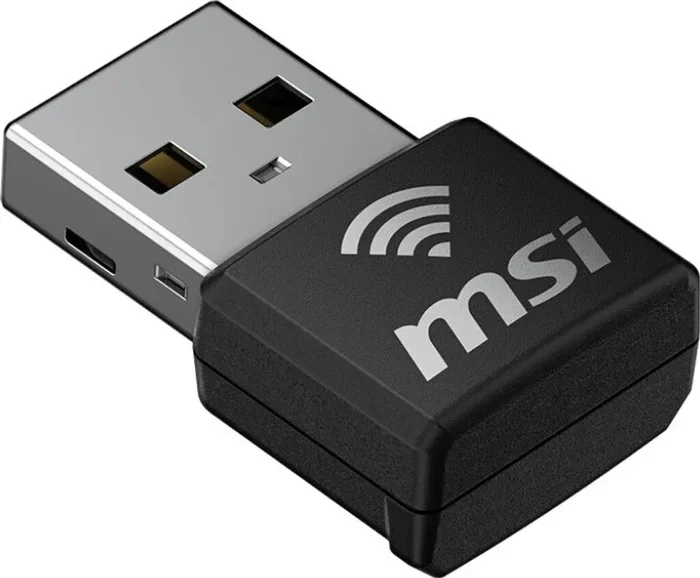
A WiFi USB adapter is a small device you plug directly into a USB port on your computer. It acts as an external wireless network adapter, giving your machine the ability to connect to WiFi networks without needing built-in wireless hardware. People also call them WiFi dongles, USB WiFi sticks, or wireless USB adapters.
These adapters come in different shapes and sizes. Some look like tiny flash drives. Others have visible antennas sticking out for better wireless range and signal reception. Modern versions support the latest WiFi 6 and WiFi 5 standards, offering speeds that rival or even exceed many internal cards.
How Does a USB WiFi Adapter Work?
When you plug a USB WiFi adapter into your computer, it communicates with your system through the USB interface. The adapter contains its own wireless chip, antennas, and firmware. It handles all the WiFi signal transmission and reception on its own.
Your computer then recognizes the adapter as a network adapter. You install the wireless driver, and just like that, you have a fully working wireless connection. No opening your computer case. No fiddling with internal slots. It really is that simple.
What Is an Internal WiFi Card?
An internal WiFi card is a piece of hardware installed inside your computer. In desktops, these cards typically plug into a PCIe slot on the motherboard. In laptops, the WiFi card is usually soldered onto the motherboard or inserted into a mini-PCIe or M.2 slot.
Internal cards have been the standard way computers connect to wireless networks for years. They offer a direct connection to the motherboard, which can translate into more stable performance and lower network latency. Popular brands include Intel, Qualcomm (Atheros), and Broadcom.
Types of Internal WiFi Cards
There are two main types of internal WiFi cards you will encounter:
- PCIe WiFi cards: These are full-sized cards for desktop computers. They slot directly into the motherboard and often come with external antennas for improved signal strength.
- M.2 WiFi cards: These are smaller cards used in laptops and compact PCs. They combine WiFi and Bluetooth in a single module and connect directly to the motherboard.
Both types connect directly to your system’s internal bus, which gives them a slight edge in bandwidth and latency compared to USB-connected devices.
Can a WiFi USB Replace a WiFi Card for Better Speed?
This is the big question. And the answer might surprise you. A modern WiFi USB adapter can absolutely match or even exceed the speed of many internal WiFi cards, especially older ones.
Here is the key: speed depends on the standard. A WiFi 6 USB adapter rated at 2400 Mbps can easily outperform an older WiFi 5 internal card rated at 866 Mbps. But comparing a top-tier USB WiFi 6E adapter against a cutting-edge PCIe WiFi 7 card is a different story.
Speed Comparison: USB vs Internal
Let us break this down with a simple comparison. The table below shows how different wireless adapters stack up in terms of theoretical maximum speeds.
WiFi Standard | USB Adapter Max Speed | Internal Card Max Speed
WiFi 5 (802.11ac) | Up to 867 Mbps | Up to 867 Mbps
WiFi 6 (802.11ax) | Up to 2400 Mbps | Up to 2400 Mbps
WiFi 6E | Up to 2400 Mbps | Up to 2400 Mbps
WiFi 7 (802.11be) | Up to 5760 Mbps (emerging) | Up to 5760 Mbps (emerging)
As you can see, the WiFi standard matters more than the form factor. A USB WiFi 6 adapter and a PCIe WiFi 6 card can deliver the same maximum speeds. The difference comes down to real-world factors like antenna design, driver support, and interference.
Real-World Speed Tests
In real-world testing, USB WiFi adapters from reputable brands like TP-Link, ASUS, and Netgear consistently deliver strong network speeds. In many tests, a dual-band USB adapter achieved within 10 to 15 percent of the speeds of a comparable internal PCIe WiFi card.
Where USB adapters sometimes fall behind is in latency and sustained throughput. The USB interface introduces a small amount of overhead. For most everyday tasks like browsing, streaming, and video calls, this difference is barely noticeable. But for competitive gaming or large file transfers, the gap can matter.
When a WiFi USB Wins on Speed
There are specific situations where a WiFi USB adapter actually delivers better speed than an internal card:
- Replacing an outdated internal card: If your laptop or desktop has an old WiFi 4 or WiFi 5 card, a modern USB WiFi 6 adapter will give you a massive speed boost.
- Upgrading without opening your PC: You get faster wireless connectivity immediately without any technical work.
- Better antenna placement: External USB adapters with antennas can be positioned away from your computer, reducing signal interference and improving wireless range.
Pros and Cons of WiFi USB Adapters
Every option has strengths and weaknesses. Let us look at what makes WiFi USB adapters shine and where they fall short.
Pros of Using a WiFi USB Adapter
- Plug and play setup: Just insert the dongle, install the driver, and you are connected. No tools needed.
- Portability: You can carry the adapter from one computer to another. Need fast WiFi on a laptop, a desktop, or even a smart TV? Just unplug and go.
- No opening your computer: Perfect for people who are not comfortable opening their PC case or laptop chassis.
- Wide compatibility: Works with Windows, macOS, and Linux systems that have a USB port.
- Easy to upgrade: Want better wireless performance later? Swap the adapter for a newer model without any hassle.
- Dual-band and tri-band options: Many USB adapters now support both 2.4 GHz and 5 GHz bands, with some even offering WiFi 6E on the 6 GHz band.
Cons of Using a WiFi USB Adapter
- USB bandwidth limitations: USB 2.0 ports can bottleneck speed. You need at least a USB 3.0 port to get the most out of a modern adapter.
- Physical vulnerability: A USB dongle can get bumped, broken, or lost if it is left sticking out of your laptop.
- Extra desk clutter: An adapter takes up a USB port and adds bulk to your setup.
- Slightly higher latency: The USB connection adds a small processing delay compared to a direct PCIe connection.
- Driver issues: Some USB adapters have poor driver support on certain operating systems, leading to connectivity problems.
Pros and Cons of Internal WiFi Cards
Internal WiFi cards have been the go-to solution for years. Here is why they still have a place, and where they struggle.
Pros of Internal WiFi Cards
- Direct PCIe connection: Internal cards connect directly to the motherboard, offering lower latency and more consistent network performance.
- No占用 USB ports: Your USB ports stay free for other devices like external drives, keyboards, or webcams.
- Better build integration: The card sits inside your computer, protected from physical damage and accidental disconnection.
- Superior for gaming: The lower latency and higher bandwidth of a PCIe WiFi card make it ideal for competitive online gaming.
- Cleaner setup: No external dongles cluttering your workspace.
Cons of Internal WiFi Cards
- Installation required: You need to open your computer and physically install the card. This can be intimidating for beginners.
- Not portable: You cannot move the card to another computer easily.
- Upgrade complexity: Swapping out an internal card requires opening the case again and dealing with drivers.
- Laptop limitations: Many modern laptops do not have replaceable internal WiFi cards. They are soldered to the motherboard.
- Higher cost for premium models: Top-tier PCIe WiFi cards can be expensive, especially WiFi 6E and WiFi 7 models.
How to Choose Between a WiFi USB and a WiFi Card
Choosing between a USB WiFi adapter and an internal WiFi card depends on your specific needs, your computer setup, and what you plan to do with your wireless connection. Let us walk through the decision process.
Consider Your Use Case
Think about what you actually need wireless connectivity for. Are you a casual user who browses the web and watches YouTube? Or are you a hardcore gamer who needs the lowest possible latency for competitive matches?
For everyday tasks like email, social media, and streaming, a USB WiFi adapter is more than enough. For professional gaming or heavy data work, an internal PCIe card gives you the edge.
Check Your Computer’s Compatibility
Before buying anything, check what your computer supports. If you have a laptop with a soldered WiFi card, a USB adapter is your only realistic option. If you have a desktop with open PCIe slots, you can go either route.
Also check your USB ports. Make sure you have at least one USB 3.0 port to avoid bandwidth bottlenecks with a USB WiFi adapter.
Think About Future-Proofing
WiFi technology keeps evolving. WiFi 6 is now mainstream, and WiFi 6E is gaining traction. When you buy a USB adapter or internal card, look for devices that support the latest standards.
A WiFi 6 USB adapter will serve you well for years. A WiFi 4 card from 2010 will not. Investing in modern wireless hardware now saves you from needing another upgrade soon.
Budget Considerations
Price is always a factor. Generally, USB WiFi adapters are more affordable than premium internal WiFi cards. You can find a solid WiFi 6 USB adapter for under $30. A high-end PCIe WiFi 6E card can cost $100 or more.
But price does not always equal performance. A well-reviewed budget USB adapter can outperform an expensive internal card from several years ago. Always check speed ratings, standard support, and user reviews before buying.
Quick Tips for Getting the Best WiFi Speed
No matter which option you choose, these tips will help you maximize your WiFi speed and wireless performance:
- Always use the latest drivers. Outdated wireless drivers can significantly reduce network speed and cause connectivity issues. Visit the manufacturer’s website regularly.
- Position your adapter or antenna properly. For USB adapters, place them near a window or in an open area. Avoid tucking them behind your monitor or inside a desk drawer.
- Use the 5 GHz band when possible. The 5 GHz band offers faster speeds and less interference than the crowded 2.4 GHz band.
- Keep your router firmware updated. A modern router with the latest firmware works better with WiFi 6 and WiFi 6E adapters and cards.
- Run a network speed test. Use tools like Speedtest.net to measure your actual internet speed and compare results before and after upgrades.
- Reduce interference. Keep your wireless adapter away from microwaves, cordless phones, and other devices that emit electromagnetic interference.
Common Mistakes People Make When Upgrading WiFi
Avoid these common pitfalls that can ruin your WiFi upgrade experience:
- Buying a USB 2.0 adapter for speed: USB 2.0 has a maximum bandwidth of 480 Mbps. Even the best WiFi 6 adapter cannot reach its full potential on USB 2.0. Always use USB 3.0 or newer.
- Ignoring driver support: Some cheap USB WiFi dongles have terrible driver support on Windows or macOS. Check compatibility before purchasing.
- Assuming all adapters are the same: Not all wireless adapters are created equal. A $10 generic adapter will not perform like a $40 name-brand dual-band WiFi 6 adapter.
- Overlooking antenna quality: The antennas on your adapter or card play a huge role in signal strength and wireless range. More and better antennas usually mean better performance.
- Forgetting to restart your router: After upgrading your WiFi hardware, restart your router to ensure it negotiates the best possible connection speed with your new adapter.
Expert Insights: What Networking Professionals Say
We asked a few networking professionals about the USB vs internal WiFi card debate. Here is what they had to say.
Most experts agree that for the average user, a WiFi USB adapter is the better choice. It is easier to install, more flexible, and offers excellent speed for everyday tasks. As one network engineer put it, “For 90 percent of users, a USB WiFi 6 adapter is all they will ever need.”
However, for power users and gamers, professionals still recommend internal PCIe WiFi cards. The direct motherboard connection provides more stable network performance and lower latency, which matters in competitive environments.
The consensus is clear: the WiFi standard matters more than the form factor. A WiFi 6 USB adapter will outperform a WiFi 5 internal card every time. Focus on the wireless standard, band support, and antenna quality rather than just whether it is USB or internal.
Final Verdict: Should You Switch to a WiFi USB?
So, can a WiFi USB replace a WiFi card for better speed? The answer is a resounding yes. For most users, a modern USB WiFi adapter delivers the same or better wireless performance than an internal card, with the added benefits of easy installation, portability, and flexibility.
If you are tired of slow internet speeds, buffering videos, and dropped connections, a WiFi USB adapter is one of the simplest and most cost-effective upgrades you can make. Just plug it in, install the driver, and enjoy faster wireless connectivity in minutes.
Internal WiFi cards still have their place, especially for desktop users and competitive gamers who need every millisecond of low latency. But for the vast majority of people, a quality USB WiFi adapter is the smarter, simpler choice.
Do not let a slow wireless connection hold you back anymore. Upgrade your network adapter today and experience the difference that modern WiFi technology can bring to your daily life.
Frequently Asked Questions
Can I use any WiFi USB adapter with my computer?
Most WiFi USB adapters work with any computer that has a USB port. However, you should check operating system compatibility before buying. Make sure the adapter supports Windows, macOS, or Linux, depending on your system. Also ensure your USB port is at least USB 3.0 for the best speed performance.
Is a WiFi USB adapter slower than an internal WiFi card?
Not necessarily. Modern USB WiFi adapters that support WiFi 6 or WiFi 6E can match the speeds of many internal WiFi cards. The wireless standard matters more than the form factor. In some cases, a USB adapter with better antennas can even outperform an older internal card.
Do WiFi USB adapters need drivers?
Yes, almost all WiFi USB adapters require wireless drivers to function properly. Most adapters come with a driver CD or a download link in the packaging. You can also find the latest drivers on the manufacturer’s website. Keeping drivers updated ensures the best network performance and stability.
Can a WiFi USB adapter improve my internet speed?
A WiFi USB adapter can improve your local wireless speed between your computer and your router. However, it cannot increase your overall internet speed beyond what your internet plan provides. If your ISP plan is slow, no adapter will fix that. But if your current WiFi hardware is outdated, a new adapter can unlock much faster speeds.
Are expensive WiFi USB adapters worth it?
Generally, yes. Premium WiFi USB adapters from brands like ASUS, TP-Link, and Netgear offer better antenna designs, faster speeds, and more reliable driver support. A well-reviewed adapter in the $30 to $60 range usually provides excellent value for most users. Avoid ultra-cheap generic adapters, as they often have poor performance and compatibility issues.
Can I use a WiFi USB adapter on a smart TV or gaming console?
Yes, many USB WiFi adapters work on smart TVs, gaming consoles, and other devices with USB ports. This is a great way to add WiFi 6 or dual-band connectivity to devices that only have older wireless hardware. Just make sure the device supports the adapter’s format and that you can install any necessary drivers or software.