Can You Run Apple TV Without Wi Fi And Still Stream
Yes, you can run Apple TV without Wi-Fi in certain situations, but streaming live content requires an internet connection. You can download movies and shows for offline viewing, use a personal hotspot as a Wi-Fi alternative, or connect via Ethernet for a stable network. This guide walks you through every option so you never miss your favorite content, even when the wireless signal drops.
Apple TV is one of the most popular streaming devices on the market today. People love its sleek design, powerful performance, and access to a huge library of movies, shows, and apps. But what happens when the Wi-Fi goes down? Can you still use your Apple TV? The short answer is yes, but with some limits.
Whether you are dealing with a router outage, a weak signal, or you are simply in a location with no wireless network, there are several ways to keep watching. You can download content ahead of time, use a mobile hotspot, or even connect through a wired Ethernet cable. Each method has its own benefits and trade-offs.
This article breaks down every option in detail. We will cover offline viewing, hotspot setups, wired connections, and clever workarounds that keep your entertainment flowing. By the end, you will know exactly how to handle any situation where your wireless network is not available.
Key Takeaways
- Offline Downloads Work: You can download content through the iTunes Store or Apple TV app and watch it later without any Wi-Fi connection.
- Personal Hotspot Is a Great Backup: Tethering your iPhone or another device can provide enough bandwidth for streaming without a home network.
- Ethernet Offers a Wired Alternative: Using an Ethernet adapter keeps your Apple TV connected even when wireless is unavailable.
- Screen Mirroring Has Options: You can mirror content from a Mac or iPhone using Wi-Fi Direct or wired connections as a workaround.
- Control Without Wi-Fi Is Possible: You can still use the Apple TV remote and Bluetooth devices to navigate menus when offline.
- Pre-Downloading Is the Smart Move: Planning ahead and saving content before you lose connection ensures uninterrupted entertainment.
📑 Table of Contents
- Understanding How Apple TV Works Without Wi-Fi
- Downloading Content for Offline Viewing
- Using a Personal Hotspot as a Wi-Fi Alternative
- Wired Connections: Ethernet and Alternatives
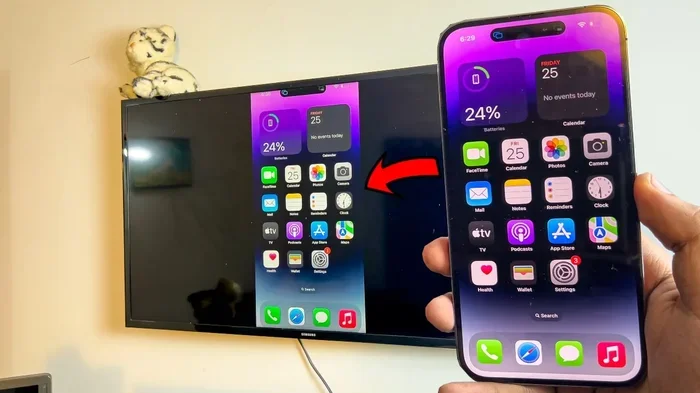
- Screen Mirroring Without Wi-Fi
- Controlling Apple TV Without Wi-Fi
- Common Mistakes People Make With Apple TV and Wi-Fi
- Expert Tips for the Best Apple TV Experience
- Conclusion
Understanding How Apple TV Works Without Wi-Fi
Apple TV relies heavily on an internet connection for most of its core features. Streaming services like Netflix, Hulu, Disney+, and Apple TV+ all need data to deliver content. However, the device itself can still do some things without a live Wi-Fi signal. Understanding these limitations is the first step to making the most of your setup.
When you lose your wireless connection, Apple TV switches to a limited mode. You can still access locally stored content, play music from synced libraries, and use certain apps that do not require constant internet access. The key is knowing what works and planning ahead.
What Still Works Without an Internet Connection
Even with no Wi-Fi signal, your Apple TV is not completely useless. Here are the features that remain functional:
- Playing downloaded content: Movies and shows you previously downloaded are available for offline viewing.
- Using the Apple TV remote: The remote uses Bluetooth, so it can still navigate menus without a wireless network.
- Playing local music: If you have synced music through iTunes, you can still listen to it.
- Accessing photo slideshows: Photos synced to your device can still be displayed.
- Playing games: Some downloaded games work without an active connection.
What Stops Working Without Wi-Fi
On the other hand, several features depend entirely on a working internet connection:
- Streaming from apps: Netflix, YouTube, and other services cannot load new content.
- AirPlay casting: Streaming from your iPhone or Mac to the TV requires a network.
- App updates: Any app on your Apple TV needs the internet to refresh.
- Siri voice commands: Siri needs data to process your requests.
- Browse the App Store: You cannot download new apps or content without a connection.
Knowing what works and what does not helps you plan better. If you expect a network outage, focus on the features that do not need internet.
Downloading Content for Offline Viewing
The easiest and most reliable way to watch content on Apple TV without Wi-Fi is to download it in advance. Both the Apple TV app and the iTunes Store support offline downloads for many movies and TV shows.
How to Download Movies and Shows
Follow these simple steps to save content for later:
- Open the Apple TV app on your device.
- Browse or search for the movie or show you want.
- Look for the download icon, which looks like a downward arrow.
- Tap or click the icon to start the download.
- Once downloaded, the content appears in your Library section.
You can download content on your iPhone, iPad, or computer and then sync it to Apple TV. This is especially useful if you know you will be traveling or if your internet service tends to go out regularly.
Which Services Support Offline Downloads?
Not all streaming services allow offline viewing. Here is a quick comparison of popular platforms:
- Apple TV+: Full offline download support for all original content.
- Netflix: Allows downloads on mobile devices but not directly through Apple TV.
- Disney+: Supports downloads on phones and tablets, not on the Apple TV device itself.
- Amazon Prime Video: Limited offline support, mostly through mobile apps.
- iTunes Store: Full purchase and download support for movies and shows.
The best approach is to purchase or rent content through the iTunes Store and download it directly to your Apple TV. This gives you the most reliable offline access.
Using a Personal Hotspot as a Wi-Fi Alternative
If you need live streaming and your home Wi-Fi is down, a personal hotspot can save the day. Your iPhone or another smartphone can share its cellular data connection with your Apple TV.
Setting Up a Hotspot for Apple TV
Here is how to get your hotspot running quickly:
- Open the Settings app on your iPhone.
- Tap Personal Hotspot and turn it on.
- Set a password for the hotspot network.
- On your Apple TV, go to Settings > Network.
- Select your iPhone hotspot from the list of available networks.
- Enter the password and connect.
Once connected, your Apple TV will use your phone’s cellular data to stream content. This works well for most standard-quality streams. However, keep an eye on your data usage because streaming video can consume a lot of data quickly.
Hotspot Tips for Better Performance
- Use 5G if available: Faster cellular speeds mean better streaming quality.
- Lower the streaming quality: Reducing resolution from 4K to 1080p saves data.
- Monitor your data plan: Check with your carrier about hotspot data limits.
- Keep your phone charged: Hotspot usage drains battery fast, so plug it in.
- Stay close: Keep your phone near the Apple TV for a stronger signal.
A hotspot is not a long-term solution, but it works great in emergencies or when you are away from home. If you find yourself relying on this method often, you might want to consider boosting your Wi-Fi at home to avoid future outages.
Wired Connections: Ethernet and Alternatives
For the most stable connection, a wired option beats wireless every time. Apple TV supports Ethernet connections through a USB-C to Ethernet adapter on newer models. This gives you a reliable, fast internet connection without depending on Wi-Fi signals.
Setting Up Ethernet on Apple TV
Here is what you need to do:
- Get a compatible USB-C to Ethernet adapter.
- Plug the adapter into the USB-C port on your Apple TV.
- Connect an Ethernet cable from your router to the adapter.
- Go to Settings > Network on Apple TV.
- The device should automatically detect the wired connection.
A wired connection gives you faster speeds and more stable performance. It is ideal for 4K streaming and for households where the wireless signal is weak in certain rooms.
Other Wired Alternatives
If Ethernet is not an option, consider these alternatives:
- Powerline adapters: These use your home’s electrical wiring to carry network signals.
- MoCA adapters: These use your existing coaxial TV cables for networking.
- Mesh Wi-Fi systems: These extend your wireless coverage to every room.
Each option has its pros and cons. Ethernet is the most reliable, but powerline adapters can be a good compromise if running cables is not practical.
Screen Mirroring Without Wi-Fi
One of the most common questions is whether you can mirror your screen to Apple TV without a Wi-Fi network. The answer depends on the method you use.
Using Wi-Fi Direct for Screen Mirroring
Some devices support Wi-Fi Direct, which allows two devices to connect directly without a router. This can work for screen mirroring in certain situations. You do not need a traditional wireless network to establish a direct connection between your device and the TV.
For more details on how Wi-Fi Direct works for screen mirroring, you can check our guide on Can Wi-Fi Direct Be Used For Screen Mirroring. It covers the technical details and compatibility requirements.
Using HDMI and Other Wired Options
The most reliable way to get content on your TV without any wireless connection is through a physical cable. You can connect your iPhone, iPad, or Mac directly to the TV using an HDMI adapter. This bypasses all wireless requirements entirely.
- Lightning to HDMI adapter: Works with iPhones and iPads.
- USB-C to HDMI adapter: Works with newer iPads and MacBooks.
- Thunderbolt to HDMI: Best for Mac computers with Thunderbolt ports.
Wired connections give you the best quality and the most reliable performance. There is no signal buffering or dropped connections to worry about.
Controlling Apple TV Without Wi-Fi
Even when your Wi-Fi connection is down, you can still control your Apple TV. The device supports multiple input methods that do not rely on the internet.
Using the Apple TV Remote
The included Apple TV remote uses Bluetooth to communicate with the device. This means you can navigate menus, play content, and adjust settings even without a wireless network. The remote works independently of your internet connection.
Using Bluetooth Devices
You can also pair Bluetooth keyboards, game controllers, and headphones to your Apple TV. These devices work offline and give you more control over your viewing experience. A Bluetooth keyboard is especially handy for typing search queries when you reconnect to the internet.
If you are looking for more ways to manage your TV setup without relying on wireless, our article on How Can I Control My TV Without Wi-Fi has some great tips and tricks.
Common Mistakes People Make With Apple TV and Wi-Fi
Many users run into the same problems when dealing with Apple TV and internet connectivity. Avoid these common mistakes to save time and frustration.
Not Downloading Content Before You Need It
The biggest mistake is waiting until you lose your connection to start downloading. Always download content ahead of time. A slow download at the last minute means you might not have enough to watch.
Ignoring Data Limits on Hotspots
Streaming video through a hotspot can eat through your data plan quickly. A single hour of 4K streaming can use up to 7 GB of data. Always check your plan and adjust the streaming quality to avoid overage charges.
Assuming All Apps Work Offline
Not every app on Apple TV supports offline content. Streaming apps like Netflix and Hulu require an active connection to play. Only apps that explicitly offer download options will work without Wi-Fi.
Forgetting to Update Before Going Offline
App updates and system software updates need an internet connection. If you know you will be without Wi-Fi soon, run all updates first. An outdated system can cause compatibility issues with downloaded content.
Expert Tips for the Best Apple TV Experience
Getting the most out of your Apple TV means being prepared. Here are some expert tips that make a real difference:
- Set up automatic downloads: Enable automatic content downloads so new purchases sync across your devices.
- Use a mesh network: If your wireless signal is weak in certain rooms, a mesh system extends coverage evenly.
- Keep a backup hotspot plan: Know which phone plan you can use for tethering in an emergency.
- Organize your downloads: Keep a list of must-watch content so you can download it efficiently.
- Check your speeds regularly: Use a speed test to make sure your internet connection is performing well.
Taking a few minutes to prepare can save you from hours of frustration when your network goes down. A little planning goes a long way.
Conclusion
So, can you run Apple TV without Wi-Fi and still stream? The answer is yes, but it requires some preparation and the right approach. Downloading content ahead of time is the most reliable method. Using a personal hotspot works well for live streaming when you are on the go. A wired Ethernet connection provides the most stable experience. And controlling your device without internet is entirely possible through Bluetooth remotes and wired inputs.
The key takeaway is to plan ahead. Know what you want to watch, download it before you lose connection, and have a backup method ready. With the right setup, your Apple TV keeps working even when the wireless network fails. Stay prepared, and you will never miss a moment of your favorite content.
Frequently Asked Questions
Can I watch Netflix on Apple TV without Wi-Fi?
Netflix does not support direct downloads on the Apple TV device itself. However, you can download Netflix content on your phone or tablet and then cast it to your TV using a wired HDMI connection. This workaround lets you watch Netflix without a live Wi-Fi network.
Does Apple TV need Wi-Fi to set up?
Yes, the initial setup of Apple TV requires a Wi-Fi connection. You need the internet to sign in, update the software, and connect to your streaming apps. After setup, you can use many features offline, but the first-time configuration must happen online.
How much data does streaming on Apple TV use?
Streaming quality determines data usage. Standard definition uses about 1 GB per hour, while 4K streaming can use up to 7 GB per hour. If you are using a personal hotspot, keep an eye on your data plan to avoid extra charges.
Can I use Apple TV as a screen for my laptop without Wi-Fi?
You can connect your laptop to Apple TV using an HDMI adapter or through a wired Ethernet connection. AirPlay requires a Wi-Fi network, but a physical HDMI connection bypasses all wireless requirements entirely.
What happens when Apple TV loses Wi-Fi during streaming?
When the Wi-Fi connection drops, Apple TV pauses the stream and tries to reconnect. If the connection does not come back, the app may close or return to the home screen. Downloading content in advance prevents this issue.
Can I update Apple TV without Wi-Fi?
No, system updates and app updates require an active internet connection. Always run updates while your Wi-Fi network is working. If you anticipate losing internet soon, update your device before the connection goes down.