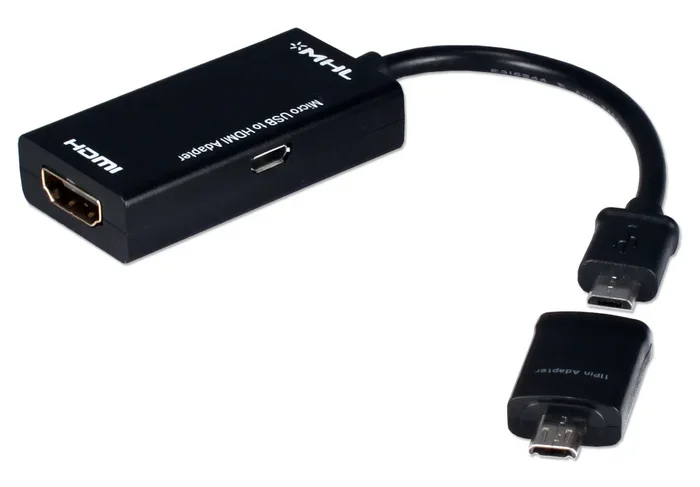
Can You Go From Micro USB To HDMI With These Adapters
Yes, you can go from Micro USB to HDMI with the right adapter or cable. This simple USB to HDMI adapter lets you mirror your phone or tablet screen to a larger display. Whether you want to watch videos, present slides, or play games on a TV, a Micro USB to HDMI adapter makes it possible and easy.
You have a device with a Micro USB port. You want to show something on a bigger screen. Maybe it is a presentation at work. Maybe it is a movie night with friends. Or perhaps you just want to browse the web on your TV. The question is simple: can you go from Micro USB to HDMI? The answer is yes. And it is easier than you think.
A Micro USB to HDMI adapter bridges the gap between your small device and a large display. You plug one end into your phone or tablet. You plug the other end into your TV. Within seconds, your screen appears on the bigger display. This guide walks you through everything you need to know. We cover the types of adapters, how to choose the right one, setup steps, and common problems. By the end, you will feel confident making this connection yourself.
Key Takeaways
- Simple Connection: A Micro USB to HDMI adapter lets you connect almost any device with a Micro USB port to an HDMI-ready TV or monitor.
- Two Main Types: You can choose between active adapters with built-in chips or passive cables, depending on your device needs.
- Plug and Play: Most adapters require no software or drivers, making setup quick and hassle-free.
- Check Compatibility: Not all Micro USB devices support video output, so verify your device specs before buying.
- Affordable Solution: These adapters are budget-friendly and eliminate the need for extra streaming hardware.
- Multiple Uses: From presentations to gaming and media streaming, the possibilities are vast.
📑 Table of Contents
What Is a Micro USB to HDMI Adapter?
A Micro USB to HDMI adapter is a small device that converts the signal from your Micro USB port into an HDMI signal. Think of it as a translator. Your phone speaks Micro USB. Your TV speaks HDMI. The adapter helps them understand each other. Once connected, your device sends video and audio through the adapter to the TV.
These adapters come in different shapes and sizes. Some are small cables with Micro USB on one end and HDMI on the other. Others are small boxes that you plug into your device and then connect an HDMI cable from the box to your TV. Both styles work well. The choice depends on your needs and your device.
How Does It Work?
The adapter contains a chip that handles signal conversion. This chip takes the digital data coming from your device’s Micro USB port and turns it into an HDMI signal. The HDMI signal then travels through the cable to your TV. Your TV displays the content just like it would from a streaming box or a gaming console.
Most adapters also carry audio. So you get both video and sound through a single connection. This is a big advantage over some older methods that required separate audio cables.
Can You Go From Micro USB To HDMI?
The short answer is yes. But there are a few things you need to know first. Not every Micro USB device supports video output. Some phones and tablets use the Micro USB port only for charging and data transfer. They do not send a video signal. So before you buy an adapter, check if your device supports what is called DisplayPort Alt Mode or MHL technology.
Understanding the Connection Types
There are a few connection standards you should be aware of. These standards determine whether your device can output video through Micro USB.
- MHL (Mobile High-Definition Link): This is the most common standard for Micro USB video output. Many Android phones from Samsung, Sony, and LG support MHL. You need an MHL-compatible adapter for this to work.
- DisplayPort Alt Mode: This is more common with USB-C ports, but some older Micro USB devices also support it. Check your device manual.
- Simple Charging Only: Some devices use Micro USB purely for charging. These devices cannot output video through the port. You would need a different solution.
To find out if your device supports video output, look up your model number online. The manufacturer website usually lists the supported features. You can also check your phone settings under “About Phone” or “Connected Devices.”
Types of Micro USB to HDMI Adapters
Not all adapters are the same. Different types serve different purposes. Understanding the options helps you pick the right one for your situation.
Active Adapters
An active adapter has its own built-in chip. This chip handles the signal conversion. Active adapters are the most common type for Micro USB to HDMI connections. They work with most MHL-supported devices. You plug the adapter into your phone, connect an HDMI cable, and you are good to go.
Active adapters often come with a USB power cable. This is because the chip needs extra power to convert the signal. Some phones can power the adapter through the Micro USB port. Others need a separate power source. Check the adapter specifications before you buy.
Passive Cables
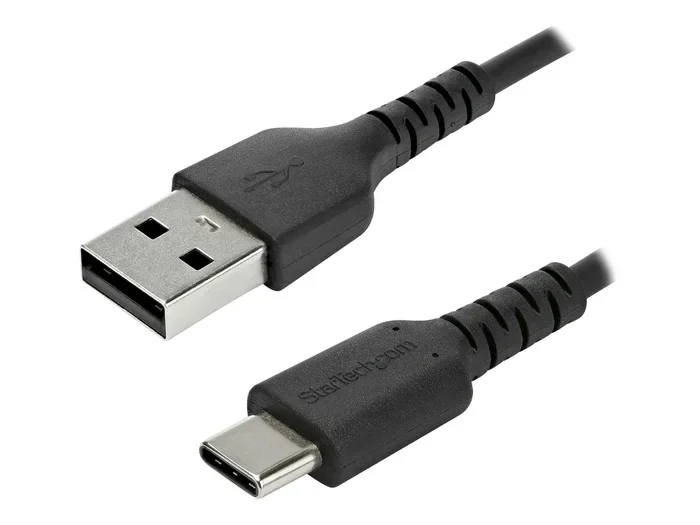
A passive cable has Micro USB on one end and HDMI on the other. It does not have a built-in chip. These cables work only with devices that can output a video signal natively through the Micro USB port. They are simpler and often cheaper. But they have limited compatibility compared to active adapters.
Adapter Dongles
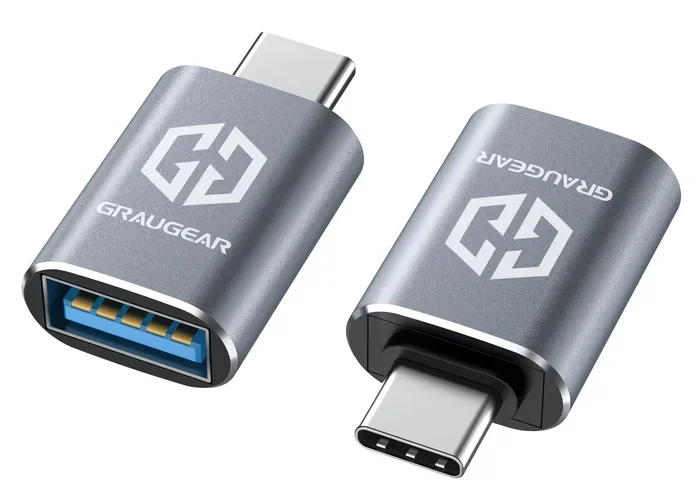
An adapter dongle is a small, pocket-sized device. You plug it into your phone. Then you connect an HDMI cable to the dongle. Dongles are great for travel because they are compact and easy to carry. Many people keep one in their bag for quick presentations or movie nights.
How to Choose the Right Adapter
Buying the wrong adapter is frustrating. You want to make sure you get the right one the first time. Here is what to look for.
Compatibility Checklist
- Check your device model: Make sure your phone or tablet supports video output through Micro USB.
- Look for MHL support: If your device supports MHL, buy an MHL-certified adapter for the best results.
- HDMI version: Make sure the adapter supports the HDMI version your TV uses. Most modern TVs use HDMI 1.4 or HDMI 2.0. An adapter that supports HDMI 1.4 handles 1080p resolution. HDMI 2.0 supports 4K resolution.
- Audio support: Make sure the adapter carries audio along with video. Most do, but it is worth checking.
- Power requirements: See if the adapter needs a separate power source. If it does, make sure you have a compatible USB power brick.
- Resolution support: Check the maximum resolution the adapter supports. If you want 1080p or 4K, make sure the adapter can handle it.
Brand Considerations
Many brands make Micro USB to HDMI adapters. Some are reliable. Others are cheap and break quickly. Stick with well-known brands or read reviews before purchasing. Brands like Cable Matters, UGREEN, and MOKiN have solid reputations for quality adapters. A good adapter lasts for years and gives you a stable connection every time.
Step-by-Step Setup Guide
Setting up your Micro USB to HDMI adapter is straightforward. Follow these steps and you will be watching your favorite content on the big screen in minutes.
Connecting Your Device to a TV
- Check your device: Make sure your phone or tablet supports video output through Micro USB. Look up your model online if you are unsure.
- Prepare your adapter: Unbox the adapter and check that all parts are included. You typically need the adapter, an HDMI cable, and sometimes a power cable.
- Plug in the adapter: Insert the Micro USB end of the adapter into your device. Push it in gently until it clicks into place.
- Connect the HDMI cable: Plug one end of the HDMI cable into the adapter. Plug the other end into an available HDMI port on your TV.
- Power the adapter if needed: If the adapter requires extra power, plug the USB power cable into a wall charger or a USB port on your TV.
- Switch your TV input: Use your TV remote to switch to the correct HDMI input. Look for the HDMI port number you plugged the cable into.
- Enable screen output: On some devices, you need to go to Settings and enable “Screen Output” or “HDMI Output” manually. Your device may also detect the connection automatically.
- Enjoy your content: Your phone screen should now appear on your TV. Adjust the resolution or display settings if needed.
Quick Tips for Best Results
- Use a high-quality HDMI cable for the best picture and sound.
- Keep your device plugged in during use. Screen mirroring drains battery quickly.
- Close background apps before mirroring. This frees up resources for a smoother experience.
- If the screen flickers, try a different HDMI cable or a different HDMI port on your TV.
- For presentations, turn off notifications on your phone to avoid interruptions.
Common Problems and How to Fix Them
Sometimes things do not work the first time. That is normal. Here are the most common issues and how to solve them.
No signal on the TV: This is the most common problem. First, check that all cables are firmly connected. Then make sure your TV is on the correct HDMI input. If the adapter needs power, make sure it is plugged in. Finally, check your phone settings to see if screen output is enabled.
Black screen: A black screen often means your device does not support MHL or video output through Micro USB. Check your device specifications. If it does not support video output, you may need a different type of adapter or a different connection method.
No audio: If you get video but no sound, check your TV audio settings. Make sure the TV is set to use the HDMI audio output. On some devices, you may need to go into sound settings and select the HDMI output as the audio source.
Flickering or distorted image: This usually means the HDMI cable is low quality or damaged. Try a different cable. Also, make sure the adapter is fully seated in the port. A loose connection causes flickering.
Adapter gets hot: Some heat is normal, especially with active adapters. But if it is too hot to touch, unplug it and let it cool down. Overheating can damage your device. Consider getting an adapter with better heat dissipation or one that includes a power supply.
When to Consider Other Options
Sometimes a Micro USB to HDMI adapter is not the best solution. If your device does not support video output through Micro USB, you have other options. Wireless casting devices like Chromecast or Roku let you stream content from your phone to your TV without any cables. These are great for people who want a clean setup with no wires.
For those looking to cut the cord on traditional cable TV and explore streaming options that work with your TV setup, there are many affordable alternatives available today. You can also look into alternatives to Dish Network and DirectTV if you are considering switching from traditional cable to streaming services. Many of these services work well with a TV connected to your phone or tablet through an HDMI adapter.
If your device has a USB-C port instead of Micro USB, a USB-C to HDMI adapter is a better choice. USB-C is newer and more versatile. It supports video output on almost all modern devices. If you are upgrading your device, consider choosing one with USB-C for future-proofing your setup.
Final Thoughts
Going from Micro USB to HDMI is simple and practical. A good adapter opens up a world of possibilities. You can watch movies on a big screen. You can give presentations without a projector. You can play mobile games with better visuals. The key is choosing the right adapter for your device and using it correctly.
Always check your device compatibility first. Pick an adapter that supports your resolution needs. Follow the setup steps carefully. And do not be afraid to troubleshoot if something does not work right away. With the right Micro USB to HDMI adapter, your TV becomes an extension of your device. You get a bigger screen, better sound, and a more enjoyable experience.
These adapters are affordable, easy to use, and incredibly useful. Whether you are at home, at work, or on the go, a USB to HDMI adapter is a small tool that makes a big difference. Keep one in your bag. Keep one at your desk. You will be glad you did.
Frequently Asked Questions
Do all phones with Micro USB support HDMI output?
No, not all phones with Micro USB support video output. Some devices use Micro USB only for charging and data transfer. Check if your phone supports MHL or DisplayPort Alt Mode before buying an adapter. Look up your device model online or check the manufacturer website for details.
Can I use a Micro USB to HDMI adapter with an iPhone?
No, iPhones do not use Micro USB. Apple devices use Lightning or USB-C ports. You need a different adapter for iPhones. For Lightning devices, use a Lightning to HDMI adapter. For newer iPhones with USB-C, use a USB-C to HDMI adapter.
Do I need any special software to use a Micro USB to HDMI adapter?
Most adapters work without any software. They are plug and play. Just connect the adapter, plug in the HDMI cable, and switch your TV to the correct input. Some older devices may require you to enable screen output in the settings menu, but no app download is needed.
Can I watch 4K content with a Micro USB to HDMI adapter?
Most Micro USB to HDMI adapters support up to 1080p resolution. Very few support 4K. If you need 4K output, consider upgrading to a device with USB-C and buying a USB-C to HDMI 2.0 adapter. Check the adapter specifications before purchasing to confirm the maximum resolution it supports.
Why does my adapter need a separate power cable?
Active adapters have a built-in chip that converts the signal. This chip needs power to work. Some devices can supply enough power through the Micro USB port. Others cannot. In that case, the adapter includes a USB power cable that you plug into a wall charger or a USB port on your TV for extra power.
Are Micro USB to HDMI adapters expensive?
No, these adapters are very affordable. Most quality adapters cost between $10 and $30. You can find them online or at electronics stores. Spending a little more on a well-known brand often gets you a more reliable and durable adapter that lasts longer.
=== CONCLUSION ===
A Micro USB to HDMI adapter is one of the most useful and affordable accessories you can own. It turns any HDMI-ready TV into a second screen for your phone or tablet. The setup is simple, the cost is low, and the benefits are huge. Whether you need it for work, entertainment, or gaming, this small adapter delivers big results. Choose a compatible adapter, follow the setup steps, and enjoy your content on the big screen today.