Can You Upgrade Laptop Gpu And Is It Worth The Effort
Can you upgrade laptop gpu? The short answer is yes, but it depends on your laptop model and design. Most slim laptops have soldered GPUs that cannot be replaced, while some gaming and workstation laptops support MXM graphics cards or external GPU enclosures. This guide walks you through every option, the pros and cons, and whether upgrading your laptop graphics card is actually worth your time and money.
You bought a laptop a few years ago. It served you well. But now the games feel laggy, the rendering takes forever, and you wonder if there is a way to breathe new life into the machine. The question that keeps popping up is simple: can you upgrade laptop gpu?
The answer is not a straightforward yes or no. It depends on your laptop model, its design, and what kind of upgrade path it supports. Some laptops let you swap the graphics card easily. Most do not. But there are workarounds, and some of them are genuinely impressive.
In this guide, we will explore every angle of upgrading a laptop graphics card. We will talk about internal upgrades, external GPU enclosures, MXM modules, and whether the whole effort is worth it. By the end, you will know exactly where you stand and what your options are.
Key Takeaways
- Most laptops cannot upgrade the GPU: The majority of modern laptops have the graphics chip soldered to the motherboard, making replacement impossible.
- eGPU enclosures offer a powerful workaround: An external GPU connects via Thunderbolt 3 or 4 and delivers desktop-class graphics performance to your laptop.
- MXM cards are a rare but real upgrade path: Some gaming and workstation laptops use MXM modules that can be swapped out for a better GPU.
- Upgrading a laptop GPU is often not cost-effective: The cost of an eGPU or MXM card may rival or exceed the price of buying a new laptop with a better GPU.
- Check compatibility before buying anything: Not every laptop supports external graphics or MXM modules, so verify your model first.
- Integrated graphics can still handle many tasks: If you only game casually or do light creative work, your current setup may be sufficient.
📑 Table of Contents
- Understanding How Laptop GPUs Work
- Can You Upgrade Laptop Gpu — The Full Picture
- External GPU — The Best Alternative
- MXM Graphics Cards — The Upgradeable Module Option
- How To Know If Your Laptop Supports GPU Upgrades
- Is Upgrading Your Laptop GPU Worth The Effort?
- Common Mistakes People Make When Trying To Upgrade a Laptop GPU
- Conclusion
Understanding How Laptop GPUs Work
Before diving into upgrades, it helps to understand what a GPU does and how it fits inside a laptop. The graphics processing unit handles everything visual on your screen. From browsing the web to running complex 3D renders, the GPU is the workhorse behind it all.
Integrated vs Dedicated Graphics
Laptops use one of two types of graphics. Integrated graphics share memory with the CPU. They are built into the processor and use very little power. They are great for everyday tasks like email, video calls, and streaming videos.
Dedicated graphics have their own separate memory and cooling system. They are designed for heavy lifting. Gaming, video editing, 3D modeling, and machine learning all benefit from a dedicated graphics card. Most gaming laptops and mobile workstations come with a discrete GPU from NVIDIA or AMD.
Why Laptop GPUs Are Different From Desktop GPUs
A desktop GPU has plenty of space, power, and cooling. A laptop GPU must fit into a tiny chassis, run on battery power, and stay cool without noisy fans. Because of these constraints, laptop GPUs are designed differently.
- Lower power consumption: Laptop GPUs use less wattage than their desktop counterparts.
- Compact size: They are physically smaller and soldered onto the motherboard.
- Thermal limits: The cooling system in a laptop restricts how much heat the GPU can dissipate.
- Shared memory: Some integrated GPUs share system RAM, which limits their performance.
These differences are important because they directly affect whether you can upgrade a laptop GPU. The design choices that make laptops thin and portable also make GPU upgrades difficult.
Can You Upgrade Laptop Gpu — The Full Picture
So, can you upgrade laptop gpu directly? The honest answer is: in most cases, no. But there are exceptions. Let us break this down clearly.
The Soldered GPU Reality
The vast majority of modern laptops have the GPU soldered directly to the motherboard. This means the graphics chip is permanently attached. You cannot simply pull it out and plug in a better one. This applies to:
- Most ultrabooks and thin-and-light laptops
- Apple MacBook laptops
- Budget and mid-range laptops
- Most business and productivity laptops
If your laptop has a soldered GPU, there is no internal upgrade path. You are stuck with what you have. The only way to get better graphics performance is to use an external solution or replace the entire laptop.
The Rare Upgradeable Laptop GPU
Some laptops are built with upgradeability in mind. These are typically larger gaming laptops or mobile workstations. They use a socket or module system that allows you to swap out the GPU. The most common standard for this is MXM, which we will cover in detail later.
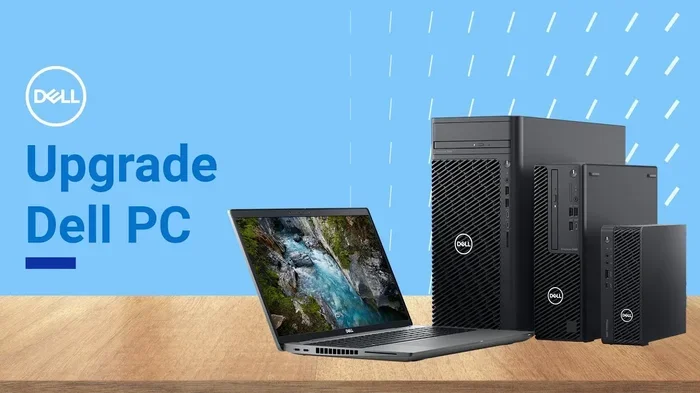
Brands like Clevo, some MSI models, certain Dell Precision mobile workstations, and select ASUS ROG laptops have offered upgradeable laptop gpu options in the past. However, even among these, compatibility is limited to specific GPU generations and models.
What Happens If You Try To Upgrade a Soldered GPU?
Some people wonder if they can desolder the old GPU and solder a new one in place. This is technically possible but extremely risky. It requires specialized equipment, advanced soldering skills, and a deep understanding of the laptop’s board design.
One mistake can destroy the motherboard entirely. Even experienced technicians rarely attempt this because the cost of failure is too high. We do not recommend this approach unless you are a professional with the right tools and a backup plan.
External GPU — The Best Alternative
If you cannot upgrade the GPU inside your laptop, the next best option is an external GPU, commonly known as an eGPU. This is a desktop graphics card housed in an external enclosure that connects to your laptop through a cable.
How Does an eGPU Work?
An eGPU setup consists of three parts. First, there is the enclosure, which is basically a small desktop case with a power supply and a PCIe slot. Second, you install a desktop graphics card inside the enclosure. Third, you connect the enclosure to your laptop using a Thunderbolt 3 or Thunderbolt 4 cable.
The connection allows the laptop to communicate with the external graphics card. Your laptop essentially uses the eGPU as its primary graphics source. The result is a massive boost in graphics performance.
Benefits of Using an eGPU
- Massive performance gains: You can use high-end desktop GPUs like the NVIDIA RTX 4070 or 4080 in a laptop that originally had a weak graphics card.
- Future-proofing: When a new generation of graphics cards comes out, you can simply swap the card inside the enclosure.
- Dual-purpose use: The eGPU enclosure can also serve as a desktop workstation when the laptop is docked.
- No internal modification: Your laptop stays intact. Nothing is soldered, removed, or risked.
- Portability with power: You can disconnect the eGPU when you need to go mobile and reconnect it when you are at your desk.
Limitations to Keep in Mind
eGPUs are not perfect. There are some real limitations you should know about before investing in one.
- Bandwidth bottleneck: Thunderbolt 3 has a bandwidth of about 40 Gbps, which is less than a direct PCIe connection. This means you lose some performance compared to the same GPU in a desktop.
- Cost: A quality eGPU enclosure costs $200 to $400 on its own. Add a graphics card and the total can easily reach $800 to $1500.
- Compatibility: Your laptop must have a Thunderbolt 3 or 4 port. Not all laptops do, and some require specific BIOS settings to enable eGPU support.
- Setup complexity: Installing drivers, configuring display settings, and troubleshooting connection issues can be frustrating for non-technical users.
- Gaming performance: Some games show a 10 to 20 percent performance loss compared to the same GPU in a desktop due to the Thunderbolt bottleneck.
Popular eGPU Enclosures
When shopping for an eGPU enclosure, look for models with good airflow, a quality power supply, and a Thunderbolt 3 or 4 connection. Some popular options include the Razer Core X, the Sonnet eGPU Breakaway Box, and the OWC Thunderbolt Dock.
MXM Graphics Cards — The Upgradeable Module Option
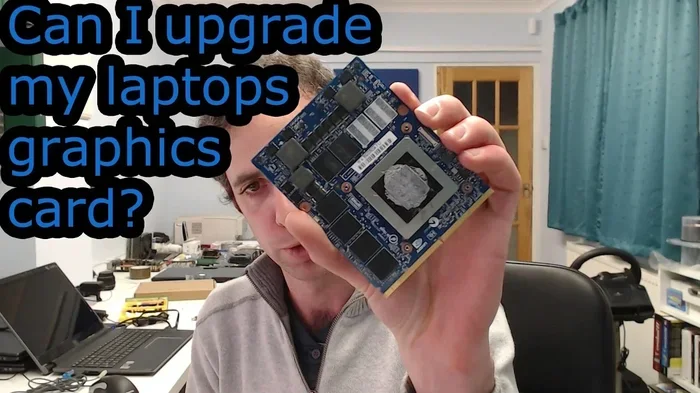
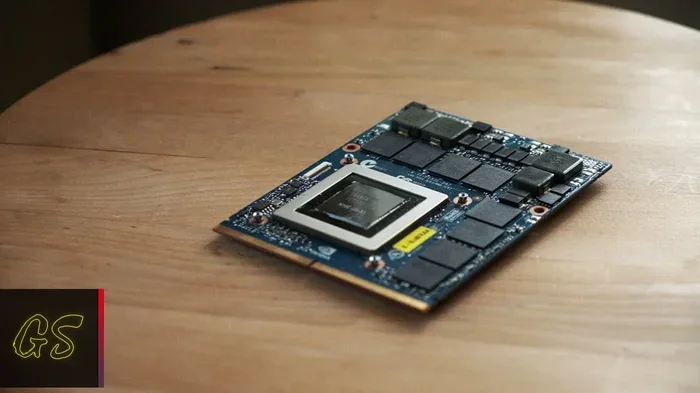
MXM stands for Mobile PCI Express Module. It is a standardized format for laptop graphics cards that are designed to be replaceable. MXM cards plug into a socket on the laptop motherboard, similar to how desktop GPUs plug into a PCIe slot.
What Is an MXM GPU?
An MXM card is essentially a mobile version of a desktop GPU built to a specific form factor. It has its own cooler, memory, and circuit board. You can remove the old MXM card and insert a newer or more powerful one, provided your laptop supports MXM.
This is the closest thing to a true laptop gpu replacement that exists. It gives you the ability to upgrade the graphics without replacing the entire laptop.
Laptops That Support MXM
MXM support is not common in consumer laptops. It is mostly found in:
- High-end gaming laptops from brands like Clevo and some MSI models
- Mobile workstations from Dell Precision, HP ZBook, and Lenovo ThinkPad P series
- Custom-built laptops from boutique manufacturers
Even among MXM-compatible laptops, not all models use the same MXM version. MXM has gone through several revisions, including MXM 2.0, 3.0, and 3.1. You need to match the MXM type and version to your laptop’s slot for compatibility.
Pros and Cons of MXM Upgrades
MXM upgrades sound great on paper, but they come with trade-offs.
- Pros: You get a real internal GPU upgrade. The performance is better than an eGPU because there is no Thunderbolt bottleneck. You can keep your existing laptop chassis and other components.
- Cons: MXM GPUs are expensive and harder to find than desktop cards. Compatibility is limited to specific laptop models. The upgrade options are restricted to what was available in the MXM ecosystem. Cooling in the laptop may not handle a more powerful MXM card without thermal issues.
Where To Find MXM Cards
MXM cards are not sold at your local electronics store. You need to shop from specialized retailers like MXMStore, AIB partners, or refurbished hardware dealers. Prices vary widely based on the GPU generation and model.
How To Know If Your Laptop Supports GPU Upgrades
Before spending any money, you need to determine whether your specific laptop can be upgraded. Here is how to check.
Step 1: Check Your Laptop Model and Specifications
Find your exact laptop model number. You can usually find this on a sticker on the bottom of the laptop or by running a system information tool. Once you have the model number, search online for its specifications and upgrade options.
Step 2: Look for Thunderbolt or eGPU Support
Check if your laptop has a Thunderbolt 3 or 4 port. Look for the lightning bolt icon next to the port. If it does, your laptop can potentially support an eGPU. Some laptops also list eGPU compatibility in their official specifications.
Step 3: Check for MXM Support
Search for your laptop model along with the word “MXM.” Visit forums, the manufacturer’s website, and teardown videos on YouTube. If your laptop has an MXM slot, you will find documentation or community guides about it.
Step 4: Consult the Manufacturer
If you cannot find clear information online, contact the laptop manufacturer’s customer support. Ask directly whether your model supports GPU upgrades or external graphics. Be specific about your model number and ask about both internal and external options.
Quick Tips for Checking Compatibility
- Use tools like GPU-Z to identify your current graphics card and its specifications.
- Check your laptop’s BIOS settings for any eGPU or external display options.
- Read user forums and Reddit threads for real-world experiences with GPU upgrades on your model.
- Do not assume that because a laptop has a dedicated GPU, it is upgradeable.
Is Upgrading Your Laptop GPU Worth The Effort?
This is the big question, and the answer depends on your situation. Let us weigh the pros and cons honestly.
When It Is Worth It
Upgrading your laptop GPU makes sense in a few specific scenarios.
- You have a high-end laptop with an MXM slot: If your laptop supports MXM and you can find a compatible card at a reasonable price, the upgrade can extend your laptop’s life by several years.
- You already own a Thunderbolt-compatible laptop: If you have a Thunderbolt port and a quality eGPU enclosure is within budget, the performance boost is significant and reversible.
- Your laptop is otherwise great: If the rest of the laptop — the display, keyboard, battery, storage, and CPU — still meets your needs, upgrading the GPU can make it feel like a new machine.
When It Is Not Worth It
There are also clear situations where a GPU upgrade is a waste of money.
- Your laptop has a soldered GPU and no Thunderbolt: There is no viable upgrade path. Your money would be better spent on a new laptop.
- The cost of the upgrade exceeds 50 percent of a new laptop price: If an eGPU setup or MXM card costs more than half of what a new laptop with a better GPU would cost, buy the new laptop instead.
- Your needs are modest: If you only use your laptop for browsing, office work, and light media consumption, integrated graphics are perfectly fine. An upgrade would be overkill.
- Your laptop is already several generations old: Even with a better GPU, an old CPU, slow RAM, and an aging SSD will hold back your overall performance.
Cost Comparison: Upgrade vs Replace
Here is a simple comparison to help you decide.
| Scenario | Estimated Cost | Performance Gain |
|---|---|---|
| Buy a new laptop with a better GPU | $800 – $2000 | Large, full-system improvement |
| Buy an eGPU enclosure + desktop GPU | $800 – $1500 | Large graphics boost, but with some bandwidth loss |
| Buy an MXM GPU upgrade | $400 – $1000 | Moderate to large boost, depends on laptop cooling |
| Keep current laptop and optimize settings | $0 | Small, free improvement |
As you can see, the cost of upgrading a laptop GPU can be substantial. In many cases, the money is better spent on a new laptop that comes with a modern GPU built in.
Expert Insight
From a practical standpoint, most laptop users are better off with an eGPU if they need better graphics and are not ready to buy a new laptop. It is the safest, most flexible, and most cost-effective upgrade path for the majority of users. MXM upgrades are niche and only make sense for specific laptop models with strong community support.
Common Mistakes People Make When Trying To Upgrade a Laptop GPU
Before you jump into a laptop GPU upgrade, learn from the mistakes others have made.
Assuming All Laptops Can Be Upgraded
The biggest mistake is assuming that every laptop has an upgradeable GPU. As we have covered, most laptops do not. Always verify your specific model before buying any hardware.
Ignoring Cooling Limitations
Even if you manage to install a more powerful GPU, your laptop’s cooling system may not handle it. Thermal throttling can cause the new GPU to perform worse than expected. Overheating can also damage other components over time.
Overlooking the CPU Bottleneck
A powerful GPU is only as good as the rest of the system allows it to be. If your laptop has an older CPU, it may bottleneck the new GPU. The graphics card will not reach its full potential if the processor cannot feed it data fast enough.
Buying the Wrong eGPU Enclosure
Not all eGPU enclosures are created equal. Some lack proper power delivery, good ventilation, or reliable Thunderbolt connectivity. Always buy from reputable brands and read reviews before purchasing.
Forgetting About Drivers and Software
Setting up an eGPU involves more than just plugging it in. You may need to update your laptop BIOS, install specific drivers, configure display settings, and sometimes even modify the Windows registry. Skipping this research can lead to frustration.
Key Takeaways Before You Start
- Always research your specific laptop model first.
- Know what type of GPU your laptop uses and whether it is upgradeable.
- Consider the total cost, including the enclosure, card, cables, and any adapters.
- Be prepared for some trial and error, especially with eGPU setups.
- Have a backup plan in case the upgrade does not work as expected.
Conclusion
So, can you upgrade laptop gpu? The answer is more nuanced than a simple yes or no. For most laptop owners, the internal GPU is soldered in place and cannot be replaced. However, there are real alternatives. External GPU enclosures offer a powerful and flexible way to boost graphics performance using a Thunderbolt connection. MXM modules provide a true internal upgrade path for a select number of gaming and workstation laptops.
Whether upgrading your laptop graphics card is worth the effort depends on your budget, your laptop model, and what you hope to achieve. If you have a Thunderbolt-compatible laptop and the budget for an eGPU setup, the performance gains can be substantial. If your laptop supports MXM and you find a compatible card at a fair price, that is also a solid path forward.
But if your laptop has a soldered GPU and no external options, it may be time to consider a new machine. Technology moves fast, and the cost of upgrading often approaches the cost of replacing.
The bottom line is this: know your laptop, understand your options, and make an informed decision. The right choice for someone else may not be the right choice for you. Weigh the costs, the effort, and the expected results. Then decide what makes the most sense for your needs and your wallet.
Frequently Asked Questions
Can I upgrade the GPU in any laptop?
No, most laptops cannot be upgraded internally because the GPU is soldered to the motherboard. Only specific gaming and workstation laptops with MXM slots or Thunderbolt ports for eGPU support offer upgrade paths. Always check your laptop model first.
What is an eGPU and how does it work with a laptop?
An eGPU is an external graphics card housed in a desktop-style enclosure. It connects to your laptop through a Thunderbolt 3 or 4 cable. The laptop uses the external GPU for graphics tasks, delivering much better performance than the built-in GPU.
Is an eGPU as fast as a desktop GPU?
An eGPU is slightly slower than the same GPU in a desktop because the Thunderbolt connection has lower bandwidth than a direct PCIe slot. You can expect a 10 to 20 percent performance loss compared to a desktop setup with the same graphics card.
How much does it cost to upgrade a laptop GPU with an eGPU?
A basic eGPU enclosure costs around $200 to $400. Adding a mid-range graphics card brings the total to $800 to $1200. High-end setups with powerful GPUs can reach $1500 or more, depending on the card you choose.
Can I use an eGPU with any laptop?
No, your laptop must have a Thunderbolt 3 or Thunderbolt 4 port to use an eGPU. Not all laptops have these ports, and some may require specific BIOS settings to enable external GPU support. Check your laptop specifications before purchasing.
Is it better to buy a new laptop instead of upgrading the GPU?
In most cases, yes. A new laptop with a modern GPU will offer better overall performance than upgrading an older laptop. The cost of an eGPU or MXM upgrade often approaches the price of a new laptop, and you also get improvements in the CPU, RAM, display, and battery life.
=== CONCLUSION ===
Can you upgrade laptop gpu is a question with no single answer. The truth is that most laptops are not designed for internal GPU upgrades. But with the rise of eGPU technology and the continued availability of MXM modules, there are paths forward for those who need better graphics performance.
Weigh your options carefully. Consider your budget, your laptop’s capabilities, and what you need the extra graphics power for. Whether you choose an external graphics card, an MXM upgrade, or decide to invest in a new laptop, the most important thing is making a choice that fits your needs.
Upgrade your laptop GPU if it makes sense for you. Otherwise, know when it is time to move on to a machine that is ready for the future.