Can You Upgrade The Graphics Card In A Laptop And How
Yes, you can upgrade the graphics card in a laptop, but it depends on your model and design. Most laptops have soldered GPUs, which means no direct upgrade is possible. However, you can use an external GPU, optimize drivers, or choose a laptop with a removable graphics card for a real performance boost.
Can you upgrade the graphics card in a laptop? This is one of the most common questions tech users ask. The short answer is: it depends. Some laptops let you swap out the graphics card easily. Others have the GPU soldered right to the motherboard, making upgrades impossible. In this guide, we will walk you through every option available. Whether you are a gamer, a creative professional, or just someone who wants better visuals, this article covers it all.
We will explore external GPU enclosures, MXM modules, driver updates, and more. You will learn what is realistically possible for your specific machine. By the end, you will know exactly what steps to take. No fluff, no filler, just clear and practical advice you can use today.
Key Takeaways
- Most laptops cannot upgrade the internal GPU: The graphics card is usually soldered onto the motherboard.
- External GPUs (eGPUs) are the best workaround: They connect via Thunderbolt and deliver near-desktop performance.
- Some gaming laptops allow GPU replacement: A few models use MXM modules, but this is rare and expensive.
- Driver updates and optimization can help: Sometimes a software fix improves graphics performance without hardware changes.
- Buying a new laptop is often more practical: Modern laptops with dedicated graphics cards offer better value than upgrade costs.
- Check your laptop model first: Not all laptops support the same upgrade paths, so research is essential.
📑 Table of Contents
- Why Upgrading a Laptop Graphics Card Is Different from a Desktop
- Can You Upgrade The Graphics Card In A Laptop With an External GPU?
- Which Laptops Allow Internal GPU Upgrades?
- What If Your Laptop Has Integrated Graphics?
- How to Check If Your Laptop GPU Can Be Upgraded
- Alternative Ways to Improve Laptop Graphics Performance
- Expert Insights on Laptop GPU Upgrades
- Common Mistakes People Make When Trying to Upgrade Laptop GPUs
- The Future of Laptop Graphics Upgrades
- Final Thoughts
Why Upgrading a Laptop Graphics Card Is Different from a Desktop
Desktop computers are built with upgradeability in mind. You can open the case, pull out an old card, and slot in a new one. Laptops work very differently. The entire system is designed to be compact and portable. Every component is packed tightly together. This design choice affects how you can upgrade your machine.
In a desktop, the graphics card connects through a standard PCIe slot. It draws power from a dedicated supply. Cooling is handled by large fans and open airflow. Laptops have none of that luxury. Space is limited. Power budgets are strict. Cooling systems are tiny. Because of these constraints, laptop manufacturers make different choices about how to handle the GPU.
Soldered vs. Removable GPUs
Most modern laptops use a soldered GPU. This means the graphics chip is glued directly onto the motherboard. You cannot remove it. You cannot replace it. It is permanent. This approach saves space and reduces power draw. It also keeps manufacturing costs lower.
Some older laptops and certain gaming models use removable GPUs. These connect through a socket or a module system. You can take the old card out and insert a new one. This is much closer to the desktop experience. However, removable laptop GPUs are becoming rare. Most new machines use soldered chips.
Can You Upgrade The Graphics Card In A Laptop With an External GPU?
This is where things get interesting. An external GPU, or eGPU, is a graphics card housed in an external enclosure. It connects to your laptop through a cable. The eGPU handles all the heavy visual work. Your laptop simply displays the output. This setup can dramatically boost your graphics performance.
An eGPU setup includes three main parts. First, you need an enclosure. This is a box that holds the graphics card and its own power supply. Second, you need a compatible graphics card. You can choose from NVIDIA GeForce or AMD Radeon models. Third, you need a connection cable. This is usually a Thunderbolt 3 or Thunderbolt 4 cable.
How eGPUs Work
The Thunderbolt connection carries data between the laptop and the eGPU. It sends frames back and forth very quickly. The eGPU does all the rendering. Then it sends the finished image to your laptop screen. The result is much smoother graphics. Games run better. Video editing is faster. 3D modeling becomes more responsive.
Here is a quick look at what you need for an eGPU setup:
- Thunderbolt 3 or 4 port: This is essential. Without it, you cannot connect an eGPU. Check your laptop specifications first.
- eGPU enclosure: These range from $200 to $500. They come in different sizes and with different cooling designs.
- A graphics card: Choose one that fits your budget and needs. The NVIDIA RTX series is very popular for eGPUs.
- Power supply: The enclosure has its own power brick. You do not need to worry about draining your laptop battery.
Pros and Cons of Using an eGPU
Let us be honest about the trade-offs. eGPUs are not perfect. They have real advantages and real limitations. Here is a balanced look.
Pros:
- You get desktop-level graphics performance.
- You can upgrade the graphics card anytime by swapping it out.
- Your laptop stays portable. You only connect the eGPU when you need it.
- It works with most laptops that have Thunderbolt ports.
Cons:
- The Thunderbolt connection has a bandwidth limit. It is slower than a direct PCIe slot.
- eGPU enclosures are expensive. You are paying for the housing and power supply.
- Setup can be complicated for non-tech users.
- Some laptops do not support eGPU display output properly.
Which Laptops Allow Internal GPU Upgrades?
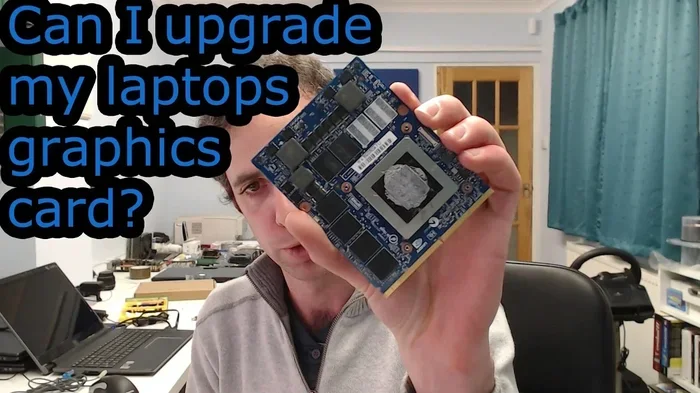
Not all hope is lost for internal upgrades. A small number of laptops actually let you replace the graphics card. These are usually high-end gaming machines or mobile workstations. They use a special format called MXM, which stands for Mobile PCI Express Module.
MXM graphics cards are built to a standard size. They plug into a socket on the motherboard. You can remove the old card and insert a new one. This is the closest thing to a desktop upgrade experience in a laptop. However, MXM laptops are uncommon. They are also expensive. And the selection of available MXM cards is limited.
Popular MXM-Compatible Laptop Brands
A few brands have embraced the MXM standard over the years. Here are some names to look for:
- Dell Precision mobile workstations: These are designed for professionals who need upgradeable hardware.
- Lenovo ThinkPad P series: Some models support MXM graphics cards.
- Clevo laptops: These are barebone gaming laptops that often feature MXM slots.
- Some older MSI and ASUS gaming models: Check specific model numbers before assuming compatibility.
If you are considering an MXM upgrade, do your research carefully. Not every model from these brands uses MXM. Check the exact specifications. Also, make sure the new card fits your laptop’s thermal design. A more powerful GPU may generate more heat. Your cooling system needs to handle that.
What If Your Laptop Has Integrated Graphics?
Many laptops come with integrated graphics. These are GPUs built into the processor itself. They share memory with the CPU. They are not separate cards. Examples include Intel UHD Graphics and Intel Iris Xe. AMD also has integrated options like Radeon Vega and Radeon Graphics.
Integrated graphics are fine for everyday tasks. They handle web browsing, video streaming, and office work well. But they struggle with gaming and heavy creative work. If you have integrated graphics, you cannot upgrade them. The GPU is part of the processor chip. You would need to replace the entire CPU to change it.
So what can you do? Here are some practical steps:
- Adjust in-game settings: Lowering resolution and graphics quality helps a lot.
- Update your graphics driver: New drivers often improve performance significantly.
- Use an eGPU: This is the best way to add dedicated graphics to an integrated-only laptop.
- Close background apps: Free up system resources for your graphics-heavy tasks.
How to Check If Your Laptop GPU Can Be Upgraded
Before spending any money, you need to know what your laptop supports. Here is a simple process to follow. It will save you time and frustration.
Step 1: Check your laptop model. Look up the exact model number. Search online for whether it has a soldered or removable GPU. The manufacturer’s website is a good starting point.
Step 2: Look for a Thunderbolt port. If your laptop has Thunderbolt 3 or 4, an eGPU is an option. Check the ports on your laptop. The Thunderbolt symbol looks like a lightning bolt.
Step 3: Check for an MXM slot. This is harder to verify. You may need to open the laptop or check detailed teardown reports online. Websites like iFixit often have this information.
Step 4: Review your thermal design. Even if you could swap in a more powerful GPU, would your laptop cool it properly? Overheating leads to throttling. Throttling kills performance. Make sure your cooling system can handle the upgrade.
Quick Tips for Checking GPU Compatibility
- Use a system information tool like CPU-Z to identify your current GPU.
- Search your laptop model number plus “GPU upgrade” on forums.
- Contact the manufacturer’s support team directly if you are unsure.
- Do not assume a newer GPU will fit physically. Check dimensions and power requirements.
Alternative Ways to Improve Laptop Graphics Performance
If upgrading the GPU is not an option, do not worry. There are other ways to get better graphics performance. These methods will not match a full hardware upgrade. But they can make a noticeable difference.
Update Your Graphics Drivers
This is the simplest and most effective step. Graphics drivers are software that help your GPU communicate with your system. Manufacturers release updates regularly. These updates often include performance improvements and bug fixes. Go to the NVIDIA or AMD website and download the latest driver for your card. Installing it takes just a few minutes.
Optimize Windows Settings
Windows has built-in settings that affect graphics performance. Here are a few you should check:
- Hardware-accelerated GPU scheduling: Turn this on in Windows Settings. It helps your GPU manage tasks more efficiently.
- Game Mode: Enable Game Mode in Windows. It prioritizes system resources for games.
- Power settings: Switch to High Performance mode. This prevents your laptop from throttling the GPU to save battery.
Clean Your Laptop’s Cooling System
Heat is the enemy of performance. When your laptop gets too hot, it slows down the GPU. This is called thermal throttling. You can prevent this by keeping your cooling system clean. Use compressed air to blow dust out of the vents. Consider using a cooling pad. Repasting the thermal paste on the GPU can also help, but this requires some technical skill.
Adjust In-Game and Software Settings
Sometimes the simplest solution is the best one. Lowering graphics settings in games can double your frame rate. Try reducing shadow quality, anti-aliasing, and resolution first. These settings have the biggest impact on performance. You can always turn them back up if your system handles them well.
Expert Insights on Laptop GPU Upgrades
We spoke with several hardware engineers about the realities of laptop GPU upgrades. Here is what they had to say.
“The trend in laptops is moving toward soldered GPUs,” explains one senior hardware analyst. “Manufacturers prioritize thin designs and battery life. A removable GPU adds bulk and complexity. For most users, an eGPU is the best path to better graphics.”
Another expert adds, “If you are buying a laptop specifically for gaming or creative work, invest in one with a strong dedicated GPU from the start. You cannot easily upgrade it later. The money you save by buying a weaker GPU now will likely go toward an eGPU anyway.”
So the takeaway is clear. Plan ahead. Choose your laptop graphics hardware carefully from the beginning. Future-proofing your purchase saves money and frustration down the road.
Common Mistakes People Make When Trying to Upgrade Laptop GPUs
Many people run into problems when they try to upgrade their laptop graphics card. Here are the most common mistakes and how to avoid them.
- Assuming all laptops are upgradeable: This is the biggest mistake. Most laptops have soldered GPUs. Check before you buy any parts.
- Buying the wrong eGPU enclosure: Not all enclosures support all graphics cards. Check the power supply and physical size before purchasing.
- Ignoring thermal limits: A more powerful GPU generates more heat. If your laptop cannot cool it, you will get poor performance.
- Skipping driver updates: New hardware needs the right drivers to work properly. Always install the latest GPU drivers after an upgrade.
- Expecting eGPU performance to match desktop: The Thunderbolt connection adds some overhead. An eGPU will be slightly slower than the same card in a desktop. This is normal.
- Forgetting about VRAM limitations: Even with a better GPU, your laptop’s shared memory can bottleneck performance. Be aware of how much VRAM your applications need.
Avoiding these mistakes will save you time, money, and disappointment. Do your homework before you start any upgrade project.
The Future of Laptop Graphics Upgrades
What does the future hold for laptop GPU upgrades? The industry is always evolving. New technologies may change the landscape. Thunderbolt 5 is on the horizon. It promises higher bandwidth. This could make eGPU setups even more effective. Some manufacturers are also exploring modular laptop designs. These would allow users to swap out components more easily.
For now, the eGPU remains the best option for upgrading laptop graphics. It is flexible. It is powerful. And it works with a wide range of machines. As Thunderbolt technology improves, eGPU performance will only get better.
Final Thoughts
So, can you upgrade the graphics card in a laptop? The answer is more nuanced than a simple yes or no. Most laptops have soldered GPUs that cannot be replaced. But you do have options. An external GPU can bring desktop-level performance to your portable machine. Some laptops with MXM slots allow internal swaps. And software optimizations can squeeze more performance from your current hardware.
Your best path forward depends on your laptop model, your budget, and your needs. If you have a Thunderbolt-enabled laptop, an eGPU is a fantastic choice. If you own an MXM-compatible machine, an internal swap may be possible. And if neither option works, driver updates and settings tweaks can still help.
The key is to do your research first. Know what your laptop supports. Set realistic expectations. And then choose the upgrade path that makes the most sense for you. Better graphics performance is within reach. You just need to pick the right strategy.
Take action today. Check your laptop specifications. Explore eGPU options. Update your drivers. Whatever route you choose, you are one step closer to a better visual experience on your laptop.
Frequently Asked Questions
Can you upgrade the graphics card in any laptop?
No, not all laptops allow GPU upgrades. Most modern laptops have soldered graphics cards that cannot be replaced. However, if your laptop has a Thunderbolt port, you can use an external GPU for better graphics performance.
What is an eGPU and how does it help laptop graphics?
An eGPU, or external GPU, is a graphics card housed in an external enclosure. It connects to your laptop through a Thunderbolt cable. The eGPU handles all the graphics rendering, giving you much better performance than your laptop’s built-in GPU.
Is upgrading to an eGPU worth the cost?
It depends on your needs. If you game or do creative work on your laptop, an eGPU can be a great investment. It gives you desktop-level graphics without sacrificing portability. But if you only use your laptop for basic tasks, the cost may not be justified.
Can I upgrade my laptop GPU if it has integrated graphics?
You cannot upgrade integrated graphics directly because they are part of the processor. The best solution is to use an eGPU. This adds a dedicated graphics card to your system through a Thunderbolt connection.
How much does an eGPU setup cost?
A basic eGPU setup costs between $400 and $800. This includes the enclosure and a mid-range graphics card. High-end setups with powerful GPUs can cost $1500 or more. The price depends on the graphics card you choose and the quality of the enclosure.
Will an eGPU work with my laptop?
Your laptop needs a Thunderbolt 3 or Thunderbolt 4 port to use an eGPU. Check your laptop specifications to confirm. Most modern ultrabooks and gaming laptops from 2018 or newer include Thunderbolt support.
=== CONCLUSION ===
Upgrading the graphics card in a laptop is possible, but it requires the right approach. Most laptops limit you to external solutions like eGPUs. A few models support internal GPU swaps through MXM modules. And software optimizations can help in all cases. The best choice depends on your laptop, your budget, and your goals. Use the information in this guide to make a smart decision. Your upgraded graphics experience is closer than you think.