Can You Create Your Own Wi Fi Network And Share Internet
Yes, you can create your own Wi-Fi network and share internet with just a few simple steps. Whether you use a router, a mobile hotspot, or a laptop, setting up a personal wireless network is easier than most people think. This guide walks you through every method, from basic router setup to advanced security tips. You will learn how to name your network, set a strong password, and share your connection safely with multiple devices. By the end, you will feel confident setting up and managing your own wireless network at home or on the go.
Have you ever wondered if you can create your own Wi-Fi network and share internet with friends, family, or coworkers? The answer is a clear yes. Setting up a wireless network is not just for tech experts anymore. Anyone can do it with the right tools and a little guidance.
In this guide, we will walk you through everything you need to know. From choosing the right equipment to securing your connection, we cover it all. You do not need a computer science degree to get started. A basic understanding of your devices is all it takes.
Whether you want to set up a home network, share internet at a small office, or create a temporary hotspot for guests, this article has you covered. We will explain each method in simple terms. You will learn the pros and cons of each approach. By the time you finish reading, you will know exactly how to get your own wireless network up and running.
Key Takeaways
- Creating your own Wi-Fi network is simple: You need a router or a device that can broadcast a wireless signal.
- Multiple methods exist: You can use a traditional router, a mobile hotspot, or your computer to share internet.
- Security matters: Always use WPA3 or WPA2 encryption and a strong password to protect your network.
- You can share with multiple devices: Phones, laptops, tablets, and smart home devices can all connect to one network.
- Troubleshooting is straightforward: Most common Wi-Fi issues have easy fixes you can do yourself.
- Guest networks add safety: They let visitors use your internet without accessing your main network.
- Range extenders help: They boost your signal in larger homes or offices.
📑 Table of Contents
- What Does It Mean to Create Your Own Wi-Fi Network
- How to Create Your Own Wi-Fi Network Step by Step
- Methods to Share Your Internet Connection
- Setting Up a Secure Wireless Network
- Common Problems When Sharing Wi-Fi
- Quick Tips for a Better Wi-Fi Experience
- Comparison of Different Wi-Fi Sharing Methods
- Frequently Asked Questions
- Conclusion
What Does It Mean to Create Your Own Wi-Fi Network
Creating your own Wi-Fi network means setting up a wireless local area network (WLAN) that lets your devices connect to the internet without cables. A wireless router broadcasts a signal. Your phone, laptop, tablet, and smart devices pick up that signal and go online.
Think of it like a radio tower. The tower sends out a signal. Radios tune in and receive the broadcast. A Wi-Fi router works the same way. It sends out a wireless signal. Your devices connect to it and access the internet.
When you create your own wireless network, you get full control. You choose the network name. You set the password. You decide who gets access. This control is important for both convenience and security.
Why People Create Their Own Networks
People build their own wireless networks for many reasons. Here are the most common ones:
- Home internet access: A router connects to your modem and spreads internet throughout your house.
- Sharing with guests: You can let visitors use your internet without giving them your main password.
- Small office setup: Businesses set up wireless networks so employees can work without wires.
- Temporary events: Parties, meetings, and gatherings often need quick internet access.
- Smart home devices: Cameras, thermostats, and smart speakers all need a wireless connection.
How to Create Your Own Wi-Fi Network Step by Step
The most common way to build a wireless network is with a router. A router connects to your modem and broadcasts a Wi-Fi signal. Here is how to do it.
Step 1: Get the Right Equipment
You need two main pieces of equipment. First, a modem. This comes from your internet service provider (ISP). Second, a wireless router. You can buy a router at any electronics store or online.
Some ISPs give you a modem-router combo. This is one device that does both jobs. It saves space and simplifies setup. Check with your ISP before buying extra equipment.
Step 2: Connect the Router
Plug your modem into a power outlet. Connect an Ethernet cable from the modem to the router. The cable goes into the port labeled “WAN” or “Internet” on the back of the router. Plug the router into power too.
Wait about two minutes. The lights on the router will start blinking. This means the devices are communicating. Once the lights stabilize, your router is ready.
Step 3: Configure the Settings
Open a web browser on a computer or phone. Type the router’s IP address into the address bar. This is usually something like 192.168.1.1 or 192.168.0.1. Check the label on the bottom of your router for the exact address.
You will see a login page. Use the default username and password printed on the router. Once inside, you can change the network name (also called the SSID) and set a password. Choose a name that is easy for you to recognize but does not reveal personal information.
Step 4: Choose the Right Security Type
Security is critical when you set up a wireless network. Always pick WPA3 if your router supports it. WPA3 is the latest and most secure encryption standard. If WPA3 is not available, choose WPA2. Never use WEP. It is outdated and easy to hack.
Create a strong password. Use at least 12 characters. Mix uppercase letters, lowercase letters, numbers, and symbols. A good password keeps strangers off your network.
Methods to Share Your Internet Connection
There is more than one way to share internet once your network is set up. Let us look at the most popular methods.
Method 1: Traditional Router
A traditional router is the most reliable option. It stays in one place and covers a wide area. Most homes use this method. The signal reaches every room in a typical house.
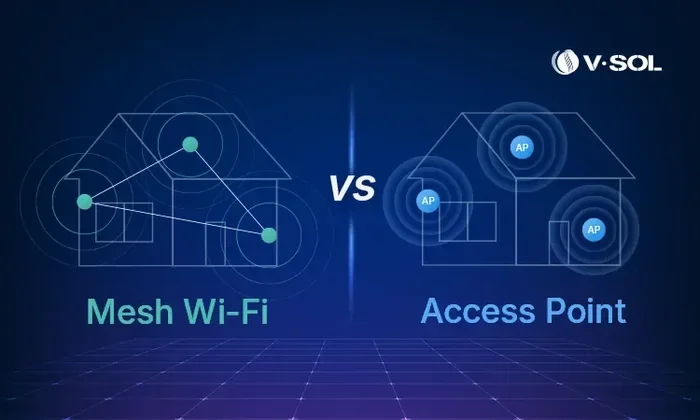
If your home is large, you might need a Wi-Fi range extender. This device boosts the signal and spreads it to far rooms. Some people also use mesh Wi-Fi systems. These use multiple units to cover every corner of a home.
Method 2: Mobile Hotspot
Almost every smartphone can act as a Wi-Fi hotspot. This is great for travel or temporary situations. You turn on the hotspot feature. Your phone shares its cellular data with nearby devices.
To set up a mobile hotspot on iPhone, go to Settings and tap Personal Hotspot. On Android, go to Settings, then Network, then Hotspot and Tethering. Set a password before you share. You do not want strangers using your data.
Keep in mind that hotspotting uses a lot of data. If you have a limited data plan, monitor your usage carefully. Streaming videos and downloading files eat up data fast.
Method 3: Laptop or Computer Hotspot
You can also turn your laptop into a Wi-Fi hotspot. This works well when you are at a hotel or a coffee shop. Your laptop connects to the public Wi-Fi. Then it shares that connection with other devices.
On Windows, go to Settings, then Network and Internet, then Mobile Hotspot. On Mac, you can use the Internet Sharing feature in System Preferences. Both methods are free and easy to use.
This method is handy but not ideal for long-term use. It works best for short-term sharing with a few devices.
Setting Up a Secure Wireless Network
Security should always come first when you build a wireless network. An unprotected network invites strangers and puts your data at risk. Follow these steps to keep your network safe.
Change the Default Router Login
Every router comes with a default username and password. Hackers know these defaults. Change them right away. Go into your router settings and create a new admin login. Use a unique username and a strong password.
Update Your Router Firmware
Router manufacturers release firmware updates. These updates fix security holes and improve performance. Check for updates regularly. Most modern routers have an auto-update option. Turn it on if available.
Set Up a Guest Network
A guest network is a separate Wi-Fi network for visitors. It lets guests get online without accessing your main network. This is a smart security practice.
Most routers have a guest network option in their settings. Enable it and give it a different name and password. Your personal devices stay safe on the main network. Guest devices stay on the guest network.
Disable WPS
WPS (Wi-Fi Protected Setup) is a feature that lets devices connect with the push of a button. It is convenient but not secure. Hackers can exploit WPS to gain access. Go into your router settings and turn it off.
Common Problems When Sharing Wi-Fi
Even with the best setup, you might run into issues. Here are the most common problems and how to fix them.
Slow Internet Speed
Slow speeds are frustrating. They happen for many reasons. Too many devices on one network can slow things down. Distance from the router also matters. Walls and furniture block the signal.
Try moving closer to the router. If that helps, consider a range extender or a mesh system. You can also check if anyone is using your network without permission. An unauthorized device drains bandwidth.
Devices Will Not Connect
If a device refuses to connect, do not panic. First, make sure you typed the password correctly. Passwords are case-sensitive. Restart the device and try again.
If that does not work, forget the network on the device and reconnect. On most phones and laptops, you can find this option in Wi-Fi settings. You will need to re-enter the password, but it often fixes connection issues.
Weak Signal in Certain Rooms
A weak signal in one room is a common complaint. The router might be too far away. Thick walls and metal objects block signals. Even microwaves can interfere with Wi-Fi.
Move your router to a central location. Keep it elevated and away from walls. Avoid placing it behind TVs or inside cabinets. A better position can dramatically improve signal strength.
Network Keeps Dropping
If your network drops frequently, the router might need a reboot. Unplug it for 30 seconds. Plug it back in. This simple fix solves many problems.
Also check for interference. Baby monitors, Bluetooth devices, and cordless phones can disrupt Wi-Fi. Switching to a less crowded channel in your router settings can help too.
Expert Insight
Networking experts recommend placing your router in an open area, away from corners and closets. A central location gives the best coverage. If you live in a multi-story home, place the router on the middle floor for the strongest signal throughout the house.
Quick Tips for a Better Wi-Fi Experience
Want to get the most out of your wireless network? Follow these quick tips.
- Restart your router weekly: This clears the cache and keeps things running smoothly.
- Use the 5GHz band when possible: It is faster than the 2.4GHz band, though it has a shorter range.
- Keep your router in a cool, dry place: Heat can damage electronics and reduce performance.
- Monitor connected devices: Check your router settings regularly to see who is on your network.
- Change passwords every few months: This keeps your network secure over time.
- Invest in a quality router: A good router makes a huge difference in speed and reliability.
Comparison of Different Wi-Fi Sharing Methods
| Method | Best For | Range | Speed | Security |
|---|---|---|---|---|
| Traditional Router | Home and office use | 1,500+ sq ft | Fast | High with WPA3 |
| Mobile Hotspot | Travel and temporary use | 30-50 feet | Depends on cellular data | Medium |
| Laptop Hotspot | Short-term sharing | 30-50 feet | Depends on host connection | Medium |
| Mesh Wi-Fi System | Large homes and offices | 5,000+ sq ft | Very Fast | High with WPA3 |
Frequently Asked Questions
Can I create my own Wi-Fi network without an internet service provider?
Yes, you can create a Wi-Fi network without an ISP. However, the network will not have internet access. You can still connect devices to each other and share files. This is called a local network. It is useful for printing between devices or streaming media within your home without internet.
How many devices can connect to my Wi-Fi network?
Most modern routers support between 20 and 50 devices. The exact number depends on your router model and internet speed. Keep in mind that more devices mean slower speeds for everyone. If you have many smart home gadgets, consider a mesh system for better performance.
Is it legal to share your Wi-Fi with neighbors?
Sharing your Wi-Fi with neighbors is a gray area legally. Your ISP terms of service usually limit your connection to your household. Some ISPs charge extra for additional users. Beyond that, sharing your password could slow down your speeds and create security risks. It is best to set up a separate guest network or use a strong password with limited access.
What is the difference between a Wi-Fi hotspot and a Wi-Fi network?
A Wi-Fi network is a permanent setup with a router that broadcasts a signal. A Wi-Fi hotspot is a temporary connection that shares internet from a device like a phone or laptop. Hotspots are portable and short-term. Networks are stable and designed for long-term use.
Do I need a special router to create a Wi-Fi network?
You need a router that supports wireless broadcasting. Most routers sold today are wireless and support the latest standards. You do not need anything fancy for basic use. A standard dual-band router from a reputable brand will work perfectly for most homes.
Can I create a Wi-Fi network with just a modem?
Some modems have built-in Wi-Fi capabilities. These modem-router combos let you create a wireless network without a separate router. Check the specifications of your modem to see if it has Wi-Fi built in. If it does not, you will need to purchase a router separately.
Conclusion
Creating your own Wi-Fi network and sharing internet is easier than you might think. You have several options to choose from. A traditional router gives you the best performance for home use. A mobile hotspot works well for travel. A laptop hotspot is perfect for quick, temporary sharing.
Security should always be a priority. Use WPA3 encryption. Set a strong password. Enable a guest network. These simple steps protect your data and keep your network running smoothly.
Do not let common problems scare you off. Slow speeds, weak signals, and connection drops all have straightforward fixes. Move your router to a better spot. Restart it regularly. Update the firmware. These small habits make a big difference.
Now that you know how to create your own Wi-Fi network and share internet, it is time to take action. Gather your equipment. Follow the steps in this guide. You will have a working wireless network in no time. Enjoy the freedom of a fast, secure, and reliable connection in your home or office.