Can I Use My Phone As A Bluetooth Game Controller Right Now
Yes, you can absolutely use your phone as a Bluetooth game controller right now. With the right apps and a few simple steps, your smartphone transforms into a mobile game controller for PC, console, and cloud gaming. This guide covers setup, top apps, compatibility, and tips to get you gaming instantly.
Have you ever wanted to play your favorite PC games on the big screen but hated using a keyboard and mouse from the couch? Or maybe you wanted to turn your smartphone into a wireless gamepad without buying extra hardware. The good news is that using your phone as a Bluetooth game controller is totally possible right now.
You do not need to spend money on a separate controller. Your phone already has everything needed to work as a mobile game controller for gaming setups. Whether you want to play on your PC, PlayStation, Xbox, or even stream games from the cloud, your phone can step up and do the job. In this guide, we will walk you through every step, from choosing the right app to fixing common problems. Let us get you gaming.
Key Takeaways
- Your phone works as a Bluetooth game controller: Many apps turn your smartphone into a wireless gamepad for PC, console, and cloud gaming platforms.
- Setup is simple and fast: You just need a compatible app, Bluetooth enabled, and a device to connect to.
- Multiple apps serve different needs: Steam Link, Remote Play, and third-party apps like Octopus and DroidJoy offer varied features.
- Latency can be an issue: Wi-Fi quality and app choice affect how responsive your phone controller feels during gameplay.
- Phone controllers work across platforms: PC, PlayStation, Xbox, Nintendo Switch, and Android TV all support phone-based control.
- Not all games work perfectly: Some games need extra configuration or controller mapping to function well with a phone.
- Expert tips improve the experience: Using a phone mount, keeping firmware updated, and choosing the right app make a big difference.
📑 Table of Contents
- How Your Phone Becomes a Bluetooth Game Controller
- Best Apps to Turn Your Phone Into a Controller
- Setting Up Your Phone as a Bluetooth Controller
- Compatibility: Which Devices and Games Work
- Common Problems and How to Fix Them
- Expert Tips to Improve Your Phone Controller Experience
- Comparing Phone Controllers to Physical Controllers
- Conclusion
How Your Phone Becomes a Bluetooth Game Controller
The idea behind Bluetooth gaming with a phone is simple. Your phone has built-in accelerometers, gyroscopes, touchscreens, and Wi-Fi or Bluetooth connectivity. Apps use these features to turn your phone into a functional gamepad. The phone sends input signals to your gaming device through a wireless connection. This process is called controller mapping, where the phone screen and sensors act like buttons and joysticks.
Most modern phones support Bluetooth 4.0 or higher, which provides a stable connection with low input latency. Input latency is the delay between pressing a button and the action happening on screen. Lower latency means smoother, more responsive gameplay. Newer phones handle this very well, especially when connected over a strong Wi-Fi network or a direct Bluetooth link.
What Makes a Phone Good for Gaming
Not all phones perform equally as wireless gamepads. Here are the factors that matter most:
- Processor speed: A faster processor handles game inputs more smoothly.
- Bluetooth version: Bluetooth 5.0 or higher gives a more stable connection.
- Screen size: Larger screens make it easier to see on-screen buttons and joysticks.
- Battery life: Gaming drains battery fast, so keep your phone charged.
- Gyroscope and accelerometer: These sensors enable motion controls for certain games.
Even budget phones can work as a game controller for PC or console. The app you choose matters more than the phone model in most cases. That said, flagship phones offer the best overall experience with minimal lag.
Best Apps to Turn Your Phone Into a Controller
The right app makes all the difference when you want to use gaming on phone as a controller. Different apps serve different platforms and gaming styles. Here are the top options you should consider.
Steam Link
Steam Link is one of the most popular ways to stream PC games to your TV or monitor. It works with your phone as a Bluetooth controller or over Wi-Fi. You install Steam Link on your phone and your PC, then pair them. The app turns your phone into a virtual gamepad with on-screen buttons and joysticks. You can also connect a physical Bluetooth controller, but using your phone directly is very convenient.
Steam Link supports thousands of PC games. If you already have a Steam library, this is an easy path to remote play from your couch. The app is free and works on both Android and iOS devices.
Xbox Remote Play
If you own an Xbox console, Xbox Remote Play lets you stream your Xbox games to your phone. But here is the cool part: your phone can also act as a controller for Xbox games. The app displays the game on your phone screen while your phone sends input commands back to the console. This works over your local Wi-Fi network or even remotely with a solid internet connection.
Xbox Remote Play is free for Xbox Game Pass subscribers. It supports hundreds of titles and gives you full access to your Xbox library from your phone. The controller compatibility is excellent because Microsoft designed the app to work seamlessly with Xbox ecosystems.
PS Remote Play
PlayStation users can use PS Remote Play to stream PS4 or PS5 games to their phone. The app also lets your phone function as a mobile game controller for PlayStation titles. You get on-screen controls that mirror a DualShock or DualSense controller layout. The experience is smooth and responsive on a good Wi-Fi connection.
PS Remote Play is free to download. It works with most PlayStation games and gives you the freedom to play anywhere in your home. The Bluetooth gaming experience on PlayStation through this app is solid, though a DualShock controller still offers the best feel.
Third-Party Controller Apps
Several third-party apps expand your options beyond the big platforms. Apps like Octopus, DroidJoy, and Gamepad Bridge let you map your phone screen to any game. These apps are especially useful for PC gaming where you want full customization of button layouts and joystick sensitivity.
DroidJoy, for example, lets you use your phone as a controller for any PC game, even games that do not natively support controllers. You connect via USB or Wi-Fi, set up your button mappings, and start playing. These apps often require a small one-time purchase, but they offer great value if you game frequently on PC.
Setting Up Your Phone as a Bluetooth Controller
Setting up Bluetooth connectivity for gaming is easier than you might think. Follow these steps to get started with any app.
Step-by-Step Setup Guide
- Choose your app: Pick the app that matches your gaming platform. Steam Link for PC, Xbox Remote Play for Xbox, and so on.
- Install the app: Download the app on your phone from the App Store or Google Play Store.
- Install the companion software: Most apps need a server running on your PC or console. Install this on the device you want to control.
- Connect to the same network: Make sure your phone and gaming device are on the same Wi-Fi network for the best experience.
- Enable Bluetooth: Turn on Bluetooth on your phone and pair it with the target device if required.
- Open the app and follow on-screen prompts: Most apps have a simple setup wizard that guides you through the connection.
- Test your controls: Open a game and check if your phone inputs register correctly. Adjust sensitivity or mapping if needed.
The entire process usually takes less than ten minutes. Once set up, you can start gaming right away. The controller mapping process is intuitive, and most apps remember your settings for future sessions.
Quick Tips for a Smooth Setup
- Restart your router if the connection feels slow.
- Close background apps on your phone to free up resources.
- Keep your phone and gaming device close to each other for the strongest signal.
- Update both the app and your phone’s operating system before setting up.
- Use a phone mount or holder to keep your phone steady while you play.
Compatibility: Which Devices and Games Work
Controller compatibility is an important factor to consider. Not every game or device works perfectly with a phone controller. Here is what you need to know.
PC Gaming Compatibility
Most modern PC games support controller input. Games built on engines like Unity and Unreal Engine recognize phone controllers easily. Steam, Epic Games Store, and GOG all offer built-in controller support. If a game does not support controllers natively, apps like DroidJoy can bridge the gap through controller mapping.
Some games work better than others with phone controllers. Fighting games and shooters that need precise inputs may feel slightly less responsive than with a physical controller. But for casual gaming, adventure games, RPGs, and platformers, phone controllers work great.
Console Compatibility
Console compatibility depends on the platform. Xbox and PlayStation both offer official apps that support phone-based control. Nintendo Switch is trickier because it does not have an official streaming app. However, some third-party solutions work for Switch gaming through a PC intermediary.
Here is a quick look at console compatibility:
- Xbox: Excellent support through Xbox Remote Play.
- PlayStation: Great support through PS Remote Play.
- Nintendo Switch: Limited support; works best through PC streaming.
- PC: Excellent support with the right app and setup.
- Android TV: Good support; many streaming apps accept phone input.
Cloud Gaming Compatibility
Cloud gaming platforms like NVIDIA GeForce Now, Xbox Cloud Gaming, and Amazon Luna work well with phone controllers. Since the game runs on a remote server, your phone only needs to send input commands and receive video. This means input latency is less of a concern compared to local streaming. Cloud gaming is one of the best use cases for using your phone as a Bluetooth game controller.
Common Problems and How to Fix Them
Using your phone as a controller is not always perfect. Here are the most common issues and how to solve them.
High Input Latency
Input latency makes your controls feel sluggish. This is the number one complaint with phone controllers. The main cause is a weak Wi-Fi signal or an overloaded network. To fix this, connect your phone and gaming device to the same 5 GHz Wi-Fi band. Move closer to your router. Close other devices that are using heavy bandwidth.
If you are using Bluetooth directly, ensure there are no physical obstructions between your phone and the gaming device. Bluetooth signals can weaken through walls and furniture. A clear line of sight gives the best Bluetooth connectivity performance.
Controller Not Recognized
Sometimes your phone controller does not get recognized by the game or streaming app. This usually happens when the app is not running in the background or the connection dropped. Try restarting the app and the companion software. Check that Bluetooth is enabled and your devices are still paired. Reinstalling the app can also fix recognition issues.
Button Mapping Issues
Not all games map buttons correctly to a phone controller. This is where controller mapping settings come in handy. Most apps let you customize which touch area corresponds to which button. Take a few minutes to set up your preferred layout. This small effort makes a huge difference in gameplay comfort.
Battery Drain
Gaming on your phone drains the battery quickly because the screen stays on and the processor works hard. To extend battery life, lower your screen brightness, close background apps, and use a power bank if you are playing for long sessions. Some apps also offer a dim mode that reduces screen usage while keeping controls active.
Expert Tips to Improve Your Phone Controller Experience
Want to get the most out of gaming on phone as a controller? Here are some expert-backed tips that make a real difference.
Use a Phone Mount
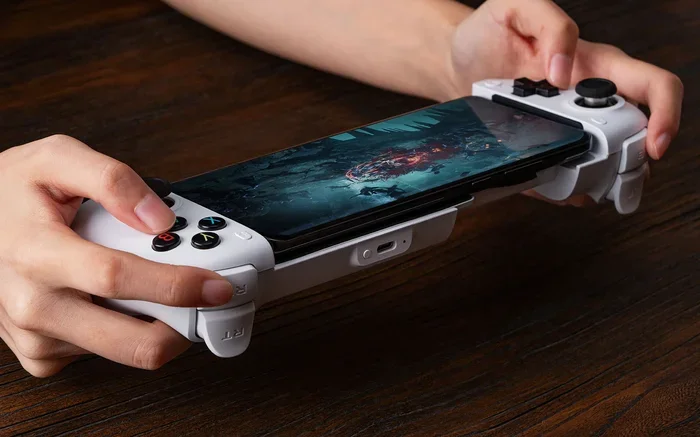
A phone mount holds your phone steady in front of you while you play. This prevents accidental drops and keeps your hands free for button presses. You can get simple clip-on mounts for your TV stand or desk. Some mounts even include a built-in Bluetooth controller attachment for a more traditional feel.
Enable Game Mode on Your Phone
Many Android phones have a built-in game mode that prioritizes performance for gaming. This mode allocates more processing power to the game app and reduces background distractions. iPhone users can enable Low Power Mode to stabilize performance during longer sessions. These small tweaks can reduce lag and improve responsiveness.
Keep Your Apps Updated
App developers regularly release updates that fix bugs and improve Bluetooth gaming performance. Keeping your controller app and companion software updated ensures you get the latest improvements. Check for updates at least once a week if you game frequently.
Try Both Touch and Physical Controls
Some apps let you switch between on-screen touch controls and a virtual gamepad layout. Experiment with both to find what feels most natural. Touch controls work well for simple games, while a virtual gamepad layout is better for action and platformer games. You can also connect a physical Bluetooth controller alongside your phone for the best of both worlds.
Use a Dedicated Wi-Fi Network
If possible, set up a dedicated Wi-Fi network for gaming. This prevents other household devices from competing for bandwidth. A separate network ensures your remote play connection stays stable and fast. Even a simple guest network on your router can make a noticeable difference.
Comparing Phone Controllers to Physical Controllers
It is fair to ask how a phone controller compares to a dedicated physical controller. Here is a quick comparison to help you decide.
Phone Controller vs Physical Controller
| Feature | Phone Controller | Physical Controller |
|---|---|---|
| Cost | Free (with app) | $40 to $70 |
| Portability | Excellent | Good |
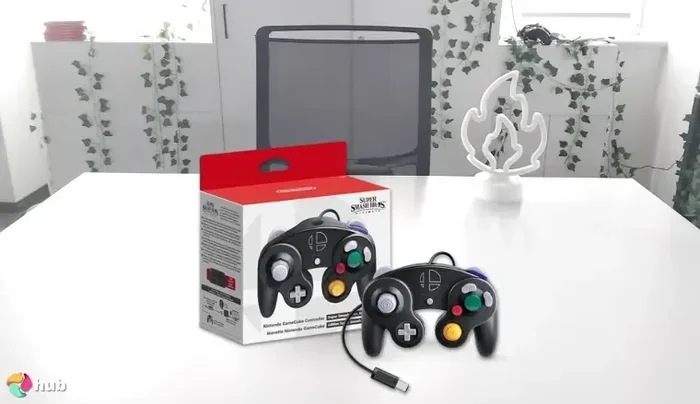
| Button Feel | Touchscreen-based | Physical buttons |
| Setup Time | 5-10 minutes | Plug and play |
| Battery Life | Moderate | Long-lasting |
| Customization | Highly customizable | Limited |
| Latency | Good to moderate | Excellent |
Phone controllers win on cost and portability. They are perfect for casual gaming, travel, and situations where you do not want to carry extra gear. Physical controllers still offer better button feel and lower latency for competitive or fast-paced games. But for most home gaming scenarios, a phone controller works remarkably well.
Multi-platform gaming is another area where phone controllers shine. Instead of buying separate controllers for PC, Xbox, and PlayStation, you can use your phone across all platforms with the right apps. This makes your phone one of the most versatile wireless gamepads you can own.
Conclusion
Using your phone as a Bluetooth game controller is not just a gimmick. It is a practical, cost-effective solution for modern gaming. Whether you want to stream PC games to your TV, play PlayStation titles from the couch, or dive into cloud gaming on the go, your phone can do it all. The right app, a stable connection, and a few minutes of setup are all you need to get started.
Remember that input latency and controller mapping are the two areas where you can make the biggest improvements. A strong Wi-Fi connection, a phone mount, and regular app updates will keep your experience smooth and enjoyable. As cloud gaming and remote play technologies continue to improve, phone controllers will only get better.
So go ahead and try it. Download an app, connect your phone, and start gaming. You might be surprised at how well it works. Your phone is already a powerful mobile game controller waiting to be unlocked. Happy gaming!
Frequently Asked Questions
Can any phone be used as a Bluetooth game controller?
Most smartphones released in the last five years can work as a Bluetooth game controller. You need Bluetooth 4.0 or higher and a compatible app. Even budget phones handle basic controller functions well.
Is using a phone as a game controller better than a physical controller?
It depends on your needs. Phone controllers are free, portable, and highly customizable. Physical controllers offer better button feel and lower latency. For casual and remote play gaming, a phone controller works great.
Does using my phone as a controller cause high input latency?
Input latency can be higher than a physical controller, but it depends on your Wi-Fi quality and the app you use. A strong 5 GHz Wi-Fi connection and a well-optimized app keep latency low and gameplay smooth.
Can I use my phone as a controller for Xbox and PlayStation?
Yes. Xbox Remote Play and PS Remote Play both support phone-based control. You can stream games and use your phone as a controller for both platforms with their official free apps.
Are there any costs associated with using a phone as a controller?
Most apps like Steam Link, Xbox Remote Play, and PS Remote Play are free. Some third-party apps like DroidJoy require a small one-time purchase. You do not need to buy any extra hardware.
Can I use my phone as a controller for cloud gaming services?
Absolutely. Cloud gaming platforms like NVIDIA GeForce Now and Xbox Cloud Gaming work well with phone controllers. Since the game runs remotely, your phone only sends input commands, making the experience smooth and responsive.
=== CONCLUSION ===
Can you use your phone as a Bluetooth game controller right now? The answer is a clear yes. With apps like Steam Link, Xbox Remote Play, PS Remote Play, and third-party solutions, your phone becomes a powerful mobile game controller for PC, console, and cloud gaming. Setup takes minutes, costs nothing in most cases, and works across multiple platforms. Whether you are a casual gamer or someone who wants to game on the go, your phone is ready to serve as a wireless gamepad today. Try it out, explore the apps, and enjoy a whole new way to play your favorite games.