Can I Use A Gamecube Controller On Pc For Retro Gaming
Yes, you can absolutely use a Gamecube controller on PC for retro gaming. With the right adapter, drivers, and emulator setup, you can enjoy classic Gamecube titles on your computer with the same feel and responsiveness as the original console. This guide covers everything from choosing the best adapter to configuring your controller for popular emulators.
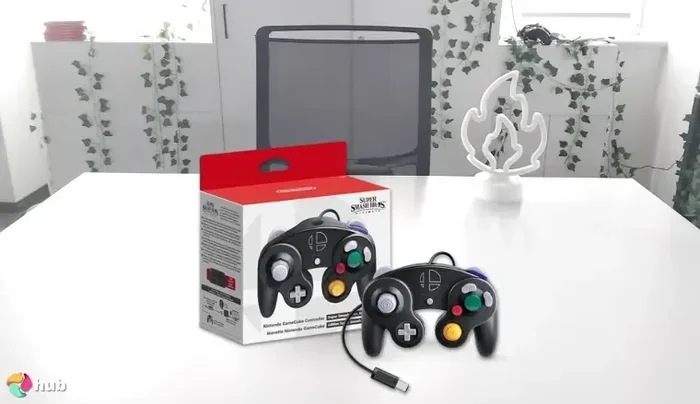
If you love retro gaming, you have probably wondered whether you can bring your trusty Gamecube controller to your computer. The good news is that using a Gamecube controller on PC is not only possible but also one of the best ways to experience classic Gamecube titles on your desktop. Whether you want to replay Super Smash Bros. Melee, explore the world of The Legend of Zelda: Wind Waker, or race through Mario Kart: Double Dash!!, the Gamecube controller delivers a nostalgic and comfortable experience that modern controllers simply cannot match.
In this guide, we will walk you through everything you need to know about using a Gamecube controller on PC. We will cover the adapters you need, the emulators that support them, the setup process, and tips to get the best performance. By the end, you will have all the information you need to start playing your favorite Gamecube games on your computer with the controller you already love.
Key Takeaways
- Gamecube controllers work on PC: You can connect your Gamecube controller to a computer using a USB adapter or a Bluetooth adapter for wireless play.
- Dolphin emulator is the best choice: It has excellent native Gamecube controller support and is free to use.
- An adapter is essential: You cannot plug a Gamecube controller directly into a PC without an adapter that converts the signal to USB.
- Setup is straightforward: With the right drivers and a few minutes of configuration, you can be playing within an hour.
- Wireless options exist: You can use your original wireless Gamecube controller with the right Bluetooth or receiver-based adapter.
- Latency is minimal: Modern adapters provide near-instant input response, making them great for both casual and competitive play.
- Compatibility is broad: Gamecube controllers work with Dolphin, RetroArch, and many other retro gaming emulators on PC.
📑 Table of Contents
- Can I Use A Gamecube Controller On PC?
- What You Need To Get Started
- Setting Up Your Gamecube Controller On PC
- Best Emulators For Gamecube Controller Support
- Gamecube Controller vs Other Controllers For PC
- Common Problems And How To Fix Them
- Expert Tips For The Best Retro Gaming Experience
- Final Thoughts
- Frequently Asked Questions
Can I Use A Gamecube Controller On PC?
The short answer is yes. You can use a Gamecube controller on PC with the right equipment. The Gamecube controller has a unique connector that does not plug directly into a computer. You need a Gamecube controller adapter to bridge the gap between the controller and your PC. This small device converts the Gamecube controller signal into a USB input that your computer can understand.
The most popular and reliable adapter is the Mayflash Gamecube Controller Adapter. It supports up to four Gamecube controllers and works seamlessly with the Dolphin emulator and many other retro gaming platforms. Other options include the Retro-Bit adapter and various third-party alternatives. We will compare these in a moment.
Why Use A Gamecube Controller On PC?
There are several reasons why gamers prefer the Gamecube controller for PC retro gaming. The design is comfortable and fits most hand sizes well. The analog sticks are responsive and precise. The face buttons have a satisfying feel. And the triggers offer analog input, which is important for racing and fighting games.
Beyond comfort, the Gamecube controller has become a cultural icon in competitive gaming. Super Smash Bros. Melee players have used Gamecube controllers in tournaments for years. The controller layout feels natural for fast-paced action. Many retro gamers also prefer it because it brings an authentic arcade-style feel to their PC setup.
What You Need To Get Started
Before you start playing, you need a few things. Let us break down the essential equipment for using your Gamecube controller on PC.
The Right Adapter
The adapter is the most important piece of hardware. Without it, your Gamecube controller cannot connect to your computer. Here are the main options:
- Mayflash Gamecube Controller Adapter: The most popular choice. It supports up to four controllers and works with Dolphin and RetroArch. It comes in both wired and wireless versions.
- Retro-Bit Super RetroTRIO: This adapter supports multiple console controllers, including Gamecube. It is a good option if you want to use controllers from different systems.
- Third-Party Generic Adapters: These are cheaper but may have compatibility issues. They work for basic use but may not support all features like rumble or analog triggers.
A PC With Enough Power
You do not need a powerful gaming PC to play Gamecube games. The original Gamecube hardware was modest by today’s standards. Even an older computer can handle these games smoothly. You will need at least 4GB of RAM and a processor from the last decade. A dedicated graphics card helps but is not strictly required.
The Dolphin Emulator
Dolphin is the go-to emulator for Gamecube and Wii games on PC. It is free, open-source, and has excellent Gamecube controller support. It lets you map every button, adjust input lag, and even use multiple controllers at once. We will cover the setup process in detail in the next section.
Setting Up Your Gamecube Controller On PC
Setting up your Gamecube controller on PC is easier than you might think. Follow these steps and you will be gaming in no time.
Step 1: Connect The Adapter
Plug your Gamecube controller adapter into a USB port on your computer. If you are using a wireless adapter, insert the USB receiver and make sure the LED light turns on. The adapter should be recognized by Windows automatically.
Step 2: Install Drivers (If Needed)
Most modern adapters work plug-and-play. However, some adapters require drivers. Visit the manufacturer’s website and download the latest drivers for your specific adapter model. The Mayflash adapter, for example, has a dedicated driver that ensures full compatibility with Dolphin.
Step 3: Configure The Controller In Dolphin
Open Dolphin and go to the controller settings. You will see options for Player 1, Player 2, and so on. Click on the controller icon and map each button to your Gamecube controller. Dolphin recognizes the adapter as a standard gamepad, so the configuration is intuitive.
Make sure to test each button and analog stick. Adjust the dead zone settings if you notice any drift or unresponsive areas. Dolphin also lets you enable analog trigger sensitivity, which is important for games that use trigger pressure for speed control.
Step 4: Load Your Game And Play
Once your controller is configured, load a Gamecube game in Dolphin and start playing. The input should feel responsive and natural. If you experience any lag, check your emulator settings and make sure your adapter drivers are up to date.
Best Emulators For Gamecube Controller Support
Not all emulators handle Gamecube controllers the same way. Some offer better support and more configuration options than others. Here are the top emulators that work well with Gamecube controllers on PC.
Dolphin Emulator
Dolphin is the gold standard for Gamecube and Wii emulation. It has built-in support for Gamecube controllers through the Mayflash adapter and other USB adapters. You can configure every aspect of the input, including button mapping, analog stick sensitivity, and rumble settings.
Dolphin also supports controller hotplugging, which means you can connect or disconnect controllers while the emulator is running. This is a great feature for multiplayer sessions. The emulator is regularly updated and has an active community that provides support and custom builds.
RetroArch
RetroArch is a multi-system emulator that supports thousands of retro games, including Gamecube titles. It works with Gamecube controllers through the Mayflash adapter and other USB adapters. The setup is slightly more complex than Dolphin, but RetroArch offers a unified interface for all your retro gaming needs.
One advantage of RetroArch is that it supports netplay, allowing you to play Gamecube games online with friends. The controller configuration is done through the input hotkey menu. It takes a few extra steps, but the result is the same smooth Gamecube controller experience.
Other Emulators
Some other emulators, like Cemu (for Wii U games), also support Gamecube controllers. However, Dolphin remains the best choice for pure Gamecube and Wii emulation on PC. If you are specifically looking to play Gamecube games, Dolphin is the clear winner.
Gamecube Controller vs Other Controllers For PC
How does the Gamecube controller compare to other controllers you might use on PC? Let us look at the pros and cons.
| Feature | Gamecube Controller | Xbox 360 Controller | PS4 DualShock |
|---|---|---|---|
| Comfort | Excellent | Good | Good |
| Analog Stick Quality | Very Responsive | Good | Good |
| Button Layout | Classic A/B/X/Y | Modern ABXY | Modern ABXY |
| PC Compatibility | Needs Adapter | Plug and Play | Plug and Play |
| Rumble Support | Yes (with adapter) | Yes | Yes |
| Retro Gaming Feel | Authentic | Modern | Modern |
| Price | Low (used) | Low | Low |
The Gamecube controller wins on comfort and retro feel. It is also lighter than most modern controllers, which reduces hand fatigue during long gaming sessions. The only real disadvantage is that you need an adapter to use it on PC. But once you have the adapter, the experience is excellent.
Common Problems And How To Fix Them
Using a Gamecube controller on PC is generally smooth, but you might run into a few issues. Here are the most common problems and their solutions.
Controller Not Detected
If your PC does not recognize the Gamecube controller, first check the USB connection. Try a different USB port. Make sure the adapter is properly seated. If you are using a wireless adapter, check the batteries and re-pair the controller if needed. You can also try reinstalling the adapter drivers.
Analog Stick Drift
Analog stick drift is when the stick registers movement even when you are not touching it. This is common in older controllers. In Dolphin, you can adjust the dead zone settings to compensate for drift. Go to the controller settings and increase the dead zone slightly until the drift disappears.
Button Mapping Issues
If your buttons do not match the in-game controls, go back to the Dolphin controller configuration and remap them. Make sure you are using the correct controller profile. Some games may require specific button layouts, so check the emulator documentation for guidance.
No Rumble Feedback
If you are not getting rumble feedback, make sure your adapter supports rumble. The Mayflash adapter does, but some cheaper adapters do not. Also check that rumble is enabled in Dolphin’s controller settings.
Expert Tips For The Best Retro Gaming Experience
Here are some tips from experienced retro gamers to help you get the most out of your Gamecube controller on PC.
Buy A Quality Adapter
Do not cheap out on the adapter. A good adapter ensures stable connectivity, low latency, and full feature support. The Mayflash adapter is the most recommended option and is worth the small investment. A poor adapter can cause input lag, dropped inputs, and connectivity issues that ruin your gaming experience.
Keep Your Drivers Updated
Adapter manufacturers regularly release driver updates that improve compatibility and fix bugs. Check the manufacturer’s website periodically and install the latest drivers. This is especially important after major Windows updates.
Use A USB Hub If Needed
If you plan to connect multiple Gamecube controllers, use a powered USB hub. This ensures each controller gets enough power and maintains a stable connection. A cheap unpowered hub may cause connectivity issues, especially with wireless adapters.
Customize Your Controls
Take advantage of Dolphin’s detailed control customization. You can adjust analog stick sensitivity, trigger thresholds, and button mappings to suit your playstyle. This is especially useful for fighting games where precise input timing matters.
Clean Your Controller Regularly
Old Gamecube controllers can accumulate dirt and grime over the years. Clean the analog sticks and buttons with a soft cloth and isopropyl alcohol. This keeps the controller responsive and extends its lifespan.
Consider A Wireless Adapter
If you want freedom from cables, consider a wireless Gamecube controller adapter. The Mayflash wireless adapter lets you use your original wireless Gamecube controller without the sensor bar. It provides a clean, clutter-free setup and great range.
Final Thoughts
Using a Gamecube controller on PC for retro gaming is a fantastic experience. The controller is comfortable, responsive, and full of nostalgia. With the right adapter and emulator, you can enjoy your favorite Gamecube classics on your computer with the same feel as the original console. The setup process is simple, and the results are well worth the effort.
Whether you are a longtime Gamecube fan or someone discovering these classic games for the first time, the Gamecube controller on PC is one of the best ways to experience retro gaming. Grab your adapter, download Dolphin, and start playing. You will not be disappointed.
Frequently Asked Questions
Do I Need A Special Adapter To Use A Gamecube Controller On PC?
Yes, you need a USB adapter because the Gamecube controller uses a proprietary connector that does not fit into a standard PC USB port. The Mayflash Gamecube Controller Adapter is the most popular and reliable option. It converts the controller signal to USB so your PC can recognize it.
Is The Dolphin Emulator Free To Use?
Yes, Dolphin is completely free and open-source. You can download it from the official Dolphin emulator website. It supports both Gamecube and Wii games and has excellent Gamecube controller compatibility through USB adapters.
Can I Use Multiple Gamecube Controllers On PC At The Same Time?
Yes, if you use an adapter that supports multiple controllers. The Mayflash adapter supports up to four Gamecube controllers simultaneously. This makes it perfect for multiplayer games like Mario Kart and Super Smash Bros. Melee.
Does The Gamecube Controller Work With Wireless PC Gaming?
Yes, you can use a wireless Gamecube controller on PC with the right adapter. The Mayflash wireless adapter connects to your PC via USB and communicates wirelessly with the controller. This gives you the freedom to play without being tethered by a cable.
Will A Gamecube Controller Work With All Retro Emulators?
Most modern retro emulators support Gamecube controllers through USB adapters. Dolphin has native support, and RetroArch also works well. However, always check the emulator’s documentation to confirm Gamecube controller compatibility before purchasing an adapter.
Is There Any Input Lag When Using A Gamecube Controller On PC?
Input lag is minimal with quality adapters like the Mayflash adapter. The USB connection provides near-instant input response. If you notice any lag, make sure your adapter drivers are up to date and that you are using a direct USB port rather than a hub.