Can I Download A Windows 10 And Install It Right Now
Yes, you can download and install Windows 10 right now from the official Microsoft website. This guide walks you through every step, from checking your system requirements to completing the installation process. You will learn how to create a bootable USB, enter your product key, and activate your digital license. Whether you are upgrading or doing a clean install, this tutorial covers it all.
Have you been wondering whether you can download a Windows 10 and install it on your computer today? The answer is a confident yes. Microsoft makes it incredibly easy to get the latest version of its popular operating system directly from their official website. You do not need to be a tech expert to pull this off. With just a few clicks and a USB drive, you can have a brand-new Windows 10 setup running on your device.
Whether your old computer is running slow or you are building a new PC from scratch, knowing how to install Windows 10 gives you full control. This guide covers everything you need to know. We will walk you through system requirements, the download process, creating installation media, and the actual setup. By the end, you will feel confident enough to do it all by yourself.
The entire process is free if you use the official Microsoft tools. You just need a compatible device and a little patience. Let us dive right in and show you exactly how to get this done.
Key Takeaways
- Free Download Available: You can get the Windows 10 ISO file directly from Microsoft at no cost.
- Simple Process: The installation process is straightforward and does not require advanced technical skills.
- System Requirements Matter: Checking your hardware before starting saves time and prevents errors.
- Two Installation Options: You can upgrade your current system or perform a clean install for a fresh start.
- Activation Is Easy: Use a product key or linked digital license to activate Windows 10 instantly.
- Backup First: Always save your files before installing a new operating system to avoid data loss.
- Post-Install Steps Count: Updating drivers and running Windows Update ensures the best performance.
📑 Table of Contents
- Understanding What You Need Before You Start
- How to Download Windows 10 the Right Way
- Creating a Bootable USB Drive
- Installing Windows 10 on Your Computer
- After Installation: Setting Up and Optimizing Windows 10
- Common Problems and How to Fix Them
- Why Installing Windows 10 Yourself Is Worth It
- Final Thoughts
Understanding What You Need Before You Start
Before you jump into the download, it helps to know what your computer needs to run Windows 10 smoothly. Skipping this step can lead to frustration later. Taking five minutes to check your hardware saves hours of troubleshooting.
System Requirements for Windows 10
Microsoft lists clear minimum requirements for running Windows 10. Here is what your device needs to have:
- Processor: 1 gigahertz (GHz) or faster processor or SoC
- RAM: 1 gigabyte (GB) for 32-bit or 2 GB for 64-bit
- Disk Space: 16 GB for 32-bit OS or 20 GB for 64-bit OS
- Graphics Card: DirectX 9 or later with WDDM 1.0 driver
- Display: 800 x 600 resolution or higher
These are the bare minimums. If your computer meets these specs, you can run Windows 10. However, for a better experience, having more RAM and faster storage makes a big difference. Most modern computers easily exceed these requirements.
What You Will Need for the Installation
Gathering your tools before starting makes the whole process smoother. Here is a quick checklist:
- A USB flash drive with at least 8 GB of storage
- A stable internet connection
- A product key (if you do not have a digital license linked to your Microsoft account)
- A backup of your important files
- Patience and a couple of free hours
Having these items ready means you will not need to pause midway through the process. A backup is especially important. Even though the installation goes smoothly most of the time, unexpected issues can arise. Protect your data first.
How to Download Windows 10 the Right Way
Now comes the exciting part. You get to download the Windows 10 ISO file and start building your installation media. Microsoft offers a free tool that makes this process simple and safe.
Step-by-Step Download Process
Follow these steps carefully to get your Windows 10 download started:
- Open your web browser and go to the official Microsoft website.
- Search for “Download Windows 10” or navigate directly to the Windows 10 download page.
- Click on the “Download tool now” option to get the Media Creation Tool.
- Run the downloaded file and accept the license terms.
- Choose the option to create installation media for another PC.
- Select your language, edition, and architecture (64-bit or 32-bit).
- Pick the USB flash drive option and insert your prepared USB drive.
- Wait for the tool to download and prepare the bootable USB.
This process usually takes 15 to 30 minutes depending on your internet speed. The Media Creation Tool handles everything for you. You do not need to manually find the correct version or worry about compatibility.
Why You Should Always Use the Official Microsoft Source
There are many websites offering free Windows 10 downloads. Some of them bundle malware or outdated versions with their files. Sticking to the official Microsoft website keeps your computer safe. The ISO file you get from Microsoft is clean, genuine, and fully activated with a valid product key.
Using a trusted source also means you receive all future updates through Windows Update. Pirated or modified versions often block important security patches. This leaves your device vulnerable to threats. Always download from the source you can trust.
Creating a Bootable USB Drive
A bootable USB drive is your best friend during the installation process. It lets you boot your computer from the USB stick and run the Windows 10 setup directly. This method works on almost any PC, whether it is a desktop or a laptop.
Using the Media Creation Tool
The easiest way to create a bootable USB is through Microsoft’s own Media Creation Tool. This free utility downloads the correct Windows 10 files and formats your USB drive automatically. You do not need any extra software.
Just insert your USB drive, run the tool, and select the USB option. The tool formats the drive and copies all necessary files. Within minutes, you have a ready-to-use installation drive. It really is that simple.
Alternative Method: Using Third-Party Tools
If you prefer not to use Microsoft’s tool, you can try third-party options like Rufus or Etcher. These are lightweight programs that turn your ISO file into a bootable USB. They work well and give you more control over the process.
However, the official Media Creation Tool remains the safest choice. It eliminates guesswork and ensures everything is set up correctly. For most users, the official method is all you need.
Installing Windows 10 on Your Computer
Now that your bootable USB is ready, it is time to install Windows 10. This part of the process is straightforward, but you need to pay attention to a few key decisions.
Boot from Your USB Drive
To start the installation, you need to boot your computer from the USB drive. Restart your PC and press the boot menu key during startup. This key is usually F12, F2, Esc, or Del, depending on your computer brand.
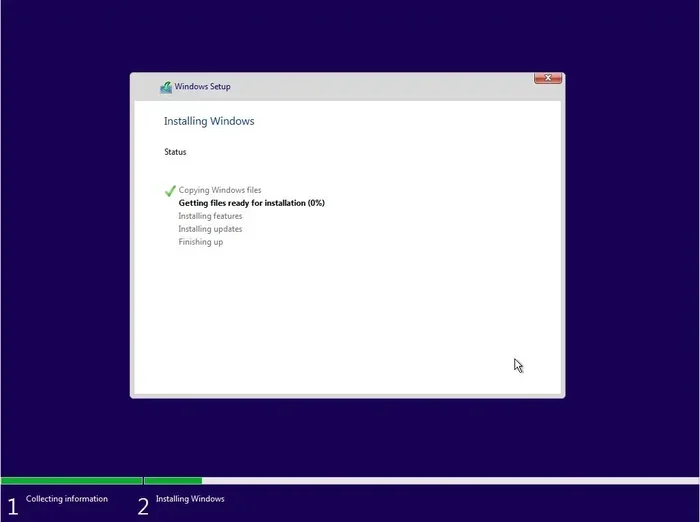
Once you enter the boot menu, select your USB drive as the primary boot device. Your computer will then load the Windows 10 setup environment. From there, you will see the installation screen with clear on-screen instructions.
Choosing Between Upgrade and Clean Install
Windows 10 gives you two main installation paths:
- Upgrade Installation: This keeps your files, apps, and settings while replacing the old operating system with Windows 10. It is the quickest and easiest option.
- Clean Install: This erases everything on your drive and gives you a completely fresh Windows 10 setup. It is ideal for slow or problematic computers.
Most people choose the upgrade path because it is faster and less risky. But if your computer has been acting up, a clean install often solves mysterious performance issues. Just remember to back up your files before choosing this route.
Entering Your Product Key
During the setup, you will be asked for a product key. If you already have a digital license linked to your Microsoft account, you can skip this step. Windows 10 will automatically detect and activate your license after installation.
If you do not have a digital license, you can enter a valid product key. These keys can be purchased from authorized retailers or included with a new PC purchase. Without a key, you can still install and use Windows 10, but you will see a watermark on your desktop.
After Installation: Setting Up and Optimizing Windows 10
Congratulations! You have successfully installed Windows 10. But the process does not end there. A few post-installation steps ensure your system runs at its best.
Running Windows Update
The very first thing you should do after installation is run Windows Update. This downloads and installs all the latest security patches, drivers, and feature updates. Open the Settings app, go to Update and Security, and click Check for Updates.
Let the tool download and install everything it finds. Restart your computer if prompted. This step is critical for keeping your system secure and running smoothly.
Installing Drivers and Essential Software
Windows 10 includes most common drivers automatically. However, your specific hardware might need dedicated drivers from the manufacturer’s website. Check for graphics card drivers, audio drivers, and network adapter updates.
Next, install the essential software you use daily. Web browser, office suite, media player, and antivirus program should be at the top of your list. Keeping your software updated also helps maintain system security.
Activating Your Digital License
If you skipped the product key step during installation, you can activate Windows 10 later. Go to Settings, then Update and Security, and click Activation. If your PC previously ran a genuine copy of Windows, your digital license should appear automatically.
Linking your Microsoft account to your device makes future reactivations much easier. Even if you replace hardware components, the digital license often transfers smoothly. This is one of the best features of modern Windows activation.
Common Problems and How to Fix Them
Even with a perfect setup, you might run into a few hiccups during the installation process. Here are the most common issues and their solutions.
USB Drive Not Recognized During Boot
If your computer does not recognize the USB drive, try changing the boot order in your BIOS settings. Restart your PC, enter the BIOS by pressing the appropriate key, and move the USB drive to the top of the boot priority list.
You can also try a different USB port. USB 2.0 ports are often more reliable for booting than USB 3.0 ports. If the problem persists, recreate the bootable USB using the Media Creation Tool again.
Installation Stuck or Freezing
Sometimes the installation process freezes at a certain percentage. This usually happens due to a USB connection issue or a corrupt download. Try unplugging and replugging your USB drive. If that does not work, restart the computer and try again.
Re-downloading the ISO file can also help if the original download was incomplete. Always verify your download source and ensure a stable internet connection during the process.
Activation Errors After Installation
If Windows 10 does not activate, go to Settings and click Activation. Then click Troubleshoot. This built-in tool helps resolve most activation issues automatically. You may need to enter your product key again or sign in with the Microsoft account linked to your license.
If none of these steps work, contacting Microsoft support is your next best option. They can verify your license status and help resolve stubborn activation problems.
Why Installing Windows 10 Yourself Is Worth It
Many people pay technicians to install Windows 10 for them. But with the right guidance, you can do it yourself and save both time and money. The official Microsoft tools make the process user-friendly and safe.
Installing Windows 10 on your own also gives you full control over your setup. You choose which edition to install, what to keep, and how to configure your system. This level of control is something you simply cannot get when paying someone else to do it.
Beyond that, understanding how your operating system works makes you more confident with your computer overall. You learn valuable skills that help you troubleshoot future issues. That knowledge pays off every time you use your device.
So go ahead and give it a try. The process is simpler than most people think. With this guide, you have everything you need to succeed.
Final Thoughts
Downloading and installing Windows 10 is easier than ever before. Microsoft has made the process accessible to everyone, regardless of technical skill level. From checking your system requirements to completing the activation, every step is designed to be simple and user-friendly.
Remember to always download from the official Microsoft website. Back up your files before starting. Choose the installation method that fits your needs, and do not skip post-installation updates. These small steps make a huge difference in your overall experience.
Now that you know how to download a Windows 10 and install it, you are ready to take action. Grab your USB drive, head to the Microsoft website, and get started today. Your freshly installed Windows 10 system is just a short while away.
Frequently Asked Questions
Is downloading Windows 10 from Microsoft completely free?
Yes, Microsoft allows anyone to download the Windows 10 ISO file and create installation media for free. You do not need to pay for the download itself. However, you will need a valid product key or a digital license to activate the operating system fully.
Can I install Windows 10 on an older computer that runs Windows 7?
Absolutely. Windows 10 works on computers running Windows 7 and Windows 8.1. You can perform an in-place upgrade or do a clean install. Just make sure your hardware meets the minimum system requirements before starting the process.
Do I need internet access during the Windows 10 installation?
You need internet access to download the ISO file and the Media Creation Tool. During the initial setup, an internet connection helps you download the latest updates and activate Windows 10 using your Microsoft account. However, you can skip the internet step and connect later.
What happens to my files if I choose a clean install?
A clean install erases everything on the selected drive. All your files, apps, and settings will be removed. This is why backing up your important data before installation is absolutely essential. Use an external drive or cloud storage to keep your files safe.
How long does the Windows 10 installation take?
The installation process usually takes between 20 and 45 minutes. The exact time depends on your hardware speed, the installation method, and whether you are doing an upgrade or a clean install. Additional time is needed for post-installation updates and driver setup.
Can I use Windows 10 without activating it?
Yes, you can use Windows 10 without activation. The operating system will function normally with most features available. The only limitations are a watermark on your desktop and the inability to personalize certain settings like themes and wallpapers. Activation removes these restrictions.
=== CONCLUSION ===
Can I download a Windows 10 and install it right now? The answer is yes, and you have everything you need to do it successfully. From understanding the system requirements to creating a bootable USB and completing the setup, this guide has covered every step in detail. The process is free, straightforward, and empowering.
Take your time, follow each step carefully, and do not skip the backup and update stages. A well-planned installation leads to a smooth and enjoyable Windows 10 experience. Start today, and you will be running the latest Microsoft operating system in no time.