Can I Connect 2 Displays To My Laptop And Boost Productivity
Yes, you can connect 2 displays to your laptop and unlock a whole new level of productivity. Whether you use Windows or Mac, setting up a dual monitor setup is simpler than you think. This guide walks you through every step, from checking your ports to solving common problems. You will learn about wired and wireless display options, docking stations, and best practices for an ergonomic workspace.
Have you ever wished your laptop screen was bigger? Or maybe you have been juggling too many windows and tabs and just need more space. The good news is that you can connect 2 displays to your laptop and transform the way you work. This is one of the simplest upgrades you can make to your computer setup, and the results are immediate.
Whether you are a student, a freelancer, a designer, or someone who just wants to get more done, a dual monitor setup changes everything. You can have your email open on one screen while writing on the other. You can compare documents side by side. You can watch a tutorial while taking notes. The possibilities are endless once you add that second display.
In this guide, we will cover everything you need to know about connecting two monitors to your laptop. We will look at the different types of ports, the best docking stations, wireless options, and how to set things up on both Windows and Mac. We will also troubleshoot common problems so you are never stuck. By the end, you will know exactly how to get your external display running and start working smarter.
Key Takeaways
- Connecting two displays to your laptop is possible on most modern computers through HDMI, USB-C, or docking stations.
- A dual monitor setup can significantly boost your productivity by up to 30% according to studies.
- Windows and Mac laptops both support extended displays, but setup steps differ slightly.
- Docking stations offer the easiest and most reliable way to connect multiple external displays.
- Wireless display options like Miracast and AirPlay let you go cable-free if your hardware supports it.
- Troubleshooting common issues like detection failures and resolution mismatches is straightforward with the right approach.
- Ergonomic setup of your dual monitors reduces eye strain and improves comfort during long work sessions.
📑 Table of Contents
- Why Connect Two Displays to Your Laptop
- How to Connect Two Displays to Your Laptop
- Step-by-Step Setup Guide for Windows and Mac
- Comparison of Connection Methods
- Troubleshooting Common Dual Display Problems
- Best Practices for a Dual Monitor Workspace
- Expert Insights on Dual Monitor Productivity
- Key Takeaways
- Frequently Asked Questions
- Conclusion
Why Connect Two Displays to Your Laptop
The Productivity Boost of a Dual Monitor Setup
There is a reason so many professionals swear by multiple monitors. Research shows that using a dual monitor setup can increase productivity by 20 to 30 percent. That is not a small gain. When you have two screens, you spend less time switching between windows and more time focused on your work.
Think about your typical workday. You probably have a browser open, a document or spreadsheet, a messaging app, and maybe a video call running. On a single laptop screen, you are constantly resizing and swapping windows. With a second screen, you can keep your main tools visible at all times. Your reference material stays on one display while your primary work happens on the other.
The productivity benefits go beyond just having more space. Studies also show that dual monitors reduce stress and mental fatigue. You do not have to hold four tabs in your head at once. Your brain gets to organize information spatially, which makes it easier to process and remember what you are working on.
Who Can Benefit from a Second Screen
Almost anyone who uses a laptop for work can benefit from connecting a second display. Here are some examples of people who see the biggest improvements:
- Programmers and developers who need to write code on one screen and test it on the other.
- Graphic designers who use one screen for tools and another for the canvas.
- Writers and editors who keep research on one display and their document on the other.
- Financial analysts who need to compare spreadsheets and charts simultaneously.
- Students who take online classes while making notes or doing research.
- Customer support agents who handle tickets while referencing knowledge bases.
- Gamers who want to stream or chat while playing on the main screen.
If you fall into any of these categories, setting up a second screen is one of the highest-impact changes you can make. It costs relatively little and pays for itself quickly in saved time and reduced frustration.
How to Connect Two Displays to Your Laptop
Check Your Laptop’s Available Ports
Before you buy any cables or adapters, the first step is to check what ports your laptop has. Not all laptops are created equal, and the ports you have will determine your options for connecting an external display.
Here are the most common video output ports you will find on modern laptops:
- HDMI – The most universal port. Found on most laptops and monitors. Easy to use with a standard HDMI cable.
- USB-C with DisplayPort Alt Mode – Common on newer laptops, especially MacBooks and Ultrabooks. Can carry both video and power.
- Thunderbolt 3 or 4 – Found on newer MacBooks and high-end Windows laptops. Supports daisy-chaining multiple displays.
- VGA or DVI – Older ports that are becoming rare. Still found on some legacy systems.
- Mini DisplayPort – Common on older MacBooks and some Windows laptops.
Once you know what ports your laptop has, you can choose the right cables or adapters. If your laptop only has one video output port, you will need a docking station or adapter to connect a second monitor.
Using a Docking Station for Easy Connectivity
A laptop docking station is arguably the easiest way to connect two displays. Instead of plugging and unplugging cables every time, you connect everything to the dock once. Then, when you sit down at your desk, you just plug in one USB-C or Thunderbolt cable to your laptop. Both monitors spring to life instantly.
Docking stations come in different shapes and sizes. Some are compact and portable, while others are full-featured desktop hubs with multiple ports. When choosing a dock, look for these features:
- Dual display support – Make sure the dock can output to two monitors simultaneously.
- Resolution support – Check that the dock supports the resolution of your monitors, such as 1080p, 1440p, or 4K.
- USB-C or Thunderbolt connectivity – These provide the fastest data transfer and best video quality.
- Power delivery – Many docks can charge your laptop through the same cable, reducing cable clutter.
- Plug-and-play compatibility – The best docks work without installing extra drivers or software.
Popular docking station brands include CalDigit, Anker, Belkin, and Dell. Prices range from around $50 for basic models to $300 or more for premium Thunderbolt docks. For most users, a mid-range dock in the $100 to $150 range offers the best value.
Wireless Display Options to Consider
Not everyone wants to deal with cables. If you prefer a clean desk setup, you might want to explore wireless display technology. There are several ways to connect a second monitor without wires.
Miracast is a wireless display standard built into many Windows laptops and monitors. It lets you mirror or extend your screen over Wi-Fi. To use Miracast, both your laptop and the receiving display need to support it. You can check this in your display settings on Windows.
For Mac users, AirPlay is the go-to wireless display solution. You can wirelessly send your laptop screen to an Apple TV or a compatible smart TV. This works well for extending your display, though it may have slightly more latency than a wired connection.
Other wireless options include devices like the Microsoft Wireless Display Adapter and Amazon Fire TV Stick, which can turn any HDMI monitor into a wireless display receiver. These are affordable and easy to set up, making them a great option for people who want a cable-free dual monitor setup.
Keep in mind that wireless displays may have slightly lower image quality and a small amount of input lag compared to wired connections. For most everyday tasks like browsing, writing, and video calls, wireless works perfectly fine. But if you are doing fast-paced gaming or video editing, a wired connection is still the better choice.
Step-by-Step Setup Guide for Windows and Mac
Setting Up Dual Displays on Windows
Setting up a dual monitor setup on Windows is straightforward. Here is a step-by-step walkthrough:
- Connect your second monitor to your laptop using a cable, docking station, or wireless adapter.
- Open Display Settings by right-clicking on your desktop and selecting Display Settings.
- Click Detect if your second monitor does not appear automatically.
- Choose a display mode from the dropdown menu. You have three options: Duplicate (mirrors the same screen), Extend (spreads your desktop across both screens), or Show only on one display.
- Select Extend to get the most out of your two screens.
- Arrange the displays by dragging the monitor icons to match the physical layout on your desk. This ensures your mouse moves naturally between screens.
- Adjust resolution and scale for each monitor individually to get the best picture quality.
- Click Apply and then Keep Changes to save your settings.
Once you have everything set up, you can drag windows between screens by clicking and dragging them to the edge of your display. You can also set different wallpapers for each monitor and adjust the primary display, which is the screen where your taskbar and notifications appear.
Setting Up Dual Displays on macOS
Mac users can also connect two external displays with relative ease. Here is how to do it:
- Connect your second monitor using a USB-C, Thunderbolt, or HDMI cable (you may need an adapter depending on your Mac model).
- Open System Settings (or System Preferences on older macOS versions).
- Click Displays to view your connected monitors.
- Arrange the displays by dragging the blue rectangles to match your physical setup.
- Select Extend Display instead of Mirror if you want separate screens for different tasks.
- Adjust resolution for each monitor by selecting Scaled and choosing the resolution that works best for you.
- Set the primary display by dragging the white menu bar to the screen you want as your main display.
Note that some Mac laptops with Apple Silicon (M1, M2, M3 chips) can only support one external display natively. If you need two external monitors, you will need a docking station that supports multi-display output. Always check Apple’s compatibility list for your specific Mac model before purchasing hardware.
Comparison of Connection Methods
Not all connection methods are created equal. Each option has its own strengths and weaknesses depending on your needs, budget, and laptop capabilities. Here is a quick comparison to help you decide.
| Method | Setup Difficulty | Image Quality | Latency | Cost | Best For |
|---|---|---|---|---|---|
| Direct HDMI Cable | Very Easy | Excellent | None | Low ($5-15) | Simple, reliable wired connection |
| USB-C / Thunderbolt Dock | Easy | Excellent | None | Medium ($80-200) | Full-featured workspace with charging |
| DisplayPort Cable | Easy | Excellent | None | Low ($10-20) | High-resolution and high-refresh-rate monitors |
| Wireless (Miracast/AirPlay) | Easy | Good | Slight | Low ($0 if compatible) | Cable-free desk, casual use |
| Wireless Adapter (e.g., Fire TV Stick) | Moderate | Good | Slight | Low ($30-50) | Budget wireless second screen |
For most users, a USB-C docking station offers the best balance of ease, quality, and functionality. It gives you two display outputs, USB ports for peripherals, and often power delivery for your laptop. If you want the simplest possible setup, a direct HDMI cable to one monitor and a dock for the second is a reliable combination.
Troubleshooting Common Dual Display Problems
Fixing Display Detection Issues
Sometimes when you connect a second monitor, it just does not show up. This is more common than you might think, and it is usually easy to fix. Here are the steps to try:
- Check your cable connections – Make sure both ends of the cable are firmly plugged in. A loose connection is the most common cause of detection problems.
- Try a different cable – Faulty cables are surprisingly common. Swap in a known working cable to rule this out.
- Restart your laptop – Sometimes the system just needs a fresh start to recognize new hardware. A quick reboot can work wonders.
- Update your display drivers – Outdated graphics drivers can prevent your laptop from detecting an external display. Check your laptop manufacturer’s website for the latest drivers.
- Check your display settings – On Windows, go to Display Settings and click Detect. On Mac, go to System Settings and click Displays. Sometimes the system needs a nudge to find the second screen.
- Try a different port – If you are using a docking station, try a different output port. The port you are using might be faulty or limited to a single display.
If none of these steps work, your laptop’s graphics hardware may not support two external displays. Check your laptop’s specifications or contact the manufacturer to confirm its multi-display capabilities.
Resolving Resolution and Refresh Rate Problems
Another common issue is that your second monitor looks blurry, stretched, or has a lower refresh rate than expected. Here is how to address these problems:
- Match the native resolution – Each monitor has a native resolution that looks its best. In your display settings, make sure each monitor is set to its recommended resolution rather than a lower one.
- Adjust scaling – If text and icons look too small or too large on one screen, adjust the scale percentage in your display settings. On Windows, this is under Scale and Layout. On Mac, it is under Displays and Scaled.
- Check refresh rate – A higher refresh rate (like 120Hz or 144Hz) makes motion smoother. In Windows display settings, go to Advanced Display Settings and select the highest available refresh rate for each monitor.
- Use the right cable – Cheap or old cables may not support high resolutions or refresh rates. Use certified cables that match your monitor’s specifications.
- Update your GPU drivers – Graphics driver updates often include fixes for display issues. Make sure you have the latest version installed.
Best Practices for a Dual Monitor Workspace
Ergonomic Tips for Dual Screen Setup
Setting up two monitors is not just about technology. It is also about how you physically interact with them. Poor ergonomics can lead to neck strain, eye fatigue, and discomfort over time. Here are some tips to set up your workspace properly:
- Position your primary monitor directly in front of you – The screen should be at arm’s length and the top of the screen should be at or slightly below eye level.
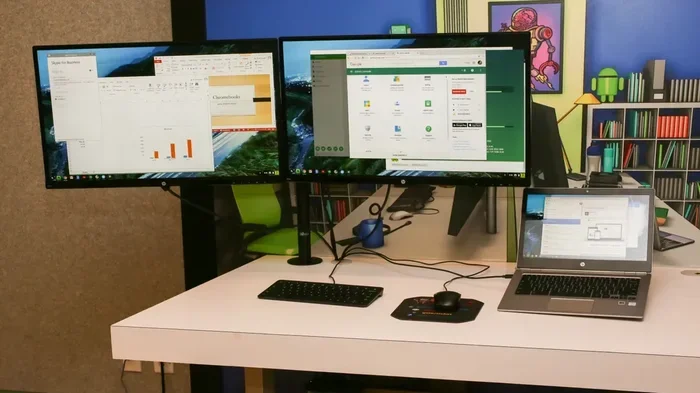
- Place the second monitor at an angle – If you use both screens equally, angle them slightly toward you in a V shape. If you use one screen more than the other, place it directly in front of you and put the secondary screen to the side.
- Use a monitor stand or arm – Adjustable monitor arms let you position each screen at the perfect height and angle. They also free up desk space.
- Take regular breaks – Looking at two screens for hours can strain your eyes. Follow the 20-20-20 rule: every 20 minutes, look at something 20 feet away for 20 seconds.
- Adjust brightness and contrast – Make sure both monitors have similar brightness levels so your eyes do not have to constantly adjust when you look between them.
Software Tips to Maximize Your Second Screen
Once your dual monitor setup is running, a few software tweaks can make it even more productive:
- Use Snap Layouts on Windows – Windows 11 has built-in snap layouts that let you divide your screens into different window arrangements with a single click.
- Use Spaces on macOS – macOS lets you create multiple desktop spaces, each with its own set of windows across your monitors. This helps you stay organized.
- Try a virtual desktop manager – Tools like DisplayFusion (Windows) or Rectangle (Mac) give you more control over window placement and management across multiple screens.
- Set different wallpapers – This simple trick helps you visually distinguish between your two screens at a glance.
- Use the taskbar wisely – On Windows, you can choose to show the taskbar only on the primary display or on all displays, depending on your preference.
Expert Insights on Dual Monitor Productivity
We spoke with productivity experts and IT professionals to get their take on connecting two displays to a laptop. Their advice aligns with what research shows: the right setup makes a real difference.
Sarah Chen, a UX designer with over 10 years of experience, says: “I cannot imagine working with just one screen now. Having my design tools on one display and my client feedback on the other has completely changed my workflow. It is not even close.”
Mark Thompson, an IT support specialist, adds: “The most common mistake I see is people buying the wrong cables or adapters. Always check your laptop’s output ports and your monitor’s input ports before you buy anything. A $15 adapter can save you hours of frustration.”
Their advice highlights a key point: planning before you buy makes the entire process smoother. Take five minutes to understand your laptop’s capabilities and your monitor’s inputs, and you will avoid most common pitfalls.
Key Takeaways
- Connecting two displays to your laptop is possible on most modern computers through HDMI, USB-C, or docking stations.
- A dual monitor setup can significantly boost your productivity by up to 30% according to studies.
- Windows and Mac laptops both support extended displays, but setup steps differ slightly.
- Docking stations offer the easiest and most reliable way to connect multiple external displays.
- Wireless display options like Miracast and AirPlay let you go cable-free if your hardware supports it.
- Troubleshooting common issues like detection failures and resolution mismatches is straightforward with the right approach.
- Ergonomic setup of your dual monitors reduces eye strain and improves comfort during long work sessions.
Frequently Asked Questions
Can I connect 2 displays to my laptop if it only has one HDMI port?
Yes, you can. You have several options. You can use a USB-C or Thunderbolt docking station that supports dual displays. You can also use an HDMI cable for one monitor and a USB-C to DisplayPort adapter for the second. Wireless display adapters are another option if your laptop supports Miracast or AirPlay. The key is to check what ports your laptop has and choose the right combination of cables and adapters.
Do I need a special graphics card to run two external monitors?
Most modern laptops can support at least one external display natively. Many newer laptops can support two external monitors as well, but it depends on the graphics hardware. If your laptop has an integrated GPU, check its specifications for multi-display support. Dedicated GPUs in gaming or workstation laptops almost always support multiple displays. If you are unsure, a docking station can often handle the display output for you, so you do not need to worry about your GPU.
Can I use two different monitors with different sizes and resolutions?
Absolutely. Windows and Mac both support mixed monitor setups with different sizes, resolutions, and refresh rates. You can pair a 24-inch 1080p monitor with a 27-inch 4K monitor, for example. The operating system will adjust scaling and layout automatically. The only thing to keep in mind is that matching resolutions and sizes can make the visual transition between screens feel more seamless, but it is not required.
Is a wireless second monitor as good as a wired one?
For most everyday tasks like browsing, writing, and video calls, a wireless second monitor works great. Wireless display technology has improved a lot in recent years. However, wired connections still offer better image quality, zero latency, and more reliable performance. If you are doing tasks that require precise color accuracy or real-time responsiveness, such as video editing or competitive gaming, a wired connection is the better choice.
How do I extend my laptop screen to a second monitor on Windows?
Press the Windows key plus P on your keyboard to open the Project menu. Select Extend from the options that appear. Then go to Display Settings to arrange your monitors and adjust resolution and scaling. This will spread your desktop across both screens so you can move windows freely between them. It takes less than a minute to set up and immediately gives you more workspace.
What is the best docking station for connecting two monitors to a laptop?
The best docking station depends on your laptop and budget. For most users, a USB-C or Thunderbolt docking station from brands like CalDigit, Anker, or Belkin provides excellent dual-display support, power delivery, and multiple USB ports. If you have a Mac, look for a dock that explicitly supports macOS and your specific Mac model. If you have a Windows laptop, check that the dock supports the resolution and refresh rate of your monitors. Reading reviews and checking compatibility lists before purchasing will save you time and money.
Conclusion
Connecting 2 displays to your laptop is one of the most effective upgrades you can make for your productivity and workflow. Whether you choose a wired connection through HDMI, USB-C, or a docking station, or go wireless with Miracast or AirPlay, the process is simpler than most people expect. The setup takes minutes, and the productivity gains last for the entire lifespan of your hardware.
Start by checking your laptop’s ports and deciding which connection method fits your needs best. If you want the easiest, most reliable experience, invest in a good docking station. If you prefer a clean desk with no cables, explore wireless display options. Follow the setup guides for your operating system, and do not be afraid to troubleshoot if something does not work right away.
The bottom line is clear: yes, you can connect 2 displays to your laptop, and doing so will genuinely change the way you work. More screen space means less window switching, better organization, and a more comfortable workflow. Take the leap today, and you will wonder how you ever managed with just one screen.