Do Wifi Boosters Decrease Speed Everything You Should Know
Do wifi boosters decrease speed? The short answer is yes, sometimes they can, but it depends on how you set them up. Wifi boosters work by rebroadcasting your existing signal, which can cause a slight speed reduction. However, with the right placement and settings, you can minimize any bandwidth reduction and enjoy strong, fast internet throughout your home.
Have you ever noticed your wifi slows down after adding a booster? You are not alone. Many people ask the same question: do wifi boosters decrease speed? The answer is more nuanced than a simple yes or no. In this guide, we will walk through everything you need to know about how wifi boosters affect your internet speed, why it happens, and what you can do about it.
A wifi signal booster can be a lifesaver when you have a wifi dead zone in your home. Maybe your backyard has no signal, or your basement stays disconnected no matter what you try. A booster fills in those gaps. But the trade off is that some boosters can cause a slight speed reduction. Understanding why this happens puts you in control. You can set up your equipment the smart way and keep your connection stability strong.
This article covers the science behind boosters, the factors that play a role, and practical tips you can use today. Whether you have a small apartment or a large house, you will find useful advice here. Let us dive in.
Key Takeaways
- Wifi boosters can reduce speed slightly: The rebroadcasting process naturally splits bandwidth, but the drop is usually small and manageable.
- Placement matters a lot: Putting your booster in the wrong spot can cause a bigger internet speed drop than you expect.
- Dual band and tri band models help: These devices handle wireless signal strength better and reduce network latency.
- Ethernet backhaul is the best fix: Using a wired connection between your router and booster eliminates most speed loss.
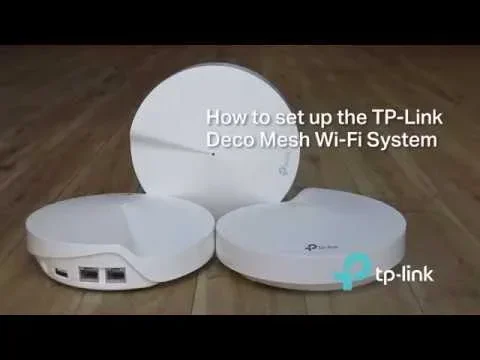
- Mesh networks are a modern alternative: Systems like Deco mesh wifi offer smoother performance than traditional boosters.
- Regular speed tests help you monitor: Running an internet speed test before and after setup shows you exactly what changed.
📑 Table of Contents
- What Is a Wifi Booster and How Does It Work?
- Do Wifi Boosters Decrease Speed? The Truth Explained
- Factors That Affect Speed When Using a Wifi Booster
- How to Choose the Right Wifi Booster for Your Setup
- Tips to Maximize Speed With a Wifi Booster
- Common Mistakes People Make With Wifi Boosters
- Expert Insights on Wifi Booster Performance
- Conclusion
What Is a Wifi Booster and How Does It Work?
The Basic Idea Behind a Wifi Booster
A wifi booster (also called a wifi range extender or wifi amplifier) does one main job. It catches your existing wifi signal from the router and sends it out again to areas where the signal is weak. Think of it like a megaphone for your wifi. The booster does not create a new internet connection. It simply repeats what your router already sends.
Here is how it works in simple steps:
- The router sends out a wifi signal.
- The booster picks up that signal.
- The booster rebroadcasts the signal to a wider wifi coverage area.
- Your devices connect to the booster instead of the router directly.
This process sounds simple, but it has a catch. The booster has to receive and then resend the data. That takes time. And that tiny delay adds up, especially if you have multiple devices connected at once.
Wifi Booster vs Wifi Extender vs Repeater
People use these terms interchangeably, but there are small differences. A wifi extender usually sits closer to the router and extends the signal range. A repeater rebroadcasts the signal wirelessly, which can cut speed more than an extender. A booster is a general term that covers all of these. If you are comparing options, knowing these terms helps you pick the right device.
For example, if you want to extend your wifi to a shed, a dedicated booster with external antennas works better than a basic repeater. The right choice depends on your setup and how far the signal needs to travel.
Do Wifi Boosters Decrease Speed? The Truth Explained
Why Speed Can Drop With a Booster
The honest answer to do wifi boosters decrease speed is yes, they can. But the amount of speed loss varies a lot. When a booster receives your wifi signal and rebroadcasts it, it uses the same radio to both listen and talk. This is called half-duplex communication. It means the booster cannot receive and send data at the same time. It has to take turns. That creates a bottleneck.
Think of it like a single-lane bridge. Cars can only go one direction at a time. The bridge still works, but traffic slows down. Your network throughput drops because the booster has to manage this back-and-forth process.
A typical speed reduction from a basic wireless booster ranges from 10% to 50%. The exact number depends on several factors we will cover next. The good news is that not all boosters cause big drops. Newer models and smart setups keep the loss minimal.
When a Booster Does NOT Slow Things Down
Not every booster causes a noticeable internet speed drop. Here are situations where the speed stays almost the same:
- You use a booster with ethernet backhaul, which uses a cable to connect the booster to the router.
- You pick a dual band or tri band booster that has dedicated backhaul channels.
- Your original wifi signal is already strong where you place the booster.
- You have few devices connected to the booster at the same time.
In these cases, the booster simply extends your wireless signal strength without adding much latency. Your connection stability stays solid, and your devices get the speed they need.
Factors That Affect Speed When Using a Wifi Booster
Distance From the Router
The farther your booster sits from the router, the weaker the signal it receives. A weak incoming signal means a weaker outgoing signal. This is the biggest factor in speed reduction. If you place your booster too far away, it has to work harder to pick up the signal, and your bandwidth reduction increases.
Rule of thumb: place the booster halfway between your router and the dead zone. This gives it a strong signal to work with and delivers better speed to the far end.
Number of Connected Devices
Every device connected to your booster shares the available bandwidth. If your family has ten phones, three laptops, two smart TVs, and a gaming console all pulling from one booster, the speed will drop. This is called bandwidth reduction, and it affects every device on the network.
If you have many devices, consider a mesh network system. Systems like Deco mesh wifi use multiple nodes to spread the load more evenly. This keeps each device faster and more stable.
Interference From Other Devices
Signal interference is a hidden speed killer. Microwaves, baby monitors, Bluetooth devices, and even neighbor wifi networks can all mess with your booster’s signal. When interference is high, the booster has to resend data more often, which slows everything down.
To reduce interference:
- Place your booster away from thick walls and metal objects.
- Keep it away from microwaves and cordless phones.
- Switch to the 5GHz band if your devices support it. It has less interference than the 2.4GHz band.
- Use a dual band router to separate traffic and reduce congestion.
Booster Quality and Technology
Not all boosters are created equal. A cheap single-band booster from a dollar store will slow your speed more than a quality dual-band model. The technology inside the device matters a lot. Newer boosters use MU-MIMO technology, which lets them talk to multiple devices at once instead of one at a time. This cuts network latency and keeps speed high.
When shopping, look for these features:
- Dual band or tri band support
- Ethernet port for wired backhaul
- MU-MIMO capability
- WiFi 5 or WiFi 6 standards
- External antennas for better reach
How to Choose the Right Wifi Booster for Your Setup
Small Homes and Apartments
If you live in a small space, you do not need a powerful booster. A basic wifi range extender with dual band support works great. These are affordable and easy to set up. Look for one that supports WiFi 5 (802.11ac) or better. This ensures your internet speed test results stay close to what your router delivers.
For most small setups, a simple plug-in booster placed in the hallway between the router and the weak spot does the job. You will see minimal speed reduction if the signal path is clear.
Medium to Large Homes
Larger homes with multiple floors need a stronger solution. A single booster may not cover the whole space. In these cases, a mesh network works better than a traditional booster. Mesh systems use multiple nodes that talk to each other seamlessly. Your devices switch between nodes without dropping the connection.
If you are considering mesh, check whether your current router supports it. Some systems, like WiFi 6 mesh setups, work with older routers and give you a big speed boost across the whole house.
Outdoor and Tough Spot Coverage
Do you need wifi in your garage, garden, or workshop? Standard indoor boosters may not cut it. Outdoor boosters or weather-resistant extenders handle these challenges. They are built to deal with temperature changes and moisture. If you are thinking about outdoor coverage, look for a booster rated for outdoor use and make sure it has a clear line of sight to your router.
Tips to Maximize Speed With a Wifi Booster
Placement Is Everything
Where you put your booster changes everything. The best spot is always halfway between your router and the area with weak signal. Never place it right next to the router either, because then it does not help the dead zone at all. Find the sweet spot where the booster gets a strong signal and can push it forward effectively.
Use Ethernet Backhaul When Possible
This is the single best tip for keeping speed high. If you can run an ethernet cable from your router to the booster, do it. Ethernet backhaul removes the wireless bottleneck completely. The booster gets a full-speed wired connection and rebroadcasts that full speed to your devices. This almost eliminates any speed reduction from the booster.
If running a cable is not possible, look for a booster with a dedicated wireless backhaul band. Tri-band boosters use a separate radio just for communicating with the router, which keeps your main bands free for your devices.
Keep Your Firmware Updated
Manufacturers release firmware updates that improve performance and fix bugs. Check your booster’s app or admin page regularly for updates. An updated booster runs smoother and handles signal interference better. This small habit keeps your network throughput at its best.
Run Regular Internet Speed Tests
How do you know if your booster is slowing things down? Test it. Run an internet speed test with the booster off and then with it on. Compare the results. If you see a big drop, try moving the booster or switching bands. Testing regularly helps you catch problems early and keep your connection stability strong.
Limit Devices on the Booster
If you notice slow speeds, check how many devices are connected to the booster. Too many devices sharing one booster creates congestion. Move some devices closer to the router if possible. Or add another booster or mesh node to spread the load. Keeping the device count balanced helps maintain good router performance across your whole home.
Common Mistakes People Make With Wifi Boosters
Placing the Booster Too Far From the Router
This is the number one mistake. People put the booster at the edge of the dead zone, where the signal is already very weak. The booster then has to work overtime to grab that weak signal and rebroadcast it. The result is a slow, unstable connection. Always place the booster where it still gets a strong signal from the router.
Buying the Cheapest Booster Available
Budget boosters save money upfront but often cost you in speed and reliability. They use older technology, have weaker antennas, and lack features like dual band support. A slightly more expensive model with WiFi 5 or WiFi 6 support will give you much better performance and a smaller speed reduction.
Ignoring the Difference Between Bands
Many people do not realize that 2.4GHz and 5GHz bands behave very differently. The 2.4GHz band reaches farther but is slower and more prone to interference. The 5GHz band is faster but has a shorter range. If your booster only supports 2.4GHz, you will see more bandwidth reduction and slower speeds. Always choose a booster that supports both bands, or better yet, a tri-band model.
Expecting the Booster to Fix Everything
A booster extends your existing signal. It does not upgrade your internet plan or fix a slow router. If your base internet speed is slow, a booster will not make it faster. It only spreads what you already have. Make sure your plan and router can deliver the speed you need before adding a booster.
Expert Insights on Wifi Booster Performance
Networking experts agree that the key to avoiding speed loss is setup. A well-placed booster with the right technology barely affects your speed. But a poorly placed one can make things worse. Experts recommend starting with a speed test, choosing the right type of booster for your space, and using wired backhaul whenever possible.
Many pros also suggest considering a mesh system over a single booster for homes larger than 2,000 square feet. Mesh systems handle connection stability better and give you seamless coverage without the speed penalty that traditional boosters can cause. If you are on the fence, check out options like Deco units used as wifi extenders, which combine the best of both worlds.
One more expert tip: always match your booster to your router’s standard. If you have a WiFi 6 router, use a WiFi 6 booster. Mixing older and newer standards can limit your speed to the lowest common denominator. Keeping everything on the same technology level ensures you get the best wireless signal strength possible.
Conclusion
So, do wifi boosters decrease speed? Yes, they can, but the impact is usually small when you set things up right. The key factors are placement, booster quality, band support, and whether you use wired backhaul. A well-chosen booster placed in the right spot can extend your wifi coverage area without a noticeable speed reduction. On the other hand, a cheap booster placed too far from the router can cause frustrating slowdowns.
The best approach is to test your current speed, choose a booster that matches your needs, and follow the tips in this guide. Keep your firmware updated, limit connected devices, and consider a mesh system if your home is large. With the right setup, you get strong signal everywhere and fast, reliable internet throughout your home.
Take action today. Run a speed test, check your dead zones, and pick the right solution. Your slow wifi connection does not have to be a permanent problem. A good booster changes everything.
Frequently Asked Questions
Do all wifi boosters slow down your internet speed?
Not all boosters cause a big slowdown. Basic wireless repeaters can cut speed by 30% to 50%, but dual-band and tri-band models with ethernet backhaul keep the loss to around 5% to 10%. The type of booster and how you set it up makes the biggest difference in whether you notice any speed reduction.
Can a wifi booster improve speed instead of reducing it?
A booster cannot make your internet plan faster than what your provider gives you. But it can improve speed in areas where your signal was weak. If your router is far away and your signal was poor, a booster can actually give you better network throughput in that spot by delivering a stronger, more stable connection.
What is the best way to avoid speed loss with a wifi booster?
Use ethernet backhaul by connecting the booster to your router with a cable. This eliminates the wireless bottleneck completely. If a cable is not possible, choose a tri-band booster with a dedicated backhaul band, and place the booster where it still gets a strong signal from the router.
Is a mesh network better than a wifi booster for speed?
Yes, mesh networks generally handle speed better than single boosters. Mesh systems use multiple nodes that communicate intelligently, reducing network latency and bandwidth reduction. They also provide seamless coverage, so your devices stay connected without drops. For larger homes, mesh is often the better choice.
How do I know if my wifi booster is causing a speed drop?
Run an internet speed test with the booster turned off, then run the same test with the booster on. Compare the results. If you see a big drop, try moving the booster closer to the router, switching to the 5GHz band, or using a wired backhaul connection. Regular testing helps you keep your connection stability at its best.
Can too many devices connected to a booster cause slow speeds?
Yes, absolutely. Every device connected to a booster shares the available bandwidth. If you have many devices all pulling from one booster, the bandwidth reduction becomes noticeable. To fix this, limit the number of devices on the booster, move some closer to the router, or add a second booster or mesh node to spread the load.
=== URL SLUG ===
do-wifi-boosters-decrease-speed