Do I Need A Modem For T Mobile Home Internet Setup
You do not need a separate modem if you use T-Mobile home internet. T-Mobile provides a gateway device that combines your modem and router into one unit. This makes setup simple and keeps your home wireless network running smoothly. Understanding your T-Mobile 5G equipment helps you avoid extra costs and get the best broadband connection speeds.
Setting up T-Mobile home internet can feel confusing if you are not tech-savvy. One question many people ask is whether they need a separate modem. The short answer is no. T-Mobile provides everything you need to get online. But there is more to know about how this works.
In this guide, we will walk you through everything you need to know about modems and T-Mobile home internet. You will learn what equipment T-Mobile gives you, why a gateway is different from a modem, and how to set up your home wireless network the right way. We also share tips to boost your internet speed and avoid common setup mistakes.
Whether you are switching to T-Mobile 5G home internet or just trying to understand your current setup, this article has you covered. Let us dive in and make this easy to understand.
Key Takeaways
- No separate modem needed: T-Mobile provides a gateway that handles both modem and router functions for your home internet.
- Gateway device is essential: The T-Mobile Internet Box or Gateway is the core piece of equipment for your 5G home internet setup.
- You can add your own router: If you want better Wi-Fi coverage, you can connect your own router to the T-Mobile gateway.
- Setup is simple: Plug in the gateway, follow the app instructions, and your home network is ready in minutes.
- Avoid extra fees: Knowing what equipment you need helps you skip unnecessary rental charges and buy the right gear.
- 5G fixed wireless is the technology: T-Mobile home internet uses fixed wireless access to deliver high-speed internet to your home.
- Placement matters: Where you put your gateway affects your internet speed and Wi-Fi signal strength throughout your home.
📑 Table of Contents
- What Is T-Mobile Home Internet and How Does It Work?
- Do You Need a Modem for T-Mobile Home Internet?
- T-Mobile Gateway vs. Separate Modem and Router
- How to Set Up Your T-Mobile Home Internet Equipment
- Common Mistakes to Avoid with T-Mobile Internet Setup
- Quick Tips for the Best T-Mobile Home Internet Experience
- Expert Insights on T-Mobile Home Internet Equipment
- Key Takeaways
- Conclusion
What Is T-Mobile Home Internet and How Does It Work?
T-Mobile home internet is a fixed wireless internet service. It uses T-Mobile’s 5G network to deliver internet to your home. Unlike cable or fiber, it does not need physical wires running to your house. Instead, a small device connects to T-Mobile’s cell towers and sends Wi-Fi signals throughout your home.
This type of broadband connection is called fixed wireless access. It works great in areas where cable or fiber is not available. Many rural and suburban homes use T-Mobile 5G home internet as their main internet provider. The speeds are fast and the setup is simple.
How the Connection Reaches Your Home
T-Mobile sends a 5G signal from nearby cell towers. A device at your home catches that signal and turns it into a usable internet connection. This device is what T-Mobile calls a gateway. It acts as both a modem and a router. You plug it into a wall outlet, and it creates your home wireless network.
The gateway connects to the T-Mobile 5G network using an internal antenna. You do not need to install any antennas yourself. T-Mobile handles all the network equipment on their end. Your job is simply to plug in the gateway and follow the setup steps.
Who Is T-Mobile Home Internet Best For?
T-Mobile home internet works well for many households. Here are some situations where it is a great fit:
- Rural areas without cable or fiber options
- Families who stream movies and games online
- Remote workers who need a reliable broadband connection
- People switching from cable or satellite internet
- Renters who want easy setup without technician visits
If you live in an area with strong T-Mobile 5G coverage, you can expect fast internet speeds. Most users get download speeds between 33 Mbps and 245 Mbps. Some even get faster speeds depending on their location and network conditions.
Do You Need a Modem for T-Mobile Home Internet?
The direct answer is no. You do not need to buy or rent a separate modem for T-Mobile home internet. T-Mobile sends you a gateway device that includes a built-in modem and router. This all-in-one device does everything you need.
A traditional modem converts the signal from your internet provider into data your devices can use. A router then spreads that data as Wi-Fi signals around your home. The T-Mobile gateway combines both of these functions into a single box. This is why you do not need a separate wireless modem or Wi-Fi router.
What Equipment Does T-Mobile Provide?
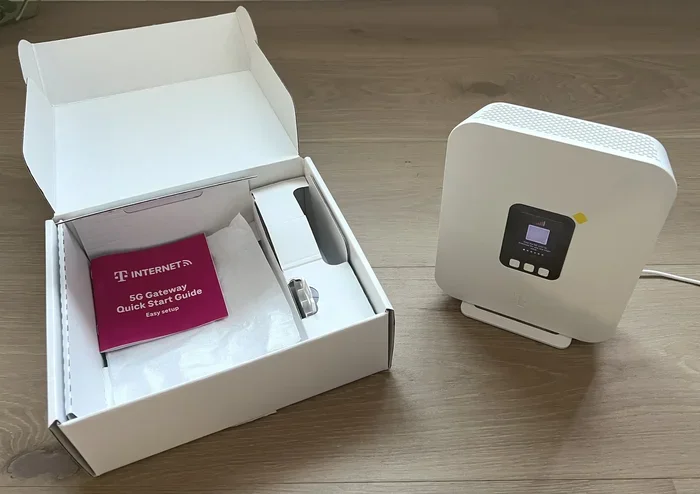
When you sign up for T-Mobile home internet, the company sends you a gateway device. This is sometimes called the T-Mobile Internet Box or the T-Mobile gateway. It includes:
- A built-in 5G modem to connect to T-Mobile’s network
- A built-in Wi-Fi router to create your home network
- An Ethernet port for wired connections
- Power cords and a power adapter
- A quick-start guide
The gateway is designed to work right out of the box. You do not need to configure a separate modem or router. Just plug it in, follow the on-screen prompts, and you are online. This makes home internet setup much easier for most people.
Can You Use Your Own Modem or Router?
Yes, you can use your own equipment if you want. Some users prefer a better Wi-Fi router for larger homes. You can connect your own router to the T-Mobile gateway. This gives you more control over your home wireless network.
However, T-Mobile does not officially support all third-party network equipment. If you use your own gear, you may not get full support from T-Mobile. Also, you still need the T-Mobile gateway to connect to their 5G network. Your own router would just sit behind it.
T-Mobile Gateway vs. Separate Modem and Router
Understanding the difference between a gateway and separate devices helps you make smart choices. Let us break it down.
What Is a Gateway?
A gateway is an all-in-one device. It combines a modem and a router into one unit. The T-Mobile gateway does this perfectly. It connects to the 5G network and spreads Wi-Fi to your devices. You get one box, one power cord, and one setup process.
What Is a Separate Modem and Router Setup?
In a traditional setup, you use two devices. The modem connects to the internet provider. The router spreads the connection as Wi-Fi. This setup gives you more flexibility. You can upgrade the router without changing the modem.
But for T-Mobile home internet, a separate setup is not necessary. The gateway handles everything. Adding a separate router is optional and only useful in specific situations.
Comparison Table
| Feature | T-Mobile Gateway | Separate Modem + Router |
|---|---|---|
| Number of Devices | One device | Two devices |
| Setup Complexity | Very simple | More steps involved |
| Wi-Fi Coverage | Good for most homes | Can be better with high-end routers |
| Cost | Included with service | You pay for both devices |
| Support from T-Mobile | Full support | Limited support |
| Upgrade Flexibility | Lower | Higher |
| Best For | Most T-Mobile users | Tech enthusiasts and large homes |
For most T-Mobile home internet users, the gateway is all you need. It is simple, cost-effective, and fully supported. Only consider a separate router if you have a very large home or specific Wi-Fi coverage needs.
How to Set Up Your T-Mobile Home Internet Equipment
Setting up your T-Mobile home internet is straightforward. Here is a step-by-step guide to get you online quickly.
Step 1: Place Your Gateway in the Right Spot
Where you put your gateway matters a lot for internet speed and Wi-Fi signal. Follow these tips:
- Place it near a window facing T-Mobile’s tower direction
- Keep it on a high shelf or table
- Avoid placing it near metal objects or thick walls
- Keep it away from microwaves and other electronics that cause interference
- Center it in your home for the best Wi-Fi coverage
Good gateway placement can make a big difference. A poorly placed gateway leads to slow speeds and weak signals in some rooms.
Step 2: Plug in the Gateway
Connect the gateway to a power outlet. Wait for the lights on the front to stabilize. This usually takes 2 to 5 minutes. The lights will show when the device is connected to the T-Mobile 5G network.
Step 3: Follow the T-Mobile App Instructions
T-Mobile has a simple app that walks you through setup. Download the app, connect to the gateway’s default Wi-Fi network, and follow the prompts. The app helps you:
- Connect to your T-Mobile account
- Set up your Wi-Fi network name and password
- Check your internet speed
- Update your gateway firmware
Step 4: Test Your Connection
Once setup is complete, test your connection. Open a browser and visit any website. Run a speed test to check your internet speeds. If everything looks good, you are ready to go.
Quick Tips for a Smooth Setup
- Have your T-Mobile account details ready before starting
- Restart your gateway if you experience connection issues
- Keep the gateway firmware updated for the best performance
- Use the T-Mobile app to manage your home network settings
- Restart your devices if they do not connect right away
Common Mistakes to Avoid with T-Mobile Internet Setup
Many people make avoidable mistakes when setting up their T-Mobile home internet. Here are the most common ones and how to prevent them.
Placing the Gateway in a Bad Spot
This is the number one mistake. Putting your gateway in a closet, basement, or behind furniture kills your Wi-Fi signal. Always place it in an open, central area with a clear line of sight to the nearest window.
Skipping Firmware Updates
Firmware updates fix bugs and improve internet speed and security. Do not ignore update notifications. Use the T-Mobile app to check for updates regularly.
Using Too Many Devices on One Network
While the gateway handles many devices, overloading it can slow things down. If you have many smart home devices, streaming boxes, and phones all connected, consider setting up a guest network for less important devices.
Not Contacting Support When Needed
If your home internet is not working properly, do not guess. Contact T-Mobile support. They can run diagnostics and help you fix the issue. Waiting too long can make small problems bigger.
Buying Unnecessary Equipment
Remember, you do not need a separate modem or router for T-Mobile home internet. Buying extra equipment wastes money. Only invest in additional gear if you have a specific need, like better Wi-Fi coverage in a large home.
Quick Tips for the Best T-Mobile Home Internet Experience
Once your T-Mobile home internet is up and running, these tips help you get the most out of it.
- Restart your gateway monthly. This clears memory and keeps things running smoothly.
- Use the T-Mobile app. It gives you easy control over your home network settings.
- Check your internet speed regularly. Use a speed test site to make sure you are getting what you pay for.
- Secure your network. Use a strong Wi-Fi password and enable WPA3 encryption if available.
- Update your gateway. Keep firmware current for the best connection setup and security.
- Consider a mesh system. If your home is large, a mesh Wi-Fi system can extend coverage without extra cost.
- Monitor connected devices. Remove devices you no longer use to keep your network fast and secure.
These simple habits keep your T-Mobile 5G home internet running at its best. They take only a few minutes but make a big difference over time.
Expert Insights on T-Mobile Home Internet Equipment
Network engineers and T-Mobile support teams agree on one thing: the gateway is designed to work perfectly with T-Mobile home internet. You do not need to overcomplicate your setup.
According to experts, most home internet issues come from poor gateway placement or outdated firmware. Fixing these two things solves the majority of problems. If you follow the setup steps carefully and keep your equipment updated, you should have a smooth experience.
Some experts also recommend using an Ethernet cable for devices that need a stable connection, like gaming consoles or desktop computers. This bypasses Wi-Fi and gives you the fastest possible internet speed for those devices.
The bottom line is that T-Mobile home internet is designed to be simple. The company wants you to plug in and go. Trust the equipment they provide, and only add your own gear if you have a specific reason to do so.
Key Takeaways
- No separate modem needed: T-Mobile provides a gateway that handles both modem and router functions for your home internet.
- Gateway device is essential: The T-Mobile Internet Box or Gateway is the core piece of equipment for your 5G home internet setup.
- You can add your own router: If you want better Wi-Fi coverage, you can connect your own router to the T-Mobile gateway.
- Setup is simple: Plug in the gateway, follow the app instructions, and your home network is ready in minutes.
- Avoid extra fees: Knowing what equipment you need helps you skip unnecessary rental charges and buy the right gear.
- 5G fixed wireless is the technology: T-Mobile home internet uses fixed wireless access to deliver high-speed internet to your home.
- Placement matters: Where you put your gateway affects your internet speed and Wi-Fi signal strength throughout your home.
Conclusion
Do I need a modem for T-Mobile home internet? The answer is clear. You do not need a separate modem. T-Mobile sends you a gateway device that combines a modem and a router into one simple unit. This makes your home internet setup easy and affordable.
The gateway connects to T-Mobile’s 5G network and spreads Wi-Fi throughout your home. It works right out of the box. You just plug it in, follow the app instructions, and you are online. No extra equipment is needed for most households.
If you want better Wi-Fi coverage, you can add your own router behind the gateway. But for standard homes, the T-Mobile gateway is all you need. Keep your equipment updated, place it in a good spot, and your broadband connection will serve you well.
Now that you know what equipment you need, you can set up your T-Mobile home internet with confidence. Enjoy fast speeds, reliable connectivity, and a simple setup process. Your T-Mobile 5G home internet experience starts with the right knowledge and the right equipment.
Frequently Asked Questions
Can I use my own modem with T-Mobile home internet?
You can use your own router, but you still need the T-Mobile gateway to connect to their network. The gateway handles the 5G connection and converts it to a usable internet signal. Your own router would connect to the gateway for extended coverage.
Does T-Mobile charge a fee for the gateway?
T-Mobile includes the gateway with your home internet plan. There is no separate rental fee for the device in most cases. Check your specific plan details to confirm any equipment costs.
Can I use T-Mobile home internet without the gateway?
No. The gateway is required to connect to T-Mobile’s 5G network. It acts as the bridge between the cell tower signal and your home devices. Without it, you cannot access T-Mobile home internet.
How do I know if my T-Mobile gateway needs a reset?
If your internet connection is slow or not working, a reset often helps. Unplug the gateway, wait 30 seconds, and plug it back in. This refreshes your connection setup and resolves most minor issues.
What is the difference between a modem and a gateway?
A modem only converts signals. A gateway combines a modem and a router in one device. The T-Mobile gateway does both jobs, so you do not need a separate wireless modem or Wi-Fi router.
Will adding my own router improve T-Mobile home internet speeds?
Adding your own router can improve Wi-Fi coverage and signal strength in larger homes. However, it does not increase the internet speed from T-Mobile. The speed depends on your T-Mobile data plan and network conditions in your area.