Can You See What Devices Search On Your Wifi Activity
Can you see what devices search on your wifi? The short answer is yes — your router logs browsing activity, DNS requests, and connected device behavior. Wifi network monitoring lets you track search history, visited websites, and even bandwidth usage per device. Whether you are a parent, employer, or curious homeowner, understanding router logs and network activity gives you real insight into who is doing what online.
Have you ever wondered if someone can look at your wifi router and see what you have been searching? Maybe you share a home network with family members. Or perhaps you run a small business and want to keep an eye on internet usage. Either way, the question of can you see what devices search on your wifi comes up more often than you might think.
The truth is, your wifi router keeps track of a lot more than you realize. Every time a device connects to your network, it leaves a digital footprint. That footprint includes DNS requests, connection times, and sometimes even the websites visited. Understanding how this works empowers you to take control of your network. It also helps you protect your privacy in an increasingly connected world.
In this guide, we will walk you through exactly what your router can see, how to access that information, and what steps you can take to safeguard your browsing habits. Whether you are troubleshooting slow speeds or simply curious about network activity, this article covers everything you need to know.
Key Takeaways
- Router logs capture DNS queries: Every website visit creates a record your router can store and display.
- You can monitor all connected devices: Most routers let you view activity for phones, laptops, smart TVs, and IoT gadgets.
- Third-party tools make tracking easier: Apps and software turn raw router data into readable browsing reports.
- Shared wifi exposes your searches: Anyone with admin access to the network can potentially see your browsing behavior.
- VPN and HTTPS protect your data: These tools encrypt traffic and make it much harder to intercept search activity.
- Regularly clearing logs helps privacy: Router history is not permanent and can be wiped or disabled entirely.
- Network monitoring is legal on your own wifi: But tracking others without consent may violate privacy laws.
📑 Table of Contents
How Wifi Routers Track What Devices Search
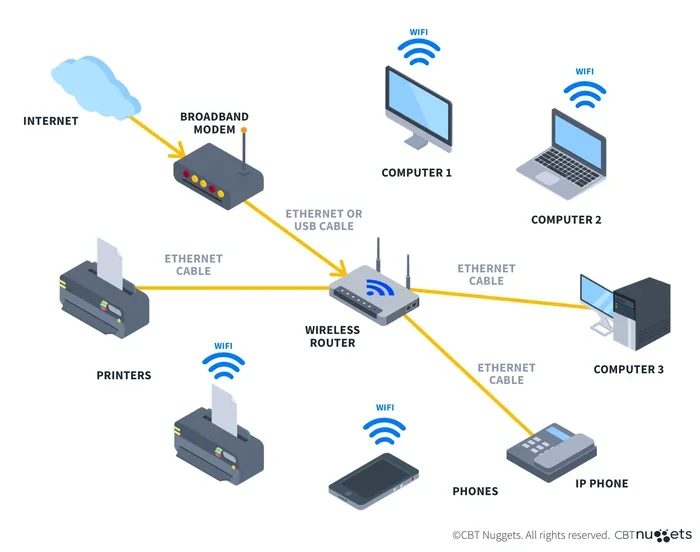
Your wifi router is more than just a box that gives you internet. It acts as a gatekeeper for all data flowing in and out of your home or office. Every request your devices make passes through it. That means your router has the ability to log and monitor a surprising amount of information.
Understanding DNS Queries and Router Logs
When you type a website name into your browser, your device sends a DNS query. This query translates the human-readable name into an IP address your device can reach. Your router handles this request and records it in its DNS cache or system logs.
Think of DNS queries like a phone book. Your device looks up a name, and the router logs that lookup. While DNS queries do not show the exact page you visited, they reveal which domains you accessed. For example, a query to “youtube.com” tells the router someone watched YouTube — even if it does not show the specific video.
Most modern routers store these logs for a set period. Some keep them for hours. Others retain logs for days or even weeks. The duration depends on your router model, firmware settings, and available storage. You can usually find these logs in your router’s admin panel under sections labeled system logs, activity history, or DNS logs.
What Types of Data Do Routers Collect?
Routers collect more than just website names. Here is a breakdown of the common data points your router can track:
- Connected device names and MAC addresses: Every device has a unique identifier. Your router logs when each device joins or leaves the network.
- IP addresses assigned: Your router assigns local IP addresses and keeps a record of which device got which address.
- Bandwidth usage per device: Routers track how much data each device consumes. This helps identify heavy users or bandwidth hogs.
- Connection timestamps: Logs show when devices connected and for how long.
- DNS request history: A list of domain names each device looked up during its sessions.
- Firewall and security events: Attempted intrusions, blocked connections, and suspicious activity get flagged automatically.
While this data does not always show your exact search terms, it paints a detailed picture of online behavior. A network administrator or tech-savvy user can piece together a lot from these logs alone.
What You Can See When Monitoring Network Activity
So what does this mean for you in practical terms? If you log into your router, what will you actually find? Let us walk through the typical information available to a network owner or administrator.
Device-Level Activity Overview
Most routers offer a dashboard showing all connected devices in real time. You can see which phones, tablets, laptops, and smart home gadgets are currently online. Some routers even label devices by name, making it easy to identify who is using the network.
Beyond live connections, router dashboards often include a device history section. This shows past connections — which devices were online, when, and for how long. If your teenager was supposed to be asleep but their phone was active at 2 AM, the logs will show it.
Browsing and Search Activity Visibility
Here is where things get interesting. Can you see the actual search terms someone typed into Google? The answer is nuanced. Your router sees the DNS request for “google.com” and possibly the URL path if it is not encrypted. But the actual search query — like “best pizza near me” — typically stays hidden from raw router logs.
However, there are workarounds. If the traffic is not encrypted, someone with the right tools can perform packet sniffing and capture more detailed information. On unsecured networks or HTTP sites, search terms can sometimes be visible in plain text. This is why using HTTPS websites and a VPN matters so much.
Some advanced routers and network monitoring software go a step further. They integrate with deep packet inspection tools or DNS filtering services. These systems can categorize traffic and provide summaries of browsing habits. For example, they might flag a device for visiting social media sites frequently or spending too much time on streaming platforms.
How to Check Search History Through Your Router
Want to see what your own devices are doing on the network? Accessing your router logs is straightforward. Here is a step-by-step guide to get you started.
Step 1: Access Your Router Admin Panel
Open a web browser on any device connected to your wifi. Type your router’s IP address into the address bar. Common addresses include 192.168.1.1, 192.168.0.1, or 10.0.0.1. Check the label on your router if you are unsure.
Enter your admin username and password. If you have never changed these, the default credentials are often printed on the router itself. Common defaults are “admin” for both the username and password, or “admin” and “password.”
Step 2: Navigate to the Logs or Activity Section
Once logged in, look for a tab or menu item labeled Logs, Activity, Traffic, or System Log. The exact name varies by router brand. Popular brands like Netgear, TP-Link, ASUS, and Linksys each organize their admin panels slightly differently.
In the logs section, you will find entries for DNS queries, connection events, and sometimes full URL paths. Scroll through the entries or use the search function to filter by device or date range.
Step 3: Use Third-Party Monitoring Tools
Router-built-in logs are helpful but limited. For a richer experience, consider installing network monitoring software on a computer connected to your network. Tools like Wireshark, GlassWire, and Fing offer deeper insights into traffic patterns and device behavior.
Some routers also support DD-WRT or OpenWrt firmware. These custom firmware options unlock advanced logging features and give you much more control over what you can see and track. They are popular among power users who want full visibility into their network.
Quick Tip: Write down your router’s admin password and store it somewhere safe. If you ever reset the router to factory settings, you will lose access until you re-enter the credentials.
Can Others See What You Search on Shared Wifi
This is one of the most common concerns people have about shared networks. If you are at home, at work, or using public wifi, should you worry about others seeing your searches?
Who Has Access to Wifi Activity Logs?
On a home network, the person who owns the router can access its logs. That means a parent, spouse, or roommate with admin privileges can monitor activity. On a work network, the IT department typically has full visibility into all connected devices. They can see which websites employees visit and how much data they use.
Public wifi networks — like those at coffee shops, airports, and hotels — pose even greater risks. The network operator can potentially log traffic. And on unsecured public networks, other users nearby might use packet sniffing tools to intercept unencrypted data.
Does Incognito Mode Protect You on Wifi?
Many people believe that using incognito mode or private browsing keeps their searches hidden from the network. This is a common misconception. Incognito mode only prevents your browser from saving history, cookies, and form data locally. It does not hide your activity from the router, the ISP, or network administrators.
If you search for something on a shared wifi network in incognito mode, the router still sees the DNS request. The network admin can still log the domain you visited. Incognito mode is useful for keeping your browsing clean on your own device. But it offers zero protection against network-level monitoring.
Tips to Protect Your Search Privacy on Wifi Networks
If you are concerned about others seeing what you search, do not worry. There are effective steps you can take to protect your privacy.
Use a VPN for Encrypted Traffic
A virtual private network encrypts all traffic between your device and the VPN server. Your router sees that you connected to a VPN, but it cannot see the specific websites you visit or the search terms you use. This is one of the most reliable ways to shield your browsing activity from network monitors.
Popular VPN services like NordVPN, ExpressVPN, and Surfshark offer easy-to-use apps for all devices. Once activated, your entire internet connection gets encrypted. No one on the same network can peek at your traffic.
Stick to HTTPS Websites
Look for the padlock icon in your browser address bar. Websites with HTTPS encryption protect the content of your visits. Even if someone captures the DNS query, they cannot see the specific pages you loaded or the data you entered.
Modern browsers now warn you before visiting non-HTTPS sites. Always pay attention to these warnings. They are your first line of defense against unwanted surveillance on shared networks.
Change Your Router’s Default Settings
Many routers come with default admin passwords that are easy to guess. Change your admin password immediately after setup. Also, disable remote management unless you specifically need it. These simple steps prevent unauthorized users from accessing your router logs and monitoring your network.
You should also regularly update your router’s firmware. Updates patch security vulnerabilities and improve the overall stability of your network. An outdated router is a security risk that exposes all connected devices.
Consider DNS Encryption
Standard DNS queries travel in plain text, making them easy to intercept. Using encrypted DNS services like Cloudflare (1.1.1.1) or Google DNS over TLS adds a layer of protection. Your router sends encrypted DNS requests that no one on the network can read or tamper with.
Many modern routers support DNS-over-HTTPS and DNS-over-TLS natively. Check your router settings under the WAN or Internet configuration page to enable these features.
Common Myths About Wifi Search Tracking
There is a lot of misinformation floating around about wifi monitoring. Let us clear up a few of the most common myths.
Myth 1: Your ISP Cannot See Your Search History
Your internet service provider routes all your traffic. Unless you use a VPN or encrypted DNS, your ISP can see the domains you visit and sometimes even the URLs. They may not see your exact search queries on HTTPS sites, but they know you visited Google, YouTube, or any other platform.
Myth 2: Deleting Browser History Erases All Traces
Clearing your browser history only removes data from your device. The router still has its own logs. The ISP still has its own records. Deleting local history does not erase the broader digital trail your activity leaves behind.
Myth 3: Only Tech Experts Can Monitor Wifi Activity
Modern routers make monitoring surprisingly accessible. Most admin panels are designed for everyday users. With just a few clicks, anyone with the router password can view connected devices, check logs, and see basic browsing activity. You do not need to be a network engineer to monitor a wifi network.
Conclusion
Can you see what devices search on your wifi? Absolutely. Your router logs DNS queries, tracks connected devices, and stores activity data that reveals a lot about online behavior. Whether you want to monitor your own household or understand the risks of shared networks, this knowledge puts you in a powerful position.
The good news is that you can take control. Using a VPN, enabling HTTPS everywhere, updating your router firmware, and adjusting your DNS settings all help protect your privacy. You do not need to be a tech expert to make these changes. Start with one or two steps today and build from there.
Your wifi network is your digital front door. Understanding what happens behind it gives you the confidence to browse safely and securely. Take charge of your network, protect your data, and enjoy peace of mind every time you connect.
Frequently Asked Questions
Can the owner of a wifi network see my search history?
Yes, the network owner can see which websites you visit through router logs and DNS records. They may not see your exact search queries on encrypted sites, but they can see the domains you accessed. Using a VPN hides this information effectively.
Does using wifi at a public library or cafe expose my searches?
Public wifi networks can log your browsing activity. The network operator may track which domains you visit. Additionally, other users on the same network could potentially intercept unencrypted traffic. Always use a VPN on public networks for safety.
Can someone see my searches even if I use incognito mode?
Incognito mode only prevents your browser from saving history locally. It does not hide your activity from the router, the ISP, or network administrators. Your DNS requests are still visible to anyone monitoring the network.
How long do routers keep browsing logs?
Router log retention varies by model and settings. Some routers keep logs for a few hours, while others store them for weeks. Many routers overwrite old logs when storage fills up. Check your router’s settings to see how long yours retains data.
What is the best way to hide my wifi browsing from others?
The most effective method is using a reputable VPN service. A VPN encrypts all your traffic, so the router and network administrators can only see that you connected to a VPN server. Combined with HTTPS websites and encrypted DNS, this provides strong privacy protection.
Is it legal to monitor wifi activity on your own network?
Monitoring activity on your own wifi network is generally legal. However, tracking someone else’s activity without their consent may violate privacy laws, especially in workplace or shared environments. Always inform users if their traffic is being monitored.