Can Any Router Work With Any Wi Fi And Compatibility
Not every router works with every Wi-Fi network. Compatibility depends on Wi-Fi standards, ISP requirements, and your device needs. This guide covers everything you need to know about router compatibility and how to pick the right one.
Can any router work with any Wi-Fi? The short answer is no. But the full answer is more interesting. Your router needs to match your internet setup, your Wi-Fi standard, and your device requirements. When you understand how these pieces fit together, you can make smarter choices. This guide breaks down everything you need to know about router compatibility in simple terms.
Many people buy a router and expect it to work perfectly out of the box. Sometimes it does. Other times, you run into slow speeds, connection drops, or devices that won’t connect at all. Understanding router compatibility saves you time, money, and frustration. Let’s dive into how Wi-Fi and routers interact and what you can do to get the best results.
Key Takeaways
- Router compatibility matters: Not all routers work with every Wi-Fi network or ISP setup.
- Wi-Fi standards differ: Wi-Fi 5, Wi-Fi 6, and older standards affect speed and range.
- Check your ISP requirements: Some internet providers have specific router recommendations or requirements.
- Dual-band and tri-band routers offer flexibility: They work across multiple frequency bands for better performance.
- Matching your router to your needs saves money: Buying the right router avoids frustration and wasted effort.
- Firmware updates fix many issues: Keeping your router updated improves compatibility and security.
- Mesh systems solve coverage problems: They work with most Wi-Fi setups but need proper placement.
📑 Table of Contents
How Router and Wi-Fi Compatibility Works
Think of your router as a translator. It talks to your internet provider on one side and your devices on the other. For this to work smoothly, both sides need to speak the same language. That language is the Wi-Fi standard. When the standards don’t match, problems happen.
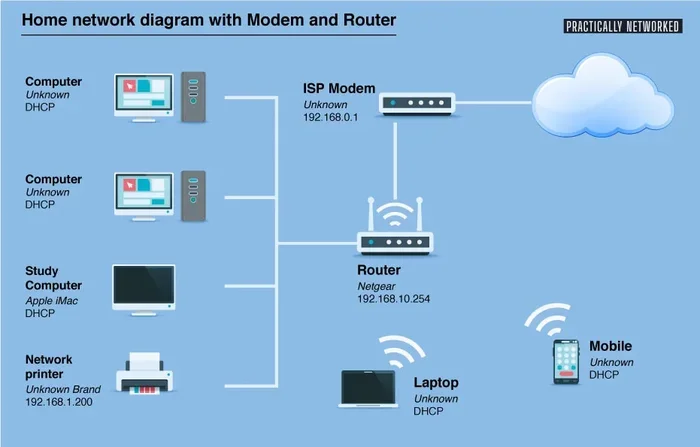
Your internet service provider, or ISP, delivers internet to your home through a modem. The modem connects to your router. The router then creates a wireless network. This network lets your phones, laptops, and smart home devices go online. If any piece in this chain doesn’t work with the others, your experience suffers.
Understanding Wi-Fi Standards
Wi-Fi standards are like rules that devices follow to communicate. Over the years, these rules have evolved. Each new standard brings faster speeds and better range. Here are the main standards you should know about:
- Wi-Fi 4 (802.11n): An older standard. Still works but is slow by today’s standards. Max speed around 600 Mbps.
- Wi-Fi 5 (802.11ac): A big step up. Offers speeds up to 3.5 Gbps. Very common in modern routers.
- Wi-Fi 6 (802.11ax): The latest mainstream standard. Faster speeds, better performance in crowded areas. Max speed up to 9.6 Gbps.
- Wi-Fi 6E and Wi-Fi 7: Newest standards. Offer even faster speeds and wider channels. Still rolling out in newer devices.
When you ask yourself, “Can any router work with any Wi-Fi?” the Wi-Fi standard is the first thing to check. An older router may connect to a newer network, but it will cap your speed. Similarly, a brand-new Wi-Fi 6 router paired with an old device will still work, but that device won’t get the full speed boost.
Router and Modem Compatibility
Your router needs to work with your modem too. Most ISPs provide a modem-router combo unit. But many people prefer to use their own equipment. This is where router compatibility becomes important. Not every router works with every modem. The connection type matters a lot here.
For example, if your ISP uses a cable connection, you need a router with a cable-compatible modem or a separate cable modem. If you have fiber internet, the setup is different. DSL connections need yet another type of equipment. Always check what your ISP supports before buying a new router.
What Happens When You Mix Routers and Wi-Fi Networks
Mixing and matching routers and networks can lead to some surprising results. Sometimes it works great. Other times, you deal with headaches. Let’s look at what can go wrong and what can go right.
Speed and Performance Issues
When a router doesn’t match your network’s capabilities, speed takes a hit. Imagine driving a sports car on a dirt road. The car is fast, but the road limits you. The same thing happens with routers and Wi-Fi standards. A fast Wi-Fi 6 router on a slow network won’t give you Wi-Fi 6 speeds.
Here are common speed-related problems you might face:
- Slower download and upload speeds: Your router can’t push more speed than your internet plan allows.
- High latency: Older routers may cause lag, especially in online gaming or video calls.
- Bandwidth bottlenecks: If your router only supports 2.4 GHz, you miss out on the faster 5 GHz band.
- Poor performance with multiple devices: Older routers struggle when many devices connect at once.
Security and Encryption Concerns
Security is another big piece of the compatibility puzzle. Wi-Fi networks use encryption to keep your data safe. Older routers may not support the latest encryption standards. This leaves your network vulnerable. WPA3 is the newest and most secure encryption protocol. Many older routers only support WPA2 or even WEP, which is outdated and risky.
When your router doesn’t support modern encryption, your devices may refuse to connect. Or worse, they connect but without proper protection. Always make sure your router supports at least WPA2 or, better yet, WPA3 encryption.
Types of Routers and Their Compatibility
Not all routers are the same. Different types serve different needs. Understanding these differences helps you pick the right one for your home or office.
Single-Band vs Dual-Band Routers
A single-band router works on one frequency band, usually 2.4 GHz. A dual-band router works on both 2.4 GHz and 5 GHz. The 5 GHz band is faster but has a shorter range. The 2.4 GHz band is slower but reaches further. Most modern routers are dual-band, which gives you more flexibility.
Here’s a simple comparison:
- Single-band routers: Work with most devices. Affordable. But they can get crowded in areas with many networks.
- Dual-band routers: Offer two separate networks. Better for homes with multiple devices. More expensive but worth it.
- Tri-band routers: Add a second 5 GHz band. Great for large households. Overkill for small apartments.
When you ask, “Can any router work with any Wi-Fi?” a dual-band router is the most versatile choice. It works with almost any network setup and handles most devices well.
Wi-Fi 5 vs Wi-Fi 6 Routers
Wi-Fi 5 and Wi-Fi 6 routers are the two most common types today. Wi-Fi 5 routers are still great for most homes. They offer solid speeds and wide device support. Wi-Fi 6 routers are faster and handle more devices at once. They are ideal for smart homes with dozens of connected gadgets.
Here’s what to keep in mind when choosing between them:
- Wi-Fi 5 routers: Best for budget setups. Works well for browsing, streaming, and light gaming. Compatible with most devices.
- Wi-Fi 6 routers: Best for heavy use. Great for 4K streaming, video calls, and smart home ecosystems. Future-proofs your network.
If your devices support Wi-Fi 6, a Wi-Fi 6 router will give you the best experience. But a Wi-Fi 5 router still works perfectly fine for everyday tasks.
How to Check Router Compatibility
Before you buy a router, check a few things first. This saves you from buying the wrong equipment. Here’s a simple checklist to follow.
Checking Your ISP Requirements
Your internet provider may have a list of approved routers. Call them or check their website. Some ISPs lock their modems to specific router models. Others are more flexible. Knowing this before you shop makes a huge difference.
Also, ask about the connection type. Is it cable, fiber, or DSL? Each type needs a compatible modem or router. If you’re unsure, your ISP can walk you through the right setup.
Understanding Network Bands and Frequencies
Wi-Fi networks broadcast on specific frequencies. The two main bands are 2.4 GHz and 5 GHz. Some newer routers also support 6 GHz for Wi-Fi 6E and Wi-Fi 7. Your devices need to support the same band to connect.
Here’s a quick tip: if your router broadcasts on 5 GHz and your old laptop only supports 2.4 GHz, they will still connect. But you won’t get the faster 5 GHz speeds. Always check what bands your devices support before buying a router.
Quick Tips for Checking Compatibility
- Look at the router’s box or spec sheet for supported Wi-Fi standards.
- Check if your ISP has a list of compatible routers.
- Verify that your modem and router use the same connection type.
- Make sure your devices support the router’s frequency bands.
- Check for WPA3 or at least WPA2 encryption support.
- Read user reviews for real-world compatibility feedback.
Common Compatibility Issues and How to Fix Them
Even with the right router, you might run into issues. Here are the most common problems and how to solve them.
Slow Speeds After Switching Routers
Did you just get a new router and notice slow speeds? Don’t panic. This is more common than you think. Often, the issue is a simple configuration problem. Start by checking your router’s settings. Make sure it’s set to the right Wi-Fi band. Also, check if your ISP plan matches the speeds you’re getting.
Try these quick fixes:
- Restart both your modem and router.
- Update your router’s firmware to the latest version.
- Move the router to a central location in your home.
- Switch to the 5 GHz band for faster speeds.
- Check for interference from other electronic devices.
Connection Drops and Dead Zones
Dead zones are areas in your home where the Wi-Fi signal is weak or nonexistent. They happen when walls, floors, or furniture block the signal. A single router might not cover your entire home, especially if it’s large or has multiple floors.
To fix dead zones, try these solutions:
- Reposition your router: Place it in a central, elevated spot.
- Use a Wi-Fi extender: These boost the signal to hard-to-reach areas.
- Upgrade to a mesh system: Mesh networks use multiple nodes to cover your whole home.
- Switch to a different channel: Crowded channels cause interference. Your router settings let you change channels.
Devices Won’t Connect to the Network
Sometimes a device simply won’t connect to your Wi-Fi. This usually means there’s a compatibility mismatch. The device might not support the router’s Wi-Fi standard or encryption type. Try changing the encryption setting from WPA3 to WPA2. This often fixes the problem for older devices.
Also, make sure you’re entering the correct password. It sounds simple, but this is one of the most common reasons devices fail to connect.
Expert Tips for Choosing the Right Router
Choosing a router doesn’t have to be overwhelming. A few smart decisions go a long way. Here’s what the experts recommend.
Match Your Router to Your Internet Speed
If you pay for 100 Mbps internet, a top-of-the-line Wi-Fi 7 router is overkill. Buy a router that matches your internet speed. This saves money and avoids unnecessary complexity. For most households, a Wi-Fi 5 or Wi-Fi 6 router is more than enough.
Consider Your Home Size and Layout
A small apartment needs a different router than a large house with thick walls. For small spaces, a single router works great. For larger homes, consider a mesh system. Mesh routers spread the signal across multiple units, covering every corner of your home.
Think About Future Needs
Technology changes fast. Buying a Wi-Fi 6 router today means your setup stays relevant for years. Wi-Fi 6E and Wi-Fi 7 are even newer, but they’re still pricey. If you want long-term value, Wi-Fi 6 is the sweet spot right now.
Read Reviews Before You Buy
Always check real user reviews before purchasing. Look for feedback on range, speed, and ease of setup. Reviews reveal problems that spec sheets don’t mention. Pay attention to comments about compatibility with specific ISPs or devices.
Key Takeaways
- Not every router works with every Wi-Fi network: Compatibility depends on standards, bands, and ISP requirements.
- Wi-Fi standards matter: Newer standards like Wi-Fi 6 offer better speeds and more device support.
- Check your ISP’s router list: Some providers require or recommend specific models.
- Dual-band routers are the most versatile: They work across 2.4 GHz and 5 GHz frequencies.
- Match your router to your needs: A small apartment doesn’t need a tri-band mesh system.
- Update your router firmware: This fixes bugs and improves compatibility with new devices.
- Mesh systems solve coverage problems: They work with most setups but need proper placement.
Conclusion
So, can any router work with any Wi-Fi? The answer is more nuanced than a simple yes or no. Router compatibility depends on Wi-Fi standards, frequency bands, ISP requirements, and your device needs. A little research goes a long way toward finding the right match.
When you understand how routers and Wi-Fi networks interact, you make better buying decisions. You avoid slow speeds, connection drops, and wasted money. The right router compatibility setup gives you a fast, reliable, and secure wireless network. Take the time to check your options, and you’ll enjoy a much better internet experience.
Start by checking your ISP’s requirements. Then match your router to your home size and device count. Finally, keep your firmware updated and your network secure. Follow these steps, and you’ll get the most out of your Wi-Fi setup every single day.
Frequently Asked Questions
Can I use any router with any internet provider?
Not always. Some ISPs require specific modem-router combos or have approved device lists. Check with your provider before buying. Most modern routers work with standard cable, DSL, or fiber connections, but compatibility varies.
Will a Wi-Fi 6 router work with older devices?
Yes, Wi-Fi 6 routers are backward compatible. They work with older devices that support Wi-Fi 5, Wi-Fi 4, and earlier standards. However, older devices won’t get the speed benefits of Wi-Fi 6. They’ll connect at their own supported speeds.
What happens if my router doesn’t support WPA3 encryption?
Your router can still use WPA2 encryption, which is widely supported and secure. Some newer devices may refuse to connect if WPA3 is the only option. Always choose a router that supports both WPA2 and WPA3 for maximum compatibility.
Do I need a new router if I upgrade my internet speed?
Not always. If your current router supports the new speed tier, you can keep it. But if your old router caps out below your new plan’s speeds, an upgrade makes sense. Check your router’s maximum speed rating before deciding.
Can a mesh router system work with any Wi-Fi network?
Mesh systems work with most standard Wi-Fi setups. They need a compatible modem and ISP connection to function. Once set up, mesh nodes extend your network’s coverage. They are a great solution for large homes with dead zones.
How do I know if my router is compatible with my devices?
Check the Wi-Fi standards your devices support. Look at the device specs for 802.11n, 802.11ac, or 802.11ax. Then match those to your router’s supported standards. If both support the same standard, they will connect without issues.