How Can I Boost My Wifi Signal With Access Point Today
Boosting your WiFi signal with an access point is one of the smartest moves you can make for better home network coverage. An access point eliminates dead zones, strengthens wireless coverage, and delivers faster speeds to every corner of your home. This guide walks you through setup, placement, and optimization tips that really work. You will learn how to choose the right access point, reduce interference, and get the most out of your network.
Staring at a buffering screen in your bedroom while the router sits in the living room is frustrating. Weak WiFi signals ruin movie nights, slow down work calls, and make smart home devices unreliable. The good news is that adding an access point can change everything. When you learn how to boost my WiFi signal with access point deployment, the results are immediate and noticeable. This guide breaks down everything you need to know in simple, practical terms.
Whether you live in a small apartment or a large house with thick walls, an access point solves real coverage problems. It is not magic, but it is close. You do not need to be a tech expert to set one up. By the end of this article, you will know exactly what to buy, where to place it, and how to get the strongest possible signal throughout your home.
Key Takeaways
- Access points dramatically improve WiFi coverage: They send a strong, dedicated signal to areas your router cannot reach effectively.
- Placement matters more than hardware: Positioning your access point correctly can solve most signal problems without extra cost.
- Ethernet backhaul is the gold standard: Wired connections between your router and access point deliver the best performance.
- WiFi interference is a silent killer: Simple changes like switching frequency bands can boost your signal significantly.
- Mesh systems are a great alternative: If a single access point is not enough, a mesh setup covers larger homes with ease.
- Firmware updates keep your network fast: Regular maintenance ensures your access point runs at peak performance.
- You do not need expensive equipment: A well-placed access point with basic settings can transform your home WiFi.
📑 Table of Contents
- What Is an Access Point and How Does It Boost Your WiFi Signal
- Why Your WiFi Signal Might Be Weak
- How to Set Up an Access Point for Better Coverage
- Best Practices for Maximum WiFi Signal Strength
- Advanced Tips to Maximize Access Point Performance
- When to Consider a Mesh WiFi System Instead
- Common Mistakes to Avoid When Using an Access Point
- Final Thoughts on Boosting Your WiFi Signal With an Access Point
What Is an Access Point and How Does It Boost Your WiFi Signal
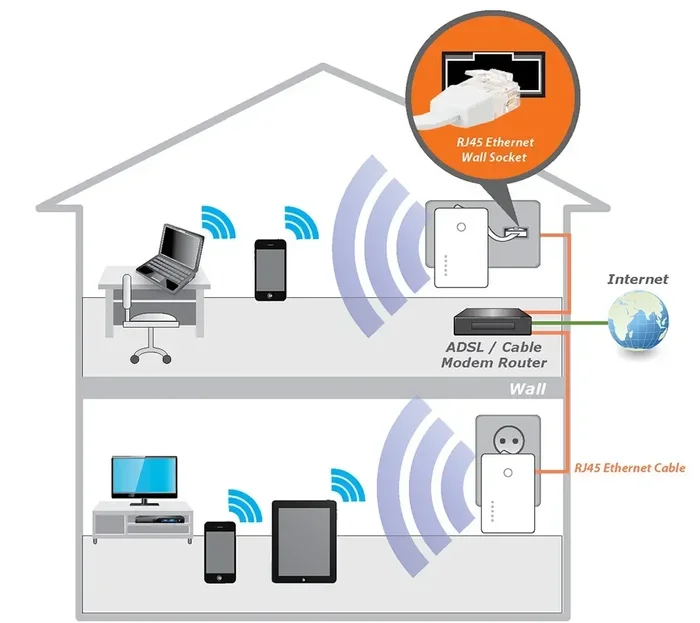
An access point is a networking device that connects to your main router and broadcasts a new WiFi signal. Think of it as a relay station for your wireless network. Your router handles the internet connection, and the access point spreads that connection to areas the router cannot reach well on its own.
When you boost my WiFi signal with access point hardware, you are essentially adding a second source of wireless coverage. This is different from a WiFi extender because an access point creates its own dedicated network node. It talks directly to your router, usually through a cable, and then sends out a clean, strong signal to your devices.
How an Access Point Works
Here is a simple way to understand it. Your router sends out a WiFi signal from one location. That signal weakens as it travels through walls, floors, and furniture. An access point sits further out in your home and receives a strong wired connection from the router. It then broadcasts fresh WiFi from that new location. The result is stronger coverage in rooms that previously had poor or no signal at all.
Most access points connect to the router using an Ethernet cable. This wired connection is the secret sauce. It means the access point gets full-speed internet from the router without any wireless loss. Then it rebroadcasts that signal to your phones, laptops, and smart devices.
Access Point vs WiFi Extender
People often confuse access points with WiFi extenders, but they work very differently. A WiFi extender picks up your existing wireless signal and rebroadcasts it. This sounds helpful, but it cuts your bandwidth in half because it uses the same radio to receive and send data. An access point connects to the router through a cable, so it keeps full speed and does not reduce your bandwidth.
If you want real performance gains, an access point is the clear winner. It is the professional choice for homes and offices that need reliable wireless coverage without compromises.
Why Your WiFi Signal Might Be Weak
Before you rush out to buy an access point, it helps to understand why your signal is weak in the first place. Several common factors cause poor WiFi performance, and fixing them can sometimes solve the problem without any new equipment.
Common Causes of Weak WiFi
Distance is the biggest enemy of WiFi signals. The further your device is from the router, the weaker the signal becomes. But distance is not the only factor. Here are the most common culprits:
- Thick walls and floors: Concrete, brick, and metal studs block WiFi signals. Homes with these materials often struggle with coverage.
- Router placement: Hiding your router in a closet or behind a TV cabinet kills the signal before it even leaves the room.
- Interference from other devices: Microwaves, baby monitors, and Bluetooth devices all operate on similar frequencies and can cause disruptions.
- Too many connected devices: When dozens of devices share one router, the bandwidth gets stretched thin.
- Outdated router hardware: Older routers simply cannot handle modern internet speeds or the number of devices we use today.
Identifying WiFi Dead Zones
A dead zone is any area in your home where the WiFi signal drops to almost nothing. You can find these by walking around your house with your phone and checking the signal strength. Notice where videos buffer or where connections drop. Those spots are your dead zones. An access point placed strategically near those areas can eliminate them completely.
Some people also use WiFi signal booster apps to map their home coverage. These apps show you a visual heat map of your signal strength. They help you pinpoint exactly where to place your access point for the best results.
How to Set Up an Access Point for Better Coverage
Setting up an access point is easier than most people think. You do not need advanced networking skills. With the right device and a few simple steps, you can have stronger WiFi in hours.
Choosing the Right Access Point
Not all access points are created equal. Before you buy one, consider these factors:
- WiFi standard: Look for WiFi 6 or WiFi 6E access points. These offer faster speeds and handle more devices than older models.
- Dual-band or tri-band: Dual-band access points use 2.4 GHz and 5 GHz frequencies. Tri-band adds a second 5 GHz band for even better performance.
- Ethernet ports: Make sure the access point has enough ports to connect your wired devices like smart TVs and gaming consoles.
- Compatibility: Check that the access point works with your existing router. Most modern access points are universal and work with any router.
If you are still struggling with outdoor coverage, you might also explore how to boost my WiFi signal outside using similar access point strategies. The principles are the same, but placement and weatherproofing matter more for outdoor use.
Step-by-Step Access Point Setup
Follow these steps to get your access point running:
- Connect the access point to your router: Run an Ethernet cable from your router to the access point. Use a long enough cable to reach the desired location.
- Power on the access point: Plug it in and wait for the lights to stabilize.
- Access the setup page: Open a browser and type the access point IP address into the address bar. This is usually listed in the manual.
- Configure the WiFi name and password: You can use the same name and password as your main router for a seamless experience, or create a separate network for the access point.
- Set the WiFi channel: Choose a channel that does not overlap with your router channel to avoid interference.
- Test the connection: Walk around your home and check the signal strength in areas that were previously weak.
Once your access point is live, you will notice stronger connections in rooms that previously struggled. For larger properties, you might also consider how to extend my WiFi to my shed or other outbuildings using a similar access point approach.
Best Practices for Maximum WiFi Signal Strength
Setting up the access point is only half the battle. Proper placement and configuration make the real difference between mediocre and excellent performance.
Optimal Router and Access Point Placement
Where you place your access point matters a lot. Follow these guidelines for the best results:
- Central location: Place the access point in a central area of the home, not tucked away in a corner.
- Elevated position: Mount it on a shelf or wall at about chest height. Signals spread better when they are not blocked by furniture.
- Away from metal objects: Metal cabinets, refrigerators, and filing cabinets block WiFi signals. Keep the access point clear of large metal objects.
- Line of sight: If possible, place the access point where it has a clear path to the areas you want to cover.
- Near the problem area: Place the access point closer to the dead zone rather than expecting it to cover the entire house from one spot.
Good placement is one of the simplest ways to boost WiFi signal strength without spending extra money. Even a free repositioning can transform your wireless network performance.
Reducing WiFi Interference
Interference is one of the biggest enemies of a strong WiFi signal. Many household devices operate on the same 2.4 GHz frequency that WiFi uses. Here is how to reduce interference:
- Switch to the 5 GHz band: The 5 GHz band is less crowded and faster. Most modern devices support it.
- Change your WiFi channel: Use a WiFi analyzer app to find the least congested channel in your area.
- Keep the access point away from microwaves and cordless phones: These devices cause significant interference on the 2.4 GHz band.
- Update your router antenna: If your router has removable antennas, consider upgrading to high-gain antennas. You can add an external antenna to my router for better range and signal direction.
Small changes like switching frequency bands can make a surprisingly big difference. If you want to explore frequency optimization further, learning how to add a 2.4 GHz band to my router can help you balance coverage and speed across your home.
Advanced Tips to Maximize Access Point Performance
Once your access point is working, you can take extra steps to squeeze out even better performance. These tips are for users who want to get every bit of speed and reliability from their setup.
Using Ethernet Backhaul
Ethernet backhaul means using a wired Ethernet cable to connect your access point to the router. This is the best way to ensure the access point delivers full-speed WiFi to your devices. Wireless backhaul, where the access point connects to the router over WiFi, works but cuts into your available bandwidth.
If you can run an Ethernet cable through your walls or along baseboards, do it. The performance difference is dramatic. Your devices will get the full speed of your internet plan, and the access point will not have to share bandwidth with the router communication.
Updating Firmware and Settings
Access point manufacturers release firmware updates regularly. These updates fix bugs, improve security, and sometimes even boost performance. Make it a habit to check for updates every few months. Log into the access point admin page and look for a firmware or update section.
You should also review your settings periodically. Make sure the access point channel does not overlap with your router channel. Check that the WiFi name and password match your main network if you want seamless roaming. These small maintenance steps keep your network connectivity strong and reliable.
Managing Bandwidth for Multiple Devices
Modern homes have dozens of connected devices. Smart TVs, phones, tablets, smart speakers, and security cameras all compete for bandwidth. Here is how to manage this effectively:
- Enable QoS (Quality of Service): This feature prioritizes important traffic like video calls and gaming over background downloads.
- Separate IoT devices: Put smart home devices on a different network or band to keep them from slowing down your main devices.
- Limit bandwidth hogs: Some devices, like security cameras, use a lot of bandwidth. Check their settings and reduce quality if needed.
These steps ensure that every device gets the bandwidth it needs without slowing down the rest of your network.
When to Consider a Mesh WiFi System Instead
A single access point works great for many homes, but it is not always the best solution. If you live in a very large home or one with unusual layout challenges, a mesh WiFi system might be a better fit.
Mesh vs Single Access Point
A mesh system uses multiple nodes that work together to blanket your home in WiFi. Each node talks to the others and to your router, creating a seamless web of coverage. A single access point adds one extra signal point. For smaller homes, one access point is often enough. For larger homes, a mesh system covers more ground with less effort.
Mesh systems are also easier to manage. Most come with simple apps that guide you through setup and let you monitor your network from your phone. A single access point requires a bit more manual configuration.
Which Solution Fits Your Home
Here is a simple way to decide:
| Factor | Single Access Point | Mesh WiFi System |
|---|---|---|
| Home size | Small to medium | Medium to large |
| Budget | Lower cost | Higher cost |
| Setup complexity | Moderate | Easy (app-guided) |
| Scalability | Limited | Easy to add nodes |
| Wired backhaul | Yes, recommended | Some models support it |
| Seamless roaming | Depends on settings | Built-in |
If your home is on the larger side, you might also explore how to connect Wi-Fi 6 mesh to a Wi-Fi 5 router for a cost-effective upgrade path. This lets you add mesh nodes without replacing your entire existing router.
Common Mistakes to Avoid When Using an Access Point
Even with the best access point, mistakes in setup can hold your network back. Here are the most common errors people make:
- Placing the access point too far from the router: If you use wireless backhaul, distance kills performance. Keep the access point within reasonable range of the router.
- Using the same WiFi channel on both devices: This causes channel overlap and interference. Always set the access point to a different channel than your router.
- Ignoring firmware updates: Outdated firmware can cause slow speeds and security vulnerabilities.
- Overloading a single access point: One access point has limits. If you have too many devices, consider adding a second access point or switching to mesh.
- Skipping the Ethernet cable: Wireless backhaul is convenient but slow. Always use a wired connection when possible for the best results.
Avoiding these mistakes saves you frustration and ensures your access point delivers the performance you expect.
Final Thoughts on Boosting Your WiFi Signal With an Access Point
Learning how to boost my WiFi signal with access point technology is one of the most effective ways to improve your home network. An access point eliminates dead zones, delivers faster speeds, and gives you the coverage you need for work, entertainment, and smart home life. The setup is straightforward, the cost is reasonable, and the results are immediate.
Start with proper placement, use a wired connection when possible, and keep your firmware updated. These simple habits keep your network running at its best. If your home is large or has challenging layouts, consider a mesh system as your next step. The goal is the same: strong, reliable WiFi everywhere you need it.
Take action today. Pick a spot for your access point, run that cable, and feel the difference. Your WiFi experience will never be the same.
Frequently Asked Questions
Can I use an access point with any router?
Yes, most access points work with any standard router. Look for access points that support your router’s WiFi standard and have an Ethernet port for the wired connection. Compatibility is rarely an issue with modern networking equipment.
Do I need an Ethernet cable to set up an access point?
An Ethernet cable is strongly recommended for the best performance. It provides a wired connection between your router and access point, ensuring full-speed data transfer. Wireless backhaul works but cuts your bandwidth significantly.
How many access points do I need for my home?
Most homes need one access point for every 1,000 to 1,500 square feet of coverage. If you have a larger home or thick walls, you may need two or more. Start with one and add more if you still have dead zones.
Will an access point slow down my internet speed?
No, an access point does not slow down your internet speed. In fact, it usually improves speeds in areas far from the router because it provides a stronger, dedicated signal closer to your devices.
What is the difference between an access point and a WiFi booster?
An access point connects to your router via Ethernet and broadcasts a strong, dedicated signal. A WiFi booster (or extender) picks up the existing wireless signal and rebroadcasts it, which often cuts bandwidth in half. Access points are the better choice for performance.
Can I place my access point outside the house?
You can, but you need a weatherproof access point designed for outdoor use. Standard indoor access points can be damaged by rain and temperature changes. Outdoor access points are built to handle the elements and provide coverage to patios, garages, and yards.
=== CONCLUSION ===
Boosting your WiFi signal with an access point is one of the simplest and most effective upgrades you can make to your home network. It eliminates dead zones, improves speed, and gives every device a reliable connection. You do not need expensive equipment or technical expertise to get started. With the right access point, smart placement, and a few best practices, you will enjoy strong WiFi in every room. Take the steps outlined in this guide and transform your wireless experience today.