How Do I Access A QR Code On My Smartphone Or Tablet
Learning how do I access a QR code is simple and fast with the right steps. Whether you use an iPhone or an Android tablet, your device likely has a built-in QR scanner ready to go. This guide walks you through every method, app option, and fix for common scanning problems so you can access QR codes with confidence.
Have you ever seen a square black-and-white pattern on a poster, menu, or product box and wondered how to use it? That pattern is called a QR code, which stands for Quick Response code. It is a type of barcode scanner technology that holds digital information. When you scan it, your phone opens a link, shows text, or connects you to something useful.
So how do I access a QR code? The answer is easier than you think. Most smartphones and tablets today can read QR codes right from the built-in camera. You do not need special skills or expensive tools. In this guide, we will walk you through every way to scan a QR code on your device. We will also cover fixes for when things go wrong, safe scanning habits, and the best apps to use.
By the end of this article, you will know exactly how to open any QR code you see. You will feel confident using QR code technology in restaurants, stores, airports, and more. Let us get started with the basics of what a QR code actually is and why it has become so popular.
Key Takeaways
- Built-in camera scanning works on most modern phones: You do not need to download extra apps to access a QR code on your smartphone or tablet.
- QR codes connect you to web pages, menus, and payment links: They are quick response codes that store digital information and open it instantly.
- Third-party scanner apps add extra features: Apps like QR Code Reader and Barcode Scanner give you more control and options.
- Troubleshooting is easy when scanning fails: Simple fixes like cleaning your lens or adjusting focus solve most problems.
- Safety matters when scanning codes: Always check the source of a QR code before tapping or entering personal details.
- QR codes are everywhere in daily life: Restaurants, stores, event tickets, and boarding passes all use this technology.
📑 Table of Contents
What Is a QR Code and Why Do People Use Them
A QR code looks like a small square grid made of black squares on a white background. It was invented in Japan in 1994 for tracking car parts. Today, QR code technology is used all over the world. You will find these codes on menus, advertisements, product packages, event tickets, and even business cards.
The reason QR codes are so popular is simple. They hold a lot of information in a tiny space. A single code can store a web link, contact details, Wi-Fi login info, or payment details. When you use a QR code reader or your phone camera, the device reads that information and takes action. This makes information access fast and contactless, which is why many businesses love them.
Here are some common reasons people use QR codes every day:
- Restaurant menus: Many cafes and diners display a QR code menu on each table. You scan it and browse the food list on your phone.
- Event tickets: Concerts, flights, and movie theaters use QR codes for quick entry. You just show the code on your screen.
- Contactless payments: Apps like Apple Pay and Google Pay use QR codes to make mobile payment transactions fast and secure.
- Wi-Fi connections: Some routers display a QR code so you can join the network without typing a long password.
- Product details: Brands put QR codes on packaging so shoppers can learn more about ingredients, origin, or reviews.
Understanding what a QR code does helps you see why learning how to access one matters. It is not just a trendy design element. It is a practical tool that saves time and effort in many parts of daily life.
How Do I Access A QR Code Using My Smartphone Camera
The easiest way to access a QR code is through your phone’s built-in camera. Both iPhones and Android devices support this feature natively. You do not need to download anything extra in most cases. Let us look at how this works for each type of device.
Scanning QR Codes on iPhone
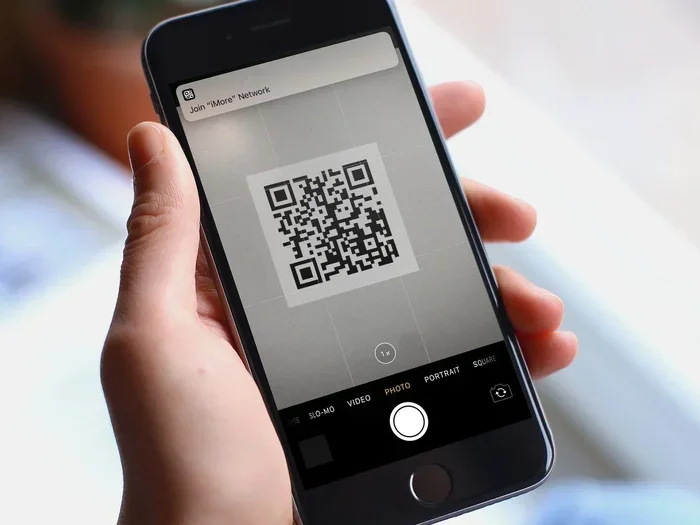
If you own an iPhone running iOS 11 or later, your camera can scan QR codes automatically. Apple added this feature years ago, and it works very well. Here is how to do it step by step:
- Open the Camera app on your iPhone. You can use the rear camera or the front selfie camera.
- Point the camera at the QR code. Hold your phone about 10 to 15 inches away.
- Wait for a notification to appear at the top of the screen. It will show the link or content the code holds.
- Tap the notification to open the link or view the information.
That is it! You do not need to press any buttons or adjust settings. The iPhone camera recognizes QR codes instantly. If nothing happens, make sure your camera lens is clean and that you are holding the phone steady. Also check that you have a good light source pointing at the code.
Quick Tip: If your iPhone camera does not recognize the code, go to Settings and make sure the “Scan QR Codes” option is turned on. You can find this in Settings > Camera > Scan QR Codes. This setting is on by default, but it is worth checking if you run into trouble.
Scanning QR Codes on Android
Android phones handle QR code scanning a little differently depending on the brand and model. Most modern Android devices have built-in scanning support. Here is how to access a QR code on your Android phone:
- Open the Camera app on your Android device.
- Point the camera at the QR code and hold it steady.
- Look for a pop-up notification or a clickable icon that appears on screen.
- Tap the notification to open the linked content.
Some Android phones use Google Lens or a dedicated scanning mode. On Samsung phones, for example, you may need to switch to “Bixby Vision” or “Google Lens” mode inside the camera app. On Pixel phones, the Google app often handles QR scanning through the lens icon.
Quick Tip: If your Android camera does not scan QR codes by default, you can go to Settings > Apps > Camera and look for a QR scanning toggle. On some phones, you may need to download a free QR code scanner app from the Google Play Store. We will cover this in the next section.
What To Do When Your Phone Won’t Scan a QR Code
Sometimes things do not work the first time. Maybe the code is blurry, or your phone just will not recognize it. Do not worry. This happens to everyone now and then. Here are the most common reasons your phone will not scan a QR code and how to fix them.
Clean Your Camera Lens
This sounds too simple, but it works more often than you think. Smudges, fingerprints, or dirt on your camera lens can block the scan. Use a soft cloth and gently wipe the lens before trying again. A clean lens makes a big difference in how well your phone reads a code.
Adjust Your Distance and Angle
Hold your phone at the right distance from the QR code. Too close or too far can cause the camera to fail. Try holding your phone about 10 to 15 inches away. Also, make sure the code is flat and not tilted at a steep angle. The camera needs a clear view of the entire square grid.
Check Your Lighting
Good lighting helps your camera read the code faster. If you are in a dim room, turn on a light or move closer to a window. Avoid glare or reflections on the code surface, as these can confuse the scanner.
Make Sure the Code Is Not Damaged
If the QR code is torn, faded, or covered in something, the scanner may not work. Try finding a different copy of the same code. For example, if the menu code on a table is smudged, ask the waiter for a fresh printed version or check if the code is available online.
Restart Your Phone
A quick restart can fix many small tech glitches. If nothing else works, power off your phone, wait a few seconds, and turn it back on. Then try scanning the code again. This simple step often solves the problem.
Expert Insight: “Most scanning issues come down to three things: a dirty lens, poor lighting, or a damaged code. Fix those first before downloading new apps,” says a mobile technology specialist.
Using Third-Party QR Code Scanner Apps
While built-in cameras work great for most people, sometimes you want more features. A QR code scanner app can give you extra tools and options. These apps are free to download and easy to use. Let us look at why you might want one and which apps are worth trying.
You might need a third-party app if your phone does not support built-in scanning. Older phones or budget devices may not have this feature. Also, some scanner apps offer extra functions like saving scan history, creating your own codes, or scanning barcodes alongside QR codes.
Here are some popular and trusted QR code reader apps you can try:
- QR & Barcode Scanner (by Gamma Play): This is a lightweight app that works on both Android and iOS. It scans quickly and saves your scan history for easy reference.
- Google Lens: Available on most Android phones, Google Lens can scan QR codes and identify objects, text, and products. It is a powerful free tool built into the Google app.
- Kaspersky QR Scanner: This app focuses on safety. It checks links for malware before you open them, which adds an extra layer of protection.
- Microsoft Lens: A free app that scans documents and QR codes. It works well for people who already use Microsoft products.
When choosing a scanner app, look for ones with good reviews and no unnecessary permissions. A good app should only ask for camera access, not your contacts or location. Always download apps from the official App Store or Google Play Store to stay safe.
Quick Tip: Before downloading any app, check how many downloads it has and read recent reviews. Apps with millions of downloads and high ratings are generally safer and more reliable.
Where You Will Find QR Codes in Everyday Life
QR codes are more common than most people realize. Once you start looking for them, you will see them everywhere. Here are the most common places you will encounter a QR code in your daily routine.
- Restaurants and cafes: Many eateries use a QR code menu instead of printed menus. You scan the code on the table and browse the food list on your phone.
- Retail stores: Shops use QR codes on price tags for quick product details, reviews, and online purchasing links.
- Public transportation: Buses, trains, and subways use QR codes for ticket validation and route maps.
- Airports and hotels: Boarding passes and hotel check-in often involve scanning a QR code on your phone screen.
- Billboards and posters: Advertisements use QR codes to connect you to websites, promotions, or social media pages.
- Product packaging: Many brands include QR codes so customers can verify authenticity or access user manuals.
- Payment terminals: Stores and food trucks use QR codes for contactless payment through apps like Venmo, PayPal, or Cash App.
- Business cards: Digital business cards often include a QR code that stores your contact info for quick sharing.
The more you understand where QR codes appear, the more prepared you will be to scan them. This knowledge also helps you feel comfortable using QR code technology in new situations. Whether you are traveling, dining out, or shopping, you will know exactly what to do when you see that familiar square pattern.
Tips for Safe and Easy QR Code Access
Scanning QR codes is convenient, but it is important to stay safe. Not all codes are created equal. Some could lead to harmful websites or scams. Here are some tips to help you scan safely and with confidence.
Check the Source Before Scanning
Only scan QR codes from trusted sources. If you see a code on a random sticker placed over a legitimate code, do not scan it. This is a common scam where bad actors place their own codes over real ones. Stick to codes from known businesses, official websites, or trusted brands.
Preview the Link Before Tapping
Many scanner apps and phone cameras show you the link before opening it. Take a moment to look at the URL. If it looks suspicious or unfamiliar, do not tap it. A safe link usually starts with “https://” and matches the business name you expect.
Use a Scanner with Safety Features
Some QR code scanner apps include built-in security checks. They warn you if a link looks dangerous before you visit it. Using one of these apps adds a layer of protection to your scanning experience.
Never Enter Personal Details from a QR Code
A QR code should never ask for your password, Social Security number, or bank details. If a scanned link asks for sensitive information, close it immediately. Legitimate businesses do not request private data through a QR code scan.
Keep Your Phone Updated
Software updates often include security fixes. Keep your phone’s operating system and camera app up to date. This ensures you have the latest protection and the best scanning performance.
Key Takeaways
- Always verify the source of a QR code before scanning it.
- Preview links and only open ones you trust.
- Use reputable scanner apps with built-in security features.
- Never share personal or financial information through a QR code link.
- Keep your device updated for the best performance and safety.
Following these simple steps means you can enjoy all the benefits of QR code access without worrying about risks. Safe scanning habits protect your phone and your personal data every time.
Conclusion
Now you know exactly how do I access a QR code on my smartphone or tablet. The process is simple, fast, and works on almost every modern device. Whether you use the built-in camera or a third-party QR code reader app, you can scan codes in seconds. You have learned how iPhone and Android handle scanning differently, what to do when things go wrong, and how to stay safe while scanning.
QR code technology is not going away. It is becoming a bigger part of how we interact with the world around us. From ordering food to boarding flights, these small codes make life faster and more convenient. The more you practice scanning, the more natural it will feel.
Start using QR codes today with confidence. Try scanning the next code you see. Use the tips in this guide to make the process smooth and safe. Share what you have learned with friends and family who might be unsure about how to get started. With the right knowledge, accessing a QR code is something anyone can do in just a few seconds.
Remember, the key to a great experience is a clean lens, good lighting, and a trusted scanner. Keep these basics in mind, and you will never have trouble opening a QR code again. Happy scanning!
Frequently Asked Questions
Can I access a QR code without downloading an app?
Yes, most modern smartphones can scan QR codes using the built-in camera. Both iPhones and many Android phones support native QR scanning. You simply open the camera, point it at the code, and tap the notification that appears.
Why is my phone not recognizing a QR code when I scan it?
Several things can cause this. A dirty camera lens, poor lighting, or a damaged code are the most common reasons. Try cleaning your lens, moving to a brighter area, and making sure the code is not torn or faded. If the problem continues, restart your phone and try again.
Are QR code scanner apps safe to use?
Most reputable scanner apps are safe. Stick to well-known apps with millions of downloads and high ratings. Always download from the official App Store or Google Play Store. Avoid apps that ask for unnecessary permissions like access to your contacts or messages.
Can I create my own QR code for personal use?
Yes, you can create a QR code using free online tools or apps. Many QR code generator websites let you encode links, text, contact info, or Wi-Fi details. These are useful for sharing information quickly with others or for personal organization.
Do QR codes store my personal data when I scan them?
No, scanning a QR code does not store your personal data. The code simply directs your phone to open a link or display information. However, always be cautious about the websites you visit after scanning. Avoid entering personal details on unfamiliar or suspicious sites.
What is the difference between a QR code and a regular barcode?
A regular barcode holds information in a straight line of lines and spaces. A QR code uses a square grid that can store much more data, including web links, text, and contact details. This is why QR codes are more versatile and widely used for digital access today.