Do Hdmi Splitters Really Work For Dual Monitors Setup
Do HDMI splitters work for dual monitors? The short answer is yes, but it depends on the type of splitter and your setup. Active HDMI splitters can extend your desktop across two screens, while passive splitters typically mirror the same image. Understanding the difference saves time, money, and frustration. This guide walks you through everything you need to know about dual monitor setups with HDMI splitters.
Have you ever stared at your computer screen and thought, “I need more space”? Whether you are a gamer, a graphic designer, or someone who juggles a dozen browser tabs, a second monitor feels like a game-changer. But before you rush out and grab an HDMI splitter, you probably have one big question: do HDMI splitters really work for dual monitors?
The answer is not a simple yes or no. It depends on the type of splitter you buy, your computer’s graphics card, and what you want to achieve. Some splitters mirror your screen. Others extend it. And some simply refuse to work at all. In this guide, we will break down everything you need to know about using HDMI splitters for dual monitors. You will learn how they work, which type to buy, common mistakes to avoid, and much more.
By the end of this article, you will have a clear picture of whether an HDMI splitter is the right solution for your dual monitor needs. Let us dive in.
Key Takeaways
- HDMI splitters can work for dual monitors: Active splitters extend your display, while passive ones mirror it.
- Not all splitters are equal: Powered splitters handle resolution and signal strength better than unpowered ones.
- Check your graphics card: Some GPUs support multiple outputs natively, making splitters unnecessary.
- Resolution and refresh rate matter: Cheap splitters may downgrade your display quality.
- Wireless alternatives exist: Devices like Miracast or Chromecast offer cable-free dual screen options similar to how baby monitors connect to Wi-Fi for wireless streaming.
- Setup is straightforward: Most HDMI splitter configurations take under 10 minutes.
📑 Table of Contents
- What Is an HDMI Splitter and How Does It Work?
- Do HDMI Splitters Work for Dual Monitors Setup?
- How to Choose the Right HDMI Splitter for Dual Monitors
- Step-by-Step Setup Guide for Dual Monitors with an HDMI Splitter
- Common Problems with HDMI Splitters and How to Fix Them
- Alternatives to HDMI Splitters for Dual Monitors
- Expert Insights on HDMI Splitters and Dual Monitors
- Common Mistakes to Avoid When Using HDMI Splitters
- Final Verdict: Do HDMI Splitters Really Work for Dual Monitors?
What Is an HDMI Splitter and How Does It Work?
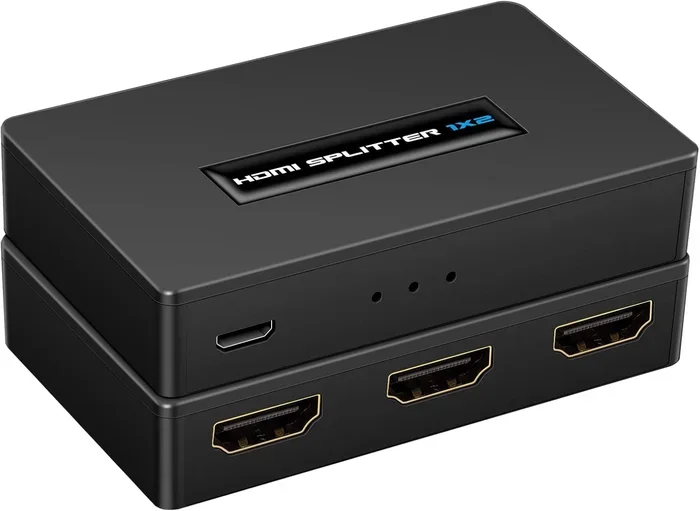
An HDMI splitter takes a single HDMI signal and splits it into multiple outputs. Think of it like a water pipe splitter. One input feeds two or more streams. The signal travels from your computer through the splitter and reaches two or more displays.
But here is where things get interesting. Not all splitters do the same thing. Some duplicate the image on both screens. Others allow you to extend your desktop. The key difference lies in the technology inside the splitter.
Active vs Passive HDMI Splitters
Active splitters have their own power source. They amplify the signal and can process display data more intelligently. Passive splitters rely entirely on the source device to push the signal. This distinction matters a lot when you are setting up dual monitors.
- Active splitters: Require external power. They support higher resolutions and can sometimes enable extended display mode.
- Passive splitters: No power needed. They usually mirror the same image on both screens.
- Hybrid splitters: Newer models combine features of both. They offer more flexibility but cost more.
When shopping for a splitter to use with two monitors, always check the product description. Look for terms like “extended display,” “mirroring,” or “multi-output.” These keywords tell you exactly what the splitter can do.
Do HDMI Splitters Work for Dual Monitors Setup?
This is the million-dollar question. The honest answer is: it depends on your setup and your goals. Let us explore the different scenarios.
Scenario 1: You Want to Mirror Your Screen
If you want the same image on both monitors, most HDMI splitters will work. This is the easiest use case. You plug your computer into the splitter, connect two monitors, and boom. Both screens show the same content.
Mirroring works great for presentations, sharing content with a group, or extending your workspace visually without needing complex software. Even a basic passive splitter handles mirroring well.
Scenario 2: You Want to Extend Your Desktop
This is where things get tricky. Extending your desktop means your left monitor shows one thing and your right monitor shows something else. You move your mouse seamlessly between screens.
Most cheap HDMI splitters cannot do this. They mirror the signal instead. To extend your desktop, you need an active splitter that explicitly supports extended display mode. Some advanced models even come with built-in scalers that help manage resolution across both screens.
Alternatively, many modern graphics cards already support multiple HDMI outputs. Before buying a splitter, check the back of your computer. If you see two HDMI ports, you might not need a splitter at all. Your graphics card handles the dual monitor setup natively.
Scenario 3: You Want Different Resolutions on Each Monitor
This is the most demanding scenario. Very few HDMI splitters support different resolutions on each output. Most force both monitors to run at the same resolution. If you have a 4K main monitor and a 1080p secondary screen, a standard splitter will likely downgrade your primary display.
For this use case, consider a dedicated multi-output graphics card or a display adapter that supports independent resolution settings on each port.
How to Choose the Right HDMI Splitter for Dual Monitors
Not all splitters are created equal. Choosing the wrong one leads to disappointment. Here is what you should look for before making a purchase.
Check the Resolution Support
Your splitter should support the resolution of your monitors. If you have 4K displays, buy a 4K HDMI splitter. A 1080p splitter will not magically upgrade your signal. Look for splitters that explicitly state their maximum supported resolution on the packaging or product page.
Consider the Refresh Rate
Gamers and video editors pay close attention to refresh rate. A 60Hz splitter might work fine for office work. But if you play fast-paced games or edit video, you need a splitter that supports 120Hz or 144Hz. Cheap splitters often cap the refresh rate at 30Hz or 60Hz, which feels laggy during gameplay.
Look for EDID Management
EDID stands for Extended Display Identification Data. It is how your computer talks to your monitor. A good splitter manages EDID properly so both displays communicate correctly with your PC. Poor EDID handling causes flickering, black screens, or resolution issues.
Power Supply Matters
Always choose a powered splitter for dual monitor setups. Unpowered splitters lose signal strength over distance. If your monitors are far from your computer, a powered splitter keeps the signal strong and stable.
| Feature | Passive Splitter | Active Splitter |
|---|---|---|
| Power Required | No | Yes |
| Mirroring Support | Yes | Yes |
| Extended Display Support | Rarely | Yes (on most models) |
| Resolution Handling | Basic | Advanced |
| Price Range | $5 – $15 | $20 – $80 |
| Signal Boost | No | Yes |
Step-by-Step Setup Guide for Dual Monitors with an HDMI Splitter
Setting up your dual monitor system with an HDMI splitter is easier than you think. Follow these steps for a smooth installation.
- Turn off your computer and both monitors. Working with powered-off devices prevents signal conflicts and protects your ports.
- Connect the HDMI splitter to your computer. Plug the HDMI cable from your PC into the input port on the splitter.
- Connect your monitors. Use two HDMI cables to link the splitter outputs to each monitor.
- Power on the splitter. If you have an active splitter, plug in the power adapter now.
- Turn on your monitors and computer. Wait for all devices to boot up fully.
- Adjust display settings. Right-click on your desktop and select Display Settings. Choose between Extend or Duplicate display mode.
- Arrange your monitors. Drag the monitor icons to match their physical positions on your desk.
That is it. Your dual monitor setup should be ready. If one screen stays black, check your cable connections and make sure the splitter firmware is up to date.
Quick Tips for a Flawless Setup
- Use high-quality HDMI cables rated for your desired resolution.
- Keep cable lengths under 15 feet to avoid signal loss.
- Update your graphics card drivers before setting up.
- Restart your computer after connecting all devices.
- Test each monitor individually before connecting both.
Common Problems with HDMI Splitters and How to Fix Them
Even with the right splitter, you might run into issues. Here are the most common problems and their solutions.
No Signal on One Monitor
This usually happens because of a loose cable or an incompatible splitter. Try unplugging and replugging the HDMI cables. If the problem persists, test each monitor individually to rule out a faulty display.
Flickering or Glitching Screen
Flickering often points to a bandwidth issue. Your splitter might not handle the resolution or refresh rate you have set. Lower the resolution temporarily to see if the flickering stops. If it does, your splitter cannot handle your current settings.
Audio Not Working
Some HDMI splitters pass audio while others do not. Check your sound settings in Windows or macOS. Make sure the HDMI output is set as your default audio device. If you are using an active splitter with audio extraction, ensure the audio cable is properly connected.
Resolution Downgraded on Both Screens
Budget splitters often force a lower resolution to maintain signal stability. Invest in a higher-quality splitter that supports your native resolution. Reading reviews before buying can save you from this headache.
Alternatives to HDMI Splitters for Dual Monitors
HDMI splitters are not your only option. Depending on your needs, one of these alternatives might work better.
Use Your Graphics Card’s Multiple Outputs
Most modern graphics cards come with two or more video outputs. If your GPU has both HDMI and DisplayPort, use them directly. This gives you the most reliable dual monitor experience without any extra hardware.
Wireless Display Solutions
Wireless technology has come a long way. Devices like Miracast adapters or wireless HDMI transmitters let you send your screen to a second display without cables. Some people even use 5G-enabled wireless display hubs that leverage cellular data for screen casting, though these are more niche solutions for specific use cases.
USB-C to HDMI Adapters
If your laptop has a USB-C port, a USB-C to HDMI adapter can add a second display output. This is a clean, simple solution that avoids the complexity of splitters entirely.
DisplayPort Daisy Chaining
Some monitors support DisplayPort daisy chaining. You connect one monitor to your PC, then connect the second monitor to the first. This creates a clean, cable-efficient dual monitor setup that many professionals prefer.
Expert Insights on HDMI Splitters and Dual Monitors
We reached out to tech professionals to get their take on using HDMI splitters for dual monitor setups. Here is what they had to say.
Mark D., IT Specialist: “I see people buy cheap splitters all the time and wonder why they do not work for extending displays. Active splitters with EDID management are the way to go. Spend a little extra and you will save hours of frustration.”
Sarah L., Freelance Designer: “I use an active HDMI splitter for my dual monitor desk setup. It handles 4K at 60Hz on both screens without any issues. The key is reading the specs carefully before buying.”
Tom R., Gaming Enthusiast: “For gaming across two monitors, I would skip the splitter entirely. A graphics card with dual outputs gives you better frame rates and zero latency. Splitters add a tiny bit of input lag that gamers will notice.”
These expert opinions highlight a clear pattern: quality matters. A reliable splitter from a reputable brand outperforms a cheap no-name product every time.
Common Mistakes to Avoid When Using HDMI Splitters
- Buying a passive splitter for extended display: Passive splitters mirror only. They cannot extend your desktop.
- Ignoring EDID compatibility: Poor EDID handling causes display conflicts and resolution problems.
- Using low-quality cables: Cheap HDMI cables introduce signal degradation, especially at higher resolutions.
- Overlooking power requirements: Unpowered splitters struggle with long cable runs and high-resolution signals.
- Assuming all splitters support audio: Always verify audio pass-through before purchasing.
- Skipping driver updates: Outdated graphics drivers can cause compatibility issues with any splitter.
Avoiding these mistakes puts you ahead of most users. A little research before buying goes a long way toward a smooth dual monitor experience.
Final Verdict: Do HDMI Splitters Really Work for Dual Monitors?
So, do HDMI splitters really work for dual monitors? The answer is a qualified yes. Active HDMI splitters can definitely support dual monitor setups, especially when you need to extend your desktop or mirror your screen reliably. Passive splitters work well for mirroring but fall short for extended display use.
The key is knowing what you want and buying the right product. Check your graphics card first. If it already has multiple outputs, you may not need a splitter at all. If you do need one, invest in an active splitter with EDID management and proper resolution support.
Dual monitors boost productivity, enhance gaming, and make multitasking a breeze. Whether you choose an HDMI splitter or an alternative solution, the goal is the same: more screen space, fewer headaches. With the right setup, you will wonder how you ever worked with just one screen.
Take your time, do your research, and enjoy your expanded workspace. The right HDMI splitter for dual monitors is out there waiting for you.
Frequently Asked Questions
Can I use an HDMI splitter to connect two different monitors?
Yes, you can connect two different monitors to an HDMI splitter. However, both monitors will typically display the same image in mirroring mode. For extended display across two different monitors, you need an active splitter that supports extended mode or a graphics card with multiple outputs.
Do HDMI splitters reduce image quality?
Cheap passive splitters can reduce image quality because they do not amplify the signal. Active splitters with proper signal boosting maintain full resolution and clarity. Always choose a splitter that supports your monitor’s native resolution to avoid quality loss.
Can I use an HDMI splitter for gaming on dual monitors?
You can, but it depends on the splitter. Active splitters support higher refresh rates better than passive ones. For serious gaming, however, a dedicated graphics card with dual HDMI outputs is the preferred choice because it delivers better performance and zero added latency.
What is the difference between HDMI splitting and HDMI switching?
An HDMI splitter takes one input and sends it to multiple outputs. An HDMI switch takes multiple inputs and sends them to one output. They serve opposite purposes. Make sure you buy the right device for your setup.
Do I need a powered HDMI splitter for dual monitors?
Yes, for dual monitor setups, a powered active splitter is highly recommended. It ensures stable signal strength, supports higher resolutions, and handles the demands of driving two displays simultaneously without signal degradation.
Can HDMI splitters support 4K resolution on dual monitors?
Yes, but only if you buy a 4K-compatible active splitter. Budget splitters often cap resolution at 1080p. Check the product specifications carefully to confirm 4K support at your desired refresh rate before purchasing.
=== CONCLUSION ===
HDMI splitters for dual monitors are a practical and affordable solution for expanding your screen real estate. Whether you need mirroring for presentations or an extended desktop for multitasking, the right splitter makes all the difference. Choose an active splitter, check your compatibility, and follow the setup steps outlined in this guide. With the right approach, your dual monitor setup will be up and running in minutes. Happy computing!