Can I Go From Hdmi To Usb Here Is What You Should Know
Can I Go From HDMI to USB? Yes, you can, but it requires the right adapter or capture device. HDMI carries high-quality audio and video signals, while USB is designed for data transfer and power. This guide explains how to convert between the two, which adapters to buy, and common mistakes to avoid. You will learn about active and passive adapters, USB-C options, and real-world use cases.
Key Takeaways
- HDMI to USB conversion is possible: You need an active adapter or capture card to convert the signal properly.
- USB-C is the most common bridge: Many modern laptops and devices use USB-C, which can carry HDMI signals with the right adapter.
- Active adapters do the heavy lifting: They convert the HDMI signal into a format USB devices can understand.
- Display resolution matters: Not all adapters support 4K or high refresh rates, so check specs before buying.
- Common mistakes include buying passive adapters: Passive adapters will not work for HDMI to USB conversion in most cases.
- Capture cards are best for recording: If you want to stream or record HDMI content via USB, a capture card is the way to go.
- Device compatibility is key: Always check your device specs before purchasing an HDMI to USB adapter.
📑 Table of Contents
- Can I Go From HDMI to USB? Here Is What You Should Know
- Understanding HDMI and USB Connections
- How HDMI to USB Conversion Works
- Types of HDMI to USB Adapters and Devices
- Common Uses for HDMI to USB Adapters
- Things to Consider Before Buying
- Common Mistakes to Avoid
- Expert Tips for Getting the Best Results
- Key Takeaways
- Conclusion
Can I Go From HDMI to USB? Here Is What You Should Know
So you have an HDMI cable and a USB port. Maybe you want to connect a gaming console to your laptop. Or perhaps you need to plug a display into a USB-C port on your new computer. Whatever the reason, the question is simple: can I go from HDMI to USB?
The short answer is yes. But the full answer is a bit more nuanced. HDMI and USB are two very different technologies. They serve different purposes and carry different types of signals. That means you cannot just plug one into the other and expect it to work. You need the right adapter, the right cable, or the right device to make the conversion happen.
In this guide, we will walk you through everything you need to know. We will cover how the conversion works, which adapters to buy, common mistakes to avoid, and practical tips to get the best results. Whether you are a gamer, a content creator, or just someone trying to connect a display, this article has you covered.
Let us dive right in and break down the world of HDMI to USB connections in plain, simple terms.
Understanding HDMI and USB Connections
What Is HDMI?
HDMI stands for High-Definition Multimedia Interface. It is a cable standard designed to carry both audio and video signals over a single cable. You will find HDMI ports on TVs, monitors, gaming consoles, Blu-ray players, and streaming devices. HDMI cables can deliver high-quality picture and sound without needing multiple cables.
HDMI has evolved over the years. There are different versions like HDMI 1.4, HDMI 2.0, and HDMI 2.1. Each version supports higher display resolution and refresh rates. HDMI 2.1, for example, can handle 4K at 120Hz or even 8K resolution. That makes it ideal for modern gaming and high-end home theater setups.
The key thing to remember is that HDMI was built for one purpose: sending rich audio and video from a source device to a display. It does not carry data the way a USB connection does.
What Is USB?
USB stands for Universal Serial Bus. It is one of the most common connection types in the world. You will find USB ports on computers, phones, tablets, keyboards, mice, and hundreds of other devices. USB was designed primarily for data transfer and charging.
Over the years, USB has gone through several versions too. USB-A is the classic rectangular port you see on desktop computers. USB-B is often used for printers. And then there is USB-C, the small, reversible connector that has become the standard on modern laptops, phones, and tablets. USB-C is especially important because it can carry video signals, data, and power all at once.
But here is the catch. USB was not originally designed to receive video input the way HDMI does. That is where adapters and conversion devices come into play.
How HDMI to USB Conversion Works
Why You Cannot Just Plug HDMI into USB
You might be wondering why you cannot simply buy a cable with an HDMI plug on one end and a USB plug on the other and call it a day. The reason comes down to how the two technologies work. HDMI sends a dedicated video and audio signal that is meant for displays. USB sends data packets and power. They use completely different protocols.
Think of it like trying to plug a square block into a round hole. The shapes do not match. The signals do not match either. So you need a middleman to translate the HDMI signal into something a USB device can process.
The Role of Active Adapters
An active adapter is a small electronic device that sits between your HDMI source and your USB port. It takes the HDMI signal, processes it internally, and then sends the converted data over USB. Active adapters have built-in chips that handle this signal conversion. Without these chips, the connection simply will not work.
One of the most common types of active adapters is the USB-C to HDMI adapter. But that goes from USB to HDMI, not the other way around. For going from HDMI to USB, you need a different kind of active adapter. These are often called HDMI capture adapters or HDMI to USB capture devices.
Passive vs Active Adapters
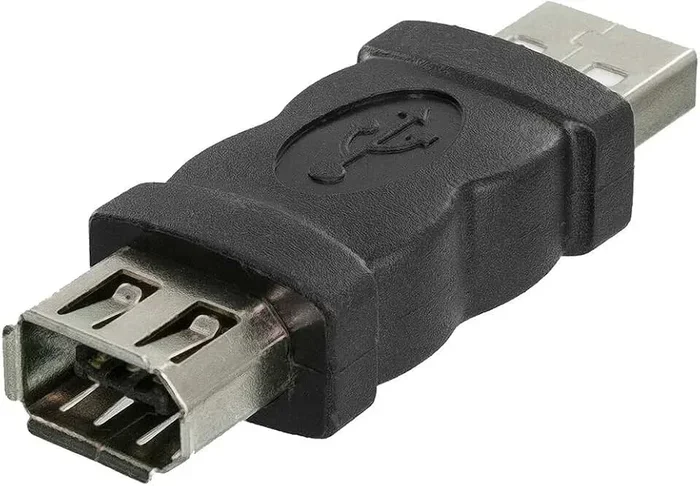
It is important to understand the difference between passive and active adapters. A passive adapter simply changes the physical shape of the connector. It does not change the signal. A passive HDMI to USB adapter will not work in most cases because the signal types are fundamentally different.
An active adapter, on the other hand, contains processing chips. These chips convert the HDMI audio and video signal into a USB data format. This is what allows your computer or laptop to receive HDMI input through a USB port.
When shopping for an HDMI to USB adapter, always look for the word “active” or “capture.” If the product description does not mention signal conversion, it is probably a passive adapter and will not do what you need.
Types of HDMI to USB Adapters and Devices
HDMI Capture Cards
Capture cards are the most popular way to convert HDMI to USB. They are widely used by gamers, streamers, and content creators. A capture card plugs into your device via USB and receives an HDMI input from another source, like a console or a camera.
Popular capture cards include the Elgato HD60 X and the AVerMedia Live Gamer Mini. These devices take the HDMI signal, convert it, and send it to your computer as a USB video stream. You can then record it, stream it live, or display it on your screen.
Capture cards come in different shapes and sizes. Some are external boxes that connect via USB. Others are smaller cards that fit directly into a laptop’s USB port. The external ones tend to be easier to set up and work with more devices.
USB-C HDMI Adapters with Input Support
Some USB-C adapters support HDMI input as well as output. These are less common but very useful. They allow you to plug an HDMI source into a USB-C hub or adapter and have your computer recognize it as an input device.
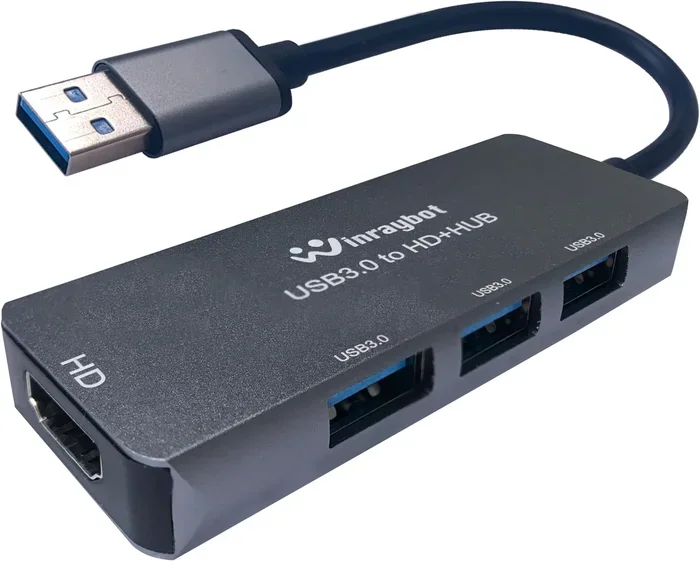
These adapters often double as USB hubs, giving you multiple ports like USB-A, USB-C, SD card slots, and HDMI input all in one device. They are great for people who need flexibility and do not want to buy multiple adapters.
HDMI to USB-C Direct Adapters
Some adapters are designed specifically to go from HDMI to USB-C. These are typically active adapters with built-in conversion chips. They are compact and portable, making them a good choice for people who travel often or need a quick setup for presentations or secondary displays.
When choosing one of these adapters, pay attention to the display resolution it supports. Budget adapters may only handle 1080p, while higher-end models can handle 4K at 60Hz or even higher refresh rates.
HDMI Splitters with USB Output
An HDMI splitter takes one HDMI input and splits it into multiple outputs. Some splitters also include a USB output that sends the video signal to a computer. These are useful in situations where you need to both display content on a TV and capture it on a computer at the same time.
However, HDMI splitters with USB output are less common than capture cards. If your main goal is to record or stream HDMI content, a dedicated capture card will usually give you better results.
Common Uses for HDMI to USB Adapters
Gaming Consoles and Streaming
One of the most popular reasons people look up can I go from HDMI to USB is for gaming. Many gamers want to capture or stream gameplay from consoles like the PlayStation, Xbox, or Nintendo Switch. These consoles output video through HDMI, but you need a USB connection to send that signal to a computer for streaming or recording.
An HDMI capture card makes this possible. You connect the console to the capture card via HDMI, then plug the capture card into your computer via USB. Software like OBS Studio or Streamlabs can then pick up the video feed and let you stream or record it.
This setup is also great for people who want to play PC games on a larger TV screen while still using their computer as the source.
Presentations and Screen Sharing
If you need to share your screen during a presentation, an HDMI to USB adapter can help. You can connect a laptop or tablet to a projector or external monitor using HDMI, then use a USB connection for data transfer or control.
Some business professionals carry compact USB-C adapters that accept HDMI input. This lets them connect to projectors in meeting rooms while also charging their laptop or connecting peripherals through the same hub.
Security Cameras and Surveillance
Security cameras often output video over HDMI. If you want to view or record camera feeds on a computer, you can use an HDMI to USB capture device. This is a simple and affordable way to set up a basic surveillance system on your PC.
Just keep in mind that the frame rate and resolution may be limited by the adapter you choose. For basic home security monitoring, 1080p at 30fps is usually more than enough.
Using a Second Monitor via USB
Some people want to add a second monitor to their laptop but only have USB ports available. An active HDMI to USB adapter can make this possible. You connect the second monitor to the adapter via HDMI, then plug the adapter into your laptop’s USB port.
Your computer should recognize the second display and let you extend your screen. This is a handy solution for people who work from home and need extra screen space without investing in a new laptop with more ports.
Things to Consider Before Buying
Check Your Device Compatibility
Before buying any HDMI to USB adapter, check your device specifications. Not all USB ports support video input. For example, a standard USB-A port on an older computer may not be able to receive an HDMI signal at all, no matter what adapter you use.
USB-C ports are more likely to support video input, especially if they support Thunderbolt or DisplayPort Alt Mode. Check your laptop or computer manual to confirm what your USB ports can handle.
Resolution and Refresh Rate
The display resolution and refresh rate you get will depend on the adapter you buy. Budget adapters often max out at 1080p. Mid-range adapters can handle 4K at 30Hz or 60Hz. High-end models support 4K at 120Hz or even higher.
Think about what you need. If you are just recording presentations or basic gameplay, 1080p is fine. If you are a serious gamer or video editor, invest in an adapter that supports 4K and higher refresh rates.
Build Quality and Brand Reputation
Not all adapters are created equal. Cheap, no-name adapters may overheat, drop frames, or produce poor image quality. Stick with reputable brands like Elgato, AVerMedia, Sabrent, or UGREEN. Reading customer reviews can also help you avoid duds.
A good adapter should feel solid, not flimsy. The connectors should be snug and secure. If an adapter feels cheap, it probably is.
Driver and Software Support
Some HDMI to USB adapters require drivers or software to work properly. Before you buy, check if the adapter is compatible with your operating system. Most adapters work with Windows and macOS, but support for Linux or ChromeOS may be limited.
If you plan to use the adapter for streaming, make sure it works with popular software like OBS Studio, XSplit, or Streamlabs. Compatibility issues can be frustrating, so do your research ahead of time.
Common Mistakes to Avoid
Buying a Passive Adapter
The most common mistake people make is buying a passive HDMI to USB adapter. As we discussed earlier, passive adapters cannot convert signals. They only change connector shapes. If you buy a passive adapter for HDMI to USB, it will not work, and you will waste your money.
Always look for the word “active” or “capture” in the product name or description. If you are unsure, contact the manufacturer before purchasing.
Ignoring USB Port Limitations
Not every USB port can handle video input. Plugging an HDMI capture device into a USB 2.0 port may result in poor performance or no signal at all. For best results, use a USB 3.0 or USB-C port that supports video input.
Also, avoid plugging your adapter into a USB hub that is connected to another hub. Daisy-chaining hubs can cause power and bandwidth issues that degrade signal quality.
Overlooking Cable Quality
The adapter is only as good as the cables you use with it. A cheap or damaged HDMI cable can cause signal loss, flickering, or no signal at all. Use high-quality HDMI cables that are rated for the resolution and bandwidth you need.
If you are using a long HDMI cable, consider using an active HDMI cable or a signal booster to maintain quality over distance.
Expecting Plug-and-Play Without Drivers
While many modern adapters are plug-and-play, some require you to install drivers or software first. If your adapter does not work right out of the box, check the manufacturer’s website for drivers and setup instructions.
Also, make sure your operating system is up to date. Outdated software can sometimes cause compatibility issues with newer adapters.
Expert Tips for Getting the Best Results
Here are some practical tips to help you get the most out of your HDMI to USB setup:
- Use a powered USB hub if your adapter draws a lot of power. This prevents bandwidth and power issues.
- Keep your adapter drivers updated for the best performance and compatibility.
- Test your setup before an important event like a presentation or live stream. Do not wait until the last minute.
- Store your adapter in a cool, dry place to prevent overheating and extend its lifespan.
- Match your adapter to your use case. A gaming capture card is different from a simple presentation adapter. Choose accordingly.
Key Takeaways
- HDMI to USB conversion is possible with the right active adapter or capture card. You cannot do it with a simple cable alone.
- USB-C is the most versatile port for HDMI input. Many modern laptops and devices support video input over USB-C.
- Capture cards are the go-to solution for recording and streaming. They provide reliable, high-quality HDMI to USB conversion.
- Always check device compatibility before buying. Not all USB ports support video input, and not all adapters work with all devices.
- Avoid passive adapters for HDMI to USB conversion. They do not process signals and will not work for this purpose.
- Resolution and refresh rate depend on your adapter. Invest in a higher-quality adapter if you need 4K or high refresh rates.
- Brand reputation and reviews matter. Stick with trusted brands to avoid frustration and poor performance.
Conclusion
So, can I go from HDMI to USB? Absolutely. But it takes the right equipment and a little knowledge. The key is understanding that HDMI and USB are different technologies that need a bridge to work together. An active adapter or capture card provides that bridge.
Whether you want to stream gameplay, record presentations, or add a second monitor to your setup, there is an HDMI to USB solution for you. Just remember to check your device compatibility, choose the right type of adapter, and invest in quality gear.
With the right setup, converting HDMI to USB is straightforward and opens up a world of possibilities. You can connect almost any HDMI source to your computer, laptop, or tablet. The options are vast, and the technology keeps getting better and more affordable every year.
Now that you know the ins and outs of HDMI to USB conversion, you are ready to make informed decisions. Pick the right adapter, set up your devices, and enjoy a seamless connection between your HDMI sources and USB-equipped computers.
Happy connecting, and enjoy your new setup!
Frequently Asked Questions
Can I plug an HDMI cable directly into a USB port?
No, you cannot plug an HDMI cable directly into a USB port and expect it to work. HDMI and USB use different signal types and protocols. You need an active adapter or capture device to convert the HDMI signal into a format that a USB port can process.
What is the difference between an active and passive HDMI to USB adapter?
An active adapter contains electronic chips that convert the HDMI signal into USB data. A passive adapter only changes the physical connector shape and does not convert the signal. For HDMI to USB conversion, you must use an active adapter or capture card.
Can I use an HDMI to USB adapter for 4K video?
Yes, but only if the adapter supports 4K resolution. Check the product specifications before buying. Budget adapters usually max out at 1080p, while higher-end models can handle 4K at 30Hz or 60Hz. Make sure your USB port also supports the necessary bandwidth for 4K video.
Do I need special software to use an HDMI to USB capture card?
Most capture cards work with popular software like OBS Studio, Streamlabs, or XSplit. Some adapters come with their own software. Check the manufacturer’s website for recommended software and drivers. Basic capture cards are usually plug-and-play and do not require special software.
Can I connect a gaming console to my laptop using an HDMI to USB adapter?
Yes, you can connect a gaming console to your laptop using an HDMI capture card or HDMI to USB adapter. Plug the console into the adapter via HDMI, then connect the adapter to your laptop via USB. Your laptop should recognize the console as a video input source.
Are HDMI to USB adapters expensive?
Prices vary widely depending on the brand, quality, and features. Basic HDMI to USB adapters can cost between $15 and $30. Higher-end capture cards with 4K support can range from $50 to $200 or more. Investing in a reputable brand will save you from frustration and poor performance.