Can You Get A HDMI To VGA Cable And How To Make It Work
Yes, you can get an HDMI to VGA cable, but it is not as simple as a single plug-and-play cable. You need an active HDMI to VGA adapter or converter box because HDMI sends a digital signal while VGA carries an analog signal. This guide covers everything you need to know about choosing the right adapter, setting it up, troubleshooting common issues, and getting the best results from your display connection.
You have an older monitor or projector sitting in a closet. Maybe it is a trusty VGA display that has served you well for years. Now you want to connect it to a newer laptop, streaming box, or desktop computer that only has HDMI ports. The question is simple: can you get an HDMI to VGA cable? The short answer is yes. But the full answer is a little more involved, and that is exactly what this guide is here to help with.
Connecting modern devices to older displays is something more people deal with than you might think. Whether you are setting up a home office, hooking up a projector for a presentation, or just trying to reuse an old monitor, understanding how HDMI to VGA adapters work saves you time, money, and frustration. Let us walk through everything you need to know.
Key Takeaways
- HDMI to VGA requires an active adapter: A simple cable will not work because the signals are different (digital vs analog).
- Active converters cost more but deliver better results: They include built-in signal conversion chips for reliable performance.
- You may need a separate audio cable: VGA does not carry sound, so you will need a 3.5mm or external audio solution.
- Resolution support varies by adapter: Check that your adapter supports the resolution your device outputs.
- Common issues are easy to fix: Most problems stem from missing drivers, wrong resolution settings, or loose connections.
- These adapters are great for cord-cutters: If you are exploring alternatives to Dish Network and DirectTV, an HDMI to VGA adapter lets you use older monitors with streaming devices.
- Always buy from reputable brands: Cheap knockoff adapters often cause signal loss and flickering.
📑 Table of Contents
- What Is HDMI to VGA and Why Do You Need It
- Types of HDMI to VGA Solutions
- How to Set Up Your HDMI to VGA Connection
- Common Problems and How to Fix Them
- Best Uses for HDMI to VGA Adapters
- Expert Tips for Getting the Best Results
- How to Choose the Right HDMI to VGA Adapter
- Frequently Asked Questions About HDMI to VGA
- Final Thoughts on HDMI to VGA Connections
What Is HDMI to VGA and Why Do You Need It
HDMI and VGA are two completely different types of video connections. HDMI stands for High-Definition Multimedia Interface. It carries a digital signal that includes both video and audio through a single cable. VGA stands for Video Graphics Array. It is an older analog connection that carries video only.
Because these signals are fundamentally different, you cannot just plug one into the other. Think of it like trying to fit a square peg into a round hole. The shapes do not match, so you need a translator. That translator is an HDMI to VGA adapter or converter.
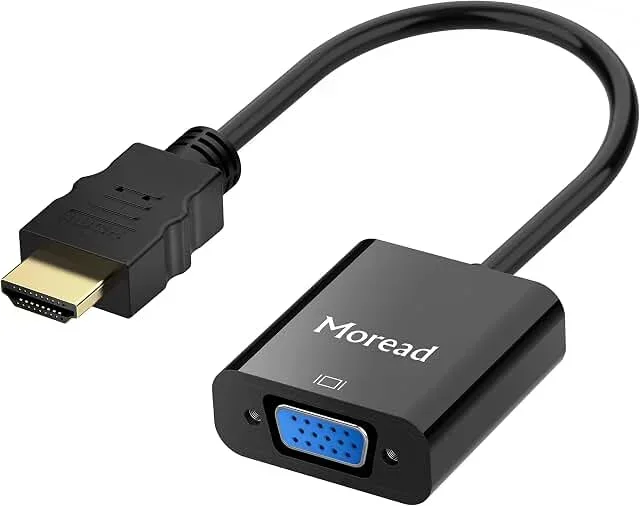
Many people assume a simple cable with HDMI on one end and VGA on the other will do the trick. Unfortunately, that is not how it works. A passive cable alone cannot convert a digital signal into an analog one. You need an active adapter with a built-in chip that handles the conversion for you.
Why VGA Still Matters
You might wonder why VGA even still matters in a world full of HDMI and DisplayPort. The truth is that a lot of older equipment still works perfectly fine. Projectors in classrooms and conference rooms often use VGA. Older monitors and some TVs still have VGA ports. And if you are someone who has cut the cord on cable TV and uses alternatives to Dish Network and DirectTV, you might be repurposing an old display as a second screen for your streaming setup. VGA connections are still very much alive in certain setups.
Digital vs Analog: The Key Difference
Here is the core issue in simple terms. Digital signals, like those sent through HDMI, use discrete values (zeros and ones) to represent image data. Analog signals, like those sent through VGA, use continuous electrical waves. The adapter’s converter chip takes the digital data and translates it into an analog wave that a VGA monitor can understand.
This conversion process is why the adapter needs its own power source in most cases. The chip does real work, and it needs electricity to do it. That is why some adapters plug into a USB port for power while others come with their own AC adapter.
Types of HDMI to VGA Solutions
Not all adapters are created equal. There are a few different types of solutions available, and knowing the difference helps you make the right choice.
Active HDMI to VGA Adapters
An active adapter is the most common and reliable option. It has a built-in chip that converts the digital HDMI signal to an analog VGA signal. Most active adapters also handle audio extraction, letting you send sound to a separate speaker or headphone jack.
These adapters usually have a small USB plug that provides power for the conversion chip. Some models come with a wall plug adapter instead. Either way, the extra power ensures a stable, clear picture.
Active adapters typically support resolutions up to 1080p or even 4K, depending on the model. They work with laptops, desktops, gaming consoles, and streaming devices. If you want a plug-and-play solution that just works, an active adapter is the way to go.
HDMI to VGA Converter Boxes
A converter box is a larger standalone device that sits between your HDMI source and your VGA monitor. These boxes offer more features than simple adapters. Many have multiple input options, adjustable resolution settings, and even scaling controls.
Converter boxes are ideal for permanent setups. If you have a desktop workstation that you connect to a VGA projector every day, a converter box gives you a clean, reliable connection with better signal quality than a small dongle adapter.
Passive Cables (And Why You Should Avoid Them)
You might find cables online that claim to be HDMI to VGA with no adapter needed. These are passive cables, and they almost never work properly. Without an active conversion chip, a passive cable cannot translate the digital signal into analog. Save your money and skip these.
Some sellers market these as universal cables, but they are misleading. If it sounds too good to be true, it probably is. Stick with active adapters or converter boxes from reputable brands.
How to Set Up Your HDMI to VGA Connection
Setting up an HDMI to VGA connection is straightforward once you have the right gear. Here is a step-by-step guide that works for most setups.
Step 1: Gather Your Equipment
Before you start, make sure you have everything you need:
- An active HDMI to VGA adapter or converter box
- A standard VGA cable
- A 3.5mm audio cable (if you need sound)
- Your HDMI source device (laptop, streaming box, desktop, etc.)
- A VGA monitor or projector
- A USB port or power source for the adapter
Step 2: Connect the Adapter to Your Source Device
Plug the HDMI end of the adapter into your source device. This could be a laptop, a desktop computer’s graphics card, a streaming stick, or a gaming console. Make sure the connection is firm and secure.
Step 3: Connect the VGA Cable
Take your VGA cable and plug it into the VGA port on the adapter. Then connect the other end of the VGA cable to your monitor or projector. Tighten the screw pins on the VGA connector to hold it in place.
Step 4: Connect Audio (If Needed)
VGA does not carry audio. If your adapter has a 3.5mm audio-out port, connect it to your speakers or headphones using a standard auxiliary cable. If you are using a monitor with built-in speakers, check if the adapter supports audio-through-HDMI or if you need a separate audio connection.
Step 5: Power the Adapter
Plug the adapter’s USB power cable into a USB port on your source device or into a wall charger. Some adapters draw just enough power from the HDMI port itself, but most work better with external power.
Step 6: Power On and Adjust Settings
Turn on your monitor and your source device. You may need to change the display settings on your computer to mirror or extend the screen. On Windows, go to Display Settings and select Duplicate or Extend. On a Mac, go to System Preferences and choose Displays.
Common Problems and How to Fix Them
Even with the right adapter, you might run into issues. Here are the most common problems and their solutions.
No Picture on the Screen
This is the most common complaint. First, check that all cables are firmly connected. Then make sure your monitor is set to the correct input source. If you are using a projector, ensure it is set to VGA mode, not HDMI or another input.
If everything is connected and you still see nothing, try a different VGA cable. Faulty cables are a surprisingly common culprit. Also, try a different HDMI port on your source device if one is available.
Flickering or Distorted Image
A flickering picture often means the adapter is not getting enough power. Make sure the USB power cable is plugged in and connected to a reliable power source. If you are using a USB hub, try plugging directly into your computer’s USB port instead.
Another cause is resolution mismatch. Your source device might be outputting a resolution that your VGA monitor does not support. Try lowering the resolution in your display settings to 1024×768 or 1920×1080 and see if that helps.
No Sound
Remember that VGA does not carry audio. If you are not hearing sound, check that your audio cable is properly connected. On Windows, right-click the speaker icon in your taskbar and make sure your audio output is set to the correct device (your speakers or headphones, not the HDMI output).
Adapter Not Recognized
Sometimes your computer will not detect the adapter at all. This can happen with certain graphics cards or laptops. Try unplugging the adapter, restarting your computer, and plugging it back in. If that does not work, check for driver updates for your graphics card. On Windows, go to Device Manager and look for any warning icons under Display Adapters.
Best Uses for HDMI to VGA Adapters
HDMI to VGA adapters serve many practical purposes. Here are some of the most common and useful scenarios where they shine.
Home Office Setups
Many home offices still use older monitors that only have VGA inputs. An HDMI to VGA adapter lets you connect a modern laptop or desktop to these displays without buying a new monitor. This is a budget-friendly way to set up a dual-monitor workspace.
Presentations and Classrooms
Projectors in conference rooms and classrooms often use VGA connections. If you are presenting from a newer laptop with only HDMI ports, an adapter makes the connection quick and easy. Just carry a small adapter in your bag and you are ready to go.
Gaming on Old Monitors
Some gamers love the look of older CRT or LCD monitors. An HDMI to VGA adapter can connect a modern gaming PC to these vintage displays. Just keep in mind that VGA does not support the highest refresh rates, so you may not get the smoothest gameplay at very high frame rates.
Streaming on Legacy Displays
If you are cutting the cord and using streaming devices like Roku, Fire Stick, or Apple TV, you can connect them to an older VGA TV or monitor with an adapter. This is a great option for bedrooms, kitchens, or garages where a fancy new TV is not necessary. For more ideas on how to set up a budget-friendly home entertainment system without expensive cable subscriptions, check out resources on alternatives to Dish Network and DirectTV.
Expert Tips for Getting the Best Results
Getting the most out of your HDMI to VGA setup is easier than you think. Here are some expert tips that make a real difference.
- Buy from reputable brands: Brands like StarTech, Cable Matters, and UGREEN make reliable adapters. Avoid the cheapest options on marketplace sites because they often have poor signal conversion and short lifespans.
- Keep your cables short: Longer cables mean more signal loss. Use the shortest VGA cable that reaches your setup for the clearest picture.
- Update your graphics drivers: Outdated drivers can cause compatibility issues with adapters. Keep your GPU drivers up to date for the smoothest experience.
- Match your resolution: Set your output resolution to match your VGA monitor’s native resolution. For most older monitors, this is 1024×768 or 1366×768.
- Use a powered USB hub: If your laptop USB port does not provide enough power, use a powered USB hub to keep your adapter running smoothly.
- Test before committing: If possible, test the adapter before buying. Some electronics stores let you try adapters in-store.
- Consider a converter box for permanent setups: A dedicated converter box gives better signal quality and more stability than a dongle-style adapter for long-term use.
How to Choose the Right HDMI to VGA Adapter
With so many options on the market, choosing the right one can feel overwhelming. Here are the key factors to consider before you buy.
Check Your Device Compatibility
Not all adapters work with all devices. Some adapters work better with Windows laptops than Macs. Some are designed specifically for certain streaming devices or gaming consoles. Check the adapter’s compatibility list before purchasing.
Resolution Support
Make sure the adapter supports the resolution you need. Most adapters handle 1080p just fine. If you need 4K support, you will need a more advanced (and usually more expensive) model. For most VGA monitors, 1080p is more than enough.
Audio Support
If you need sound along with video, make sure your adapter includes audio extraction. Not all adapters pass audio through. Look for models that specifically mention audio support in the product description.
Build Quality
A sturdy adapter with good build quality lasts longer and performs better. Look for metal housings over plastic ones. Check reviews for feedback on durability and long-term reliability.
Price Range
Good active HDMI to VGA adapters typically cost between $10 and $30. Converter boxes range from $30 to $80 depending on features. You do not need to spend a fortune, but the cheapest options are often the most problematic. Aim for the mid-range sweet spot for the best value.
Frequently Asked Questions About HDMI to VGA
Here are answers to some of the most common questions people ask about HDMI to VGA connections.
Can I use a passive HDMI to VGA cable without an adapter?
No, a passive cable will not work. HDMI sends a digital signal and VGA expects an analog signal. You need an active adapter with a built-in conversion chip to bridge the gap between these two different signal types. Any cable that claims to work without a converter is misleading and will not deliver a reliable picture.
Do HDMI to VGA adapters support audio?
Most active adapters do support audio extraction, but not all of them. Check the product specifications before you buy. If audio support is listed, the adapter will have a 3.5mm audio-out port or pass audio through the HDMI connection to your speakers. Remember that VGA itself does not carry any audio signal at all.
What resolution can I expect from an HDMI to VGA adapter?
Most adapters support up to 1080p (Full HD). Some higher-end models support 4K input but will downscale the output to match your VGA monitor’s capabilities. Since most VGA monitors max out at 1080p or lower, a 1080p adapter is the practical choice for most users.
Will an HDMI to VGA adapter work with a Mac?
Yes, most adapters work with Macs that have HDMI output or a USB-C to HDMI adapter. However, some adapters may require driver installation on macOS. Check the adapter’s compatibility list and look for models specifically tested with Mac systems to avoid frustration.
Can I connect a streaming stick to a VGA monitor?
Absolutely. Devices like Amazon Fire TV Stick, Roku Streaming Stick, and Google Chromecast all have HDMI outputs. Connect them to an HDMI to VGA adapter, and then to your VGA monitor. You will need a separate audio solution since VGA does not carry sound, but the video will work perfectly for streaming content.
Why does my picture look blurry through the adapter?
A blurry picture is usually caused by one of a few things. First, check that your output resolution matches your monitor’s native resolution. Second, make sure all cable connections are tight and secure. Third, try a different VGA cable, as old or damaged cables can degrade image quality. Finally, ensure your adapter is receiving enough power through its USB connection.
Final Thoughts on HDMI to VGA Connections
So, can you get an HDMI to VGA cable? The answer is a clear yes, as long as you use the right equipment. An active adapter or converter box bridges the gap between modern digital devices and older analog displays. The process is simple, affordable, and opens up a lot of possibilities for reusing equipment you already own.
Whether you are setting up a home office, giving a presentation, connecting a streaming device to an older TV, or just trying to make use of a monitor that has been sitting around, an HDMI to VGA adapter is a handy tool to have. The key is to buy a quality active adapter, check your resolution settings, and handle the audio separately since VGA does not support sound.
Do not let an old VGA monitor or projector become obsolete. With the right adapter, it can work just as well as any modern display. The technology is mature, the adapters are affordable, and the setup process is quick. Give it a try and you might be surprised at how well these older connections still work in today’s digital world.