Can Usb 3 0 Be Used For 4K Display
Can USB 3.0 be used for 4K display? The answer is yes, but with important limitations you need to know about. USB 3.0 can output a 4K video signal, though it typically maxes out at 30Hz refresh rate due to bandwidth constraints. The right adapter, proper settings, and smart setup choices make all the difference in getting a smooth experience. This guide covers everything from basic connections to expert troubleshooting tips for your USB 3.0 4K display setup.
Have you ever wondered whether your USB 3.0 port can handle a 4K display? It is a question that comes up more often than you might think. With the rise of high-resolution monitors and the need for clean, sharp visuals, people want to know if their existing ports can keep up. The good news is that USB 3.0 can indeed be used for 4K display output, but the full story is a bit more nuanced than a simple yes or no.
When you plug a monitor into a USB port, several things need to work together perfectly. The port itself, the cable, the adapter, and even the display settings all play a role. If any one of these pieces is missing or wrong, you might end up with a blank screen or a choppy image. This guide will walk you through everything you need to know about using USB 3.0 for 4K display setups. By the end, you will know exactly what works, what does not, and how to get the best results.
Whether you are a home office worker, a content creator, or just someone who wants a bigger screen, understanding your options matters. You do not need to be a tech expert to make this work. A little knowledge goes a long way. So let us dive right in and explore the world of USB 3.0 and 4K displays.
Key Takeaways
- USB 3.0 can support 4K display output: You can connect a 4K monitor via USB 3.0, but expect a 30Hz refresh rate for most setups.
- Bandwidth is the main limiting factor: USB 3.0 offers 5Gbps, which is less than what uncompressed 4K at 60Hz requires.
- The right adapter makes all the difference: Active adapters and DisplayPort alternate mode deliver the best results over USB 3.0.
- USB-C and Thunderbolt 3 offer better options: These newer standards provide higher bandwidth for smoother 4K playback at 60Hz or more.
- Common issues are usually fixable: Flickering, no signal, and color problems can often be resolved with better cables, drivers, or settings.
- A docking station simplifies everything: It handles both data and video through a single USB 3.0 connection for a cleaner workspace.
📑 Table of Contents
Understanding USB 3.0 and Its Video Capabilities
Before we answer the big question, let us take a step back and understand what USB 3.0 actually is. USB stands for Universal Serial Bus. It was originally designed to connect peripherals like keyboards, mice, and external hard drives. Over the years, USB has evolved to handle much more, including video output. Today, USB 3.0 is found on millions of computers, laptops, and docking stations around the world.
What Is USB 3.0?
USB 3.0, also known as USB 3.2 Gen 1, was introduced back in 2008. It brought a big upgrade over USB 2.0 with faster data transfer speeds. The maximum data rate for USB 3.0 is 5 gigabits per second, or 5Gbps. That is ten times faster than USB 2.0, which maxes out at 480 megabits per second.
This speed boost made USB 3.0 ideal for external hard drives, flash drives, and other bandwidth-hungry devices. But when it comes to video, 5Gbps is actually not that much. A single uncompressed 4K video signal at 60Hz needs around 12Gbps. So right away, you can see why there are limitations when trying to push a 4K resolution display through a USB 3.0 connection.
USB 3.0 Bandwidth Explained
Think of bandwidth like a highway. The more lanes you have, the more cars can travel at once. USB 3.0 has a fairly narrow highway compared to newer standards. It can handle a lot of data, but not the massive amounts needed for high-resolution video at high refresh rates.
When you send a video signal through USB 3.0, the port has to share its bandwidth between data transfer and video output. If you are also copying files while watching a 4K video, things can get crowded. This is why many users experience issues when trying to push 4K output through a USB 3.0 port. The data transfer speed of USB 3.0 simply was not designed with heavy video workloads in mind.
The key takeaway here is that USB 3.0 was not built primarily for video. It can do it, but it works best with some help from adapters and smart settings. Understanding this will save you a lot of frustration down the road.
Can USB 3.0 Support a 4K Display?
The short answer is yes, USB 3.0 can support a 4K display, but with some important conditions. You will likely be limited to a 30Hz refresh rate at 4K resolution. That means the screen refreshes 30 times per second, which is fine for static images and office work but not ideal for fast-moving content like video or gaming.
The Short Answer
So, can USB 3.0 be used for 4K display? Yes, it can. But the experience depends on what you are doing. If you are reading documents, browsing the web, or working on spreadsheets, 30Hz at 4K is perfectly fine. If you are watching movies or playing games, you will notice the difference compared to a 60Hz or 120Hz display.
The reason is simple. USB 3.0 does not have enough bandwidth to push a full, uncompressed 4K signal at 60 frames per second. The video signal gets compressed or the frame rate drops to fit within the available bandwidth. This is a hardware limitation, not a flaw in your setup. Many users find that a USB 3.0 external monitor works great for productivity even with the 30Hz constraint.
What You Need to Know About Bandwidth
To really understand this, you need to know a little about video bandwidth. A 4K display at 60Hz with color depth of 8-bit requires roughly 12Gbps of bandwidth. USB 3.0 provides 5Gbps. That is less than half of what is needed for smooth, uncompressed 4K at 60Hz.
Some adapters use compression to squeeze the 4K signal through the USB 3.0 connection. This can work, but it may cause slight quality loss or input lag. For most everyday tasks, this is not noticeable. For professional video editing or competitive gaming, it can be a problem. If you need higher performance, look at USB 3.1 Gen 2 or Thunderbolt 3 connections, which offer significantly more bandwidth for your 4K display needs.
If USB 3.0 is all you have, do not worry. It can still get the job done for most use cases. Just set your expectations accordingly and choose the right accessories.
How to Connect a 4K Monitor Using USB 3.0
Now that you know USB 3.0 can work for 4K, let us talk about how to actually set it up. There are several ways to connect a 4K monitor through a USB 3.0 port. Each method has its own pros and cons. Let us walk through the most common options you can try today.
Using a USB-C to HDMI Adapter
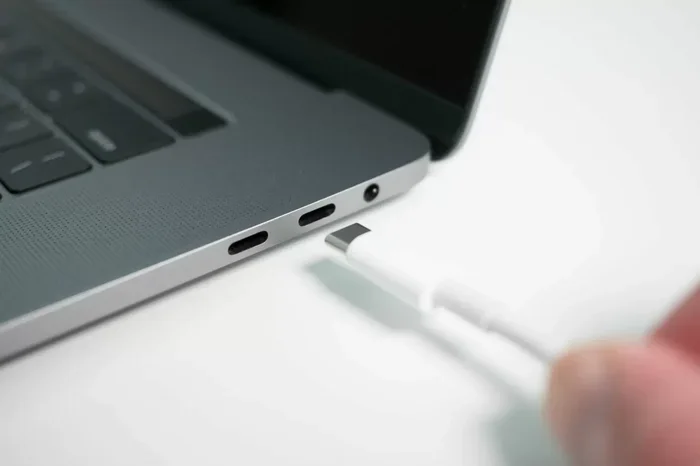
Many modern laptops and desktops come with USB-C ports that support USB 3.0 or higher. A USB-C to HDMI adapter is one of the easiest ways to connect a 4K monitor. You plug the adapter into the USB-C port and then connect an HDMI cable from the adapter to your monitor.
Here is what you need to keep in mind when choosing an adapter:
- Make sure the adapter supports 4K resolution. Not all adapters do, and some are limited to 1080p.
- Look for adapters that support DisplayPort alternate mode. This allows video signals to pass through USB-C more efficiently.
- Active adapters generally work better than passive ones for 4K output over USB 3.0.
- Check that your USB-C port supports video output. Some USB-C ports only carry data and power.
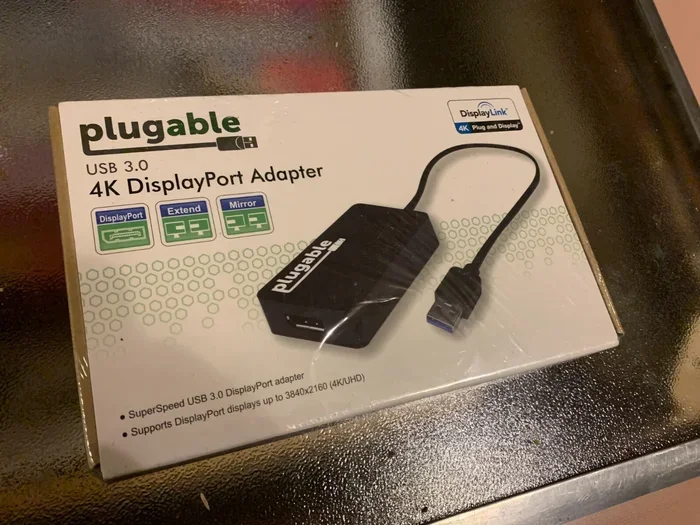
A good active adapter will handle the compression needed to push 4K through USB 3.0. It may cost a bit more, but it is worth it for a reliable connection. Brands like CalDigit, Cable Matters, and UGREEN make solid options that are well worth the investment for your USB 3.0 4K display setup.
DisplayPort Alternate Mode
DisplayPort alternate mode is a feature built into USB-C and some USB 3.0 Type-A to USB-C configurations. It allows the USB connection to carry a DisplayPort video signal directly. This bypasses some of the bandwidth limitations because the video signal is handled more efficiently by the display controller.
Not all USB 3.0 ports support DisplayPort alternate mode. It depends on the hardware and the device manufacturer. To check if your port supports it, look for a DisplayPort icon next to the USB port or check your device specifications online. If your port does support it, you can use a USB-C to DisplayPort cable or adapter for the smoothest 4K output over USB 3.0.
You will still be limited to 30Hz at 4K in most cases, but the image quality will be better than with a compressed HDMI adapter. The video signal stays cleaner and more accurate when DisplayPort alternate mode is in use.
USB Docking Stations
A USB docking station is another great option for connecting a 4K monitor via USB 3.0. These devices sit on your desk and connect to your computer through a single USB cable. They then provide multiple display outputs, including HDMI and DisplayPort, for your external monitor setup.
Docking stations are especially useful if you need to connect multiple peripherals along with your monitor. You can plug in your keyboard, mouse, external drive, and 4K display all through one USB connection. This keeps your workspace clean and organized while still delivering a sharp 4K resolution picture.
When shopping for a docking station, look for these features:
- Support for 4K resolution at 30Hz or higher
- DisplayPort alternate mode support for better video quality
- Sufficient bandwidth allocation for video output
- Good reviews for stability and reliability over long use
Popular docking station brands include CalDigit, Anker, and Dell. These companies have spent years perfecting their products for video output over USB connections. A quality docking station can make your USB 3.0 4K display setup feel seamless and professional.
USB 3.0 vs Other Connection Types for 4K Output
USB 3.0 is not the only way to connect a 4K display. Let us compare it to some other common connection types so you can see where it stands in the bigger picture of video output options.
| Connection Type | Max Bandwidth | 4K at 60Hz Support | Best For |
|---|---|---|---|
| USB 3.0 | 5 Gbps | No (30Hz only) | Office work, static displays |
| USB 3.1 Gen 2 | 10 Gbps | Yes | Professional work, multitasking |
| Thunderbolt 3 | 40 Gbps | Yes (up to 4K 120Hz) | Gaming, video editing |
| HDMI 2.0 | 18 Gbps | Yes | Home theater, consoles |
| DisplayPort 1.4 | 32.4 Gbps | Yes (up to 4K 120Hz) | Gaming, professional creative |
As you can see from the table above, USB 3.0 is the weakest option for 4K output. It works, but it is not the best. If you have the option, upgrading to USB 3.1 Gen 2 or Thunderbolt 3 will give you a much smoother experience. These newer standards were designed with video output in mind and offer far more headroom for your 4K display.
That said, USB 3.0 is still widely available on older computers and budget devices. It is a perfectly fine option if you just need a second monitor for everyday tasks. Do not let the limitations stop you from using what you already have. A USB 3.0 external monitor setup can be surprisingly effective for the right use case.
Quick Tips for Choosing the Right Connection
- If you need 4K at 60Hz, go with HDMI 2.0 or DisplayPort 1.4 for native support.
- If you only need 4K at 30Hz for office work, USB 3.0 is perfectly fine.
- If you have a Thunderbolt 3 port, use it for the best 4K experience and future-proofing.
- Always check your device specs before buying an adapter or cable to avoid compatibility issues.
Troubleshooting Common USB 3.0 4K Display Issues
Even with the right setup, you might run into problems when using USB 3.0 for 4K display output. This is normal, and most issues have simple fixes. Let us look at the most common problems and how to solve them quickly and easily.
No Signal Issues
The most frustrating problem is when you connect your monitor and get a blank screen. This usually happens for one of a few reasons. First, check that your adapter is properly seated in the USB port. A loose connection can prevent the video signal from reaching the monitor.
Second, make sure your adapter supports 4K resolution. Some cheap adapters only support 1080p or lower. If your adapter cannot handle 4K, you will get no signal or a very low-resolution image. Third, try a different USB port. Some ports on your computer may not support video output. USB 3.0 ports on the back of your computer are generally more reliable than front-panel ports on a desktop tower.
Flickering and Lag
If your 4K display flickers or feels laggy, the issue is usually bandwidth-related. USB 3.0 has limited bandwidth, and when the connection is under heavy load, the video signal can become unstable. This is especially common when you have multiple USB devices drawing power and data through the same controller.
Here are some steps to fix flickering and lag on your USB 3.0 4K display:
- Close unnecessary programs that are using the USB bus heavily.
- Disconnect other USB devices that are not in use.
- Lower the resolution to 1440p or 1080p to reduce bandwidth demand.
- Update your graphics drivers and USB controller drivers to the latest versions.
- Try a shorter, higher-quality USB cable to reduce signal loss and interference.
Sometimes the issue is simply that your USB 3.0 port cannot handle the load. In that case, using a powered USB hub can help by providing more stable power and data delivery to the adapter. This can make a noticeable difference in display stability.
Color and Quality Problems
If your 4K display looks washed out or has color issues, it could be a problem with the adapter or cable. Some adapters compress the video signal, which can affect color accuracy. This is especially noticeable in photo or video editing work where pixel density and color precision matter the most.
To get the best color quality from your USB 3.0 4K setup:
- Use a high-quality active adapter rather than a passive one for better signal integrity.
- Make sure your display cable is rated for 4K bandwidth and supports the resolution you need.
- Check your display settings and make sure the correct resolution and color profile are selected.
- Calibrate your monitor using built-in OS tools or a hardware calibrator for accurate colors.
Expert Tips for the Best 4K Experience Over USB
Getting the most out of your USB 3.0 4K display setup takes a little know-how. Here are some expert-backed tips that will help you squeeze the best performance out of your connection and enjoy a great viewing experience.
Choosing the Right Cable and Adapter
Not all cables and adapters are created equal. A cheap, no-name adapter might save you a few dollars, but it could cause all sorts of headaches down the road. Look for adapters from reputable brands that explicitly state they support 4K resolution and have good user reviews.
When it comes to cables, shorter is generally better. A long USB cable can lose signal strength, especially when carrying a video signal over distance. If you need a longer run, consider a cable with an active signal booster built in. For the best results, use a USB 3.0 cable that is rated for SuperSpeed data transfer. These cables have the extra wiring needed to handle the full 5Gbps bandwidth. Standard USB 2.0 cables will not work for video output at all, so always double-check before purchasing.
Adjusting Display Settings for Optimal Performance
Your computer’s display settings can make a big difference in how well USB 3.0 handles 4K output. Here are some settings to check and adjust for the best experience:
- Set your display refresh rate to 30Hz instead of 60Hz. This reduces the bandwidth needed and gives you a stable, flicker-free image.
- Use the recommended resolution for your monitor. For most 4K displays, this is 3840 x 2160 pixels.
- Disable any unnecessary display effects or animations in your operating system settings to reduce GPU load.
- If you are using a docking station, check its software for display optimization settings and firmware updates.
These small adjustments can make a noticeable difference in the smoothness and stability of your 4K display over USB 3.0. It is worth taking a few minutes to tweak your settings before you write off the connection entirely.
When to Upgrade Beyond USB 3.0
There comes a point where USB 3.0 simply cannot meet your needs. If you find yourself constantly fighting with flickering, lag, or low refresh rates, it might be time to upgrade your hardware. Here are some clear signs that you should consider moving beyond USB 3.0 for your 4K display:
- You need 4K at 60Hz for gaming or video editing where every frame counts.
- You frequently experience display dropouts or signal loss during important work.
- You are using multiple 4K monitors at the same time for extended productivity sessions.
- Your work involves color-critical tasks like photo retouching or video grading where accuracy is essential.
In these cases, a Thunderbolt 3 dock or a computer with native HDMI 2.0 or DisplayPort 1.4 outputs will serve you much better. The investment pays off in reliability, visual quality, and peace of mind. But until then, USB 3.0 can still deliver a solid 4K experience for most daily tasks.
Common Mistakes to Avoid
- Using a USB 2.0 cable: USB 2.0 cannot carry video signals at all. Always use a proper USB 3.0 cable for any video output.
- Buying the cheapest adapter: Budget adapters often lack the hardware needed for reliable 4K output over USB 3.0.
- Ignoring driver updates: Outdated USB or graphics drivers can cause all sorts of display issues and compatibility problems.
- Plugging into the wrong port: Not all USB ports on your computer support video output, even if they are USB 3.0.
- Overloading the USB bus: Too many devices on one USB controller can starve your display of the bandwidth it needs.
Avoiding these common mistakes will save you hours of troubleshooting and frustration. A little preparation goes a long way toward a smooth USB 3.0 4K display experience that you can rely on every day.
Conclusion
So, can USB 3.0 be used for 4K display? The answer is a clear yes. USB 3.0 can output a 4K signal to your monitor, and for many everyday tasks, it works just fine. You will be limited to 30Hz refresh rates, and you will need the right adapter or docking station, but the connection is absolutely possible and practical.
The key to success with a USB 3.0 4K display setup is understanding the limitations and working within them. Choose the right adapter, use quality cables, adjust your display settings, and avoid overloading your USB bus. These simple steps will help you get a stable, reliable 4K experience even over the older USB 3.0 standard. Many professionals and everyday users alike find that USB 3.0 meets their 4K needs perfectly for office work, content consumption, and general productivity.
If your needs grow beyond what USB 3.0 can offer, there are plenty of upgrade paths available. USB 3.1 Gen 2, Thunderbolt 3, and native HDMI or DisplayPort connections all provide the higher bandwidth needed for 4K at 60Hz and beyond. But for now, do not let the limitations of USB 3.0 hold you back from enjoying that beautiful 4K display. Take what you have learned from this guide, set up your USB 3.0 4K display with confidence, and enjoy the sharp, vibrant visuals that Ultra HD resolution brings to your workspace. You have got this.
Frequently Asked Questions
Can USB 3.0 output 4K video at 60Hz?
No, USB 3.0 typically cannot output 4K video at 60Hz. The maximum bandwidth of USB 3.0 is 5Gbps, which is not enough for uncompressed 4K at 60Hz. You will usually be limited to 30Hz at 4K resolution. Some compressed adapters may claim 60Hz support, but the experience may not be smooth for all use cases and content types.
What adapter do I need for USB 3.0 4K display?
You need an active adapter that supports 4K resolution and DisplayPort alternate mode. A USB-C to HDMI or USB-C to DisplayPort active adapter is the most common choice. Make sure the adapter explicitly states it supports 4K before purchasing. Brands like Cable Matters, CalDigit, and UGREEN offer reliable options that work well with USB 3.0 video output.
Is USB 3.0 good enough for a 4K monitor for office work?
Yes, USB 3.0 is more than good enough for office work with a 4K monitor. At 30Hz refresh rate, text and static images look perfectly sharp. The slight difference in refresh rate compared to 60Hz is barely noticeable when you are reading documents, browsing the web, or working in spreadsheets. It is a perfectly practical and cost-effective solution for productivity tasks.
Can I use a USB hub with a 4K display over USB 3.0?
Yes, you can use a USB hub with a 4K display, but it adds complexity. A powered USB hub is recommended because it provides stable power and data delivery. However, sharing bandwidth across multiple devices can reduce the video quality or cause flickering. For the best results, connect your 4K display directly to a USB 3.0 port without a hub if possible.
Why does my 4K display flicker when connected via USB 3.0?
Flickering is usually caused by bandwidth limitations or a loose connection. USB 3.0 has limited bandwidth for video, and when the connection is unstable, flickering can occur. Try using a shorter, higher-quality cable, closing unnecessary background programs, and making sure your adapter is fully seated. Updating your graphics and USB drivers can also help resolve flickering issues on your 4K display.
Can I run two 4K monitors off one USB 3.0 port?
Running two 4K monitors off a single USB 3.0 port is very difficult and generally not recommended. The combined bandwidth demand would far exceed what USB 3.0 can provide. Even with compression, you would likely experience severe flickering, lag, or dropped frames. It is much better to use dedicated display ports or upgrade to a Thunderbolt 3 connection for multi-monitor 4K setups.
=== CONCLUSION ===
Can USB 3.0 be used for 4K display? Absolutely. While it comes with some limitations, USB 3.0 can deliver a 4K video signal for everyday use. The key is using the right adapter, managing bandwidth wisely, and understanding what to expect from your setup. With the tips and insights from this guide, you are well-equipped to set up a reliable USB 3.0 4K display workstation.
Remember, technology is always evolving, and USB 3.0 is just one piece of the puzzle. Whether you stick with USB 3.0 or upgrade to a faster connection, the most important thing is that you find a setup that works for your needs. Happy computing, and enjoy your 4K display!