Can My Laptop Use A Docking Station Without Hassle
Can my laptop use a docking station? The short answer is yes, in most cases. A docking station turns your portable laptop into a full desktop setup with one simple cable connection. You get extra ports, external monitors, and better cable management without the daily hassle of plugging and unplugging cords. Whether you own a Windows laptop or a MacBook, there is a docking solution that fits your needs. This guide walks you through everything you need to know about laptop docking compatibility and setup.
You sit down at your desk every morning. You plug in your charger. You connect your mouse. You plug in your monitor. And then you do it all again at night when you pack up your laptop. Sound familiar?
A docking station can change all of that. It is a small device that sits on your desk and gives your laptop extra ports and connections. But the real question is simple: can my laptop use a docking station without any headaches? The answer is almost always yes. Let us walk through exactly how it works, what to look for, and how to set everything up the right way.
Whether you work from home, split time between a home office and a coffee shop, or just want a cleaner desk, a docking station can make your life much easier. This guide covers everything from compatibility checks to setup tips. By the end, you will know exactly what dock you need and how to get it running.
Key Takeaways
- Universal Compatibility: Most modern laptops support docking stations through USB-C, Thunderbolt, or proprietary docks.
- One-Cable Simplicity: A single Thunderbolt or USB-C cable can connect all your peripherals at once.
- Productivity Boost: Dual monitors, external keyboards, and wired internet make a huge difference in daily workflow.
- Check Before You Buy: Always verify your laptop’s port type and power delivery needs before purchasing a dock.
- Setup Is Easy: Most docking stations plug and play with no extra software required.
- Budget-Friendly Options Exist: You can find great docks at every price point, from under $50 to over $300.
📑 Table of Contents
- What Is a Docking Station and How Does It Work?
- Can Every Laptop Use a Docking Station?
- Types of Docking Stations You Should Know About
- How to Choose the Right Docking Station for Your Laptop
- Setting Up Your Docking Station for Maximum Productivity
- Common Problems and How to Fix Them
- How Docking Stations Boost Your Daily Productivity
- Final Thoughts
What Is a Docking Station and How Does It Work?
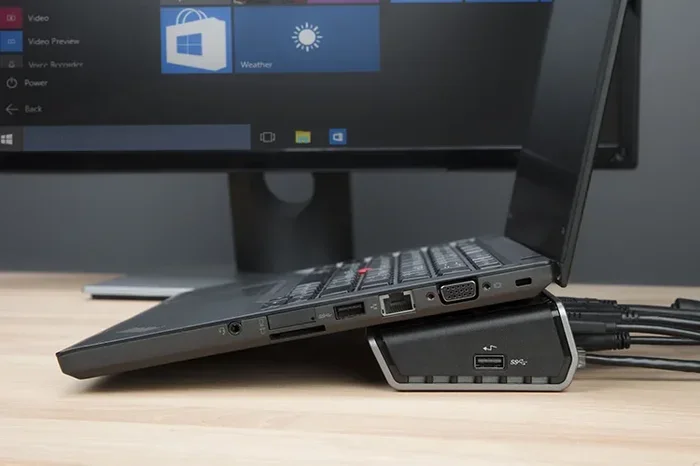
A docking station is like a power strip for your laptop. It connects to your laptop through one cable and gives you access to many more ports. Think of it as a bridge between your portable computer and your desktop peripherals.
When you dock your laptop, you typically gain access to:
- Multiple USB ports for keyboards, mice, printers, and external drives
- HDMI or DisplayPort outputs for external monitors
- Ethernet jacks for a wired internet connection
- Audio jacks for headphones and speakers
- Power delivery to charge your laptop while docked
The way it works is straightforward. Your laptop sends data and power through the dock’s main cable. The dock then splits that single connection into many individual ones. You connect all your devices to the dock once. Then, every morning, you just plug in one cable and everything is ready to go.
How the Connection Works
Most modern docks connect through a USB-C or Thunderbolt port on your laptop. These ports are small and oval-shaped. They carry data, video, and power all through one cable. Some older docks use a USB-A or proprietary connector, but USB-C is the new standard.
When you plug in the dock, your laptop should recognize it right away. Windows and macOS both support most docking stations without needing extra software. This is what people mean when they say plug and play. You connect, and it just works.
Can Every Laptop Use a Docking Station?
The short answer is no, not every laptop. But most laptops made in the last five years can use a dock just fine. The key is knowing what kind of ports your laptop has.
Here are the most common scenarios:
Laptops with USB-C or Thunderbolt Ports
If your laptop has a USB-C or Thunderbolt port, you are in great shape. These ports support almost every docking station on the market. Thunderbolt docks offer the fastest speeds and the most features. They can support multiple external monitors, fast data transfer, and power delivery all at the same time.
Apple MacBook Pros, Dell XPS laptops, Lenovo ThinkPads, and HP Spectre models all fall into this category. If you own one of these, finding a compatible docking station is easy.
Laptops with USB-A Ports Only
Older laptops might only have traditional USB-A ports. These are the wider, rectangular ports you have seen for years. You can still use a dock, but you will need one that connects through USB-A. These docks are simpler and may not support video output or power delivery.
Some USB-A docks include a USB-C cable for video and power, while others use a separate adapter. The setup is not as clean as a single-cable Thunderbolt dock, but it still works well for basic needs.
Laptops with Proprietary Docks
Some laptop brands make their own docks that only work with their laptops. Lenovo ThinkPad docks, Dell WD19 docks, and HP Thunderbolt docks are good examples. These docks often offer the best integration and support. However, they may not work with laptops from other brands.
If you want maximum compatibility, go with a universal USB-C or Thunderbolt dock. These work with almost any modern laptop regardless of the brand.
Types of Docking Stations You Should Know About
Not all docks are the same. They come in different shapes, sizes, and price ranges. Understanding the main types helps you pick the right one for your needs.
USB-C Docks
USB-C docks are the most popular type today. They connect through a single USB-C cable and offer a good mix of ports at affordable prices. Most USB-C docks support one or two external monitors and charge your laptop at the same time.
These docks work great for people who need a simple setup. If you want a second monitor, a keyboard, and a mouse, a USB-C dock handles all of that easily.
Thunderbolt Docks
Thunderbolt docks are the premium option. They use the Thunderbolt protocol, which is much faster than standard USB-C. Thunderbolt 3 and Thunderbolt 4 docks can support multiple 4K monitors, fast storage devices, and high-speed networking.
These docks cost more, but they offer the best performance and reliability. If you are a power user or creative professional, a Thunderbolt dock is worth the investment.
Portable Hubs vs. Full Docks
There is an important difference between a portable USB hub and a full docking station. A hub is small and lightweight. It adds a few extra ports but usually does not support video output or power delivery.
A full docking station is larger and sits on your desk. It supports multiple monitors, charges your laptop, and connects many peripherals at once. Think of a hub as a travel companion and a dock as your permanent desk setup.
| Feature | USB-C Dock | Thunderbolt Dock | Portable Hub |
|---|---|---|---|
| Video Output | Yes (1-2 monitors) | Yes (up to 3 monitors) | Usually No |
| Power Delivery | Yes (up to 100W) | Yes (up to 100W) | Rarely |
| Speed | Good | Excellent | Moderate |
| Price Range | $30-$150 | $100-$350 | $15-$50 |
| Best For | Daily office use | Power users | Travel |
Proprietary Brand Docks
Brand-specific docks are designed for a particular laptop line. They often fit perfectly under the laptop and match its design. These docks usually offer the best integration but lock you into one brand.
If you buy a Lenovo ThinkPad, a Lenovo dock makes sense. Same for Dell and HP. But if you switch laptops in the future, you may need a new dock too.
How to Choose the Right Docking Station for Your Laptop
Choosing the right dock does not have to be confusing. You just need to know a few things about your laptop and your needs before you buy.
Check Your Laptop’s Ports
Look at your laptop first. Does it have USB-C ports? Thunderbolt ports? How many? This tells you what kind of dock you can use. If your laptop only has USB-A ports, you need a dock that connects through USB-A or comes with an adapter.
Think About Your Monitor Setup
How many monitors do you want to use? Do you need 4K resolution or is 1080p enough? These questions determine the dock you need. A basic dock handles one 1080p monitor easily. For dual 4K monitors, you will want a Thunderbolt 4 dock.
Consider Power Delivery Needs
Power delivery, or PD, is how much power the dock sends to your laptop through the cable. Most laptops need at least 60W to charge while docked. Some power-hungry laptops need 85W or more. Check your laptop’s charger wattage and make sure the dock can match or exceed it.
Think About Your Peripherals
List all the devices you connect to your laptop. Do you use a mechanical keyboard? An external hard drive? A printer? A webcam? A drawing tablet? Make sure the dock has enough USB ports and the right types to support everything.
Quick Tips for Choosing the Right Dock
- Buy a Thunderbolt dock if your laptop supports Thunderbolt. It gives you the most future-proof setup.
- Check the warranty before purchasing. Good docks often come with 2-3 year warranties.
- Read reviews from other users with the same laptop model. Compatibility issues are rare but do happen.
- Do not skimp on cables. A good quality USB-C cable makes a big difference in performance.
- Consider your desk space. Full-size docks need room. Portable hubs are better for small desks.
Setting Up Your Docking Station for Maximum Productivity
Setting up a docking station is easier than most people think. In just a few minutes, you can transform your laptop into a full workstation.
Step-by-Step Setup Guide
- Place your dock on your desk near your monitor and power outlet.
- Connect your peripherals to the dock first. Plug in your monitor, keyboard, mouse, and any other devices.
- Connect the dock’s power cable to an electrical outlet.
- Plug the dock’s main cable into your laptop. This is usually a USB-C or Thunderbolt cable.
- Wait a few seconds. Your laptop should recognize all connected devices automatically.
- Adjust your display settings if needed. On Windows, go to Settings > Display. On macOS, go to System Settings > Displays.
That is it. You are now docked and ready to work. When you need to move your laptop, just unplug the one cable. Everything stays connected to the dock.
Cable Management Tips
One of the biggest benefits of a docking station is cleaner cable management. Instead of multiple cables running everywhere, you have just one cable connecting your laptop to the dock. Use cable ties or a cable tray to keep the remaining cords neat.
Label your cables if you have many devices. This makes troubleshooting much easier later. A clean desk leads to a clear mind and better focus.
Common Mistakes to Avoid
- Using a low-quality cable. Cheap cables can cause connection drops and slow charging. Invest in a good one.
- Ignoring power delivery limits. If your dock only provides 45W and your laptop needs 65W, your laptop will charge slowly or not at all.
- Connecting the monitor to the laptop instead of the dock. Always connect your monitor directly to the dock for the best experience.
- Not updating your dock’s firmware. Some docks receive updates that fix bugs and improve compatibility. Check the manufacturer’s website.
Expert Insights on Docking Station Setup
Tech professionals recommend doing a test run before committing to a permanent setup. Plug in your dock at home, connect all your devices, and use it for a full workday. This helps you spot any issues before you rely on it every day.
Another pro tip is to keep your laptop plugged into the dock at all times when at your desk. This reduces wear on your laptop’s charging port and ensures consistent performance. Docking stations also help extend the life of your laptop battery because you avoid frequent plugging and unplugging.
Common Problems and How to Fix Them
Even the best docking stations can have occasional issues. Most problems are easy to fix with simple steps.
Monitor Not Detected
If your external monitor does not show up, try unplugging the dock’s main cable and plugging it back in. You can also check your display settings to see if the monitor is detected but just not enabled. Sometimes restarting your laptop fixes the issue quickly.
Slow Charging
Slow charging usually means the dock is not providing enough power. Check the dock’s wattage rating against your laptop’s charging requirements. You may need a dock with higher power delivery or a separate charger for your laptop.
Peripheral Devices Not Working
If a keyboard or mouse stops working when docked, try unplugging it from the dock and plugging it directly into your laptop. If it works there, the dock’s USB port may be faulty. Try a different port on the dock or update your dock’s drivers.
Audio Issues
Sometimes audio routes to the wrong output. Go to your sound settings and make sure the correct output device is selected. When docked, you might want audio through your monitor speakers or headphones instead of your laptop speakers.
Expert Insight on Troubleshooting
IT professionals suggest keeping your operating system and dock firmware up to date. Most compatibility issues are resolved through software updates. If problems persist, contact the dock manufacturer’s support team. Most reputable brands offer excellent customer service and quick replacements under warranty.
How Docking Stations Boost Your Daily Productivity
A docking station does more than just add ports. It changes the way you work. When you dock your laptop, you create a consistent workspace that is always ready when you sit down.
Here are the main ways a dock improves your daily routine:
- Faster setup time. One cable connection gets everything ready in seconds.
- Better multitasking. Dual monitors let you work across more screen space without switching windows constantly.
- Improved ergonomics. You can position your laptop screen at eye level and use an external keyboard and mouse for better posture.
- Cleaner workspace. Fewer cables and peripherals cluttering your desk means less distraction.
- Seamless transitions. Dock at your desk in the morning. Un dock at night. Take your laptop to a meeting or home office without disconnecting anything.
For people who work from home or in hybrid environments, a docking station is a game changer. It bridges the gap between portable computing and a full desktop experience without any hassle.
Final Thoughts
So, can my laptop use a docking station? Yes, almost certainly. The vast majority of modern laptops support docking stations through USB-C or Thunderbolt connections. All you need to do is check your laptop’s ports, pick the right dock for your needs, and follow a simple setup process.
A docking station is one of the best investments you can make for your workspace. It saves time, reduces cable clutter, and makes switching between your laptop and a full desktop setup effortless. Whether you are a student, a remote worker, or a creative professional, the right dock will transform how you work.
Start by checking your laptop’s compatibility. Pick a dock that fits your budget and your needs. Set it up once, and enjoy the convenience every single day. A smooth, hassle-free docking experience is closer than you think.
Frequently Asked Questions
Do I need special drivers to use a docking station?
Most docking stations work without any extra drivers. They use standard protocols that Windows and macOS support natively. However, some advanced docks may require a firmware update or driver download for full functionality. Check the manufacturer’s website for any updates before setting up your dock.
Can I use a docking station with a Chromebook?
Yes, many Chromebooks support USB-C and Thunderbolt docking stations. The setup process is the same as with other laptops. Just make sure your Chromebook model has a compatible port and that the dock you choose supports Chrome OS. Most modern USB-C docks work perfectly with Chromebooks.
Will my laptop charge while connected to a docking station?
Yes, if your dock supports power delivery. Most USB-C and Thunderbolt docks can charge your laptop through the same cable that connects the dock to your laptop. Check the dock’s wattage rating to make sure it matches or exceeds your laptop’s charging requirements for the best results.
Can I connect more than one external monitor to a docking station?
Absolutely. Many docking stations support two or even three external monitors. Thunderbolt 4 docks are especially good at this. The number of monitors you can connect depends on your laptop’s graphics capabilities and the dock’s video output options. Check both before buying.
Are docking stations safe for my laptop?
Yes, docking stations are completely safe when you buy from a reputable brand. They are designed to work with laptops and handle power delivery safely. Avoid cheap, unbranded docks as they may not have proper safety certifications. Always look for docks from trusted manufacturers with good reviews.
Can I use a docking station with a gaming laptop?
Yes, gaming laptops work great with docking stations. In fact, many gamers use docks to connect their laptops to external monitors, keyboards, and mice for a desktop-like gaming experience. Make sure your dock supports the resolution and refresh rate you need for your gaming setup.