Can I Use Both Hdmi And Optical Without Any Problems
Yes, you can use both HDMI and optical audio connections simultaneously in most setups. This dual-connection approach lets you get the best of both worlds — high-quality digital audio through HDMI and a reliable backup or secondary audio path through optical. Whether you are setting up a soundbar, home theater system, or multi-room audio, understanding how these two connections work together will save you time, money, and frustration.
Have you ever sat in front of your TV or audio setup and wondered whether you need to choose between HDMI and optical audio? Maybe you have a soundbar with both ports, or your home theater receiver offers multiple audio output options. The good news is that you can use both HDMI and optical audio connections at the same time in most situations. This guide will walk you through everything you need to know about running dual audio connections, why you might want to do it, and how to avoid common pitfalls.
Understanding how these two types of audio cables work can make a huge difference in your listening experience. HDMI and optical audio each have their strengths, and combining them opens up flexibility that a single connection simply cannot provide. Whether you are a casual listener or a serious home theater enthusiast, this article will help you get the most out of your setup.
Key Takeaways
- Dual connections work: You can run both HDMI and optical audio from the same source device without major issues.
- HDMI carries more formats: HDMI supports higher-quality audio formats like Dolby Atmos and DTS:X, while optical is limited to older codecs.
- Setup is simple: Connecting both cables usually requires just plugging them in and adjusting your device settings.
- Common conflicts exist: Some devices may prioritize one output over the other, so knowing how to configure settings matters.
- Audio quality differs: HDMI generally delivers better audio quality, especially for modern surround sound formats.
- Use cases vary: Optical is great as a backup, while HDMI is best for primary high-fidelity audio.
- Troubleshooting is straightforward: Most issues with dual connections can be fixed with basic settings adjustments.
📑 Table of Contents
- What Is HDMI Audio and What Is Optical Audio?
- Can You Use Both HDMI and Optical at the Same Time?
- When Should You Use HDMI vs Optical?
- How to Set Up Both HDMI and Optical Connections Properly
- Common Problems When Using Both HDMI and Optical
- Expert Tips for Getting the Best Audio Experience
- Final Thoughts
What Is HDMI Audio and What Is Optical Audio?
Understanding HDMI Audio
HDMI stands for High-Definition Multimedia Interface. It is a single cable that carries both video and audio signals. When you plug in an HDMI cable, you get a digital audio and video connection all in one. This makes it incredibly convenient for connecting devices like Blu-ray players, gaming consoles, streaming boxes, and TVs.
HDMI audio supports a wide range of formats. You can send uncompressed stereo audio, compressed surround sound, and even advanced formats like Dolby Atmos and DTS:X. These formats deliver immersive, multi-dimensional sound that makes movies and games feel incredibly real. HDMI also supports ARC (Audio Return Channel) and eARC (Enhanced Audio Return Channel), which let audio travel back from your TV to your soundbar or receiver through the same cable.
Understanding Optical Audio
Optical audio uses a TOSLINK cable — a fiber optic cable that sends digital audio signals using light. Unlike HDMI, optical cables carry audio only. You cannot transmit video through an optical connection.
Optical audio has been around for a long time and remains a reliable option. It supports formats like Dolby Digital and DTS, which are standard surround sound codecs. However, it cannot carry the newer, higher-quality formats that HDMI supports. Optical audio does not support Dolby Atmos or uncompressed audio formats, which is its biggest limitation.
Key Differences at a Glance
- HDMI: Carries both video and audio. Supports modern formats like Dolby Atmos and DTS:X. Uses a single cable for everything.
- Optical: Carries audio only. Supports older formats like Dolby Digital and DTS. Requires a separate video cable.
Can You Use Both HDMI and Optical at the Same Time?
The short answer is yes. In most cases, you can run both an HDMI connection and an optical audio connection from the same source device simultaneously. Your TV, Blu-ray player, or streaming device can output audio through both ports at the same time. However, how well this works depends on your specific devices and how you configure them.
Some devices let you choose which audio output is active. Others may default to one over the other. Understanding your device settings is the key to making dual connections work smoothly. Let us look at some common scenarios where using both connections makes sense.
Scenario 1: TV With a Soundbar
Many people connect their TV to a soundbar using HDMI ARC for the best audio quality. But what happens when the TV does not support a certain audio format through HDMI? That is where optical comes in handy. Some users run HDMI for the primary audio path and keep optical as a backup or secondary output.
For example, if your TV has a built-in streaming app that outputs audio through optical only, you can use both connections. The HDMI handles your cable box or gaming console, while the optical handles the smart TV apps. This setup ensures you always have audio, regardless of the source.
Scenario 2: Home Theater Receiver With Multiple Inputs
If you have a home theater receiver with both HDMI and optical inputs, you can connect multiple devices and switch between them easily. Your Blu-ray player connects via HDMI for the best quality, while an older sound system or second zone speaker connects via optical. This gives you maximum flexibility without buying extra equipment.
Scenario 3: Backup and Redundancy
Using both connections also serves as a safety net. If your HDMI cable fails or your TV has an HDMI port issue, you can switch to optical audio quickly. This is especially useful in professional AV setups or home theaters where downtime is not an option.
When Should You Use HDMI vs Optical?
Choosing between HDMI and optical depends on what you value most in your audio setup. Both connections have clear advantages in different situations. Here is a closer look at when each option shines.
Use HDMI When You Want the Best Quality
HDMI is the clear winner when it comes to audio quality. It supports uncompressed audio and the latest surround sound formats. If you are watching a movie with Dolby Atmos or playing a game with immersive 3D audio, HDMI is the way to go. The audio quality you get through HDMI is simply superior to what optical can offer.
HDMI also simplifies your cable management. One cable handles both video and audio, which means fewer cords behind your entertainment center. For most modern setups, HDMI should be your primary audio connection.
Use Optical When You Need Compatibility
Optical audio is still widely used and supported. Many older devices, soundbars, and AV receivers have optical inputs but no HDMI. If you are working with older equipment, optical is your best bet for getting digital audio.
Optical is also useful when you want to avoid audio latency issues. In some cases, HDMI connections can introduce slight delays in audio, especially with ARC. Optical connections tend to be more consistent in this regard. If you are setting up a gaming setup where audio timing matters, optical can be a reliable choice.
Use Both When You Need Flexibility
The real power comes from using both connections together. You get the high-quality HDMI audio for your primary devices and the reliable optical output for secondary devices or as a backup. This approach gives you the most flexibility without sacrificing audio quality.
| Feature | HDMI | Optical |
|---|---|---|
| Carries Video | Yes | No |
| Carries Audio | Yes | Yes |
| Max Audio Quality | Uncompressed, Dolby Atmos, DTS:X | Compressed, Dolby Digital, DTS |
| Cable Length | Up to 50 feet (reliable) | Up to 30 feet (reliable) |
| Setup Complexity | Simple (one cable) | Simple (one cable) |
| ARC/eARC Support | Yes | No |
| Cost | Moderate | Low |
How to Set Up Both HDMI and Optical Connections Properly
Setting up dual audio connections is easier than most people think. Follow these steps to get both HDMI and optical audio working together on your devices.
Step 1: Check Your Device Ports
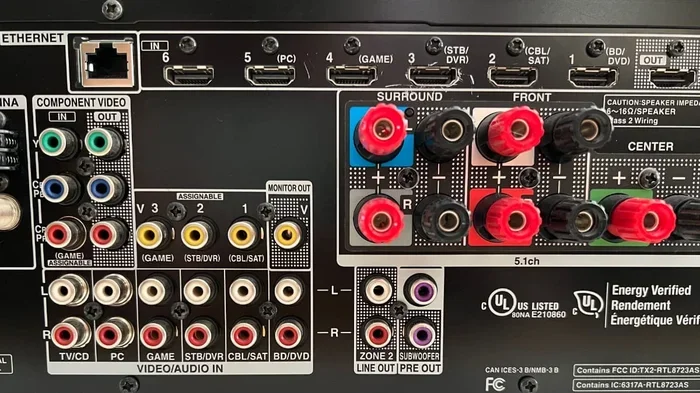
First, look at the back of your TV, soundbar, or receiver. Make sure you have both an HDMI port and an optical audio input available. Some devices may only have one or the other, so check before you buy any cables.
Step 2: Connect the HDMI Cable
Plug one end of your HDMI cable into the HDMI output on your source device (like a Blu-ray player or streaming box) and the other end into the HDMI input on your TV or receiver. If you are using ARC, make sure you plug into the HDMI port labeled ARC or eARC.
Step 3: Connect the Optical Cable
Plug the TOSLINK cable into the optical output on your source device and the optical input on your soundbar or receiver. Make sure the connection is snug and secure. Even a slight misalignment can cause audio dropouts.
Step 4: Configure Your Audio Settings
Go into the settings menu on your source device. Look for the audio output options. You may need to set the primary audio output to HDMI and the secondary output to optical. Some devices allow you to choose which connection to use for each app or input source.
Step 5: Test Both Connections
Play audio through both connections to make sure everything works. Check for sound quality, any delays, and whether both outputs are active at the same time. Adjust the volume levels on each output to match if needed.
Common Problems When Using Both HDMI and Optical
While using both connections is generally straightforward, you may run into a few issues along the way. Here are the most common problems and how to fix them.
Audio Only Comes Through One Connection
This is the most frequent issue. Many devices are designed to output audio through only one digital connection at a time. If you are not hearing sound from both outputs, check your device settings. Some TVs and receivers have an option to enable dual audio output, while others do not.
Quick tip: Look for settings like “Audio Output,” “Digital Audio Out,” or “Multi-channel Output” in your device menu. You may need to set the optical output to “passthrough” mode or enable a specific audio format.
Audio Sync Issues
When audio comes through two different connections, you might notice a slight delay or sync problem. This happens because HDMI and optical process audio at slightly different speeds. The delay is usually very small and hard to notice, but it can be distracting in some setups.
To fix sync issues, try adjusting the audio delay settings on your receiver or soundbar. Many devices have an “audio delay” or “lip sync” setting that you can tweak until the audio matches the video perfectly.
No Sound Through Optical
If your optical connection is not producing any sound, check the cable first. Make sure it is firmly seated in both ports. Optical cables are sensitive to dust and debris, so clean the connectors with a soft cloth if needed.
Also, check your device settings. Some devices automatically disable optical audio when HDMI is connected. You may need to manually enable the optical output or change the default audio output setting.
HDMI ARC Not Working
HDMI ARC issues are common and can be frustrating. If your audio is not returning through the HDMI ARC connection, try these steps:
- Make sure both devices support ARC and are set to the correct HDMI port.
- Check that HDMI CEC is enabled on both devices.
- Try a different HDMI cable, as some cables do not support ARC properly.
- Restart both devices and try again.
Expert Tips for Getting the Best Audio Experience
Use High-Quality Cables
Not all cables are created equal. A cheap HDMI cable may not support the latest audio formats, and a damaged optical cable can cause dropouts. Invest in high-speed HDMI cables certified for Ethernet and ARC. For optical cables, choose a quality TOSLINK cable with gold-plated connectors for the best signal quality.
Keep Cables Short
Signal quality degrades over long cable runs. For HDMI, keep cables under 50 feet. For optical, stay under 30 feet for the best results. If you need longer runs, consider using signal boosters or active cables.
Update Your Device Firmware
Device manufacturers regularly release firmware updates that improve audio compatibility and fix bugs. Check for updates for your TV, soundbar, and source devices regularly. A simple firmware update can often resolve audio issues you did not even know you had.
Consider an Audio Splitter
If you want to send the same audio to multiple devices, an audio splitter can be very helpful. A splitter takes one audio input and sends it to multiple outputs. This is useful when you want to send audio to both a soundbar and a second room speaker system from the same source.
Match Your Audio Formats
Make sure your devices are set to use compatible audio formats. If your source device sends Dolby Atmos through HDMI but your soundbar only supports Dolby Digital through optical, you will not get the full experience. Check the specifications of all your devices and set the audio format to match the lowest common denominator when using both connections.
Final Thoughts
Using both HDMI and optical audio connections is not only possible but also highly practical in many setups. Whether you want better audio quality, more flexibility, or a reliable backup plan, dual connections give you the best of both worlds. HDMI delivers superior audio quality and supports the latest formats, while optical provides a dependable alternative for older devices or as a secondary output.
The key to success is understanding your devices and configuring them correctly. Take the time to explore your TV and receiver settings, use quality cables, and test your setup thoroughly. Once you get everything dialed in, you will enjoy a seamless audio experience that leverages the strengths of both connection types.
So go ahead and connect both cables. With the right setup, you will wonder how you ever managed with just one. Can I use both HDMI and optical? Absolutely — and now you know exactly how to do it right.
Frequently Asked Questions
Can I use both HDMI and optical audio at the same time on a Samsung TV?
Yes, most Samsung TVs support dual audio output through both HDMI and optical. You may need to go into the Sound Settings and enable the option for multiple audio outputs. Check your specific model’s user manual for exact instructions.
Does using both HDMI and optical affect audio quality?
Not directly. Each connection carries its own audio signal independently. However, if your device tries to send incompatible audio formats through both outputs, you might experience issues. Stick to compatible formats on each connection for the best results.
Can I connect a soundbar via HDMI and a second speaker system via optical?
Yes, this is a common setup. Your soundbar receives high-quality audio through HDMI ARC, while your secondary speakers get audio through optical. Make sure your source device supports multiple audio outputs to make this work.
Is optical audio better than HDMI for gaming?
HDMI is generally better for gaming because it supports higher-quality audio formats and lower latency when used with eARC. However, optical can be a good backup option if your TV or console has HDMI audio issues.
Why does my TV not let me use both HDMI and optical audio at once?
Some TV models are designed to output audio through only one digital connection at a time. This is a manufacturer choice and not a technical limitation. Check your TV’s audio settings or consult the user manual to see if your model supports dual output.
Do I need a special cable for optical audio?
You need a standard TOSLINK cable, which is a fiber optic cable with square-shaped connectors. These cables are widely available and inexpensive. Make sure to buy a good-quality cable to avoid signal loss or connection problems.
=== CONCLUSION ===
Using both HDMI and optical audio connections is a smart and practical approach for anyone who wants maximum flexibility and the best possible sound quality. HDMI gives you the premium audio experience with support for modern formats, while optical keeps you covered for older devices and backup situations. By understanding how each connection works and following the setup tips in this guide, you can create an audio setup that delivers great sound no matter what you are watching or listening to.
Take some time today to check your current setup and see if adding a second audio connection could improve your experience. With the right configuration, your home audio system will perform at its best. Can I use both HDMI and optical without any problems? Yes — and now you have everything you need to make it work perfectly.