Can I Use A USB C Cable On A USB 20 Port And Will It Work
Yes, you can use a USB C cable on a USB 2.0 port. The USB C connector is designed to be backward compatible with older USB standards. However, your data transfer speed and charging power will be limited by the USB 2.0 port, not the cable.
Have you ever grabbed a USB C cable and a older device and wondered if they would work together? It is a really common question. Lots of people have a pile of cables lying around and are not sure which ones fit where. The good news is that you can absolutely use a USB C cable on a USB 2.0 port. But there are some important things you should know before you plug it in.
In this guide, we will walk through everything you need to know about USB C cable compatibility with USB 2.0 ports. We will cover how the connection works, what happens to your data speed, whether charging still functions, and when you might need an adapter. By the end, you will feel confident about using your cables the right way.
The world of USB connectors can feel confusing. There are USB-A, USB-B, USB-C, and several different USB standards like USB 2.0, USB 3.0, and USB 3.1. It is easy to mix them up. But understanding the basics is simpler than you think. Let us break it down together.
Key Takeaways
- USB C cables work on USB 2.0 ports: The physical connector fits and functions properly.
- Speed will be limited: You will only get USB 2.0 data transfer rates, which max out at 480 Mbps.
- Charging works but may be slower: USB 2.0 ports deliver up to 2.5 watts, far less than USB C power delivery.
- You may need an adapter: Some USB C cables won’t fit a USB-A 2.0 port without a proper converter.
- Not all USB C cables are equal: Cable quality and wiring matter for performance and safety.
- Check your device manual: Some ports have specific compatibility requirements you should know about.
📑 Table of Contents
- What Is a USB C Cable and a USB 2.0 Port?
- Can You Physically Plug a USB C Cable into a USB 2.0 Port?
- How Does Compatibility Work Between USB C and USB 2.0?
- What Happens to Data Transfer Speed?
- Can You Charge Devices with a USB C Cable on a USB 2.0 Port?
- When Do You Need a USB C Adapter or Converter?
- Common Mistakes People Make with USB C and USB 2.0
- Expert Tips for Getting the Best Results
- Key Takeaways
- Conclusion
What Is a USB C Cable and a USB 2.0 Port?
Before we answer whether a USB C cable works on a USB 2.0 port, let us quickly understand what each one actually is. This helps you make smarter decisions about your devices and cables.
Understanding the USB C Connector
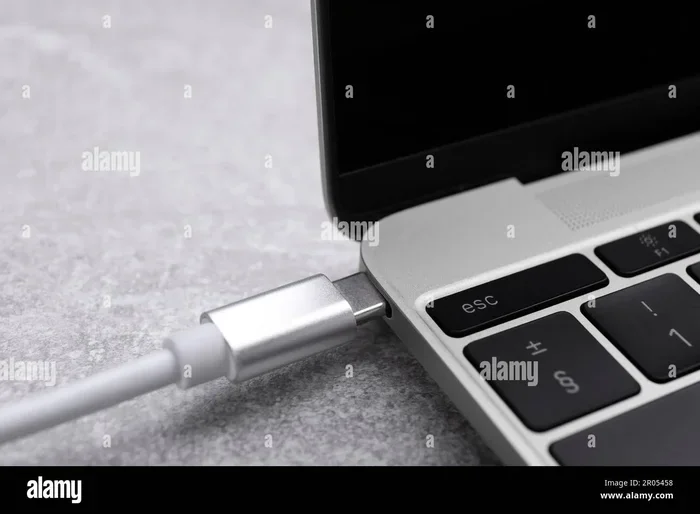
The USB Type-C connector is a small, oval-shaped plug that has become the modern standard. It is reversible, which means you can flip it either way and it will fit. No more flipping the cable three times to get it right. This is one of the biggest improvements older USB connectors had.
USB C cables support higher data transfer speeds and more power delivery than older cable types. They are used in smartphones, laptops, tablets, and many other gadgets today. But here is the key point: the cable type and the port standard are two different things.
Understanding the USB 2.0 Port
A USB 2.0 port is an older port standard that has been around since the early 2000s. It is commonly found on desktop computers, printers, external hard drives, and many other devices. The port itself is usually a rectangular USB-A shape. The USB 2.0 standard supports a maximum data transfer rate of 480 Mbps, which is called High Speed.
Even though USB 2.0 is older, it is still widely used. Many devices rely on it every day. The good news is that newer cables like the USB C cable can still connect to these ports. They just will not unlock the faster speeds that USB C is capable of.
Can You Physically Plug a USB C Cable into a USB 2.0 Port?
This is the first thing most people want to know. The short answer is yes, but it depends on the port shape.
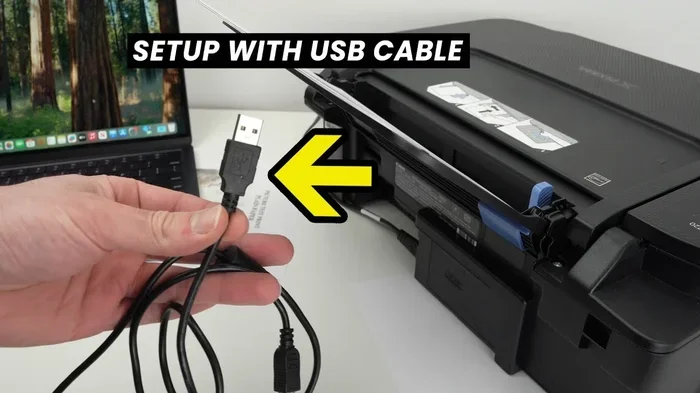
A USB C cable has a small, rounded connector on each end. A standard USB 2.0 port on a computer is usually a flat, rectangular USB-A port. These two shapes do not match directly. You cannot push a USB C plug straight into a USB-A port. They are physically different.
However, there is an easy fix. You can use a simple USB C to USB-A adapter or cable. These adapters have a USB C connector on one end and a USB-A plug on the other. This lets you connect your USB C cable to any USB 2.0 port without any problem. These adapters are cheap and widely available.
Some devices have USB-C ports but only support USB 2.0 speeds. In that case, the USB C cable plugs in directly. The connector fits perfectly. But the port itself only communicates at USB 2.0 speeds. We will talk more about what that means for your data and charging below.
How Does Compatibility Work Between USB C and USB 2.0?
USB cable compatibility depends on a few factors. Let us break down how the USB C cable and USB 2.0 port work together.
The USB standard uses a protocol to communicate between devices. When you plug in a USB C cable to a USB 2.0 port, the two devices negotiate the best connection they can both support. Since the port is USB 2.0, the connection will default to USB 2.0 speeds. The cable itself is not the bottleneck here. The port is.
Think of it like a highway. The USB C cable is a wide, multi-lane highway. The USB 2.0 port is a two-lane road. You can still drive on the two-lane road using the highway-capable car. But you will only go as fast as the road allows. The car does not make the road wider.
This is what people mean when they say USB is backward compatible. Newer cables and devices can work with older ports and standards. The connection will always fall back to the lowest common standard between the cable, the port, and the device.
What the USB Protocol Negotiation Means
When you plug in a cable, the devices talk to each other. They exchange information about what they support. This is called USB protocol negotiation. If your USB C cable supports USB 3.2 and your port is USB 2.0, the devices will agree to use USB 2.0. Both sides play nice and find a common ground.
This negotiation happens in milliseconds. You will not notice any delay. The cable just works. But the performance will match the older port standard.
What Happens to Data Transfer Speed?
This is where things get important. If you are using a USB C cable on a USB 2.0 port, your data transfer speed will be limited to USB 2.0 speeds.
USB 2.0 has a maximum theoretical speed of 480 Mbps. That is about 60 megabytes per second. For comparison, USB 3.0 tops out at 5 Gbps, and USB 3.2 Gen 2 can reach 10 Gbps. So you are getting a tiny fraction of what your USB C cable is capable of.
In real-world use, you might see transfer speeds closer to 30 to 40 MB per second on a USB 2.0 port. That is still fine for small files like documents and photos. But if you are transferring large video files or backing up a huge external drive, you will notice the slowdown.
Real-World Speed Comparison
Here is a quick look at how different USB standards compare in terms of data transfer speed:
- USB 2.0: Up to 480 Mbps (about 60 MB/s)
- USB 3.0: Up to 5 Gbps (about 625 MB/s)
- USB 3.1 Gen 2: Up to 10 Gbps (about 1,250 MB/s)
- USB 3.2 Gen 2×2: Up to 20 Gbps (about 2,500 MB/s)
- USB4: Up to 40 Gbps (about 5,000 MB/s)
As you can see, the USB C cable itself could support much faster speeds. But when paired with a USB 2.0 port, you are stuck at the older standard. The cable cannot magically make the port faster.
When Does Speed Matter?
For everyday tasks like copying documents, moving photos, or charging your phone, USB 2.0 speed is perfectly fine. You probably will not notice a big difference. But if you work with large media files, run backups, or use external SSDs, the speed gap becomes very obvious.
If speed matters for your workflow, consider upgrading to a device or hub with a USB 3.0 or USB 3.1 port. This lets your USB C cable reach its full potential.
Can You Charge Devices with a USB C Cable on a USB 2.0 Port?
Yes, charging still works. But there are some limits you should know about.
A standard USB 2.0 port can deliver up to 2.5 watts of power. That is 5 volts at 0.5 amps. This is enough to slowly charge your phone or power a small USB device. But it is nowhere near the charging speeds you get with modern USB C power delivery standards.
USB Power Delivery (USB PD) can send up to 100 watts or more through a USB C cable. This is what lets laptops charge quickly through a single cable. But a USB 2.0 port simply cannot provide that level of power. The port hardware limits it.
What to Expect When Charging
If you plug your phone into a USB 2.0 port using a USB C cable, you should see it charge. But it will charge slowly. A phone that might charge to 50 percent in 30 minutes on a fast charger might take 2 hours or more on a USB 2.0 port.
Here are some things to keep in mind:
- Slow charging is normal: Do not panic if your device charges slowly on a USB 2.0 port.
- Use your wall adapter: For fastest charging, plug your USB C cable into a wall charger with USB PD support.
- Some devices negotiate power: Your device may draw only 0.5 amps from a USB 2.0 port, which is the standard limit.
- Battery drain is possible: Some peripherals like external hard drives may actually drain your phone battery when plugged into a USB 2.0 port because the port cannot supply enough power.
Quick Tip for Better Charging
If you need to charge a device quickly and only have a USB 2.0 port available, use a wall adapter instead. A simple USB wall charger with a USB C cable will give you much faster charging speeds than any computer port can provide.
When Do You Need a USB C Adapter or Converter?
Sometimes you need extra help to make things work. Let us look at when an adapter becomes necessary.
If your USB C cable has USB-C connectors on both ends and your computer only has USB-A ports, you need an adapter. A USB C to USB-A adapter or a USB C to USB-A cable solves this problem easily. Just plug the USB-C end into your cable and the USB-A end into your port.
Adapters are small, inexpensive, and very useful to keep around. You can find them at any electronics store or online. They cost just a few dollars.
Common Adapter Types
Here are some of the most common adapters you might need when using a USB C cable with older ports:
- USB C to USB-A adapter: Lets you plug a USB C cable into a standard USB-A port.
- USB C to USB-A cable: A cable with USB-C on one end and USB-A on the other. No separate adapter needed.
- USB C hub with USB-A ports: A small hub that adds multiple ports including USB-A 2.0 and USB-A 3.0 ports.
- USB C to USB-B adapter: Useful for connecting to older printers or scanners.
All of these adapters let your USB C cable connect to a USB 2.0 port or any older USB port. They are simple plug-and-play devices. No drivers or software needed.
Quality Matters When Choosing Adapters
Not all adapters are created equal. Cheap, poorly made adapters can cause connection issues, slow speeds, or even damage your devices. Look for adapters from reputable brands. Check for reviews and certifications. A good adapter ensures your USB C cable works reliably with your USB 2.0 port.
Also, make sure the adapter supports the USB standard you need. If you want USB 3.0 speeds through an adapter, get a USB 3.0 adapter. A USB 2.0 adapter will cap your speeds no matter what cable you use.
Common Mistakes People Make with USB C and USB 2.0
There are a few mistakes people make frequently when mixing USB C cables with USB 2.0 ports. Knowing these can save you time and frustration.
Mistake 1: Expecting fast speeds. Many people buy a USB C cable expecting lightning-fast transfers. Then they plug it into a USB 2.0 port and wonder why it is slow. Remember, the port determines the speed, not the cable.
Mistake 2: Using a cheap cable. Not all USB C cables are built the same. Some cheap cables have thin wires that overheat or fail to transfer data properly. Always buy cables from trusted brands that meet USB specifications.
Mistake 3: Forcing the connector. A USB C cable should plug in easily. If you have to force it, something is wrong. You might be trying to plug it into the wrong port shape or using a damaged connector.
Mistake 4: Ignoring power limits. Plugging a power-hungry device into a USB 2.0 port might not provide enough power. This can cause slow charging or no charging at all. Always check the power requirements of your device.
Mistake 5: Assuming all USB C ports are the same. Some devices have USB C ports that only support USB 2.0. Others support USB 3.0 or USB 3.1. Check your device specifications to know exactly what your port can do.
Expert Tips for Getting the Best Results
Want to get the most out of your USB C cable and USB 2.0 port setup? Here are some practical tips from our experience.
Tip 1: Check your port speeds. Before buying cables or adapters, check what USB standard your port supports. Look at your device manual or the manufacturer website. This saves you from buying the wrong equipment.
Tip 2: Keep your cables organized. Label your cables so you know which ones are USB C and which ones are USB-A. This helps you grab the right cable quickly and avoid frustration.
Tip 3: Use a hub for flexibility. A good USB hub gives you multiple port types in one device. You can connect your USB C cable to the hub and then use the hub’s USB-A 2.0 ports for older devices. This is a great all-in-one solution.
Tip 4: Update your drivers. Sometimes slow performance on a USB 2.0 port is caused by outdated drivers. Make sure your operating system and device drivers are up to date for the best file transfer experience.
Tip 5: Test with different cables. If your USB C cable is not working well with a USB 2.0 port, try a different cable. Some cables are better quality than others and make a real difference in reliability.
Key Takeaways
- USB C cables work on USB 2.0 ports: The physical connector fits and functions properly.
- Speed will be limited: You will only get USB 2.0 data transfer rates, which max out at 480 Mbps.
- Charging works but may be slower: USB 2.0 ports deliver up to 2.5 watts, far less than USB C power delivery.
- You may need an adapter: Some USB C cables won’t fit a USB-A 2.0 port without a proper converter.
- Not all USB C cables are equal: Cable quality and wiring matter for performance and safety.
- Check your device manual: Some ports have specific compatibility requirements you should know about.
Conclusion
So, can you use a USB C cable on a USB 2.0 port? Absolutely yes. The connection works, your devices will communicate, and you can transfer files and charge your gadgets. The USB C cable is designed to be backward compatible with older USB standards, and that includes USB 2.0.
The main trade-off is speed. You will be limited to USB 2.0 data transfer rates and charging power. If you need faster speeds or quicker charging, you will need a device with a newer USB port standard. But for everyday use, a USB C cable on a USB 2.0 port gets the job done just fine.
Keep a few adapters on hand, invest in quality cables, and always check your port specifications. These small steps make a big difference in your daily tech experience. Now you have all the knowledge you need to use your USB C cable with confidence on any USB 2.0 port you come across.
Frequently Asked Questions
Will a USB C cable damage a USB 2.0 port?
No, a USB C cable will not damage a USB 2.0 port. USB standards are designed to be safe and backward compatible. The devices negotiate the correct power and data levels automatically. Just make sure your cable is from a reputable brand to avoid any safety issues.
Why is my USB C cable so slow on a USB 2.0 port?
The speed is limited by the port, not the cable. A USB 2.0 port can only transfer data at 480 Mbps. Even if your USB C cable supports much faster speeds, the port caps the performance. This is how backward compatibility works in the USB standard.
Can I use a USB C to USB-C cable on a USB 2.0 port?
Only if the port itself is a USB-C port that supports USB 2.0 speeds. Many modern laptops have USB-C ports that only support USB 2.0. In that case, the cable plugs in directly and works. But if the port is a USB-A 2.0 port, you need a USB C to USB-A adapter or cable.
Does the length of the USB C cable affect performance on a USB 2.0 port?
Cable length can have a minor effect on signal quality, but it does not change the USB 2.0 speed limit. A longer USB C cable might have slightly more signal loss, but for most everyday uses, the difference is negligible. Stick to cables under 6 feet for the best results.
Can I get USB 3.0 speeds with a USB C cable on a USB 2.0 port?
No. The USB 2.0 port determines the maximum speed. Even with the best USB C cable, you cannot exceed the port’s capabilities. To get USB 3.0 speeds, you need a USB 3.0 port or a USB 3.0 hub that connects to your computer.
Are all USB C cables the same for use with USB 2.0 ports?
Not exactly. While all USB C cables will physically connect to a USB 2.0 port, their quality varies. Some cables have better shielding, thicker wires, and more reliable connectors. A high-quality cable ensures stable connections and safe charging, even at USB 2.0 speeds.