How Do I Connect My Headphones To My TV Without A Jack
You can connect headphones to your TV without a jack using several easy methods, including Bluetooth, a Bluetooth transmitter, or an audio converter. Whether you have a smart TV or an older model, this guide covers every option so you can enjoy private listening without any hassle. Keep reading to find the best solution for your setup.
Have you ever wanted to watch your favorite show late at night but worried about waking up the whole house? Or maybe you just prefer the immersive experience of headphones over tinny TV speakers. The problem is simple: your TV does not have a headphone jack. But the solution is not hard at all.
In this guide, I will walk you through every way to connect headphones to TV without a headphone jack. You do not need to be a tech expert. Whether you have a smart TV from Samsung or LG, or an older set from the last decade, there is a method that will work for you. I will cover Bluetooth options, transmitters, adapters, and even cable-based solutions. By the end, you will know exactly which method fits your TV and your budget.
Let us get started. No more missed dialogue, no more cranking up the volume for the whole family. Just clear, private audio every time you sit down to watch.
Key Takeaways
- Bluetooth is the easiest wireless option if your TV supports it natively.
- A Bluetooth transmitter is the most universal fix for TVs without built-in Bluetooth.
- Audio converters and adapters work great when your TV has RCA or optical outputs.
- HDMI ARC and optical cables can also route audio to wireless headphones.
- Pairing is simple once you know which output your TV has available.
📑 Table of Contents
- Why Your TV Might Not Have a Headphone Jack
- Method 1: Use Bluetooth Headphones With Your TV
- Method 2: Use a Bluetooth Transmitter
- Method 3: Use an Audio Converter or Adapter
- Method 4: Use HDMI ARC or Optical Output for Wireless Audio
- Tips for the Best Wireless Listening Experience
- Common Mistakes People Make When Connecting Headphones to a TV
- Which Method Should You Choose?
- Final Thoughts
Why Your TV Might Not Have a Headphone Jack
It is frustrating when you want a simple solution and the jack is missing. But TV manufacturers have been removing headphone jacks for a few reasons. Understanding why can help you pick the right fix.
The Shift to Thinner Designs
Modern TVs are incredibly thin. Every extra port adds bulk and cost. Manufacturers have traded the headphone jack for sleeker designs and fewer openings. This trend started a while ago and shows no sign of reversing.
Focus on Wireless and Smart Features
Most new TVs now focus on smart features and wireless connectivity. Many models include built-in Bluetooth or Wi-Fi. The idea is that you will stream audio wirelessly to headphones or a soundbar instead of plugging in a cable. While this is convenient, it leaves people with older or budget TVs stuck without easy audio output options.
When a Jack Still Matters
Even though wireless is popular, a headphone jack remains useful. It works without batteries, without pairing, and without any setup at all. If your TV lacks one, you need an alternative. The good news is there are plenty of alternatives, and they are all covered below.
Method 1: Use Bluetooth Headphones With Your TV
The simplest way to listen privately is by going wireless. If your TV has Bluetooth built in, you can pair your headphones directly. No extra gadgets needed. This method works with most Bluetooth headphones and many modern smart TVs.
How to Pair Bluetooth Headphones to Your TV
The process is straightforward, but it varies slightly depending on your TV brand. Here is a general walkthrough that applies to most sets:
- Turn on your Bluetooth headphones and put them in pairing mode. Most headphones have a dedicated button or a long press that activates pairing mode.
- Go to your TV settings. Look for Bluetooth, Sound, or Connections in the menu.
- Select “Pair New Device” or “Search for Devices.” Your TV will scan for nearby Bluetooth devices.
- Select your headphones from the list. The connection should form in a few seconds.
- Adjust the volume. You can control volume from the TV remote or the headphones themselves, depending on your setup.
If you own an LG TV and are not sure where to start, pairing Bluetooth headphones to your LG TV follows a very similar process with slight menu differences.
Pros and Cons of Direct Bluetooth Pairing
- Pros: No extra equipment, easy setup, and wireless freedom around the room.
- Cons: Some TVs have limited Bluetooth range, audio lag can occur, and not all TVs support this feature.
Quick Tip: If your TV does not show up as a Bluetooth audio source, it may not support Bluetooth headphones natively. Do not worry. The next method solves that problem.
Method 2: Use a Bluetooth Transmitter
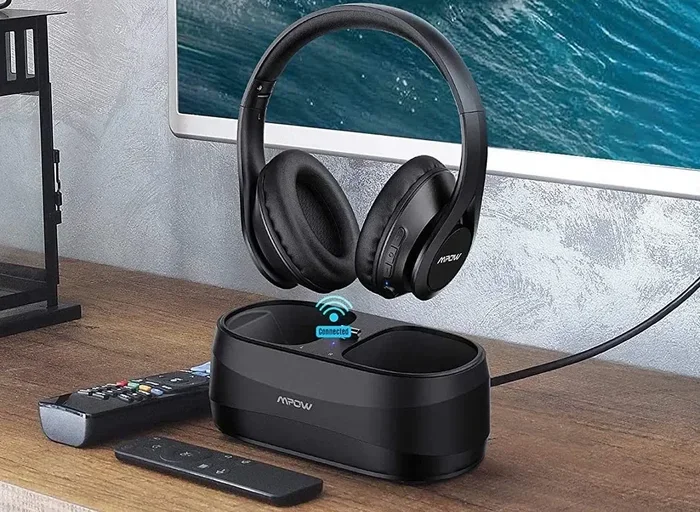
A Bluetooth transmitter is the most popular solution for TVs without built-in Bluetooth. This small device plugs into your TV’s audio output and sends the signal wirelessly to your headphones. Think of it as a bridge between your TV and your wireless headphones.
How a Bluetooth Transmitter Works
The transmitter connects to your TV using one of the available audio outputs. It then broadcasts the audio signal over Bluetooth to your headphones. The whole process happens in real time, so you get sync between what you see and what you hear.
Setting Up Your Transmitter
Setting up a Bluetooth transmitter is easy. Follow these steps:
- Plug the transmitter into your TV. Use the appropriate cable for your TV’s output (more on that below).
- Power on the transmitter. Most models use a USB cable that plugs into your TV’s USB port.
- Put your headphones in pairing mode.
- Pair the transmitter with your headphones. The LED light on the transmitter usually flashes to show it is ready.
- Test the audio. Play a video and check for sound in your headphones.
If you want to add Bluetooth capability to a TV that does not have it, making your TV Bluetooth capable with a transmitter is one of the best approaches.
Things to Look For in a Transmitter
- Low latency support: This reduces the delay between video and audio. Look for transmitters labeled “aptX Low Latency.”
- Multipoint connection: This lets you connect two pairs of headphones at once. Great for couples.
- Battery life: A good transmitter lasts 10 to 15 hours on a single charge.
- Compatibility: Make sure the transmitter works with your TV’s output type (3.5mm, RCA, or optical).
Quick Tip: Place the transmitter close to your TV to avoid signal drops. A clear line of sight between the transmitter and headphones gives the best results.
Method 3: Use an Audio Converter or Adapter
If you prefer a wired connection or your TV has older ports, an audio converter is a great choice. These small devices change one type of audio output into another so your headphones can work. You do not need any special tech skills to use them.
Common Converter Types
Not all TVs have the same ports. Here are the most common converter types you will encounter:
- 3.5mm to RCA adapter: Converts a standard headphone-style plug into the red and white RCA cables found on older TVs.
- RCA to 3.5mm adapter: Does the reverse, taking RCA output and converting it to a jack your headphones can plug into.
- Optical to 3.5mm converter: Takes the digital optical output from your TV and converts it to an analog signal for wired headphones.
- HDMI audio extractor: Pulls the audio signal from an HDMI cable and outputs it through a 3.5mm or RCA port.
Which Converter Do You Need?
The right converter depends on what outputs your TV has. Look at the back of your TV and identify the available ports. If you see RCA red and white jacks, get an RCA-based converter. If you see a small square optical port, you need an optical converter. If your TV only has HDMI, an HDMI audio extractor is your best bet.
For a simple plug-and-play option, connecting without a cable is the wireless way to go, but if you want a reliable wired setup, converters are unbeatable.
Setting Up a Converter
Here is a quick setup guide for most audio converters:
- Connect the input side to your TV. Match the cable type to your TV’s output port.
- Connect the output side to your headphones. Use a 3.5mm cable for most modern headphones.
- Switch your TV audio output to the external port. Go to your TV sound settings and select the correct output.
- Adjust volume on both the TV and the converter. Some converters have their own volume knob.
Quick Tip: Keep your cables short and organized. Long cables can cause signal loss and look messy behind your TV stand.
Method 4: Use HDMI ARC or Optical Output for Wireless Audio
If your TV has HDMI ARC or an optical audio output, you have more options for routing sound to headphones. These digital outputs provide better audio quality than analog connections. They also open the door to wireless audio systems.
What Is HDMI ARC?
HDMI ARC stands for Audio Return Channel. It is a special HDMI port that sends audio both ways between your TV and another device. Many soundbars and audio systems use HDMI ARC. You can also use it to connect to a wireless headphone system through an audio extractor.
What Is Optical Audio Output?
An optical output uses a fiber optic cable to send digital audio from your TV. It delivers clean, interference-free sound. You can connect an optical-to-analog converter to this port and then plug in wired headphones or route the signal to a Bluetooth transmitter.
Comparing HDMI ARC vs Optical
| Feature | HDMI ARC | Optical |
|---|---|---|
| Audio Quality | High, supports surround sound | High, supports surround sound |
| Cable Type | HDMI cable | Fiber optic cable |
| Ease of Use | Easy if you have HDMI ports free | Requires a separate converter |
| Best For | Smart TVs and soundbar setups | Older TVs and audio purists |
Both options work well. If you already have an HDMI cable connected to a soundbar or streaming device, HDMI ARC is the most convenient path. If your TV has an optical port but no spare HDMI, go with the optical route.
Expert Insight: When using optical output, always check that your converter supports the bit rate your TV outputs. A mismatch can cause no sound or low-quality audio.
Tips for the Best Wireless Listening Experience
Once you have your headphones connected, a few simple tips can make a big difference in your listening experience.
Reduce Audio Lag
Audio lag happens when the sound arrives a fraction of a second after the video. This makes dialogue feel out of sync. To reduce lag, use a transmitter with low-latency codecs like aptX LL. Also, keep your headphones close to the source device.
Check Your TV Audio Settings
Many TVs have audio settings that affect Bluetooth and external outputs. Go to your sound settings and look for options like “Audio Output,” “Digital Audio Out,” or “Bluetooth Audio.” Make sure the correct output is selected and set to the right format.
Keep Your Devices Charged
Wireless headphones and transmitters run on batteries. A low battery can cause audio dropouts or reduced range. Make it a habit to charge your devices regularly. Most Bluetooth headphones last 15 to 30 hours on a full charge.
Position Matters
Bluetooth signals work best with a clear path between the transmitter or TV and the headphones. Walls and furniture can weaken the signal. If you experience dropouts, try moving closer or repositioning the transmitter.
Quick Tip: If you are using a Bluetooth transmitter, try placing it on a high shelf near the TV. This reduces interference from other electronics and improves the wireless range.
Common Mistakes People Make When Connecting Headphones to a TV
Even with the right method, small mistakes can cause frustration. Here are the most common ones to avoid.
- Forgetting to switch the TV audio output: Your TV may still be sending sound to its built-in speakers instead of the external device. Always check the audio output setting after connecting anything.
- Using the wrong cable or adapter: Not all adapters are the same. A 3.5mm to RCA adapter will not work if your TV only has an optical output. Double-check your TV ports before buying any equipment.
- Ignoring firmware updates: Some Bluetooth transmitters and smart TVs receive firmware updates that improve performance and fix connection issues. Check the manufacturer’s website occasionally.
- Pairing in a crowded wireless environment: If you live in an apartment building with lots of Wi-Fi networks, Bluetooth interference is common. Move closer to the source device or switch to a 5GHz transmitter if available.
- Not testing volume controls: Some setups make the TV remote control the headphone volume, while others do not. Test this before settling in for a movie night.
Common Mistake Alert: The single biggest mistake is not checking what audio outputs your TV actually has. Before buying any adapter or transmitter, look at the back of your TV and write down the available ports. This one step saves time and money.
Which Method Should You Choose?
Every setup is different, so the best method depends on your TV and your preferences. Here is a quick guide to help you decide.
- Choose Bluetooth pairing if your TV has built-in Bluetooth and you want the simplest setup.
- Choose a Bluetooth transmitter if your TV lacks Bluetooth but has a 3.5mm or RCA output.
- Choose an audio converter if you prefer a wired connection or have older ports like RCA or optical.
- Choose HDMI ARC or optical with a converter if you want the best audio quality and already have the right cables.
If you are still unsure about your options, remember that connecting devices without traditional ports is easier than most people think. The same creative solutions apply to audio connections.
Key Takeaway: There is no single “best” method. The best method is the one that works with your TV’s available ports and matches your listening habits. Start with the options above and pick the one that feels easiest for your setup.
Final Thoughts
Connecting headphones to your TV without a headphone jack is easier than you might think. You have Bluetooth pairing, transmitters, converters, and digital audio outputs at your disposal. Each method has its strengths, and the right choice depends on your TV model and your personal preferences.
Wireless headphones give you freedom to move around the room. Transmitters bring Bluetooth to any TV. Converters work with older equipment. And digital outputs deliver the best sound quality. No matter which path you choose, the result is the same: private, clear audio every time you watch.
Take a few minutes to check your TV’s outputs, pick the right method, and set it up. Once you do, you will wonder how you ever watched TV without them. Happy listening.
Frequently Asked Questions
Can I connect any Bluetooth headphones to my TV?
Most Bluetooth headphones work with any TV that has built-in Bluetooth support. However, some TVs have compatibility limitations, so check your TV manual or settings before buying headphones. If your TV does not support Bluetooth, a Bluetooth transmitter solves this problem easily.
Do I need any special equipment to connect wireless headphones to my TV?
It depends on your TV. If your TV has Bluetooth, you need no extra equipment at all. If it does not, a Bluetooth transmitter is the most affordable and effective solution. These transmitters cost between $15 and $40 and plug right into your TV’s audio output.
Why is there a delay between the video and audio when using Bluetooth headphones?
Audio delay, or latency, happens because Bluetooth takes a moment to transmit the signal. This is normal but can be reduced. Look for transmitters that support aptX Low Latency, and keep your headphones within a few feet of the transmitter for the best sync.
Can I use wired headphones with a TV that has no headphone jack?
Yes, you can. Use an audio converter that matches your TV’s available outputs, such as an RCA to 3.5mm adapter or an optical-to-analog converter. These small devices are inexpensive and work with any pair of wired headphones.
Is it better to use HDMI ARC or optical output for TV audio?
Both provide excellent audio quality. HDMI ARC is more convenient if you already use HDMI cables and want to control volume through your TV remote. Optical output is a great choice if your TV does not have spare HDMI ports or if you prefer a dedicated digital audio connection.
Can I connect multiple pairs of headphones to my TV at the same time?
Yes, but only with the right equipment. A Bluetooth transmitter with multipoint support or a wireless headphone splitter lets two pairs of headphones connect simultaneously. This is perfect for watching TV with a partner without disturbing anyone else in the house.