Do You Have To Use Headphones With Blue Yeti Microphone
You don’t technically have to use headphones with a Blue Yeti microphone, but wearing them while recording makes a huge difference in sound quality. Headphones let you monitor your voice in real time, catch background noise, and prevent audio feedback loops that can ruin your takes. Whether you’re podcasting, streaming, or recording vocals, using headphones with your Blue Yeti is one of the simplest ways to level up your audio.
This is a comprehensive guide about Do You Have To Use Headphones With Blue Yeti.
Key Takeaways
- Headphones are not mandatory but highly recommended for any serious recording with a Blue Yeti.
- Monitoring your audio in real time helps you catch mistakes, background noise, and unwanted sounds before they ruin your take.
- Using headphones prevents audio feedback loops, which happen when your mic picks up sound from your speakers.
- Open-back vs. closed-back headphones offer different benefits for recording and streaming setups.
- You can use Bluetooth headphones with some setups, but wired headphones deliver the best results for zero-latency monitoring.
- Skipping headphones is fine for casual use like voice notes or quick recordings where quality doesn’t matter as much.
[FEATURED_IMAGE_PLACEHOLDER]
Do You Really Need Headphones With a Blue Yeti Microphone?
If you just bought a Blue Yeti microphone, you might be wondering whether those headphones are really necessary. The short answer is no — you don’t have to wear headphones. But the better question is: should you? And the answer to that is a strong yes if you care about sound quality.
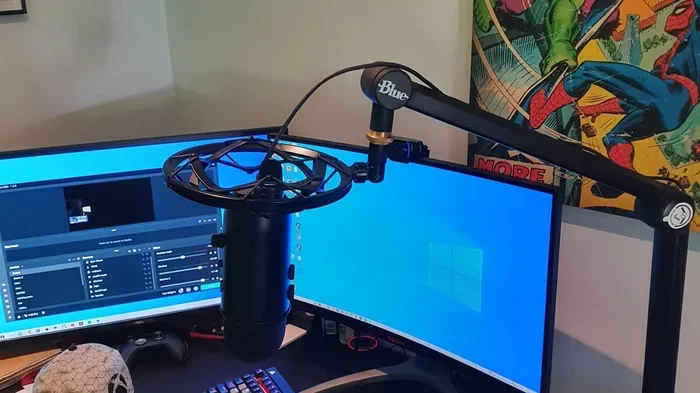
The Blue Yeti is a popular USB condenser microphone used by podcasters, gamers, musicians, and content creators. It connects straight to your computer and delivers studio-quality sound. But without headphones, you’re essentially recording blind. You can’t hear what the microphone hears, and that can lead to problems you won’t notice until after you hit stop.
Think of it like looking in a mirror while you get dressed. You can still get dressed without one, but the mirror helps you catch mistakes before they happen. Headphones work the same way for your audio. They give you immediate feedback so you can fix issues on the spot instead of re-recording later.
That said, there are situations where skipping headphones makes total sense. If you’re recording a quick voice note, doing a one-time narration, or just testing the mic, you probably don’t need them. But for anything that matters — podcasts, live streams, voiceovers, or music — headphones are your best friend.
Why Headphones Matter When Using a Blue Yeti
Understanding why headphones matter starts with understanding how a microphone works. The Blue Yeti picks up every sound in its environment. That includes your voice, your keyboard clicks, your fan, your dog barking, and yes — the sound coming from your computer speakers.
When you play back audio through your speakers while the mic is live, the mic picks up that sound and sends it back out through the speakers. Then the mic picks it up again. This creates a loop called audio feedback, and it sounds terrible. It’s the same reason a singer gets that horrible screeching sound when they stand too close to a monitor speaker on stage.
Headphones break that loop completely. The sound goes directly into your ears, and nowhere else. Your microphone can’t pick up what you’re hearing because there’s no speaker for it to detect. This means cleaner recordings, fewer retakes, and less frustration overall.
Real-Time Monitoring Keeps You in Control
One of the biggest benefits of wearing headphones is real-time monitoring. This means you hear exactly what the microphone captures as you speak. If your voice sounds too quiet, you can adjust your position. If there’s a weird hum in the background, you can catch it immediately.
Without monitoring, you might record ten minutes of audio only to discover later that your air conditioner was running the whole time. That’s ten minutes of wasted effort. With headphones, you’d hear that hum right away and either turn off the AC or pause the recording.
Real-time monitoring also helps you check your voice levels. You can tell immediately if you’re clipping (speaking too loudly) or if your voice is too faint. This is especially important for beginners who are still learning how to position themselves relative to the mic.
Preventing Echo and Reverb Issues
If you’re recording in a room with hard surfaces — like a kitchen, bathroom, or empty office — sound bounces off the walls and comes back into the microphone. This creates echo and reverb, which makes your recording sound amateur and muddy.
When you wear headphones, you can hear this echo in real time. You might notice that your voice sounds hollow or distant, which tells you the room acoustics need work. Without headphones, you’d only discover this problem during playback, and by then, it’s too late to fix it without re-recording.
What Happens If You Don’t Use Headphones?
So what actually happens if you skip the headphones and just record with your Blue Yeti? The short answer is: it depends on your situation.
For casual voice memos or quick recordings where quality isn’t critical, going headphone-free is totally fine. Your computer’s built-in speakers will do the job for playback later, and you can edit out any issues in post-production.
But here’s where it gets tricky. If you’re doing anything live — like a stream or a podcast — not using headphones can cause serious problems. Your audience will hear the audio feedback, the echo, and any background noise you didn’t catch. It can make your content sound unprofessional and distract from your message.
There’s also the issue of latency. When you monitor your voice through your computer’s software, there’s a tiny delay between when you speak and when you hear yourself. This delay can throw off your timing and make it hard to speak naturally. Headphones eliminate this problem because the audio goes directly to your ears with no processing lag.
The Feedback Loop Problem Explained
Let’s talk more about feedback because it’s the number one reason to use headphones. When your Blue Yeti mic picks up sound from your speakers, that sound gets amplified and sent back out. The cycle repeats, and each loop gets louder and more distorted.
This is the same phenomenon that causes the loud screeching noise at events and concerts. In a home recording setup, feedback can damage your ears and ruin your recording in seconds. Headphones completely eliminate this risk because the sound never leaves your head.
Even if you keep your speakers at a very low volume, you’re still at risk. The Blue Yeti is a sensitive microphone designed to capture detail. It will pick up even quiet speaker output, and that’s enough to start a feedback loop.
Recording Quality Takes a Hit
Without headphones, you lose the ability to judge your recording quality as you go. You might think everything sounds fine while you’re recording, only to discover problems when you play it back. Common issues include:
- Plosive sounds (harsh P and B sounds that distort the audio)
- Room echo that makes your voice sound hollow
- Background noise from fans, traffic, or appliances
- Volume inconsistencies where you speak too soft or too loud at different points
- Keyboard and mouse sounds that weren’t noticeable during recording
All of these issues are easy to prevent with headphones but much harder to fix after the fact. Editing software can help, but it takes time and skill to clean up audio properly.
Types of Headphones That Work Best With Blue Yeti
Not all headphones are created equal when it comes to recording with a Blue Yeti. The type of headphones you choose affects your monitoring experience and ultimately your recording quality.
Closed-Back Headphones
Closed-back headphones are the best choice for recording. They have solid ear cups that block outside sound and prevent sound from leaking out. This means your mic won’t pick up what you’re listening to, which keeps your recordings clean.
These headphones also provide excellent passive noise isolation, so you can focus on your audio without distractions from your environment. They’re the go-to choice for professional studios and home recording setups alike.
Popular closed-back options include the Audio-Technica ATH-M50x, Sony MDR-7506, and Beyerdynamic DT 770 Pro. You don’t need to spend a fortune, but investing in a decent pair will make a noticeable difference.
Open-Back Headphones
Open-back headphones have perforated ear cups that allow air and sound to pass through. They offer a more natural, spacious sound that many audio professionals prefer for mixing and mastering.
However, they’re not ideal for recording with a Blue Yeti because they leak sound. Your microphone can pick up what you’re listening to, which introduces coloration into your recordings. If you’re using open-back headphones, keep the volume low and position yourself away from the mic.
Wired vs. Bluetooth Headphones
When it comes to recording, wired headphones are the clear winner. They connect directly to your audio interface or computer with zero latency, meaning you hear your voice instantly with no delay. This makes monitoring natural and comfortable.
Bluetooth headphones introduce a small but noticeable delay, which can be distracting when you’re trying to monitor your voice in real time. That said, if you’re just listening back after recording or doing casual voice calls, Bluetooth works fine. If you want to learn more about using Bluetooth headphones with different devices, check out whether any Bluetooth headphones work with PS5 — it covers Bluetooth compatibility across devices.
Some people also ask if they can use Bluetooth headphones for talking and monitoring. The answer is yes, but with caveats around latency and connection stability during longer recording sessions.
Gaming Headsets as an Alternative
If you don’t want to buy separate headphones and a microphone, a gaming headset can be a great all-in-one solution. Many gaming headsets have decent microphones and comfortable headphones that work well for recording and streaming.
The trade-off is that gaming headset microphones usually don’t match the quality of a dedicated mic like the Blue Yeti. But for monitoring purposes, they work perfectly fine. You get to hear your voice clearly while the Blue Yeti captures your audio at a higher quality.
Setting Up Your Blue Yeti With Headphones for Best Results
Getting the most out of your Blue Yeti and headphones setup is easier than you might think. A few simple adjustments can dramatically improve your recording quality.
Step-by-Step Setup Guide
- Plug in your Blue Yeti using the USB cable that came in the box. Connect it directly to your computer’s USB port for the best signal.
- Plug in your headphones to the 3.5mm headphone jack on your Blue Yeti or your computer’s audio output. Using the Blue Yeti’s headphone jack gives you direct access to the mic’s audio mix.
- Set the Blue Yeti to the right pattern. For solo recording, use the cardioid pattern, which captures sound from the front and rejects noise from the back.
- Adjust the gain knob on the Blue Yeti so your voice sits comfortably in the green zone on your recording software’s meter. Avoid the red zone, which means you’re clipping.
- Put on your headphones and speak at your normal recording volume. Listen for any background noise, echo, or unwanted sounds.
- Do a test recording of 30 seconds to a minute. Play it back and listen for any issues you need to address.
Positioning Tips for Clean Audio
Where you place the Blue Yeti and how you position yourself makes a big difference. Keep the mic about 6 to 8 inches from your mouth. Speak slightly past the mic rather than directly into it to reduce plosive sounds.
Use a pop filter if you can — it’s a simple screen that attaches to the mic and catches harsh P and B sounds. A pop filter is one of the cheapest upgrades that delivers the biggest improvement in recording quality.
Also, pay attention to where your headphones sit. Over-ear headphones that form a seal around your ears work best for monitoring. In-ear monitors are compact and portable, but they can cause ear fatigue during long recording sessions.
Software Settings to Optimize
Your recording software also plays a role in how well your headphones work with the Blue Yeti. Make sure your audio settings are configured correctly:
- Select the Blue Yeti as your input device in your software settings.
- Select your headphones as your output device so monitoring happens through them, not your speakers.
- Turn on monitoring if your software supports it. This lets you hear yourself in real time without recording the playback to your file.
- Disable any audio enhancements that might add latency or alter your sound.
When You Can Skip the Headphones
There are definitely situations where going without headphones is perfectly acceptable. Understanding these helps you decide when it’s okay to go headphone-free.
If you’re recording a quick voice memo or a personal note that you’ll listen to later on your phone, you don’t need headphones. The recording quality doesn’t need to be perfect, and you can always re-record if something goes wrong.
If you’re doing a one-time narration for a video and you have a quiet room, you might get away without headphones. Just play back the recording immediately after and check for issues. If something sounds wrong, you can re-record the section.
Some people also skip headphones when they’re doing live calls or video chats where the focus is on conversation rather than recording quality. In these cases, the slight delay and potential background noise are less of a concern because the content is more spontaneous.
But even in these situations, using headphones can improve your experience. You’ll hear the other person more clearly, and you won’t accidentally create feedback if your mic is sensitive. It’s a small habit that pays off in better communication overall.
Common Mistakes People Make Without Headphones
Recording without headphones might seem like a time-saver, but it often leads to mistakes that cost more time in the long run. Here are the most common pitfalls:
- Not hearing background noise. Your air conditioner, refrigerator, or neighbor’s music might be running the whole time without you knowing.
- Clipping and distortion. Without real-time monitoring, you might speak too loudly and distort your audio without realizing it.
- Audio feedback. Playing back audio through speakers while the mic is live can create that horrible screeching sound that ruins your take.
- Inconsistent volume. You might start strong and trail off, but without headphones, you won’t notice the change.
- Keyboard and mouse sounds. These are louder than you think and will be clearly audible in your recording if you’re not monitoring with headphones.
The good news is that all of these mistakes are easily avoidable with a pair of headphones. Even a basic pair of earbuds can make a significant difference in your recording quality.
Final Thoughts
So, do you have to use headphones with a Blue Yeti microphone? No, you don’t have to. But should you? Absolutely yes if you want your recordings to sound professional and polished.
Headphones give you control over your audio in real time. They help you catch problems early, prevent feedback, and ensure your recordings sound exactly the way you intended. Whether you’re a beginner just starting out or a seasoned creator looking to improve your setup, a good pair of headphones is one of the simplest and most effective upgrades you can make.
The Blue Yeti is a powerful microphone that deserves to be used to its full potential. And the best way to get the most out of it is by monitoring your audio through headphones. It’s a small change that makes a big difference.
Remember, you don’t need expensive studio headphones to get started. Even a budget pair of closed-back headphones will dramatically improve your recordings. The key is to listen to what you’re capturing and make adjustments as you go. Once you start using headphones, you’ll wonder how you ever recorded without them.
For those exploring broader audio setups, if you’re curious about using Bluetooth headphones with other devices, check out how to pair Bluetooth headphones with your LG TV for a seamless wireless audio experience across your entertainment setup.
Frequently Asked Questions
Can I use any headphones with a Blue Yeti microphone?
Yes, you can use virtually any headphones with a Blue Yeti. The mic connects via USB, and your headphones plug into your computer’s audio jack or the Blue Yeti’s headphone output. Wired headphones are preferred for zero latency, but Bluetooth headphones work for casual use.
Do I need expensive headphones for recording with a Blue Yeti?
No, you don’t need expensive headphones. A decent pair of budget closed-back headphones will work great for monitoring your recordings. What matters more is that the headphones are comfortable and provide good sound isolation.
Can I use earbuds instead of over-ear headphones with a Blue Yeti?
Yes, earbuds work fine for monitoring with a Blue Yeti. They’re portable and convenient, though over-ear headphones are more comfortable for longer recording sessions and provide better sound isolation.
Why does my Blue Yeti pick up sound from my speakers even with headphones plugged in?
This usually happens when your computer’s default audio output is still set to your speakers instead of your headphones. Make sure your headphones are selected as the output device in your sound settings and recording software.
Can I use a gaming headset instead of separate headphones and a microphone with Blue Yeti?
Yes, a gaming headset works well for monitoring with a Blue Yeti. The headset’s microphone is separate from the Blue Yeti, so you get the benefit of real-time audio monitoring while the Blue Yeti captures high-quality sound.
What’s the best way to connect headphones to a Blue Yeti for monitoring?
The easiest way is to plug your headphones directly into the 3.5mm jack on the Blue Yeti itself. This gives you direct access to the mic’s audio mix without any extra cables or adapters. You can also plug headphones into your computer’s audio output if you prefer.